## HW#32_Apple Music(Music player)
Hello everyone,
Today, I’ll talk about how to create a music player using Swift’s UIKit. In this guide, we will cover:
1. Implementing the songInfo model from a Swift file, which includes properties like songName, artist, coverName, and backGroundColor.
2. Implementing play and pause functionality.
3. Adjusting volume by using UISlider.
4. Playing the previous or next track.
5. Changing the gradient background color based on the song.
6. Displaying the song’s duration.
7. Displaying the “moreButton” with a UIMenu that contains a few additional functions.
8. Showcasing different devices available through AirPlay.
9. Displaying the album cover with cornerRadius and shadow.
10. Showcasing how to play music when the app is in background mode.
### Summary:
I found this practice intriguing as it was my first time making music. There are a few points I want to improve:
1. Understand and implement the new features of the latest iOS version in Xcode.
2. Implement Auto Layout to ensure elements fit appropriately on different devices.
3. Introduce more features for music playback in Demo mode.
### **1.Implementing the songInfo model from a Swift file.**
* When importing a large amount of data into a Swift application, it’s essential to create a structured data model, like SongInfo, to efficiently organize and manage that data. In the SongInfo model below, there are properties such as songName, artist, coverName, and backGroundColor.
import Foundation
import AVFoundation
import UIKit
struct SongInfo {
var songName : String
var artist : String
var coverName : String
var backGroundColor : [CGColor]
}
* Create a songList array using the SongInfo structure.
let songList = [
//index == 0
SongInfo(
songName: "rocking chair",
artist: "wavcrush",
coverName: "wavcrushRockingChair",
backGroundColor: [
UIColor(red: 71/255, green: 85/255, blue: 118/255, alpha: 1.0).cgColor,
UIColor(red: 70/255, green: 85/255, blue: 111/255, alpha: 1.0).cgColor,
UIColor(red: 43/255, green: 52/255, blue: 69/255, alpha: 1.0).cgColor ]),
//index == 1
SongInfo(
songName: "0755",
artist: "Lil Jet",
coverName: "6JET",
backGroundColor: [
UIColor(red: 59/255, green: 51/255, blue: 54/255, alpha: 1.0).cgColor,
UIColor(red: 78/255, green: 62/255, blue: 78/255, alpha: 1.0).cgColor,
UIColor(red: 46/255, green: 38/255, blue: 54/255, alpha: 1.0).cgColor ]),
//index == 2
SongInfo(
songName: "心如止水",
artist: "Ice Paper",
coverName: "成語接龍",
backGroundColor: [
UIColor(red: 43/255, green: 43/255, blue: 43/255, alpha: 1.0).cgColor,
UIColor(red: 54/255, green: 54/255, blue: 54/255, alpha: 1.0).cgColor,
UIColor(red: 29/255, green: 29/255, blue: 29/255, alpha: 1.0).cgColor ]),
//index == 3
SongInfo(
songName: "Heat Waves",
artist: "Glass Animals",
coverName: "Heat Waves",
backGroundColor: [
UIColor(red: 143/255, green: 78/255, blue: 174/255, alpha: 1.0).cgColor,
UIColor(red: 145/255, green: 77/255, blue: 174/255, alpha: 1.0).cgColor,
UIColor(red: 123/255, green: 80/255, blue: 169/255, alpha: 1.0).cgColor,
UIColor(red: 75/255, green: 61/255, blue: 112/255, alpha: 1.0).cgColor ])
]
### 2. Implementing play and pause functionality.

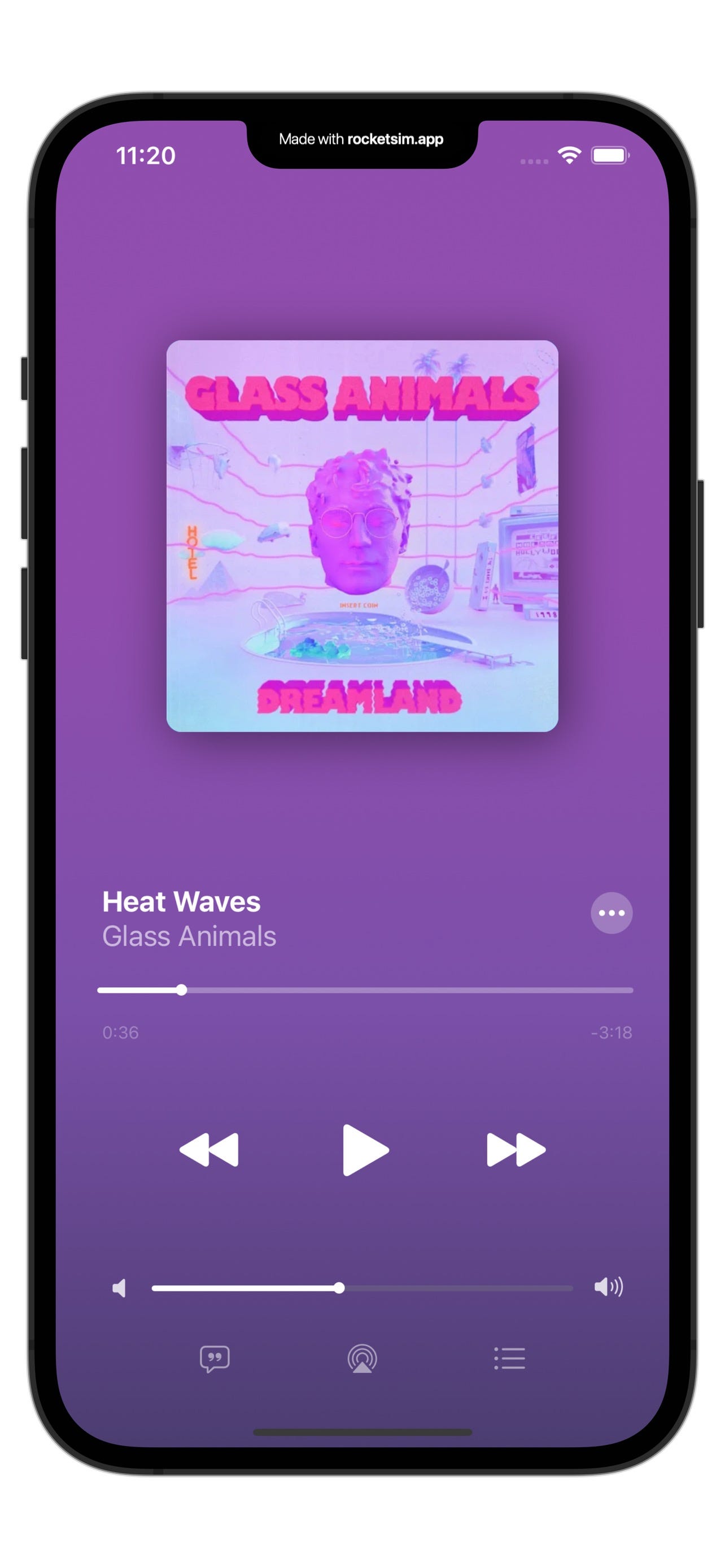

I want to implement automatic music playback. So, I created this function: when the information is loaded, the music starts playing.
Here is the code:
// Playing music
func playMusicAutomatically () {
// Create index change for songList
index = (index + songList.count) % songList.count
// Build the song's location
let url = Bundle.main.url(forResource: songList[index].songName, withExtension: "mp3")!
// Song location login to AVPlayerItem
playerItem = AVPlayerItem(url: url)
// replace current item with a new item.
player.replaceCurrentItem(with: playerItem)
// play song.
player.play()
// musicCoverImageView's image changed by index.
musicCoverImageView.image = UIImage(named: songList[index].coverName)
// artistsLabel's content changed by index.
artistsLabel.text = songList[index].artist
// songNameLabel's content changed by index.
songNameLabel.text = songList[index].songName
// Same frame as view
gradientLayer.frame = view.bounds
// gradientLayerColor's color changed by index.
gradientLayer.colors = songList[index].backGroundColor
// add the view in the bottom view which's layer no.0
view.layer.insertSublayer(gradientLayer, at: 0)
}
* Regarding the Play and Pause functionalities, I use an if-else statement to determine whether the player is currently playing or not. I also invoke the .timeControlStatus method to ascertain the current status. Additionally, I observed that when the music is paused, the album cover becomes smaller.
// Change the mode when Btn is play or pause.
@IBAction func statusBtnTapped(_ sender: UIButton) {
if player.timeControlStatus == .playing {
player.pause()
statusBtn.setupPlayBtn()
subView.viewZoomIOut()
print("now is pause")
} else if player.timeControlStatus == .paused {
player.play()
statusBtn.setPauseBtn()
subView.viewZoomIn()
print("now is play")
}
}
* When the song is played or paused, the coverImage (a UIView) will zoom in or out using CGAffineTransform.identity.scaledBy.
func viewZoomIOut () {
self.transform = CGAffineTransform.identity.scaledBy(x: 0.72, y: 0.72)
}
func viewZoomIn () {
self.transform = CGAffineTransform.identity.scaledBy(x: 1, y: 1)
}
> **Reference:**
[**利用 AVPlayer 播放音樂音效**
*1 查詢音樂的網址。*medium.com](https://medium.com/%E5%BD%BC%E5%BE%97%E6%BD%98%E7%9A%84-swift-ios-app-%E9%96%8B%E7%99%BC%E5%95%8F%E9%A1%8C%E8%A7%A3%E7%AD%94%E9%9B%86/%E5%88%A9%E7%94%A8-viewdidload-%E9%BB%9E%E4%B8%80%E9%A6%96%E6%AD%8C-%E6%92%AD%E6%94%BE%E4%B8%80%E6%AC%A1pl-bfe59e9e22c)
[**Zooming out animation Swift**
*I'm trying to do some animation for a UIImageView (only zooming out) 1- I set the frame to be bigger than the screen to…*stackoverflow.com](https://stackoverflow.com/questions/52800408/zooming-out-animation-swift)
### 3. Adjusting volume by using UISlider.

For the volumeSlider, I'm using volumeSlider.value to set the player.volume. This allows you to adjust the volume using the slider.
//volumeSlider coordinate with slider's value.
@IBAction func volumeSliderValueChanged(_ sender: UISlider) {
player.volume = Float(volumeSlider.value)
}
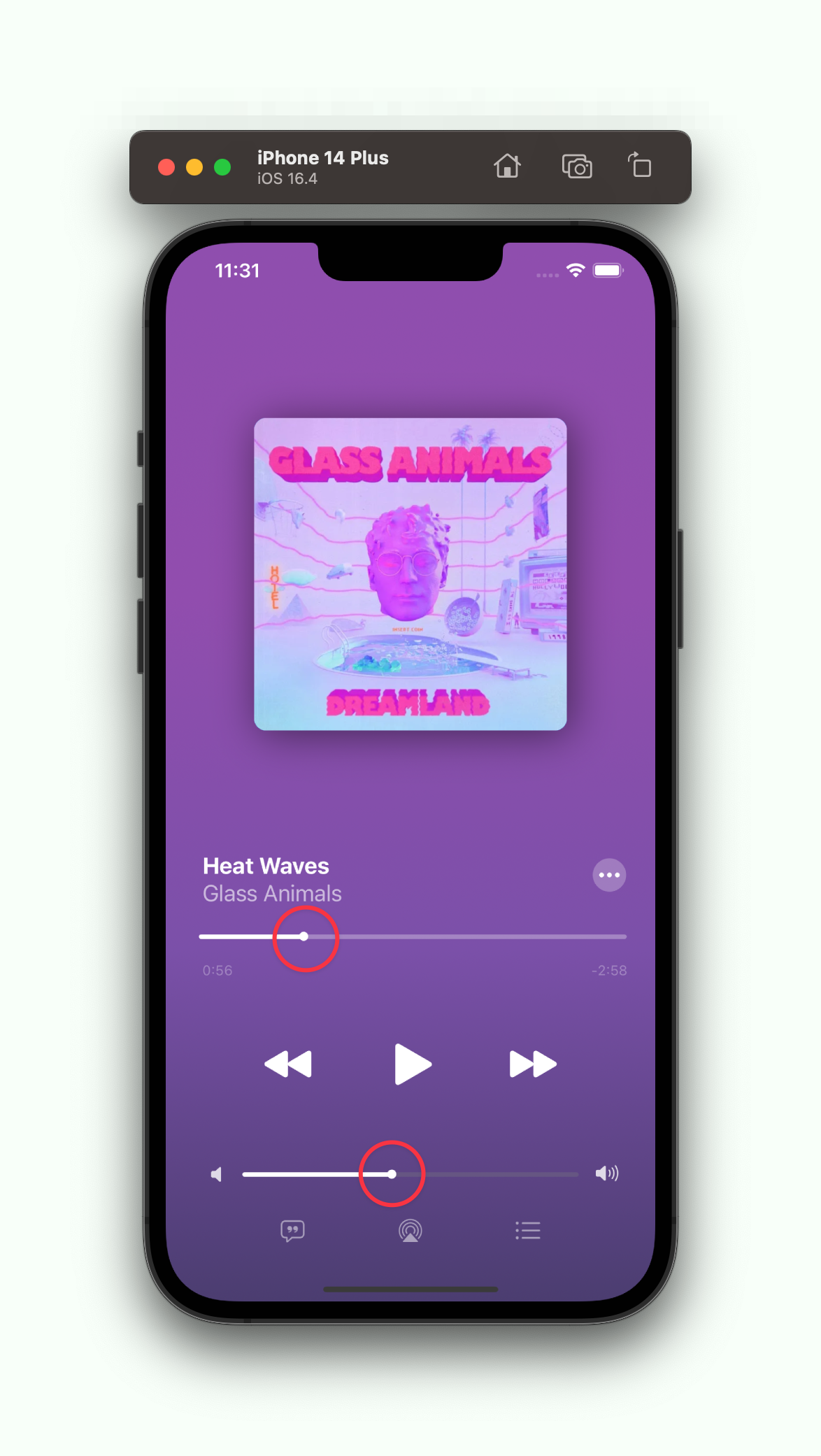
For the UI, I adjusted the thumbImage and pointSize to make it look more like Apple Music's UI.
func setupSongLengthThumbImage () {
let configuration = UIImage.SymbolConfiguration(pointSize: 8)
let image = UIImage(systemName: "circle.fill", withConfiguration: configuration)
songLengthSlider.setThumbImage(image, for: .normal)
}
func setupVolumeSliderThumbImage () {
let configuration = UIImage.SymbolConfiguration(pointSize: 8)
let image = UIImage(systemName: "circle.fill", withConfiguration: configuration)
volumeSlider.setThumbImage(image, for: .normal)
}
> **Reference:**
* Adjust slider’s thumbImage
[**How to make UISlider default thumb to be smaller like the ones in the iOS control center**
*I'm working on an app and I have a custom UISlider. However, I'm having some issues on how to make the default thumb to…*stackoverflow.com](https://stackoverflow.com/questions/42092907/how-to-make-uislider-default-thumb-to-be-smaller-like-the-ones-in-the-ios-contro#:~:text=You%20can%27t%20change%20the,pass%20a%20similar%2C%20smaller%20image.&text=See%20Customizing%20the%20Slider%27s%20Appearance%20of%20the%20API%20Reference.)
### 4. Playing the previous or next track.
Regrading we want to change play Forward or play backward.
Basically I copied the same function as Apple Music, I use the index’s count to do the song changed also play the music.
Example:
index += 1 or index -= 1
* Play Forward
// forwardBtn tapped
@IBAction func forwardBtnTapped(_ sender: UIButton) {
index += 1
print(index)
playMusicAutomatically ()
print("forwardBtnTapped")
}
* Play Backward
hen I was trying to implement the Play backward function in Xcode, I copied the same function for playing backward.
If backwardBtnTappedCount equals 1, then I use player.seek(to: .zero) to return the song to the beginning.
However, if backwardBtnTappedCount is greater than or equal to 1, the song will revert to the previous one.
// trigger backwardBtn
@IBAction func backwardBtnTapped(_ sender: UIButton) {
backwardBtnTappedCount += 1
if backwardBtnTappedCount == 1 {
player.seek(to: .zero)
playMusicAutomatically ()
print("backwardBtnTappedCount equal 1")
} else if backwardBtnTappedCount >= 1 {
index -= 1
print(index)
playMusicAutomatically ()
print("backwardBtnTappedCount greater than 1")
}
}
### 5. Changing the gradient background colour based on the song.
Regrading the gradient background is about the how do we do the color gradient changing in the layer.
Create a struct for SongInfo.
struct SongInfo {
var songName : String
var artist : String
var coverName : String
var backGroundColor : [CGColor]
}
Then I defined few backGroundColor content in songList.
let songList = [
//index == 0
SongInfo(
songName: "rocking chair",
artist: "wavcrush",
coverName: "wavcrushRockingChair",
backGroundColor: [
UIColor(red: 71/255, green: 85/255, blue: 118/255, alpha: 1.0).cgColor,
UIColor(red: 70/255, green: 85/255, blue: 111/255, alpha: 1.0).cgColor,
UIColor(red: 43/255, green: 52/255, blue: 69/255, alpha: 1.0).cgColor ]),
//index == 1
SongInfo(
songName: "0755",
artist: "Lil Jet",
coverName: "6JET",
backGroundColor: [
UIColor(red: 59/255, green: 51/255, blue: 54/255, alpha: 1.0).cgColor,
UIColor(red: 78/255, green: 62/255, blue: 78/255, alpha: 1.0).cgColor,
UIColor(red: 46/255, green: 38/255, blue: 54/255, alpha: 1.0).cgColor ]),
//index == 2
SongInfo(
songName: "心如止水",
artist: "Ice Paper",
coverName: "成語接龍",
backGroundColor: [
UIColor(red: 43/255, green: 43/255, blue: 43/255, alpha: 1.0).cgColor,
UIColor(red: 54/255, green: 54/255, blue: 54/255, alpha: 1.0).cgColor,
UIColor(red: 29/255, green: 29/255, blue: 29/255, alpha: 1.0).cgColor ]),
//index == 3
SongInfo(
songName: "Heat Waves",
artist: "Glass Animals",
coverName: "Heat Waves",
backGroundColor: [
UIColor(red: 143/255, green: 78/255, blue: 174/255, alpha: 1.0).cgColor,
UIColor(red: 145/255, green: 77/255, blue: 174/255, alpha: 1.0).cgColor,
UIColor(red: 123/255, green: 80/255, blue: 169/255, alpha: 1.0).cgColor,
UIColor(red: 75/255, green: 61/255, blue: 112/255, alpha: 1.0).cgColor ])
]
* We need to set up view.bounds and gradientLayer.colors. Also, insert the sublayer at the bottom using layer.insertSublayer, setting that layer's index to 0.
// Same frame as view
gradientLayer.frame = view.bounds
// gradientLayerColor's color changed by index.
gradientLayer.colors = songList[index].backGroundColor
// add the view in the bottom view which's layer no.0
view.layer.insertSublayer(gradientLayer, at: 0)
> **Reference:**
[**利用 CAGradientLayer 製作漸層背景**
*參考以下連結 CAGradientLayer 的介紹,我們可以為 iOS App 畫面加上美麗的漸層背景。*medium.com](https://medium.com/%E5%BD%BC%E5%BE%97%E6%BD%98%E7%9A%84-swift-ios-app-%E9%96%8B%E7%99%BC%E5%95%8F%E9%A1%8C%E8%A7%A3%E7%AD%94%E9%9B%86/%E5%88%A9%E7%94%A8-cagradientlayer-%E8%A3%BD%E4%BD%9C%E6%BC%B8%E5%B1%A4%E8%83%8C%E6%99%AF-a10c7cfd7f75)
### 6. Displaying the song’s duration.

**To show the song duration:**
There are a few points to note. Due to the iOS 16.0 upgrade introducing new APIs for AVFoundation, the old method of retrieving the duration using asset.duration has been deprecated. We need to find a new approach.
* Apple suggest us to use this function to get song duration in New iOS 16.
let duration = try? await asset.load(.duration)
* Create an updateSongDuration() to get full content in this function and do the type annotation in this function and add async into this code lines.
func updateSongDuration() async {
/// Get songDuration by new solution.
// 1. Define AVURLAsset first.
let url = Bundle.main.url(forResource: songList[index].songName, withExtension: "mp3")!
// 2. Store asset from AVURLAsset location.
let asset = AVURLAsset(url: url, options: nil)
// 3. Get duration from asset
// Make sure asset.load is exist.
let duration = try? await asset.load(.duration)
// 4. Get total seconds (Float) by type annotation from CMTimeGetSeconds.
let songDurationSec = CMTimeGetSeconds(duration!)
// Print out(total DurationSec when song is playing)
print(songDurationSec)
///Get currentTime of song.
// 1. Get currentSongSecs by using CMTimeGetSeconds
let currentSongInSecs = CMTimeGetSeconds(self.player.currentTime())
// 2. Type annotation from float to Int, Int to String.
let currentSongDurationSec = String(format: "%02d", Int(currentSongInSecs) % 60)
// 3. Get minutes from float to Int, Int to String.
let currentSongDurationMin = String(Int(currentSongInSecs) / 60)
// 4.
self.songDurationStartLabel.text = "\(currentSongDurationMin):\(currentSongDurationSec)"
/// Calculate remainSongSec
let remainSongInSecs = songDurationSec - currentSongInSecs
// 1. Same from top solution to get total second.
let remainSongDurationSec = String(format: "%02d", Int(remainSongInSecs) % 60)
// 2. Same from top solution to get minutes.
let remainSongDurationMin = String(Int(remainSongInSecs) / 60)
// Print out(songDurationSec when song is playing)
self.songDurationEndLabel.text = "-\(remainSongDurationMin):\(remainSongDurationSec)"
/// setup songLengSlider from songDurationSec
songLengthSlider.maximumValue = Float(songDurationSec)
songLengthSlider.value = Float(currentSongInSecs)
}
* Use the player.addPeriodicTimeObserver to get the time.
///Use the player addPeriodicTimeObserver to observe the TIME and set up second equals 1 and TimeScale count by per second.
func observeSongTimeUpdates() {
player.addPeriodicTimeObserver(forInterval: CMTime(seconds: 1, preferredTimescale: CMTimeScale(NSEC_PER_SEC)), queue: .main) { [weak self] _ in
Task {
await self?.updateSongDuration()
}
}
}
[**addPeriodicTimeObserver(forInterval:queue:using:) | Apple Developer Documentation**
*Requests the periodic invocation of a given block during playback to report changing time.*developer.apple.com](https://developer.apple.com/documentation/avfoundation/avplayer/1385829-addperiodictimeobserver)
After we finish it, when we change the song then song duration will show different length.
### 7. Displaying the “moreButton” with a UIMenu that contains a few additional functions.
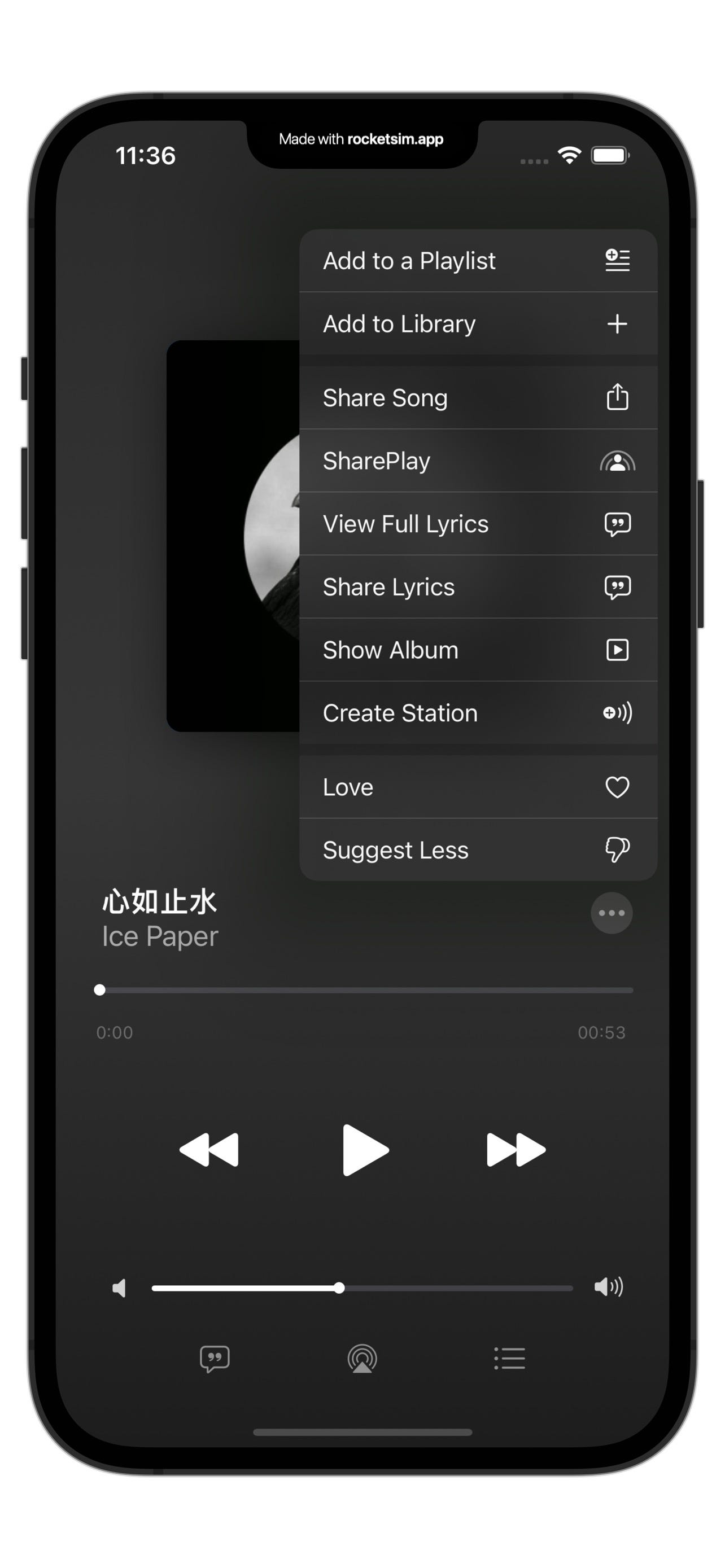
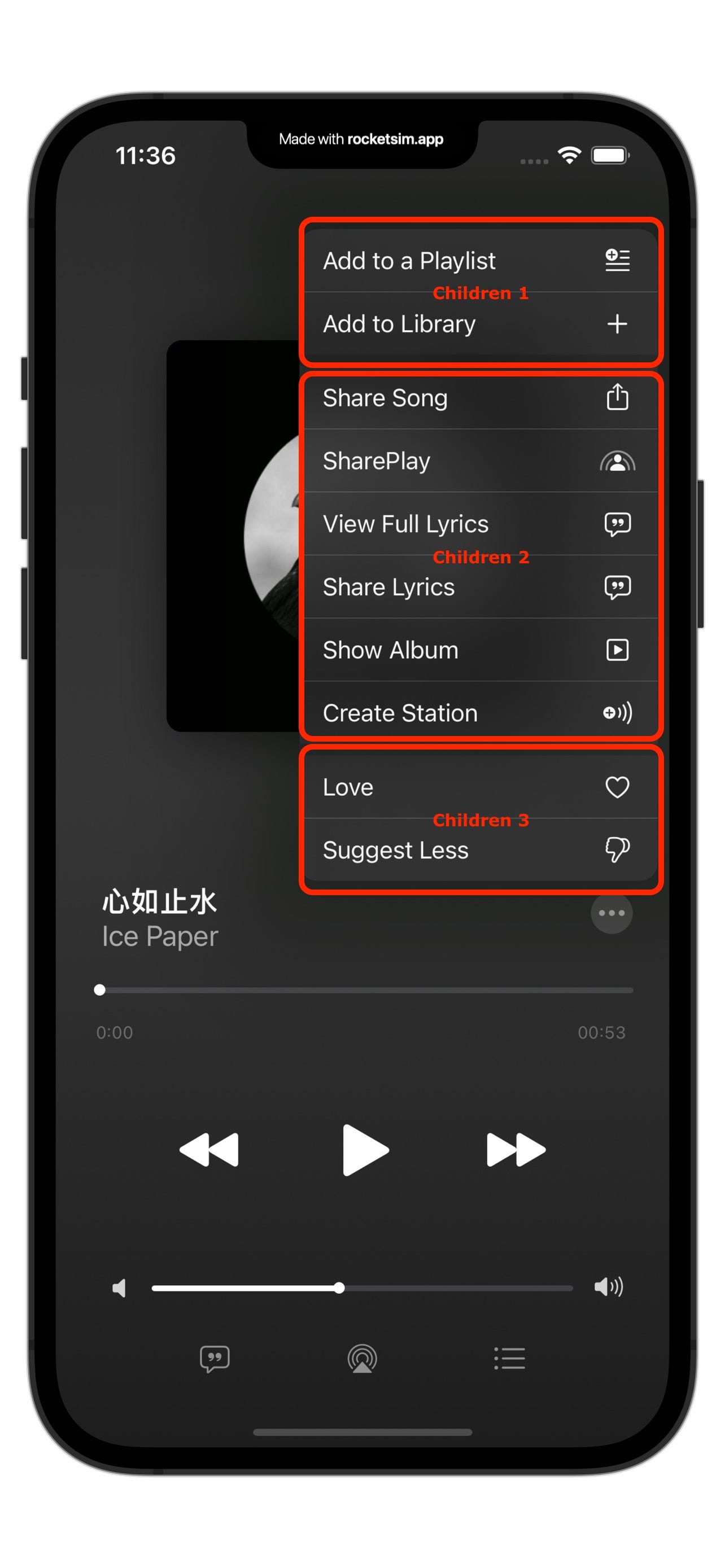
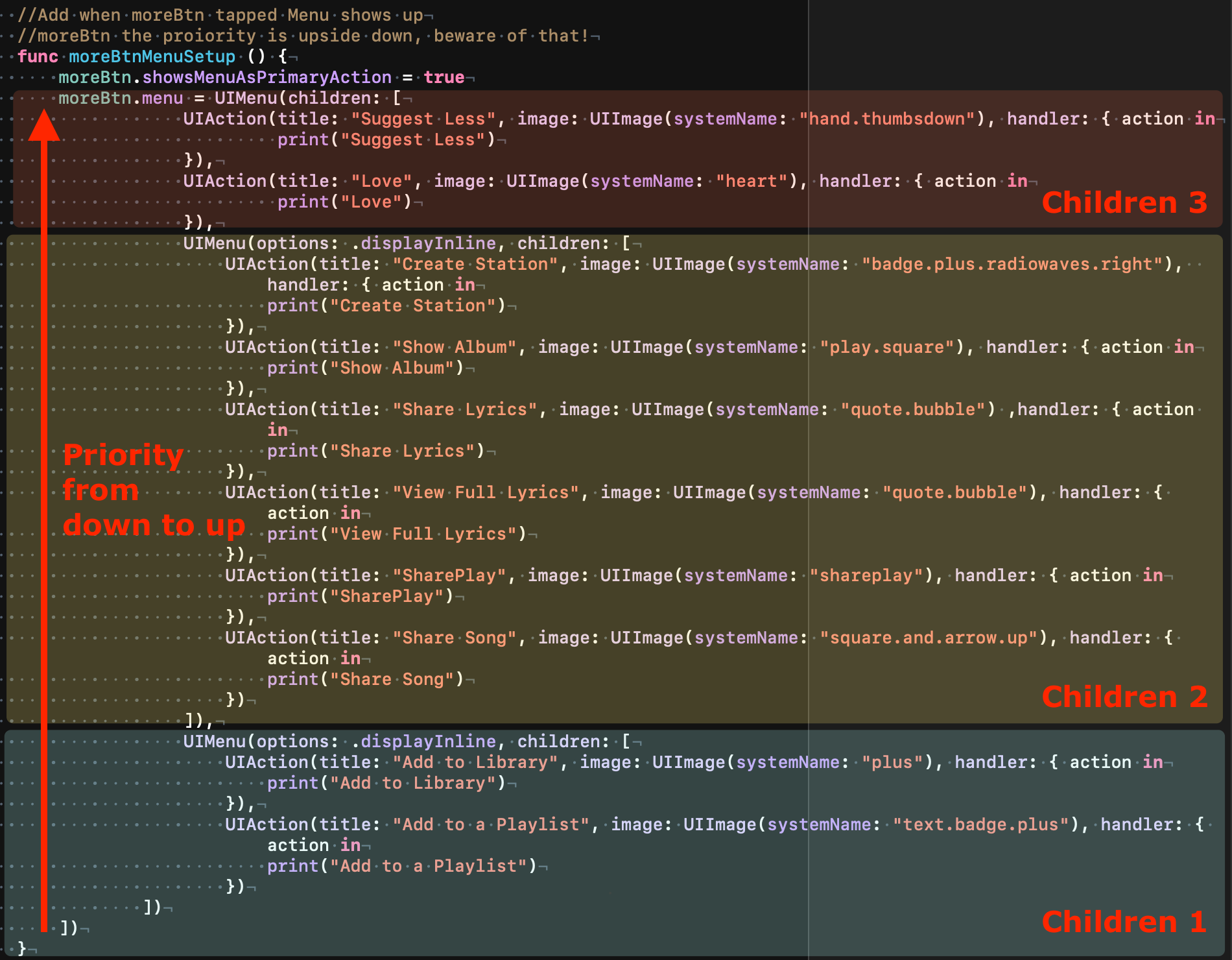
* Presenting a UIMenu is relatively straightforward. I followed Peter Pan’s article for guidance.
* From the top of the image, you can see three sections of code. Each section presents a child view, and they are arranged from bottom to top.
Pretty Simple, right?
//Add when moreBtn tapped Menu shows up
//moreBtn the proiority is upside down, beware of that!
func moreBtnMenuSetup () {
moreBtn.showsMenuAsPrimaryAction = true
moreBtn.menu = UIMenu(children: [
UIAction(title: "Suggest Less", image: UIImage(systemName: "hand.thumbsdown"), handler: { action in
print("Suggest Less")
}),
UIAction(title: "Love", image: UIImage(systemName: "heart"), handler: { action in
print("Love")
}),
UIMenu(options: .displayInline, children: [
UIAction(title: "Create Station", image: UIImage(systemName: "badge.plus.radiowaves.right"), handler: { action in
print("Create Station")
}),
UIAction(title: "Show Album", image: UIImage(systemName: "play.square"), handler: { action in
print("Show Album")
}),
UIAction(title: "Share Lyrics", image: UIImage(systemName: "quote.bubble") ,handler: { action in
print("Share Lyrics")
}),
UIAction(title: "View Full Lyrics", image: UIImage(systemName: "quote.bubble"), handler: { action in
print("View Full Lyrics")
}),
UIAction(title: "SharePlay", image: UIImage(systemName: "shareplay"), handler: { action in
print("SharePlay")
}),
UIAction(title: "Share Song", image: UIImage(systemName: "square.and.arrow.up"), handler: { action in
print("Share Song")
})
]),
UIMenu(options: .displayInline, children: [
UIAction(title: "Add to Library", image: UIImage(systemName: "plus"), handler: { action in
print("Add to Library")
}),
UIAction(title: "Add to a Playlist", image: UIImage(systemName: "text.badge.plus"), handler: { action in
print("Add to a Playlist")
})
])
])
}
> **Reference:**
[https://medium.com/彼得潘的-swift-ios-app-開發問題解答集/ios-的選單-menu-按鈕-pull-down-button-pop-up-button-2ddab2181ee5](https://medium.com/%E5%BD%BC%E5%BE%97%E6%BD%98%E7%9A%84-swift-ios-app-%E9%96%8B%E7%99%BC%E5%95%8F%E9%A1%8C%E8%A7%A3%E7%AD%94%E9%9B%86/ios-%E7%9A%84%E9%81%B8%E5%96%AE-menu-%E6%8C%89%E9%88%95-pull-down-button-pop-up-button-2ddab2181ee5)
### 8. Showcasing different devices available through AirPlay.
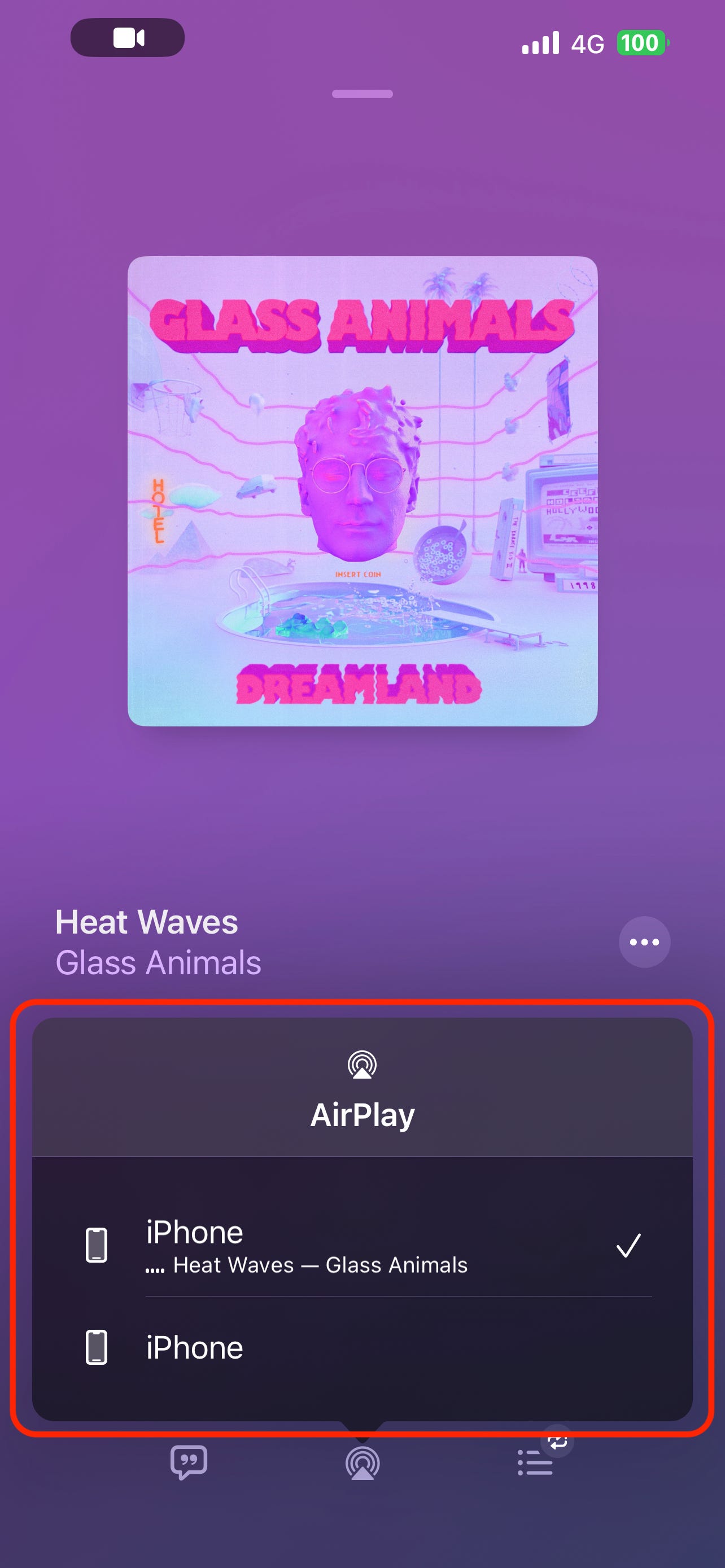
Before we start creating the AirPlay functionality, we need to understand when Apple introduced [AirPlay](https://developer.apple.com/design/human-interface-guidelines/airplay/) and [its intended use.](https://www.apple.com/airplay/)
For more detailed information, you can watch this [video](https://developer.apple.com/videos/play/wwdc2019/501) from WWDC19.
There are very few examples available for the airPlayBtn, so it took me a couple of days to figure out how to implement this feature in my music player app.
First, we need to import AVKit, MediaPlayer, and AVRouting, and also implement the AVRoutePickerViewDelegate, so that AVRoutePickerView can be used.
* Create a routePickerView using AVRoutePickerView().
import UIKit
import AVKit
import AVFoundation
import MediaPlayer
import AVRouting
class MusicPlayerViewController: UIViewController, AVAudioPlayerDelegate, AVRoutePickerViewDelegate {
// setup routePickerView
let routePickerView = AVRoutePickerView()
// setup routeDetector
let routeDetector = AVRouteDetector()
* Set up the AirPlay button and then import the routePickerView.delegate to itself.
override func viewDidLoad() {
super.viewDidLoad()
updateUI ()
playMusicAutomatically ()
// Setup AirPlayButton
routePickerView.delegate = self
setupAirplayButton()
observeSongTimeUpdates()
artistsLabel.adjustsFontSizeToFitWidth = true
songNameLabel.adjustsFontSizeToFitWidth = true
let tapGesture = UITapGestureRecognizer(target: self, action: #selector(handleTap))
view.addGestureRecognizer(tapGesture)
}
* Set up routePickerView by function.

// Setup Route PickerView
func setupAirplayButton() {
//routePickerView frame size.
routePickerView.frame = CGRect(x: 174, y: 600, width: 80, height: 80)
//Set up UI for routePickerView
routePickerView.activeTintColor = UIColor.systemPink
routePickerView.backgroundColor = UIColor.black
routePickerView.tintColor = UIColor.white
//addSubview for routePickerView
self.view.addSubview(routePickerView)
}
* Trigger the airPlayerBtn action when airPlayerBtnTapped is called.
// airPlayer tapped
@IBAction func airPlayerBtnTapped(_ sender: UIButton) {
setupAirplayButton()
print("airPlayerBtnTapped")
}
**Reference:**
Apple Documentation:
[**AVRouting | Apple Developer Documentation**
*Display custom destinations to stream media in the system route picker.*developer.apple.com](https://developer.apple.com/documentation/avrouting)
[**AVRoutePickerView | Apple Developer Documentation**
*A view that presents a list of nearby media receivers.*developer.apple.com](https://developer.apple.com/documentation/avkit/avroutepickerview/)
Stackoverflow:
[**AVRoutePickerView Won't Change Color when Airplay is Active**
*I have a AVRoutePickerView in a ViewController that I can't get to change color when it's using Airplay…*stackoverflow.com](https://stackoverflow.com/questions/56082698/avroutepickerview-wont-change-color-when-airplay-is-active)
### 9. Displaying the album cover with cornerRadius and shadow.
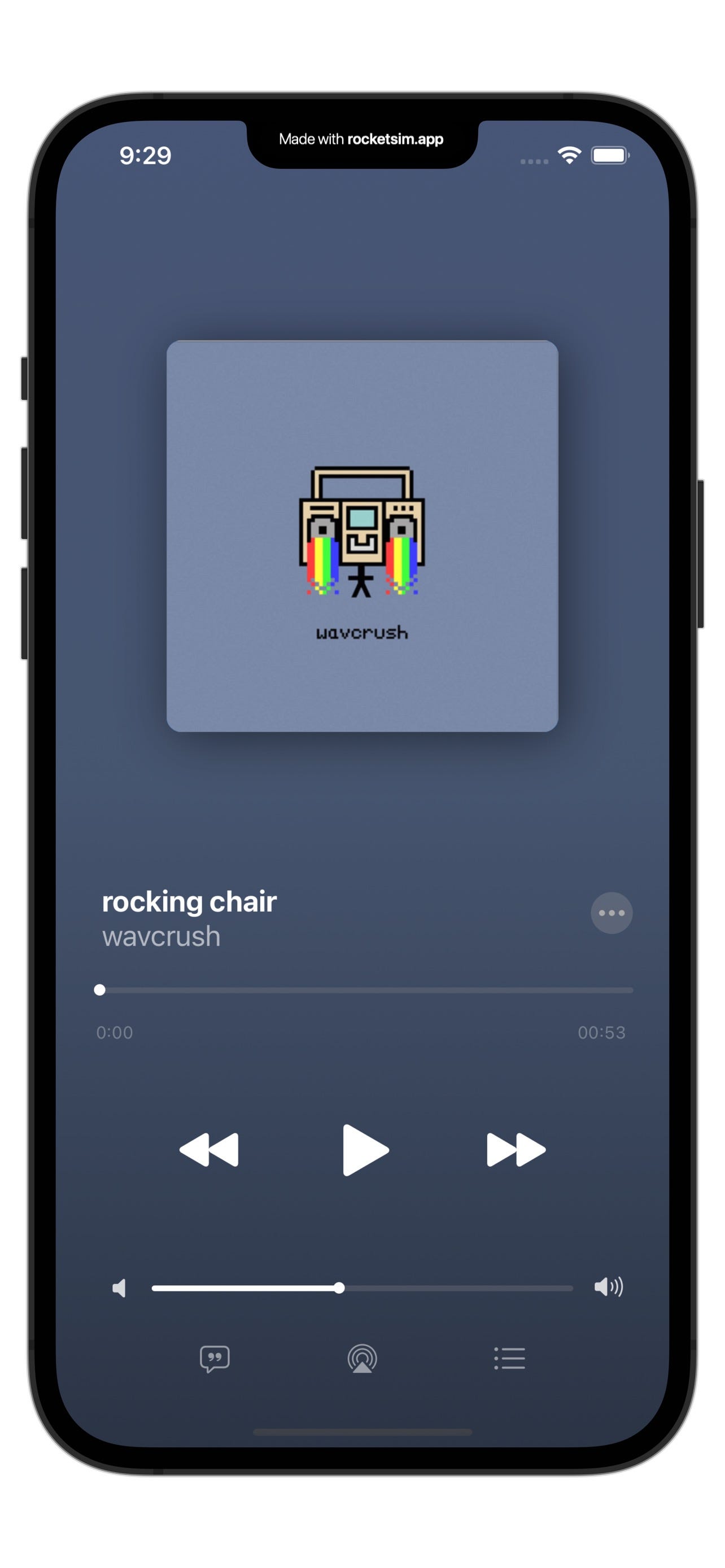

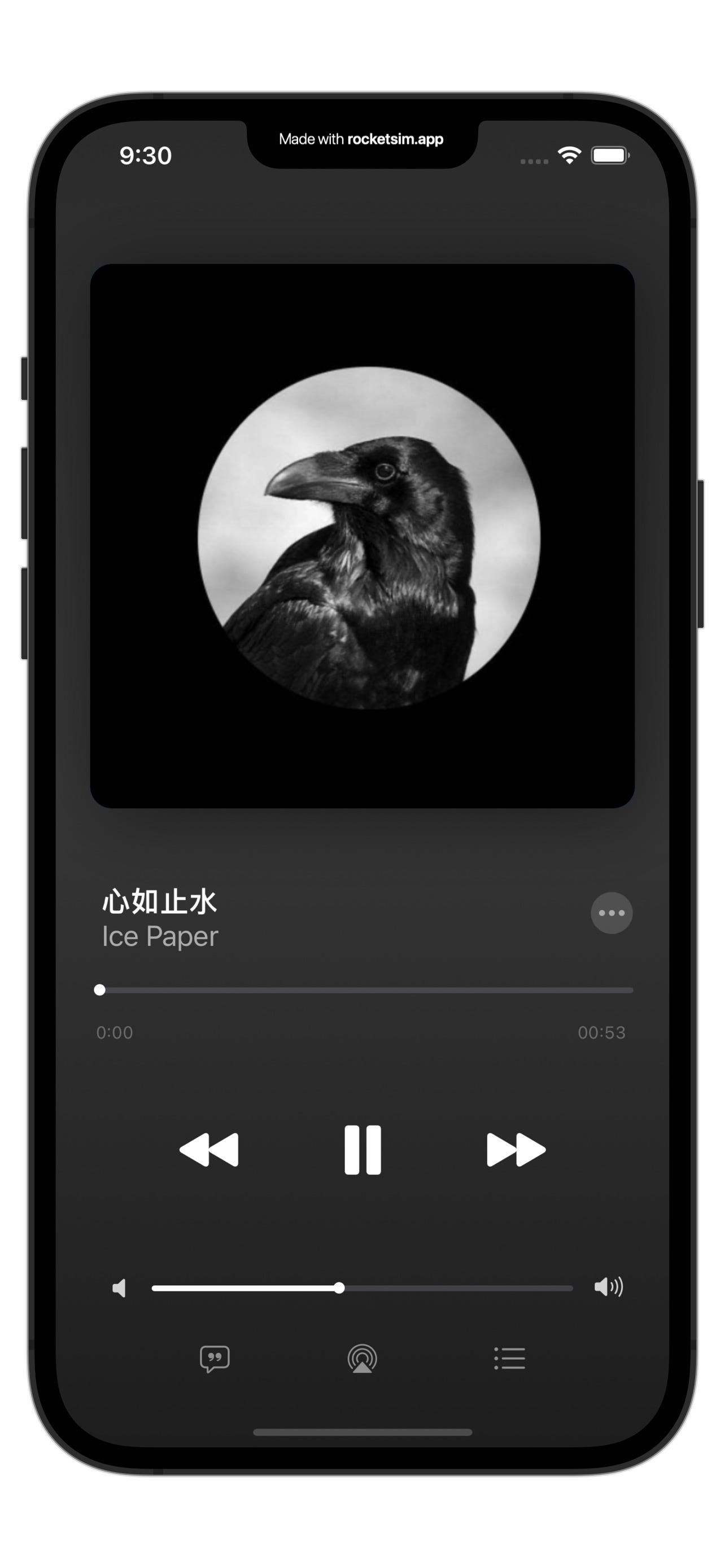
* To display the imageView with cornerRadius and shadow, there are two ways to approach this topic.
1. Place the imageView inside a UIView. Set the cornerRadius for the imageView and add a shadow to the UIView using the storyboard.
[**讓圖片同時有圓角和陰影 — SwiftUI & UIKit**
*以下分別介紹 SwiftUI & UIKit 的做法。*medium.com](https://medium.com/%E5%BD%BC%E5%BE%97%E6%BD%98%E7%9A%84-swift-ios-app-%E9%96%8B%E7%99%BC%E5%95%8F%E9%A1%8C%E8%A7%A3%E7%AD%94%E9%9B%86/%E5%90%8C%E6%99%82%E5%AF%A6%E7%8F%BE%E5%9C%93%E8%A7%92%E5%92%8C%E9%99%B0%E5%BD%B1-bee263a41c7)
2. Use a programmatic approach to set the cornerRadius for the imageView and add a shadow using CALayer's extension in Swift.
[**Views with Rounded Corners and Shadows**
*For the last few years the overarching design pattern in apps, both mobile and web, has been flat. With iOS 7 and…*medium.com](https://medium.com/swifty-tim/views-with-rounded-corners-and-shadows-c3adc0085182)
I chose the first option because it was quite easy.
I created a UIView and placed the imageView inside it. I then set the cornerRadius for the imageView and added a shadow to the UIView I created.
func updateUI () {
musicCoverImageView.layer.cornerRadius = cornerRadius
musicCoverImageView.layer.shadowOffset = CGSize(width: 0, height: 10)
musicCoverImageView.clipsToBounds = true
subView.layer.cornerRadius = cornerRadius
subView.layer.shadowColor = UIColor.black.cgColor
subView.layer.shadowOffset = CGSize(width: 5.0, height: 5.0)
subView.layer.shadowRadius = 25.0
subView.layer.shadowOpacity = 0.5
subView.layer.shadowPath = UIBezierPath(roundedRect: musicCoverImageView.bounds, cornerRadius: cornerRadius).cgPath
// Add height for Slider
songLengthSlider.customSongLengthSlider()
volumeSlider.customVolumeSlider()
setupSongLengthThumbImage ()
setupVolumeSliderThumbImage ()
// Add Alpha for btn
lyrisBtn.addBtnAlpha()
airPlayBtn.addBtnAlpha()
listBtn.addBtnAlpha()
// Add Alpha for label
artistsLabel.addLabelAlphaSec()
// Setup SongDurationStartLabel
songDurationStartLabel.text = "--:--"
songDurationStartLabel.addLabelAlpha()
// Setup SongDurationEndLabel
songDurationEndLabel.text = "--:--"
songDurationEndLabel.addLabelAlpha()
// UI for playBtn
statusBtn.setupPlayBtn()
statusBtn.setPauseBtn()
//LyrisBtn trigger
lyrisBtn.addTarget(self, action: #selector(buttonTouchUp), for: .touchDown)
lyrisBtn.addTarget(self, action: #selector(buttonTouchUp), for: [.touchUpInside, .touchUpOutside, .touchCancel])
//airPlayBtn trigger
airPlayBtn.addTarget(self, action: #selector(buttonTouchUp), for: .touchDown)
airPlayBtn.addTarget(self, action: #selector(buttonTouchUp), for: [.touchUpInside, .touchUpOutside, .touchCancel])
listBtn.addTarget(self, action: #selector(buttonTouchUp), for: .touchDown)
listBtn.addTarget(self, action: #selector(buttonTouchUp), for: [.touchUpInside, .touchUpOutside, .touchCancel])
}
### 10. Showcasing how to play music when the app is in background mode.
* Add these lines of code to the App delegate to successfully play music in background mode.:
// Playing music when the app is in the background.
try? AVAudioSession.sharedInstance().setCategory(.playback)
// Playing music on an iPhone while it's on the lock screen.
application.beginReceivingRemoteControlEvents()
return true
# 設定 Background Mode 在背景播放音樂
開發音樂播放的 App 時,我們時常需要讓音樂在背景也能繼續播放。這樣的功能只需調整 Background Mode 和設定 AVAudioSession 即可實現。
[原文連結](https://medium.com/%E5%BD%BC%E5%BE%97%E6%BD%98%E7%9A%84-swift-ios-app-%E9%96%8B%E7%99%BC%E5%95%8F%E9%A1%8C%E8%A7%A3%E7%AD%94%E9%9B%86/%E8%A8%AD%E5%AE%9A-background-mode-%E5%9C%A8%E8%83%8C%E6%99%AF%E6%92%AD%E6%94%BE%E9%9F%B3%E6%A8%82-9bab5db75cc9)
## 相關參考資料:
1. [利用 AVPlayer 播放音樂音效](https://medium.com/%E5%BD%BC%E5%BE%97%E6%BD%98%E7%9A%84-swift-ios-app-%E9%96%8B%E7%99%BC%E5%95%8F%E9%A1%8C%E8%A7%A3%E7%AD%94%E9%9B%86/%E5%88%A9%E7%94%A8-viewdidload-%E9%BB%9E%E4%B8%80%E9%A6%96%E6%AD%8C-%E6%92%AD%E6%94%BE%E4%B8%80%E6%AC%A1pl-bfe59e9e22c)
2. [#11 原本以為只是做音樂播放器而已](https://medium.com/%E5%BD%BC%E5%BE%97%E6%BD%98%E7%9A%84-swift-ios-app-%E9%96%8B%E7%99%BC%E6%95%99%E5%AE%A4/11-%E5%8E%9F%E6%9C%AC%E4%BB%A5%E7%82%BA%E5%8F%AA%E6%98%AF%E5%81%9A%E9%9F%B3%E6%A8%82%E6%92%AD%E6%94%BE%E5%99%A8%E8%80%8C%E5%B7%B2-ebb2092002a0)
3. [Swift 仿刻 Apple 音樂播放器,來點音樂](https://medium.com/%E5%BD%BC%E5%BE%97%E6%BD%98%E7%9A%84-swift-ios-app-%E9%96%8B%E7%99%BC%E6%95%99%E5%AE%A4/swift%E4%BB%BF%E5%88%BBapple%E9%9F%B3%E6%A8%82%E6%92%AD%E6%94%BE%E5%99%A8-%E4%BE%86%E9%BB%9E%E9%9F%B3%E6%A8%82-29efd328cf77)
[**設定 Background Mode 在背景播放音樂**
*開發音樂播放的 App 時,我們時常需要讓音樂在背景也能繼續播放,這樣的功能是如何實現的呢 ? 只要調整 Background Mode & 設定 AVAudioSession 即可實現。*medium.com](https://medium.com/%E5%BD%BC%E5%BE%97%E6%BD%98%E7%9A%84-swift-ios-app-%E9%96%8B%E7%99%BC%E5%95%8F%E9%A1%8C%E8%A7%A3%E7%AD%94%E9%9B%86/%E8%A8%AD%E5%AE%9A-background-mode-%E5%9C%A8%E8%83%8C%E6%99%AF%E6%92%AD%E6%94%BE%E9%9F%B3%E6%A8%82-9bab5db75cc9)
> Here’s my GitHub repository link:
[GitHub - dwhao84/HW-32_Apple_Music_iOS](https://github.com/dwhao84/HW-32_Apple_Music_iOS.git)
 Sign in with Wallet
Connect another wallet
Sign in with Wallet
Connect another wallet