# Git + Lab workshop

<small>xkcd</small>
## Gitlab
Using gitlab pages (gitlab.io) as a minimal web server.
You should already have a gitlab account (keep track of your credentials), and be logged in.
### Creating a static web server through gitlab pages
1. Go to https://gitlab.com/pages/plain-html (We are using a very simple static server in this case. If curious, you can see the other example projects at https://gitlab.com/pages).
2. On the top right click the 'fork' button
3. Select a "namespace" (just select the option with your username).
4. Once it is forked, go to settings -> Advanced -> click on "remove forking relationship"
5. You will see that the files are in your gitlab repository (http://gitlab.com/YOURUSERNAME/plain-html)
6. Go to your CI/CD tab -> pipelines, and click "run pipeline" (be patient after this step, it can take a bit)
7. After some minutes, your site should be available at http://YOURUSERNAME.gitlab.io/plain-html (you can also see where your pages are served, at settings -> pages)
8. Change the URL of your page. Go to Settings -> General -> click on Advanced -> and go to Change path section. You can use any name.
*if the pipeline is stucked, check https://status.gitlab.com/ for platform errors
*from now one we (hopefully) won't need to make any changes directly on gitlab. We will work completely locally and synchronize our changes with the server.
## GIT
* version control system (track changes in folders/files)
* snapshots stored in an "invisible" `.git` folder
* a history of snapshots of a file system

<small>local git workflow</small>
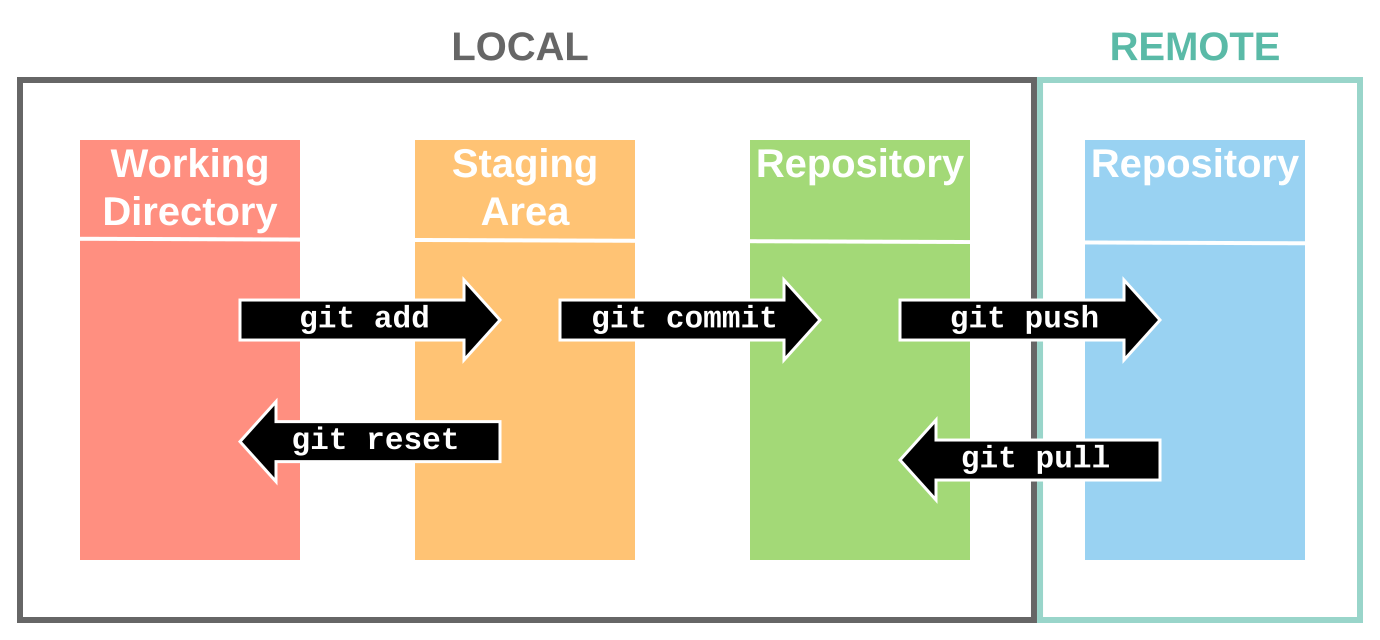
<small>local + remote git workflow</small>
1. **Install GIT**
* on macOS: open a terminal and type `git --version` . This will prompt an installer if you don't have it already
* on Windows: download the installer from https://git-scm.com/download/win
*(see https://git-scm.com/book/en/v2/Getting-Started-Installing-Git)
2. **Clone (import) your server repository to a local version**
1. Go to your project repository on gitlab (not the live apge version): http://gitlab.com/YOURUSERNAME/PROJECTNAME
2. Click on "clone", and copy the "clone with HTTPS" address
3. Open a terminal
4. Create or navigate to the folder where you want to store the project locally (any place will do, but it is recommended to have an easy access)
5. Once in your folder enter `git clone ADDRESS` (this will create a new folder with all the folders and files from your gitlab repository)
3. **Go into your project folder and make some changes** (e.g. create a directory or add a file. If you are familiar with HTML, feel free to make changes to the "index.html" file in the public folder)
4. **Add these changes to the staging area and to a "screenshot" of the local repository**
1. Open a terminal and navigate to your project folder (where the README.md file is located)
2. type `git add .` to add (all) the changes to the staging area
3. type commit `git commit -m "COMMENT"` (commenting your changes is useful to know what has been added in your snapshot)
5. **Synchronize this changes with the server repository**
1. Open a terminal and navigate to your project folder (where the README.md file is located)
2. (to send changes to the server) `git push origin master` (you will be asked for your username and password, the same ones that you use to log in into gitlab)
6. **Add some content to the file structure and to your page locally, then synchronize**
1. Download and add the following image to your folder project: https://imgs.xkcd.com/comics/git.png
2. Open your index html, and add the following line ` <img src="git.png">` after your hello world statement
3. Add, commit, and push your changes
4. See if your changes are synchronized by opening the web version of your page
**Other useful commands:**
* `git status`: information about our git system
* `git log`: history of changes
* `git reflog`: shows a list of your commits (snapshots)
* `git reset --hard COMMITNUMBER`: go back to a previous version of your project (**only use this if you are sure about it!**)
**Guide built from:**
* https://coderefinery.github.io/git-intro
* https://docs.gitlab.com/ce/user/project/pages/getting_started/pages_forked_sample_project.html
* https://git-scm.com/book/en/v2/Getting-Started-Installing-Git
* https://docs.gitlab.com/ee/gitlab-basics/start-using-git.html
 Sign in with Wallet
Connect another wallet
Sign in with Wallet
Connect another wallet