# Openshift 4.11 UPI安装部署
#OpenShift5个
#容器5个
本篇用于记录和梳理Openshift 4.11 UPI(User Provisioned Infrastructure) bare metal的安装部署过程和所需的配置文件。
底层环境采用esxi7.0虚拟化环境。具体架构信息如下:
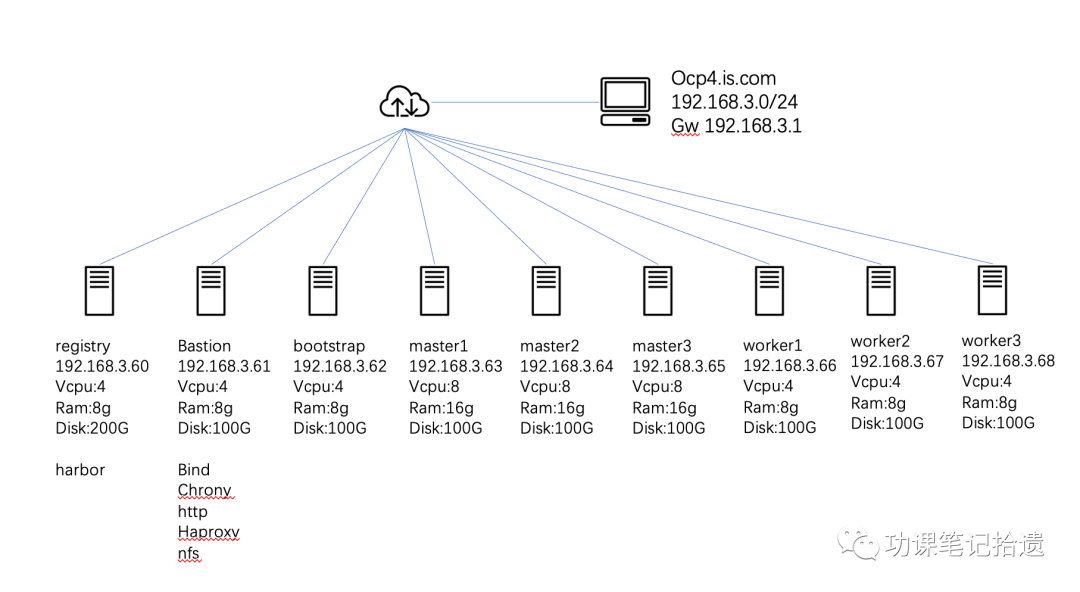
**1 准备工作:**
1. 下载 CentOS 8 x86_64 image以及准备对应yum源
2. 登陆RedHat OpenShift Cluster Manager https://console.redhat.com/openshift
3. 选择cluster -> create cluster -> datacenter -> bare metal(x86_64) -> User-provisioned infrastructure
4. 下载相关文件:
- Openshift Installer for Linux
- Pull secret
- Command Line tools
- Red Hat Enterprise Linux CoreOS (RHCOS) ISO
**2 准备Registry Node**
Registry node将从quay.io下载openshift安装所需的镜像包到本地环境,作为本地镜像仓库提高安装部署的效率和速度。
安装harbor需要的docker-ce以及docker-compose
#curl -o docker.repo https://download.docker.com/linux/centos/docker-ce.repo
#yum install docker-ce docker-compose-plugin
#systemctl enable docker && systemctl start docker
下载harbor离线安装包
#wget https://github.com/goharbor/harbor/releases/download/v2.6.0/harbor-offline-installer-v2.6.0.tgz
#tar zxvf harbor-offline-installer-v2.6.0.tgz
harbor镜像仓库采用https加密方式,因此需要使用到自签名证书进行加密。
生产根证书
#openssl genrsa -out ca.key 4096
#openssl req -x509 -new -nodes -sha512 -days 3650 -subj "/C=CN/ST=Shanghai/L=Shanghai/O=is/OU=Personal/CN=is.com" -key ca.key -out ca.crt
生成签名请求
#openssl genrsa -out is.com.key 4096
#openssl req -sha512 -new -subj "/C=CN/ST=Shanghai/L=Shanghai/O=is/OU=Personal/CN=is.com" -key is.com.key -out is.com.csr
#vi v3.ext
authorityKeyIdentifier=keyid,issuer
basicConstraints=CA:FALSE
keyUsage = digitalSignature, nonRepudiation, keyEncipherment, dataEncipherment
extendedKeyUsage = serverAuth
subjectAltName = @alt_names
[alt_names]
DNS.1=is.com
DNS.2=is
DNS.3=registry.ocp41.is.com
使用根证书进行签名
#openssl x509 -req -sha512 -days 3650 -extfile v3.ext -CA ca.crt -CAkey ca.key -CAcreateserial -in is.com.csr -out is.com.crt
将crt文件转换成cert
#openssl x509 -inform PEM -in is.com.crt -out is.com.cert
将证书拷贝至docker目录
#mkdir -p /etc/docker/certs.d/registry.ocp411.is.com/
#cp is.com.cert /etc/docker/certs.d/registry.ocp411.is.com/
#cp is.com.key /etc/docker/certs.d/registry.ocp411.is.com/
#cp ca.crt /etc/docker/certs.d/registry.ocp411.is.com/
修改harbor配置模版
#cp harbor.yml.tmpl harbor.yml
编辑安装配置文件
#vi harbor.yml
hostname: registry.ocp4.is.com
http:
port: 5080
https:
port: 5088
certificate: /etc/docker/certs.d/registry.ocp4.is.com/is.com.cert
private_key: /etc/docker/certs.d/registry.ocp4.is.com/is.com.key
harbor_admin_password: Harbor12345
database:
password: root123
data_volume: /data
执行准备文件,检查安装文件完整性
#./prepare
执行安装脚本,并且安装notray,trivy,chartmuseum
# ./install.sh --with-notary --with-trivy --with-chartmuseum
安装完成后测试登录
#docker login -u admin https://registry.ocp4.is.com
' fill='%23FFFFFF'%3E%3Crect x='249' y='126' width='1' height='1'%3E%3C/rect%3E%3C/g%3E%3C/g%3E%3C/svg%3E)
创建新的项目ocp4用于存放openshift 4.11的镜像文件
' fill='%23FFFFFF'%3E%3Crect x='249' y='126' width='1' height='1'%3E%3C/rect%3E%3C/g%3E%3C/g%3E%3C/svg%3E)
解压软件包
#tar zxvf oc-4.11.8-linux.tar.gz
将文件移至对应目录
#mv oc /usr/local/sbin/
#mv kubectl /usr/local/sbin/
将pull-secert.txt转换为json文件
#cat pull-secert.txt | jq . > /root/pull-secert.json
将harbor密码进行转换
#echo -n 'admin:Harbor12345' | base64 -w0
将获得的结果添加入pull-secert.json文件
添加后的pull-secert.json文件如下:
' fill='%23FFFFFF'%3E%3Crect x='249' y='126' width='1' height='1'%3E%3C/rect%3E%3C/g%3E%3C/g%3E%3C/svg%3E)
定义变量
#OCP_RELEASE=4.11.8 #对应openshift版本
#LOCAL_REGISTRY='registry.ocp4.is.com' #本地registry
#LOCAL_REPOSITORY=ocp4/openshift4.11 #本地repo
#PRODUCT_REPO='openshift-release-dev' #指定版本
#LOCAL_SECRET_JSON='/pull-secert.json' #密码文件
#RELEASE_NAME="ocp-release" #指定名称
#ARCHITECTURE=x86_64 #架构
#REMOVABLE_MEDIA_PATH=/home/images #可移动介质目录,用于移动拷贝
#GODEBUG=x509ignoreCN=0
将harbor镜像仓库所使用的自签证书ca.crt拷贝至 /etc/pki/ca-trust/source/anchors/ 并执行证书更新
#cp ca.crt /etc/pki/ca-trust/source/anchors/
#update-ca-trust extract
#trust list |head -n 10 #可以查看到当前服务器安装的证书状态
' fill='%23FFFFFF'%3E%3Crect x='249' y='126' width='1' height='1'%3E%3C/rect%3E%3C/g%3E%3C/g%3E%3C/svg%3E)
开始镜像文件
#oc adm release mirror -a ${LOCAL_SECRET_JSON} --from=quay.io/${PRODUCT_REPO}/${RELEASE_NAME}:${OCP_RELEASE}-${ARCHITECTURE} --to=${LOCAL_REGISTRY}/${LOCAL_REPOSITORY} --to-release-image=${LOCAL_REGISTRY}/${LOCAL_REPOSITORY}:${OCP_RELEASE}-${ARCHITECTURE}
镜像完成后提示成功,保存imageContentSources字段用于后续安装。
imageContentSources:
- mirrors:
- registry.ocp4.is.com/ocp4/openshift4.11
source: quay.io/openshift-release-dev/ocp-release
- mirrors:
- registry.ocp4.is.com/ocp4/openshift4.11
source: quay.io/openshift-release-dev/ocp-v4.0-art-dev
' fill='%23FFFFFF'%3E%3Crect x='249' y='126' width='1' height='1'%3E%3C/rect%3E%3C/g%3E%3C/g%3E%3C/svg%3E)
**3 准备bastion Node**
安装chrony NTP软件
#yum install chrony -y
修改chrony配置
# vim /etc/chrony.conf
server ntp1.aliyun.com iburst #以server开头指定NTP服务器,可添加多台。
driftfile /var/lib/chrony/drift # 根据实际时间计算出服务器增减时间的比率,然后记录到一个文件中,在系统重启后为系统做出最佳时间补偿调整。
makestep 1.0 3 # 如果系统时钟的偏移量大于1秒,则允许系统时钟在前三次更新中步进。
rtcsync # 启用实时时钟(RTC)的内核同步。
allow 192.168.3.0/24 # 指定 NTP 客户端地址,以允许或拒绝连接到扮演时钟服务器的机器
keyfile /etc/chrony.keys # 指定包含 NTP 身份验证密钥的文件。
logdir /var/log/chrony # 指定日志文件的目录。
启动服务并加入系统自启动
#systemctl start chronyd && systemctl enable chronyd
开启网络时间同步
#timedatectl set-ntp true
查看当前NTP服务器状态
#chronyc sources -v
安装bind DNS服务
#yum install bind bind-utils
#vi /etc/named.conf
options {
listen-on port 53 { any; };
listen-on-v6 port 53 { ::1; };
directory "/var/named";
dump-file "/var/named/data/cache_dump.db";
statistics-file "/var/named/data/named_stats.txt";
memstatistics-file "/var/named/data/named_mem_stats.txt";
secroots-file"/var/named/data/named.secroots";
recursing-file"/var/named/data/named.recursing";
allow-query { any; };
recursion yes;
dnssec-enable yes;
dnssec-validation yes;
managed-keys-directory "/var/named/dynamic";
pid-file "/run/named/named.pid";
session-keyfile "/run/named/session.key";
logging {
channel default_debug {
file "data/named.run";
severity dynamic;
};
};
zone "." IN {
type hint;
file "named.ca";
};
zone "ocp4.is.com" IN {
type master;
file "ocp4.is.com.zone";
};
zone "3.168.192.in-addr.arpa" IN {
type master;
file "3.168.192.in-addr.arpa.zone";
};
include "/etc/named.rfc1912.zones";
include "/etc/named.root.key";
添加A记录,部分域名将在后续使用。
#vi /var/named/ocp4.is.com.zone
$TTL 1D
@ IN SOA @ ns1.ocp4.is.com. (
2021032700 ; serial
3H ; refresh
30M ; retry
2W ; expire
1W ) ; minimum
@ NS ns1.ocp4.is.com.
ns1 IN A 192.168.3.60
dns IN A 192.168.3.60
registry IN A 192.168.3.60
bastion IN A 192.168.3.61
nfs IN A 192.168.3.61
lb IN A 192.168.3.61
api IN A 192.168.3.61
api-int IN A 192.168.3.61
bootstrap IN A 192.168.3.62
master1 IN A 192.168.3.63
master2 IN A 192.168.3.64
master3 IN A 192.168.3.65
worker1 IN A 192.168.3.66
worker2 IN A 192.168.3.67
worker3 IN A 192.168.3.68
*.apps IN A 192.168.3.61
添加PTR记录
#vi /var/named/3.168.192.in-addr.arpa.zone
$TTL 1D
@ IN SOA @ ns1.ocp4.is.com. (
2021032700 ; serial
3H ; refresh
30M ; retry
2W ; expire
1W ) ; minimum
@ NS ns1.ocp4.is.com.
60 IN PTR ns1.ocp4.is.com.
60 IN PTR dns.ocp4.is.com.
61 IN PTR nfs.ocp4.is.com.
61 IN PTR bastion.ocp4.is.com.
60 IN PTR registry.ocp4.is.com.
61 IN PTR lb.ocp4.is.com.
61 IN PTR api.ocp4.is.com.
61 IN PTR api-int.ocp4.is.com.
62 IN PTR bootstrap.ocp4.is.com.
63 IN PTR master1.ocp4.is.com.
64 IN PTR master2.ocp4.is.com.
65 IN PTR master3.ocp4.is.com.
66 IN PTR worker1.ocp4.is.com.
67 IN PTR worker2.ocp4.is.com.
68 IN PTR worker3.ocp4.is.com.
启动named服务并加入系统自启动
#systemctl start named && systemctl enable named
编辑/etc/resolv.conf
#echo "nameserver 192.168.3.61" > /etc/resolv.conf
通过dig命令确认DNS是否生效
# dig registry.ocp4.is.com
#dig -x 192.168.3.60
安装NFS服务
#yum install nfs-utils -y
创建NFS共享目录
#mkdir /shares
修改属主
#chown -R nobody:nobody /shares/
修改权限
#chmod -R 777 /shares/
添加共享权限文件
#echo "/shares 192.168.3.0/24(rw,sync,root_squash,no_subtree_check,no_wdelay)" > /etc/exports
使共享目录生效
# exportfs -rv
启用NFS服务并加入开机启动
# systemctl enable nfs-server rpcbind && systemctl start nfs-server rpcbind nfs-mountd
安装HAproxy负载均衡
#yum install haproxy
#vi /etc/haproxy/haproxy.cfg
# Global settings
#---------------------------------------------------------------------
global
maxconn 20000
log /dev/log local0 info
chroot /var/lib/haproxy
pidfile /var/run/haproxy.pid
user haproxy
group haproxy
daemon
# turn on stats unix socket
stats socket /var/lib/haproxy/stats
#---------------------------------------------------------------------
# common defaults that all the 'listen' and 'backend' sections will
# use if not designated in their block
#---------------------------------------------------------------------
defaults
log global
mode http
option httplog
option dontlognull
option http-server-close
option redispatch
option forwardfor except 127.0.0.0/8
retries 3
maxconn 20000
timeout http-request 10000ms
timeout http-keep-alive 10000ms
timeout check 10000ms
timeout connect 40000ms
timeout client 300000ms
timeout server 300000ms
timeout queue 50000ms
# Enable HAProxy stats
listen stats
bind :9000
stats uri /stats
stats refresh 10000ms
# Kube API Server
frontend k8s_api_frontend
bind :6443
default_backend k8s_api_backend
mode tcp
backend k8s_api_backend
mode tcp
balance source
server bootstrap 192.168.3.62:6443 check
server master1 192.168.3.63:6443 check
server master2 192.168.3.64:6443 check
server master3 192.168.3.65:6443 check
# OCP Machine Config Server
frontend ocp_machine_config_server_frontend
mode tcp
bind :22623
default_backend ocp_machine_config_server_backend
backend ocp_machine_config_server_backend
mode tcp
balance source
server bootstrap 192.168.3.62:22623 check
server master1 192.168.3.63:22623 check
server master2 192.168.3.64:22623 check
server master3 192.168.3.65:22623 check
# OCP Ingress - layer 4 tcp mode for each. Ingress Controller will handle layer 7.
frontend ocp_http_ingress_frontend
bind :80
default_backend ocp_http_ingress_backend
mode tcp
backend ocp_http_ingress_backend
balance source
mode tcp
server worker1 192.168.3.66:80 check
server worker2 192.168.3.67:80 check
frontend ocp_https_ingress_frontend
bind *:443
default_backend ocp_https_ingress_backend
mode tcp
backend ocp_https_ingress_backend
mode tcp
balance source
server worker1 192.168.3.66:443 check
server worker2 192.168.3.67:443 check
#systemctl start haproxy && systemctl enable haproxy
安装HTTP服务
#yum install http
#vi /etc/httpd/conf/httpd.conf
修改监听端口 调整为 9080
#vi /etc/httpd/conf.d/welcome.conf
修改Options +Indexes
启动http并加入开机启动
#systemctl start httpd && systemctl enable httpd
**4 准备OCP安装配置文件**
创建OCP安装目录
#mkdir -p /opt/install/ocp/
生成ssh-key文件,用于登录bootstrap和master节点
#ssh-keygen -t rsa -b 4096 -N '' -f /opt/install/id_rsa
启动ssh-agent
#eval "$(ssh-agent -s)"
添加key,成功后会有对应提示
#ssh-add /opt/install/id_rsa
解压缩openshift-install包
#tar zxvf openshift-install-linux.tar.gz
将可执行文件移动至指定目录
#mv openshift-install /usr/local/sbin
编辑install-config.yaml安装文件
#vim /opt/install/ocp/install-config.yaml
apiVersion: v1
baseDomain: is.com
compute:
- hyperthreading: Enabled
name: worker
replicas: 0 # Must be set to 0 for User Provisioned Installation as worker nodes will be manually deployed.
controlPlane:
hyperthreading: Enabled
name: master
replicas: 3
metadata:
name: ocp4 # Cluster name
networking:
clusterNetwork:
- cidr: 10.128.0.0/14
hostPrefix: 23
networkType: OpenShiftSDN
serviceNetwork:
- 172.30.0.0/16
platform:
none: {}
fips: false
pullSecret: '{"auths":{"registry.ocp4.is.com":{"auth":"YWRtaW46SGFyYm9yMTIzNDU=","email":"xxx@xxx.com"}},"cloud.openshift.com":{"auth":"xxxxxxxxxxxxxxxxxx"}}}'
sshKey: "ssh-rsa ... root@bastion.ocp4.is.com" #bastion的id_rsa.pub
additionalTrustBundle: | #添加registry的ca.crt
-----BEGIN CERTIFICATE-----
....
-----END CERTIFICATE-----
imageContentSources: #添加OCP镜像完成后的Imagecontentsources
- mirrors:
- registry.ocp4.is.com/ocp4/openshift4.11
source: quay.io/openshift-release-dev/ocp-release
- mirrors:
- registry.ocp4.is.com/ocp4/openshift4.11
source: quay.io/openshift-release-dev/ocp-v4.0-art-dev
创建openshift manifests文件
#openshift-install create manifests --dir /opt/install/ocp/
修改/opt/install/ocp/manifests/cluster-scheduler-02-config.yml将masterschedulable由true变更为false,让master节点不会被调度。
apiVersion: config.openshift.io/v1
kind: Scheduler
metadata:
creationTimestamp: null
name: cluster
spec:
mastersSchedulable: false
policy:
name: ""
status: {}
创建点火文件
# openshift-install create ignition-configs --dir /opt/install/ocp/
拷贝ign文件至http服务器
#cp /opt/install/ocp/*.ign /var/www/html/
修改ign文件权限
#chmod 755 /var/www/html/*.ign
**5 安装openshift**
使用coreos启动bootstrap虚拟机以及master 虚拟机启动后运行如下命令
bootstrap节点
#sudo coreos-installer install /dev/sda -I http://192.168.3.61:9080/bootstrap.ign --insecure --insecure-ignition --append-karg ip=192.168.3.62::192.168.3.1:255.255.255.0:bootstrap.ocp4.is.com:ens192:none --append-karg nameserver=192.168.3.61
master节点
#sudo coreos-installer install /dev/sda -I http://192.168.3.61:9080/master.ign --insecure --insecure-ignition --append-karg ip=192.168.3.63::192.168.3.1:255.255.255.0:master1.ocp4.is.com:ens192:none --append-karg nameserver=192.168.3.61
安装完成其余节点
在bastion运行安装命令观察安装状态
#openshift-install --dir /opt/install/ocp/ wait-for bootstrap-complete --log-level=debug
观察haproxy状态
' fill='%23FFFFFF'%3E%3Crect x='249' y='126' width='1' height='1'%3E%3C/rect%3E%3C/g%3E%3C/g%3E%3C/svg%3E)
bootstarp安装引导完成后,会提示可以移除bootstrap资源。此时修改haproxy。
' fill='%23FFFFFF'%3E%3Crect x='249' y='126' width='1' height='1'%3E%3C/rect%3E%3C/g%3E%3C/g%3E%3C/svg%3E)
注释对应bootstrap内容,重启haproxy服务
' fill='%23FFFFFF'%3E%3Crect x='249' y='126' width='1' height='1'%3E%3C/rect%3E%3C/g%3E%3C/g%3E%3C/svg%3E)
#systemctl restart haproxy
安装worker节点
#sudo coreos-installer install /dev/sda -I http://192.168.3.61:9080/worker.ign --insecure --insecure-ignition --append-karg ip=192.168.3.66::192.168.3.1:255.255.255.0:worker1.ocp4.is.com:ens192:none --append-karg nameserver=192.168.3.61
节点安装完成后,修改kubeconfig文件
cat /opt/install/ocp/auth/kubeconfig > /root/.kube/config
通过oc命令查看csr 是否有pending的内容
' fill='%23FFFFFF'%3E%3Crect x='249' y='126' width='1' height='1'%3E%3C/rect%3E%3C/g%3E%3C/g%3E%3C/svg%3E)
批准证书
# oc get csr -o go-template='{{range .items}}{{if not .status}}{{.metadata.name}}{{"\n"}}{{end}}{{end}}' | xargs oc adm certificate approve
' fill='%23FFFFFF'%3E%3Crect x='249' y='126' width='1' height='1'%3E%3C/rect%3E%3C/g%3E%3C/g%3E%3C/svg%3E)
由于依赖顺序关系,批准证书的操作需要执行多次
' fill='%23FFFFFF'%3E%3Crect x='249' y='126' width='1' height='1'%3E%3C/rect%3E%3C/g%3E%3C/g%3E%3C/svg%3E)
在bastion节点运行安装命令观察ocp集群安装状态
#openshift-install --dir /opt/install/ocp/ wait-for install-complete --log-level=debug
' fill='%23FFFFFF'%3E%3Crect x='249' y='126' width='1' height='1'%3E%3C/rect%3E%3C/g%3E%3C/g%3E%3C/svg%3E)
固化路由节点
标记label
#oc label node worker1.ocp4.is.com node-role.kubernetes.io/infra= --overwrite
# oc label node worker2.ocp4.is.com node-role.kubernetes.io/infra= --overwrite
修改operator调度
#oc patch ingresscontrollers.operator.openshift.io default -n openshift-ingress-operator --type=merge --patch '{"spec":{"nodePlacement":{"nodeSelector":{"matchLabels":{"node-role.kubernetes.io/infra":""}}}}}'
安装过程中节点会逐个ready
' fill='%23FFFFFF'%3E%3Crect x='249' y='126' width='1' height='1'%3E%3C/rect%3E%3C/g%3E%3C/g%3E%3C/svg%3E)
oc get co 查看operator启用状态
' fill='%23FFFFFF'%3E%3Crect x='249' y='126' width='1' height='1'%3E%3C/rect%3E%3C/g%3E%3C/g%3E%3C/svg%3E)
安装完成提示
' fill='%23FFFFFF'%3E%3Crect x='249' y='126' width='1' height='1'%3E%3C/rect%3E%3C/g%3E%3C/g%3E%3C/svg%3E)
登录控制台 https://console-openshift-console.apps.ocp4.is.com
#192.168.3.61 ocp-svc api.ocp4.is.com console-openshift-console.apps.ocp4.is.com oauth-openshift.apps.ocp4.is.com downloads-openshift-console.apps.ocp4.is.com alertmanager-main-openshift-monitoring.apps.ocp4.is.com grafana-openshift-monitoring.apps.ocp4.is.com prometheus-k8s-openshift-monitoring.apps.ocp4.is.com thanos-querier-openshift-monitoring.apps.ocp4.is.com#可添加hosts文件方便访问。
' fill='%23FFFFFF'%3E%3Crect x='249' y='126' width='1' height='1'%3E%3C/rect%3E%3C/g%3E%3C/g%3E%3C/svg%3E)
' fill='%23FFFFFF'%3E%3Crect x='249' y='126' width='1' height='1'%3E%3C/rect%3E%3C/g%3E%3C/g%3E%3C/svg%3E)
登录后会有提示添加身份供应商,配置告警等。
设置集群,选择对应频道,对平台进行更新。
' fill='%23FFFFFF'%3E%3Crect x='249' y='126' width='1' height='1'%3E%3C/rect%3E%3C/g%3E%3C/g%3E%3C/svg%3E)
openshift bare metal安装之后不提供默认的存储空间,因此管理状态为removed,在集群安装完成后我们可以调整为managed状态
#oc edit configs.imageregistry.operator.openshift.io
' fill='%23FFFFFF'%3E%3Crect x='249' y='126' width='1' height='1'%3E%3C/rect%3E%3C/g%3E%3C/g%3E%3C/svg%3E)
#vi registry-vol.yaml
apiVersion: v1
kind: PersistentVolume
metadata:
name: registry-pv
spec:
accessModes:
- ReadWriteMany
capacity:
storage: 100Gi
persistentVolumeReclaimPolicy: Retain
nfs:
path: /shares
server: 192.168.3.61
创建存储
#oc create -f registry-vol.yaml
查看存储挂载状态
#oc get pvc -n openshift-image-registry' fill='%23FFFFFF'%3E%3Crect x='249' y='126' width='1' height='1'%3E%3C/rect%3E%3C/g%3E%3C/g%3E%3C/svg%3E)
openshift集群需要增加认证方式,增加htpasswd方式
采用htpasswd方式进行加密
#htpasswd -n -B -b <username> <password>
#vi oauth-htpasswd.yaml
apiVersion: v1
data:
htpasswd: YWRtaW46JDJ5JDA1JGl5NVNsQ2guN3gxSGlabUJZYlVody5Rck0zOVpidks5c3lVSlZtQzZ3V3ViZkE4bTRYdTFhCg==
kind: Secret
metadata:
name: htpasswd-secret
namespace: openshift-config
type: Opaque
---
apiVersion: config.openshift.io/v1
kind: OAuth
metadata:
name: cluster
spec:
identityProviders:
- name: htpasswd_provider
mappingMethod: claim
type: HTPasswd
htpasswd:
fileData:
name: htpasswd-secret
#oc apply -f oauth-htpasswd.yaml
# oc adm policy add-cluster-role-to-user cluster-admin admin
再次登录控制台,选择htpasswd_provider方式登录
' fill='%23FFFFFF'%3E%3Crect x='249' y='126' width='1' height='1'%3E%3C/rect%3E%3C/g%3E%3C/g%3E%3C/svg%3E)
可以在operatorhub中选择对应的operator进行安装。
' fill='%23FFFFFF'%3E%3Crect x='249' y='126' width='1' height='1'%3E%3C/rect%3E%3C/g%3E%3C/g%3E%3C/svg%3E)
至此openshift UPI on bare metal的安装已经完成。
如在安装过程出出现问题,需要进行定位可以使用gather命令收集对应日志
#openshift-install gather bootstrap --dir /opt/install/ocp --bootstrap=192.168.3.62 --master=192.168.3.63 --master=192.168.3.64 --master=192.168.3.65
参考链接:https://console.redhat.com/openshift/install/metal/user-provisioned
https://docs.openshift.com/container-platform/4.11/installing/installing_bare_metal/installing-bare-metal.html
 Sign in via Facebook
 Sign in via X(Twitter)
 Sign in via GitHub
 Sign in via Dropbox
 Sign in with Wallet
Connect another wallet
Sign in with Wallet
Connect another wallet