# Setting up Google Analytics
## Google Analytics Account Creation and App Setup
> Skip to [Setup ckanext-googleanalytics](#Setup-ckanext-googleanalytics) if there is already an existing account
* [Create a Google analytics account](https://analytics.google.com/analytics/web/#/provision/create) at https://analytics.google.com/
* [Create a new Property](https://analytics.google.com/analytics/web/#/a211707636w291969941p254483496/admin/property/create)
* Enter a property name and click `Show Advanced Options`:

* Toggle on **`Create a Universal Analytics property`** and enter a `Website URL`. If this is a testing environment, you could use `ckan.local`<br> Select **`Create both a Google Analytics 4 and a Universal Analytics property`** and click **`Next`**.

* Fill in the **`About your business`** information and finsih the property creation.
## Setup ckanext-googleanalytics
* Go to the [Service Accounts console page in GCP](https://console.cloud.google.com/iam-admin/serviceaccounts) and select a project. If there is no existing project, you can create a project.
> The project is arbitrary is simply a GCP requirement to create a service account.
* In the Service Accounts page, select **`+ CREATE SERVICE ACCOUNT`**

* Fill in the Service Account name and select **`DONE`**. (The name is also arbitrary)

* Select the service account just created and navigate to the **`KEYS`** tab.

* Select the **`ADD KEY`** dropdown and `Create new key` option and select `JSON` as the key type

* A `json` file is generated and downloaded to your pc.
The contents of the json file should be similar to this:
```json
{
"type": "service_account",
"project_id": "project_name",
"private_key_id": "some_id",
"private_key": "-----BEGIN PRIVATE KEY----- something",
"client_email": "test-service-account@datopian-ckan-test-project.iam.gserviceaccount.com",
"client_id": "client_id",
"auth_uri": "https://accounts.google.com/o/oauth2/auth",
"token_uri": "https://oauth2.googleapis.com/token",
"auth_provider_x509_cert_url": "https://www.googleapis.com/oauth2/v1/certs",
"client_x509_cert_url": "some_url"
}
```
* Rename the downloaded file to `credentials.json` and deploy it to the ckan instance.
## Give Service Account necessary permissions
* Go back to the google analytics console and select the admin settings. it should be a settings icon at the bottom left of the analytics page

* Select the **`Account Access Management`** option under the *Account* section.
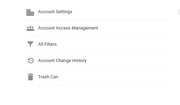
* Select the **`+`** icon on the top left and select `Add User`

* Add the service account email and give `Administrator` access
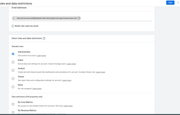
* Now the credentials json file can be used in the portal as the `credentials.json file`.
## Add ckanext-googleanalytics environment variables
The following variables **MUST** be added to the ckan instance's ini config file:
* **`googleanalytics.id`**: This should be the property id for the property that was created for the site.
> If the **`Create both a Google Analytics 4 and a Universal Analytics property`** option was selected when creating the property, then 2 properties would have been created. The first is the Google analytics 4 id which is all numbers and the *Universal Analytics* id which has a **`UA`** prefix. For example: **`UA-123456789-1`**. Note that the UA id should be used as the `googleanalytics.id` option.
* **`googleanalytics.account`**: This **MUST** correspond to the name of the google analytics account.
* **`googleanalytics.username`**: The original email used to create the google analytics account.
* **`googleanalytics.password`**: The email password
 Sign in with Wallet
Connect another wallet
Sign in with Wallet
Connect another wallet