<IntroMission type="tech-article" />
### Native App Passkey Implementation: Quick Reference
| **Approach** | **Adoption** | **Create Passkeys** | **Use Passkeys** | **Manage Passkeys** | **Technical Complexity** | **OAuth Support** |
| :--- | :---: | :--- | :--- | :--- | :--- | :--- |
| **Native Implementation** | 🟢🟢🟢 | High adoption, best UX, seamless biometric | Instant, silent authentication | Full native control | Medium-High | Requires separate flow |
| **System WebView** | 🟢🟢 | Good adoption, browser-like experience | Standard browser UX, shared keychain | Browser-based management | Low | Excellent |
| **Embedded WebView** | 🟢 | Lower adoption, requires setup | Native support iOS & Android (WebKit 1.12.1+), no Conditional UI | Limited control | Medium-High | N/A |
**Note:** System and Embedded WebView are often combined- System WebView handles login (with automatic credential sharing), then Embedded WebView renders passkey management in settings.
**Key Decision Factors:**
- **OAuth-based login?** → System WebView (ASWebAuthenticationSession, Chrome Custom Tabs)
- **Want to reuse web auth in native shell?** → Embedded WebView (WKWebView, Android WebView with WebKit 1.12.1+)
- **Building native-first app?** → Native Implementation (AuthenticationServices, Credential Manager)
## 1. Native App Passkey Implementation Choices
Modern mobile platforms provide three distinct approaches to integrate passkeys into your app, each with different trade-offs for user experience, technical complexity and OAuth compatibility:
1. **Native Implementation**: Build passkey flows directly into your app using platform APIs (iOS AuthenticationServices, Android Credential Manager). Provides the best user experience with seamless biometric authentication, but requires medium to high technical implementation effort.
2. **System WebView**: Use the platform's browser component (iOS ASWebAuthenticationSession/SFSafariViewController, Android Chrome Custom Tabs) to handle authentication. Excellent for OAuth-based login flows and shares credentials with the system browser.
3. **Embedded WebView**: Embed a customizable web view (iOS WKWebView, Android WebView) within your app to reuse web authentication with a native app skeleton. Provides a native-like appearance without URL bars and full control over the web view UI. Requires additional setup including permissions and entitlements (iOS), and WebView configuration with AndroidX WebKit 1.12.1+ (Android) to enable passkey functionality.
The right choice depends on your app's authentication architecture, whether you use OAuth providers, how much control you need over the UI, and whether you're building native-first or reusing web components.
<RecentArticles />
### 1.1 Native Implementation: Best User Experience
A native passkey implementation provides the optimal user experience, with authentication flows built directly into your app's UI using platform-specific APIs. Users benefit from platform-native dialogs, seamless biometric verification, and the fastest possible login times.
**When to Choose Native Implementation:**
- Building a new native app or refactoring authentication to native screens
- Want the best possible user experience with instant, silent authentication
- **Automatic passkey prompts on app start**: Native implementations can use `preferImmediatelyAvailableCredentials` to [automatically display passkey overlay](https://docs.corbado.com/passkey-ui-flows/native/passkey-login/overlay) when passkeys are available, providing the fastest login experience without requiring identifier entry
- Need full control over the authentication UI and flow
- Willing to invest in platform-specific implementation (iOS Swift, Android Kotlin)
**Key Advantage: preferImmediatelyAvailableCredentials**
Native implementations can leverage `preferImmediatelyAvailableCredentials` to create an [automatic passkey overlay](https://docs.corbado.com/passkey-ui-flows/native/passkey-login/overlay) that appears immediately on app start when passkeys are available. This usernameless flow provides the fastest possible login experience-users see their passkeys instantly without entering an identifier first. This capability is **exclusive to native implementations** and not available in WebView variants.
While WebView implementations can use [Conditional UI](https://docs.corbado.com/passkey-ui-flows/native/passkey-login/conditional-ui) (passkey suggestions in input fields), native's automatic overlay provides superior UX with higher passkey usage rates since authentication begins immediately upon app launch.
**Technical Requirements Overview:**
Native passkey integration requires cryptographic trust between your app and web domain. Without it, the OS will reject all WebAuthn operations. Key requirements:
1. **App-Domain Association Files** hosted at `/.well-known/`
2. **Correct Relying Party ID** matching your web domain
3. **Platform-Specific Capabilities** (detailed in Section 4)
The major benefit: passkeys created on your website work seamlessly in your app and vice versa.
#### 1.1.1 Native Passkeys on iOS (Swift)
Implementing passkeys natively on [iOS](/blog/how-to-enable-passkeys-ios) involves Apple's
**AuthenticationServices** framework, which provides an API for WebAuthn operations:
**Key Components:**
- `ASAuthorizationController`: Manages the authentication flow
- `ASAuthorizationPlatformPublicKeyCredentialProvider`: Creates passkey requests
- Three distinct UI modes to handle passkey logins:
- **Textfield login**: Traditional username field with
[passkey login](/blog/passkey-login-best-practices) starting on button submit
- **Passkey modal overlay**: OS dialog listing available passkeys
- **Conditional UI**: Passkey suggestions in the QuickType bar above the keyboard
**Development Tips**
- **AASA Caching**: Apple caches the AASA file aggressively (up to 24 hours), which can
frustrate testing. Solution: Enable Developer Mode on your test device and append
`?mode=developer` to your AASA URL to force fresh fetches
- **Performance Testing**: Test with iCloud accounts containing hundreds of credentials to
observe real-world latency. The system overlay might show a slight delay with many
stored passkeys
#### 1.1.2 Native Passkeys on Android (Kotlin)
Androids native passkey implementation uses the
**Credential Manager API** (or the older [FIDO2](/glossary/fido2) API for backward
compatibility):
**Key Components:**
- `CredentialManager`: Central API for all credential operations
- `CreatePublicKeyCredentialRequest`: For passkey registration
- `GetCredentialRequest`: For passkey authentication
- Two primary UI modes:
- **Textfield login**: Traditional username field with
[passkey login](/blog/passkey-login-best-practices) starting on button submit
- **Passkey modal overlay**: OS dialog listing available passkeys
Note: [Android](/blog/how-to-enable-passkeys-android) currently lacks
[iOS'](/blog/how-to-enable-passkeys-ios)s [Conditional UI](/glossary/conditional-ui)
keyboard suggestions in native apps (though [Conditional UI](/glossary/conditional-ui)
works in web apps)
#### 1.1.3 Implementation Challenges & Solutions
Implementing passkeys natively has important challenges and lessons learned: Integrating
at the OS level can surface issues across different devices and OS versions.
1. For example, our team encountered issues like Apple's aggressive caching of the
apple-app-site-association file (used for app/web credential linking) and subtle UI
differences in certain Android OEM biometric prompts.
2. Moreover, consider that in some enterprise scenarios, managed devices may have passkey
syncing disabled by policy. In corporate environments where
[iCloud Keychain](/glossary/icloud-keychain) or
[Google Password Manager](/blog/how-to-use-google-password-manager) sync is turned off,
passkeys become device-bound and won't roam – an important scenario to plan for (e.g.
ensuring users can still log in if they get a new phone).
3. Additionally, third-party credential manager apps can influence the flow. For instance,
if a user has a [password manager](/blog/passkeys-vs-password-managers) like
[1Password](/blog/1password-passkeys-best-practices-analysis) set as an active
credential provider, it will often intercept
[passkey creation](/blog/passkey-creation-best-practices) and storage, taking priority
over the platform's native credential manager.
#### 1.1.4 Simplifying with Native SDKs
While you can implement passkeys using raw platform APIs, purpose-built SDKs significantly
accelerate development by handling WebAuthn complexity, edge cases and providing built-in
telemetry. SDKs also offer mockable interfaces for unit testing (crucial since you can't
test biometrics in simulators).
**Recommendation:** For native implementations, we recommend using the Corbado SDKs
([iOS Swift Passkey SDK](<(https://github.com/corbado/corbado-ios)>),
[Android Kotlin Passkey SDK](<(https://github.com/corbado/corbado-android)>)) which handle
the numerous edge cases discovered through production deployments, provide additional
telemetry and testing.
<TestimonialBanner
developerName="Igor Gjorgjioski"
ctaText="Start Free Trial"
ctaLink="https://app.corbado.com/#signup-init"
promotionText="Passkeys that millions adopt, fast. Start with Corbado's Adoption Platform."
/>
### 1.2 System WebView Implementation: OAuth-Friendly Authentication
System WebViews use the platform's native browser component to handle authentication within your app. Unlike fully native implementations, System WebViews display web content using the actual system browser (Safari on iOS, Chrome on Android), maintaining shared cookies, saved credentials, and the familiar browser security indicators.
**When to Choose System WebView:**
- **Your app uses OAuth-based login**: System WebView is the recommended approach for OAuth2/OIDC flows, providing secure authentication
- Existing web-based authentication that you want to reuse in mobile apps
- Need to support multiple authentication methods (passwords, social login, passkeys) without rebuilding natively
- Want to maintain a single authentication codebase across web and mobile
**Key Advantages:**
- **OAuth compatibility**: Purpose-built for OAuth/OIDC authentication flows
- **Security indicators**: Users see the actual URL and SSL certificates, building trust
- **Low implementation effort**: Minimal native code required
- **Consistent UX**: Familiar browser interface users already trust
**Platform Components:**
- **iOS**: `ASWebAuthenticationSession` (recommended for auth flows) or `SFSafariViewController` (general browsing)
- **Android**: Chrome Custom Tabs (CCT)
Major companies like Google and GitHub adopted this approach for adding passkey login to their mobile apps via WebView overlays on existing web authentication pages. This works well when fully native authentication rebuilds aren't immediately feasible.
#### 1.2.1 iOS System WebView Options
iOS provides two primary System WebView components for authentication:
**ASWebAuthenticationSession** (Recommended for Authentication):
- Purpose-built for OAuth/OIDC and secure login flows
- Automatically prompts user that the app wants to authenticate
- Shares cookies and credentials with Safari
- Supports passkeys via iCloud Keychain
**SFSafariViewController** (General Browsing):
- Full Safari experience within the app
- Shows URL bar and security indicators
- Does not share Safari cookies on iOS 11+; use ASWebAuthenticationSession when Safari session sharing is required
- Less customizable but more trustworthy to users
| Feature | ASWebAuthenticationSession | SFSafariViewController |
| :--- | :--- | :--- |
| **Primary Use Case** | Authentication flows | General web browsing |
| **OAuth/OIDC** | Excellent | Good |
| **Passkey Support** | Yes | Yes |
| **Customization** | Limited | Minimal |
**If your app uses OAuth-based login**, `ASWebAuthenticationSession` is the recommended choice as it's specifically designed for authentication scenarios and provides the best balance of security and user experience.
#### 1.2.2 Android System WebView: Chrome Custom Tabs
Chrome Custom Tabs (CCT) provide a Chrome-powered authentication experience within your app:
**Key Features:**
- Shares cookies and credentials with Chrome browser
- Shows URL and security indicators
- Can customize toolbar color and branding
- Pre-warming for faster load times
**OAuth Integration**: Chrome Custom Tabs are the Android equivalent of iOS ASWebAuthenticationSession, providing excellent OAuth support while maintaining access to stored passkeys.
<CustomBanner type="Demo" />
### 1.3 Embedded WebView Implementation: Session Control with Additional Setup
Embedded WebViews provide full control over the web content rendering within your app, allowing direct manipulation of cookies, sessions, and navigation without URL bar. However, this control comes with additional technical requirements to enable passkey functionality.
**When to Choose Embedded WebView:**
- **Native-like experience**: Your app already embeds authentication within a customized web view to maintain a native look and feel, and you want to keep this consistent user experience
- **Need session/cookie control**: Your app requires direct manipulation of authentication tokens and session state after OAuth authentication completes
- Existing authentication flow where System WebView authentication returns an auth code but no session in embedded contexts
- Must maintain authenticated state across multiple embedded web screens
- **First-party authentication only**: Your app handles authentication directly, for [third-party passkey implementations see here](https://www.corbado.com/blog/payment-provider-passkeys-third-party-sdk)
- AndroidX WebKit 1.12.1+ with runtime feature detection
- Accept Conditional UI limitation for Login (not supported in Embedded WebView), not relevant for management settings
**Important Context:**
Many apps use a hybrid approach: System WebView handles the initial OAuth authentication (where passkeys work seamlessly), then switch to Embedded WebView for post-authentication to manage passkeys in the settings. The challenges arises when trying to use passkeys directly within Embedded WebViews.
**Technical Requirements:**
Embedded WebViews require additional setup compared to System WebViews:
1. **iOS**: Associated Domains entitlements, AASA file configuration
2. **Android**: AndroidX WebKit 1.12.1+ with WebView WebAuthn configuration (feature detection required)
3. **Both**: Well-known association files properly configured and Digital Asset Links
**Platform Components:**
- **iOS**: `WKWebView`
- **Android**: `android.webkit.WebView`
**Trade-offs:**
- **Medium complexity**: Requires WebView configuration (Android WebKit 1.12.1+) and entitlements setup (iOS)
- **Lower passkey adoption**: Users may encounter more friction compared to native
- **Conditional UI not supported**: Passkey autofill in input fields doesn't work in Android Embedded WebView
- **Limited platform support**: Some features may not work consistently (e.g. automatic passkey creation)
## 2. Overview of WebView Options
When implementing passkeys via WebViews, understanding the distinction between System WebViews and Embedded WebViews is crucial. The three approaches outlined above-Native Implementation, System WebView, and Embedded WebView-each serve different use cases.
On iOS, you have multiple options for displaying web content in-app:
- **WKWebView** is a customizable WebView that is part of the WebKit framework (introduced
in iOS 8). It gives you a lot of control over the web content's appearance and behavior.
- **SFSafariViewController** is a view controller provided by Apple that acts as a
lightweight Safari browser within your app. It uses Safari's engine. On iOS 11+, it has
a separate cookie store and does not share Safari cookies. Use ASWebAuthenticationSession
when Safari session sharing is required.
- **SFAuthenticationSession / ASWebAuthenticationSession** are specialized web
authentication sessions (available since iOS 11/12) intended specifically for
OAuth/OpenID or other secure login flows. These also leverage Safari under the hood, but
are focused on auth flows and automatically handle things like shared cookies and
[Single Sign-On](/blog/passkeys-single-sign-on-sso) (SSO).
On Android, the main choices are:
- **Android WebView** is the standard WebView widget (`android.webkit.WebView`), which is
essentially a mini browser that can be embedded in your activities. It's highly
customizable but runs in your app's process.
- **Chrome Custom Tabs (CCT)** is a feature that opens a Chrome-powered tab within your
app context. Custom Tabs appear as part of your app but are powered by the Chrome
browser (if installed) with features like pre-loading, shared cookies, and the familiar
URL bar for
[user trust](/blog/passkey-login-best-practices/fallback-management-user-trust-passkey-retention).
In the following sections, we'll delve a bit deeper into these WebView types for iOS and
Android, and discuss which might be best suited for passkey authentication flows.
<CustomBanner type="Substack" />
## 3. WebViews in iOS
Apple's platform provides the three WebView options listed above. Your choice will affect
how smoothly passkeys can be used inside the app:
For testing the different WebView behavior in iOS, we recommend the app
[WebView - WKWebView and UIWebView rendering](https://apps.apple.com/de/app/webview-wkwebview-and-uiwebview-rendering/id928647773).
### 3.1 WKWebView

**WKWebView** is a versatile WebView component for iOS. Developers can embed a WKWebView
to render web content with a high degree of control over the UI and behavior. WKWebView
uses the same rendering engine as Safari, so it's very performant and supports modern web
features. In theory, WKWebView can handle WebAuthn (and thus passkeys) if configured
correctly, but note that some advanced browser features might be restricted for security.
One thing to [watch](/blog/how-to-use-passkeys-apple-watch) out for is that WKWebView by
default does not share cookies or keychain data with Mobile Safari. Users might have to
log in afresh because their WebView session is isolated from Safari's session. Also,
because WKWebView content can be fully customized by the app, the user doesn't see an
address bar or Safari UI – which is great for branding, but it means the user has fewer
cues to verify the page's legitimacy (a concern for anti-[phishing](/glossary/phishing)).
Some apps have even abused WKWebView to inject scripts or alter content (e.g.
[TikTok](/blog/tiktok-passkeys) was noted to inject tracking JS via their in-app browser),
so one must be careful to use WKWebView in a safe, user-trustworthy manner.
### 3.2 SFSafariViewController

**SFSafariViewController** provides an in-app Safari experience. When you open a URL with
SFSafariViewController, it's almost like opening it in the real Safari browser, except the
user stays within your app's UI. The advantage for passkeys is significant: because it's
essentially Safari, the user's [iCloud Keychain](/glossary/icloud-keychain) and saved
passkeys are accessible. Note that cookies are not shared on iOS 11+.
This means if the user already
has a passkey for your site, Safari can find it and even display the
[Conditional UI](/glossary/conditional-ui) autocomplete for easy login.
SFSafariViewController is less customizable (you can't change its toolbar much), but it
automatically handles a lot of security and privacy features. The URL bar is shown,
complete with the padlock icon for HTTPS, which gives users confidence they're on the
correct domain. In general, SFSafariViewController is considered more secure than a raw
WKWebView and is simpler to implement (Apple provides it as a drop-in). The main trade-off
is you sacrifice some control over the look & feel. For an authentication flow, that's
usually acceptable. The priority here is security and ease of login, which
SFSafariViewController excels at by using Safari's context.
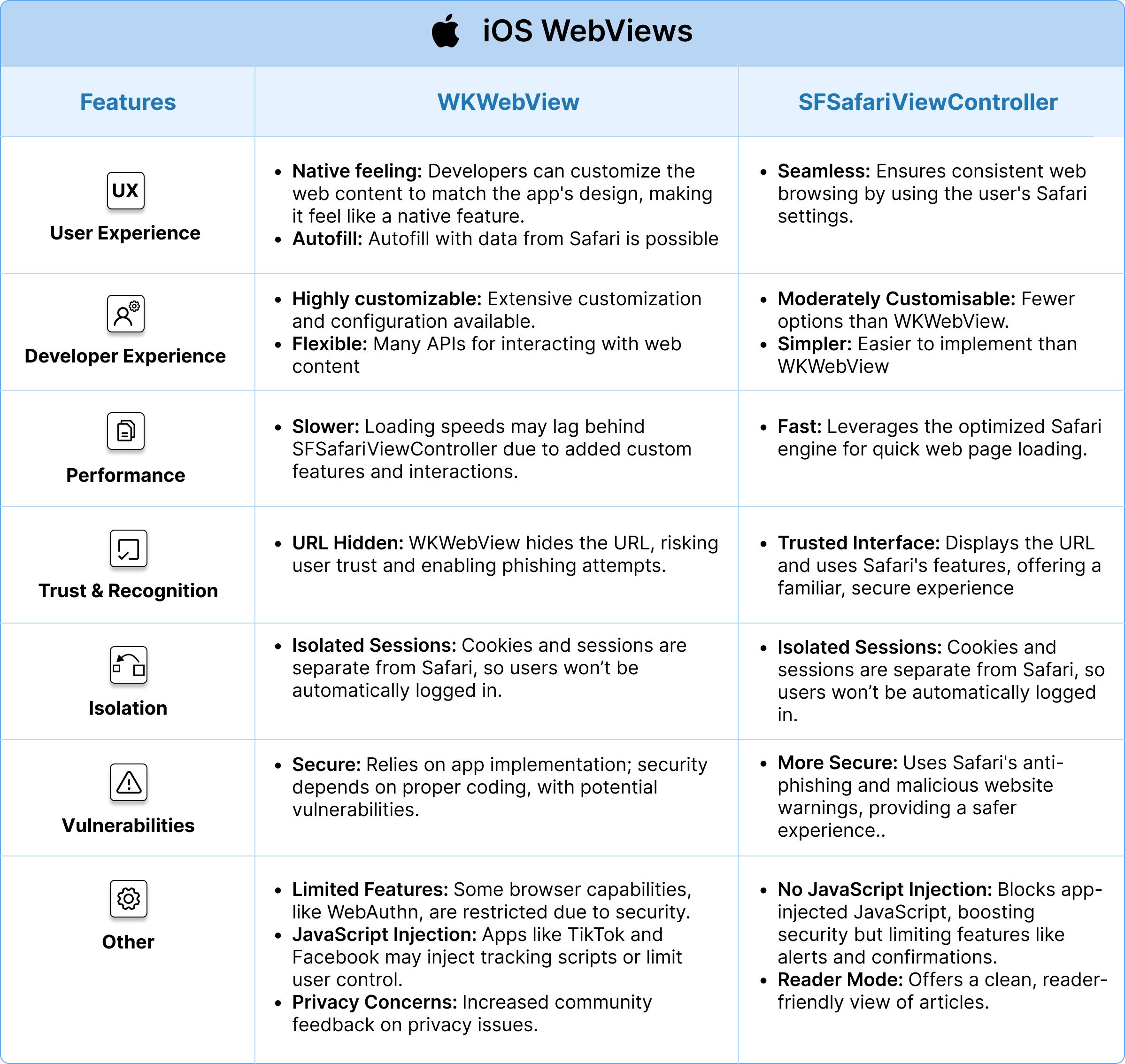
| | WKWebView | SFSafariViewController |
| --------------------- | --------------------------------------------------------------------------------------------------------------------------------------------------------------------------------------------------------------------------------------------------------------------------------------------------------------------------------------------------------------------------------------------------------------------------------------------------------------------------------- | ------------------------------------------------------------------------------------------------------------------------------------------------------------------------------------------------------------------------------------------------------------------------------------------------------------------------------------------- |
| User experience | - **Native feeling:** Users might feel that the web content is a native part of the app because developers can customize the look and feel to match the app's design. <br/> - **Autofill:** Autofill with data from Safari is possible | - **Seamless:** Seamless user experience using the user's Safari settings ensuring consistent web browsing between native app and browser. |
| Developer experience | - **Highly customizable:** Extensive customization and configuration available <br/> - **Flexible:** Many APIs for interacting with web content | - **Medium customizable:** Limited customization options, especially compared to WKWebView, <br/> - **Simple:** Simpler to implement compared to WKWebView |
| Performance | - **Rather slow:** Depending on the implementation and web content, loading speeds can be optimized, but might still be slower compared to SFSafariViewController due to the additional processing of custom features and interactions. | - **Rather fast:** Typically offers better performance as it leverages the Safari engine, which is optimized for speed and efficiency, providing fast loading times for web pages. |
| Trust and recognition | - **URL Display not required:** WKWebView often doesn't show the URL, making it harder for users to verify the webpage. Potential for malicious apps to mimic this behavior and phish credentials. | - **Browser-like Experience:** Renders web pages using Safari, providing a "browser-like" experience. Users can see the URL and access Safari's auto-fill features, potentially instilling more trust due to the familiar interface. |
| Isolation | - **Separated:** Cookies and sessions are separated from Safari; users won't be automatically logged into a WKWebView. | - **Separated:** Cookies and sessions are separated from Safari; users won't be automatically logged into SFSafariViewController either. |
| Vulnerabilities | - **Secure:** Inherently secure due to Apple's app sandboxing, but on behavior and security depend the app's implementation. Potential vulnerabilities if not implemented correctly. | - **More Secure:** Benefits from Safari's built-in security features, including anti-phishing and malicious website warnings. Generally considered more secure for displaying web content than WKWebView due to these features and user familiarity with Safari. |
| Other | - **Features not available:** Some browser features (e.g., WebAuthn) may not be fully accessible due to security concerns and WKWebView running in the application context. <br/> - **JavaScript injection:** Some apps, e.g. TikTok inject tracking JavaScript into their in-app WKWebView, or restrict user controller (e.g. Facebook) <br/> - **Privacy issues:** More [community feedback](https://gist.github.com/chrmod/a5c71f9e7f86782d47eb1734df440260) regarding privacy | - **No JavaScript injection:** Does not allow the execution of JavaScript from the app, enhancing security and privacy. Also it does not support JavaScript alerts or confirmations, potentially impacting user experience on certain web pages. <br/> - Reader Mode: Provides a reader mode for a clean, easy-to-read version of articles. |
### 3.3 SFAuthenticationSession / ASWebAuthenticationSession
**SFAuthenticationSession / ASWebAuthenticationSession** – These classes (the latter being
the newer Swift-friendly name) are built specifically for login flows like OAuth or OpenID
Connect. When you need to authenticate a user via a web page (perhaps to an external IdP),
these sessions are the recommended choice on iOS. They are very similar to
SFSafariViewController in that they utilize the Safari browser under the hood and share
cookies/storage with Safari. The key difference is that SFAuthenticationSession will
always prompt the user that the app wants to authenticate using a webpage (for user
awareness) and it will automatically use the user's existing Safari session if available.
The benefit is a seamless SSO experience – if the user is already logged in to the
provider in Safari, this session can use that cookie to avoid another login. For passkeys,
this is important because it means any passkey credential stored in Safari/iCloud Keychain
can be used here as well. Apple's official guidance is to use ASWebAuthenticationSession
for anything that looks like a login flow. The pros are enhanced privacy (your app never
sees the credentials or cookies, Safari handles it) and built-in SSO support. The con is
that it's limited to auth flows (you wouldn't use it to just render arbitrary web content
in your app). In summary, if your app falls into Group B (see Section 5) and you choose a
WebView approach on iOS, ASWebAuthenticationSession is typically the best choice for
implementing passkeys because it's secure, shares state with Safari (so passkeys work),
and is purpose-built for authentication.
<CustomBanner type="StateOfPasskeys" />
## 4. WebViews in Android
On Android, the WebView decision is between the classic WebView and Chrome Custom Tabs:
For testing the different WebView behavior in Android, we recommend the app
[WebView vs Chrome Custom Tabs](https://play.google.com/store/apps/details?id=com.ansbilisim.webviewvscustomchrometabs&hl=en_US).
### 4.1 Android WebView

**Android WebView** (android.webkit.WebView) is a component that lets you embed web pages
in your activity layout. It's similar to WKWebView in that it gives you full control: you
can intercept navigation, inject JavaScript, customize the UI, etc. It also runs within
your app's process. Using a WebView for passkeys means your app loads your web login page,
and that page can initiate a WebAuthn passkey ceremony. Modern Android WebView does
support WebAuthn (provided the device's WebView implementation is up to date via Android
System WebView or the Chrome component). One major consideration: by default, an Android
WebView does not share cookies or stored credentials with the user's Chrome browser. So
any passkey created or used in the WebView might not be known to Chrome, and vice versa.
This isolation can be good for security (your app can't read browser cookies), but it
might force users to log in again if they've already authenticated in Chrome. Another
issue is trust. A plain WebView doesn't show the URL or SSL lock icon, so users have to
trust your app completely not to phish them. Google has even forbidden use of WebView for
Google OAuth sign-ins due to potential [phishing](/glossary/phishing) risks.
Performance-wise, WebViews are fine, but they can be slower or more memory-intensive than
using the user's default browser, especially if loading heavy pages.
### 4.2 Chrome Custom Tabs (CCT)

**Chrome Custom Tabs (CCT)** are a hybrid approach. They allow your app to open a
Chrome-rendered page that looks like it's part of your app. You can customize the toolbar
color, add an app logo, etc., but the content is rendered by Chrome in a separate process.
For passkeys, CCTs have several benefits: they share the user's cookies and credentials
with Chrome, meaning if the user has a passkey saved via Chrome (Google Password Manager),
the Custom Tab can access it. The user will also see the actual URL and security
indicators, which builds trust. Performance is often better – Chrome can be "warmed up" in
the background for faster loading. And importantly, security is strong: because it's
essentially the Chrome app, things like Google Safe Browsing protect the session, and your
app cannot inject arbitrary scripts into the page (preventing certain attacks).
The downside is that it requires the user to have Chrome (or a supported browser)
installed and up-to-date. Most Android users do, but on some devices in certain regions,
this could be an issue. Overall, if you go with an embedded web approach on Android,
Chrome Custom Tabs are recommended for passkey flows, as they provide a good balance of
integration and security. In fact, they are analogous to
[iOS'](/blog/how-to-enable-passkeys-ios)s SFSafariViewController/ASWebAuthSession in many
ways – leveraging the default browser for auth.
(Aside: Apple's WKWebView vs SFSafariViewController and
[Android's](/blog/how-to-enable-passkeys-android) WebView vs CCT have many
[parallels](/blog/parallels-passkeys-cda). Both Safari VC and Chrome Tabs share browser
state and provide better security, whereas WKWebView/Android WebView give more control but
isolate the web content. For passkeys, sharing state (cookies, credential stores) is
usually desirable so that the passkey can be accessed and created seamlessly.)
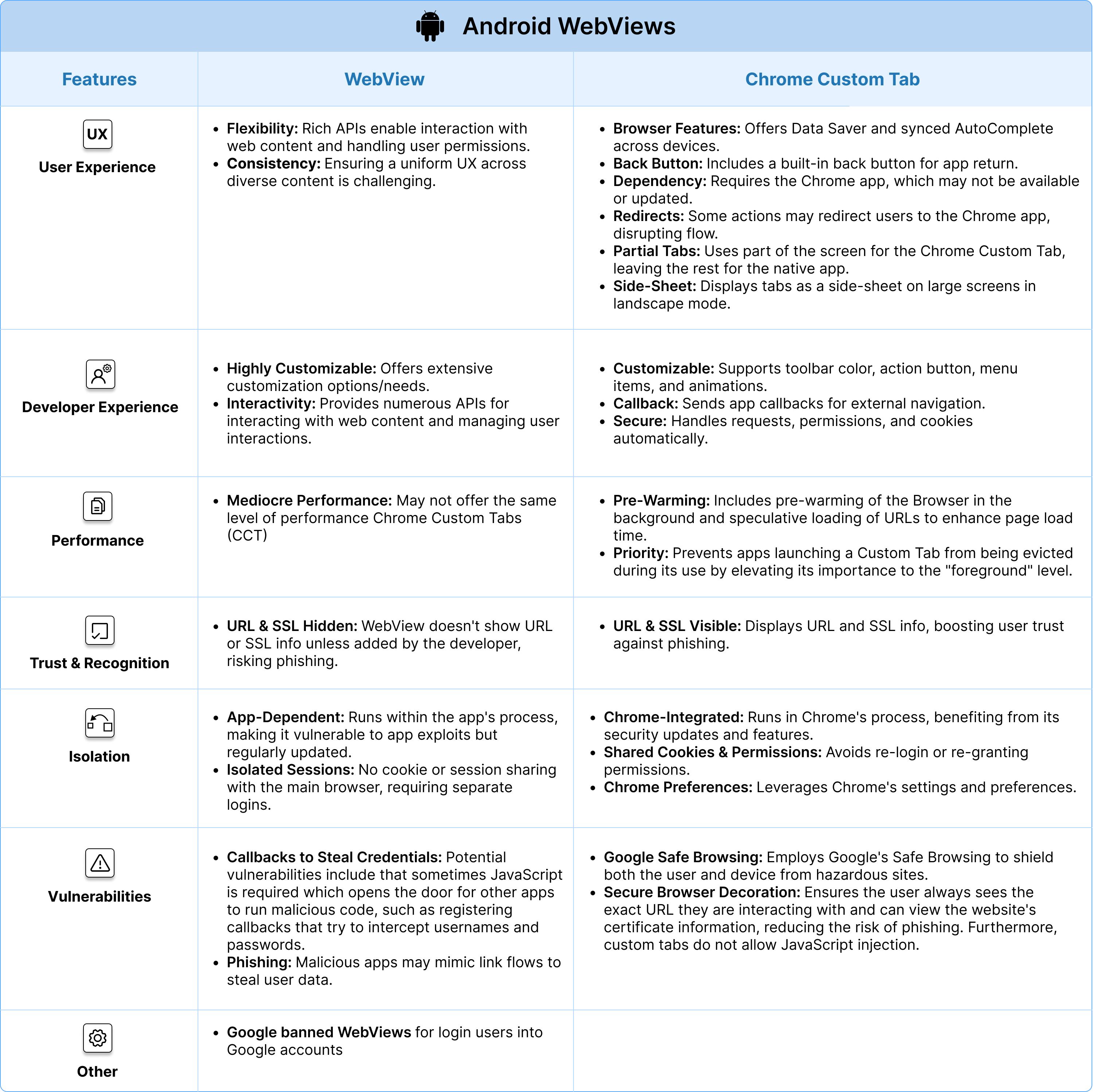
| Feature | WebView | Chrome Custom Tab |
| ------------------------- | ------------------------------------------------------------------------------------------------------------------------------------------------------------------------------------------------------------------------------------------------------------------------------------------------------------------------------------------------------------------------------------------------------------------------------------------------------------------------------------------------------ | -------------------------------------------------------------------------------------------------------------------------------------------------------------------------------------------------------------------------------------------------------------------------------------------------------------------------------------------------------------------------------------------------------------------------------------------------------------------------------------------------------------------------------------------------------------------------------------------------------------------------------------------------------------------------------------------------------------------------------------------------------------------------------------------------- |
| **User experience** | - **Flexibility:** Provides a rich set of APIs for interacting with web content and managing user interactions, including handling JavaScript dialogs and permission requests. <br/> - **Consistency:** Managing a consistent UX, especially with varied web content, can be challenging. | - **Browser Features:** Shares features like Data Saver and synchronized AutoComplete across devices. <br/> - **Back Button:** Allows users to easily return to the app with an integrated back button. <br/> - **Dependency:** Relies on Chrome app, which might not be available or updated on all user devices <br/> - **Redirect to Browser:** Certain functionalities might redirect users to the Chrome app, potentially disrupting the user experience. <br/> - **Partial Custom Tabs:** Only a portion of the screen can be used for the Chrome Custom Tab while the rest shows the native app <br/> - **Side-sheet:** In landscape mode and on large screen devices, the Chrome Custom Tab is only displayed on one side of the screen, while the rest of the screen shows the native app |
| **Developer experience** | - **Highly Customizable:** Offers extensive customization options/needs. <br/> - **Interactivity:** Provides numerous APIs for interacting with web content and managing user interactions. | - **Customizable:** Allows customization of toolbar color, action button, bottom toolbar, custom menu items, and in/out animations. <br/> - **Callback:** Delivers a callback to the application upon an external navigation. <br/> - **Security Features:** Provides out-of-the-box features, eliminating the need to manage requests, permission grants, or cookie stores. |
| **Performance** | - **Mediocre Performance:** May not offer the same level of performance Chrome Custom Tabs (CCT) | - **Pre-Warming:** Includes pre-warming of the Browser in the background and speculative loading of URLs to enhance page load time. <br/> - **Priority:** Prevents apps launching a Custom Tab from being evicted during its use by elevating its importance to the "foreground" level. |
| **Trust and recognition** | - URL & SSL not Visible: The URL and SSL information are not inherently visible in a WebView. Unless the app developer implements these features, users won't know if they're on the correct website or a phishing one. | - **URL & SSL** Visible: Uses the actual Chrome browser to render pages. Users can see the URL and SSL certificate (indicating if the connection is secure). This can provide users with confidence that they're not on a phishing site. |
| **Isolation** | - **Runs within the App's Process:** If an app has a vulnerability that allows malicious code execution, there's a risk that the WebView could be compromised. However, WebView also receives updates, but its behavior and security can be more dependent on the app using it. <br/> - **No Cookie / Session Sharing:** Doesn't share cookies or sessions with the device's main browser, offering isolation but possibly requiring users to log in again. | - **Runs within Chrome's Process:** Being part of Chrome, Custom Tabs run in the same process and have the same security updates and features as Chrome. <br/> - **Shared Cookie Jar and Permissions Model:** Ensures users don't have to re-sign into sites or re-grant permissions. <br/> - **Chrome Settings & Preferences:** Utilizes Chrome's settings and preferences. |
| **Vulnerabilities** | - **Callbacks to Steal Credentials:** Potential vulnerabilities include that sometimes JavaScript is required which opens the door for other apps to run malicious code, such as [registering callbacks that try to intercept usernames and passwords.](https://arstechnica.com/gadgets/2021/07/google-boots-google-play-apps-for-stealing-users-facebook-passwords/) <br/> - **Phishing:** Additionally, a malicious app could open another web page that mimics the Link flow in a phishing attempt. | - **Google Safe Browsing:** Employs Google's Safe Browsing to shield both the user and device from hazardous sites. <br/> - **Secure Browser Decoration:** Ensures the user always sees the exact URL they are interacting with and can view the website's certificate information, reducing the risk of phishing. Furthermore, custom tabs do not allow JavaScript injection. |
| **Other** | - **Google banned WebViews** for login users into Google accounts | |
## 5. Technical Setup Requirements
Regardless of which implementation approach you choose, certain technical requirements must be met to enable passkey functionality. This section provides comprehensive guidance on configuring well-known association files, iOS entitlements, and Android WebView configuration.
**Note on Managed Devices:** Passkey behavior changes significantly on managed devices where Mobile Device Management (MDM) policies control credential storage. For testing passkeys on managed devices, see [Passkeys on Managed iOS & Android Devices](/blog/passkeys-managed-ios-android-testing).
### 5.1 Well-Known Association Files (Native and Embedded)
Native and Embedded WebView flows require association files to establish cryptographic trust between your app and web domain. System WebView (ASWebAuthenticationSession) and Chrome Custom Tabs do not require app-to-site association.
#### 5.1.1 iOS: Apple-App-Site-Association (AASA) File
The AASA file establishes the connection between your iOS app and your web domain, enabling passkeys to work across both platforms.
**File Location**: `https://yourdomain.com/.well-known/apple-app-site-association`
**Configuration Requirements**:
- Host at `/.well-known/apple-app-site-association` on your domain
- Serve over HTTPS with a valid SSL certificate
- Content-Type: `application/json`
- No redirects on the `.well-known` path
- Include your App's Team ID and Bundle ID
**Example AASA File**:
```json
{
"webcredentials": {
"apps": [
"TEAMID123.com.example.app"
]
}
}
```
**AASA Caching and Testing**:
Apple aggressively caches AASA files (up to 24-48 hours) using a CDN, which can frustrate development and testing. To bypass caching during development:
1. Enable Developer Mode on your test device
2. Append `?mode=developer` to your associated domain in Xcode
3. This forces iOS to fetch the latest AASA file directly from your server
⚠️ **Important**: Do NOT use `?mode=developer` in production releases. This parameter is for development only-using it in production will prevent iOS from properly detecting your AASA file, breaking passkey functionality.
**Validation**: Use [Apple's AASA Validator](https://developer.apple.com/account/ios/identifier/bundle) to verify your configuration.
#### 5.1.2 Android: Digital Asset Links (assetlinks.json)
Android uses Digital Asset Links to verify the relationship between your app and website.
**File Location**: `https://yourdomain.com/.well-known/assetlinks.json`
**Configuration Requirements**:
- Host at `/.well-known/assetlinks.json` on your domain
- Serve over HTTPS with valid certificate
- Content-Type: `application/json`
- Include your app's SHA256 fingerprint (from signing certificate)
**Example assetlinks.json File**:
```json
[{
"relation": ["delegate_permission/common.handle_all_urls",
"delegate_permission/common.get_login_creds"],
"target": {
"namespace": "android_app",
"package_name": "com.example.app",
"sha256_cert_fingerprints": [
"AA:BB:CC:DD:EE:FF:00:11:22:33:44:55:66:77:88:99:AA:BB:CC:DD:EE:FF:00:11:22:33:44:55:66:77:88:99"
]
}
}]
```
**Validation**: Use [Google's Digital Asset Links Generator](https://developers.google.com/digital-asset-links/tools/generator) to create and verify your configuration.
### 5.2 iOS Entitlements Configuration
iOS apps require proper entitlements to access passkey functionality. The requirements differ slightly based on your implementation approach.
#### 5.2.1 Understanding Runner.entitlements
The entitlements file (often named `Runner.entitlements` in Flutter apps or `YourApp.entitlements` in native iOS projects) defines special permissions and capabilities granted by Apple's system. For passkeys, this file configures Associated Domains.
**File Location**: Typically in your Xcode project at `ios/Runner/Runner.entitlements`
#### 5.2.2 Associated Domains Capability
Native Implementation and Embedded WebView require the Associated Domains capability to link your app with your web domain. System WebView (ASWebAuthenticationSession) does not require this as it runs in Safari context.
**Setup in Xcode**:
1. Open your project in Xcode
2. Select your app target
3. Go to "Signing & Capabilities" tab
4. Click "+ Capability" and add "Associated Domains"
5. Add your domain with the `webcredentials:` prefix
**Example Configuration**:
```xml
<?xml version="1.0" encoding="UTF-8"?>
<!DOCTYPE plist PUBLIC "-//Apple//DTD PLIST 1.0//EN" "http://www.apple.com/DTDs/PropertyList-1.0.dtd">
<plist version="1.0">
<dict>
<key>com.apple.developer.associated-domains</key>
<array>
<string>webcredentials:yourdomain.com</string>
<string>webcredentials:subdomain.yourdomain.com</string>
</array>
</dict>
</plist>
```
#### 5.2.3 Requirements by Approach
| Approach | Associated Domains Required | Additional Configuration |
| :--- | :--- | :--- |
| **Native Implementation** | Yes | Dedicated Implementation |
| **System WebView** | Not required | Default web setup works |
| **Embedded WebView** | Yes | Requires AndroidX WebKit 1.12.1+ configuration |
**Multiple Domains**: If your app needs to work with multiple domains you might need ROR.
### 5.3 Android WebView Configuration (Embedded WebView Only)
Android Embedded WebViews gained native WebAuthn support with [AndroidX WebKit 1.12](https://developer.android.com/jetpack/androidx/releases/webkit#1.12.0), eliminating the need for custom JavaScript bridge code. System WebView (Chrome Custom Tabs) does not require any configuration-credentials work automatically.
#### 5.3.1 Native WebAuthn Support (WebKit 1.12.1+, Recommended)
**Requirements**:
- AndroidX WebKit 1.12.1 or newer (1.14.0+ recommended)
- Digital Asset Links configured
- WebView APK with WebAuthn support (check via feature detection)
- Note: AndroidX Credentials library is NOT required for WebView WebAuthn, only for fully native implementations
**Implementation**:
```kotlin
import androidx.webkit.WebSettingsCompat
import androidx.webkit.WebViewFeature
// Check if Web Authentication is supported
if (WebViewFeature.isFeatureSupported(WebViewFeature.WEB_AUTHENTICATION)) {
// Enable Web Authentication
WebSettingsCompat.setWebAuthenticationSupport(
webView.settings,
WebSettingsCompat.WEB_AUTHENTICATION_SUPPORT_FOR_APP
)
// Enable JavaScript
webView.settings.javaScriptEnabled = true
}
```
**Key Points**:
- **No JavaScript bridge needed**: WebAuthn works natively in WebView
- **Feature detection required**: Always check `WebViewFeature.WEB_AUTHENTICATION` at runtime
- **Conditional UI not supported**: `mediation:"conditional"` (passkey autofill in input fields) doesn't work in Embedded WebView
- **Fallback strategy**: If feature not available, use Chrome Custom Tabs instead
**Version Notes**:
- Use WebKit **1.12.1 or newer** (1.12.0 had a runtime availability issue)
- Feature support depends on user's WebView APK version-older APKs on the device won't expose the feature
#### 5.3.2 Legacy Approach: JavaScript Bridge (Pre-WebKit 1.12.0)
Before AndroidX WebKit 1.12.0, native WebAuthn support didn't exist in Embedded WebView. Teams had to either:
1. Use Chrome Custom Tabs or Auth Tab (recommended)
2. Build a custom JavaScript bridge
If you need to support older Android versions or devices without updated WebView APKs, see [Android's Credential Manager WebView Integration guide](https://developer.android.com/training/sign-in/credential-manager-webview) for the bridge code approach. However, **we strongly recommend using the native WebKit 1.12.1+ approach** for modern apps.
**Recommendation**: Use native WebAuthn support with AndroidX WebKit 1.12.1+. If unavailable at runtime, fall back to Chrome Custom Tabs which provides excellent passkey support with shared credentials.
### 5.4 Origins, Related Origins (ROR), and Verifying Well-Known Files
When implementing passkeys in native apps, you need to establish trust between your app and web domain(s). This section covers how to handle single domains, multiple related domains (ROR), and how to verify your well-known association files are properly configured.
#### 5.4.1 Single Domain Setup
For apps using a single domain (e.g., `kayak.com`), you need:
- One AASA file for iOS at https://kayak.com/.well-known/apple-app-site-association
- One assetlinks.json for Android at https://kayak.com/.well-known/assetlinks.json
- Associated Domains entitlement configured with `webcredentials:kayak.com`
#### 5.4.2 Related Origins (ROR) for Multiple Domains
Related Origins (ROR) is a WebAuthn feature that allows a single set of passkeys to work across multiple related domains (e.g., `kayak.com`, `kayak.de`, `kayak.co.uk`). ROR uses the `/.well-known/webauthn` endpoint on each site to define related origins, NOT the AASA or assetlinks files.
**Key Points**:
- ROR configuration: Each domain hosts `/.well-known/webauthn` with the list of related origins
- App association files (AASA/assetlinks): Used only to map apps to their corresponding websites
- iOS 18+ Embedded WebView: Supports ROR when properly configured
- Associated Domains entitlements: Include all domains your app needs to authenticate with
**Configuration Example**:
If your app works with `kayak.com` and `kayak.de`, both domains must:
- Host their respective AASA files with the same Team ID and Bundle ID
- Be listed in your app's Associated Domains entitlements
- Have properly configured and accessible well-known files
#### 5.4.3 Verifying Well-Known Files
Before going live, verify your well-known files are properly configured and accessible. Apple and Google provide CDN-based test URLs to check file availability:
| Domain | Apple AASA Verification | Google Digital Asset Links Verification |
| :--- | :--- | :--- |
| kayak.com | [Test AASA file](https://app-site-association.cdn-apple.com/a/v1/kayak.com?nocache=1)<br/>Check if Apple CDN can retrieve your file | [Test assetlinks.json](https://digitalassetlinks.googleapis.com/v1/statements:list/?source.web.site=https://www.kayak.com&relation=delegate_permission/common.handle_all_urls)<br/>Verify Google can access your asset links |
| kayak.de | [Test AASA file](https://app-site-association.cdn-apple.com/a/v1/kayak.de?nocache=1)<br/>Check if Apple CDN can retrieve your file | [Test assetlinks.json](https://digitalassetlinks.googleapis.com/v1/statements:list/?source.web.site=https://www.kayak.de&relation=delegate_permission/common.handle_all_urls)<br/>Verify Google can access your asset links |
**Using These Test URLs**:
- Click the links to verify if Apple/Google can retrieve your well-known files
- Apple's `?nocache=1` parameter forces fresh retrieval, bypassing CDN cache
- If files aren't accessible through these URLs, passkey functionality won't work in your app
- Replace `kayak.com` or `kayak.de` with your own domain(s) in the URL patterns above
**Testing Gotcha**: Ensure all domains have properly configured well-known files. A missing or misconfigured file on any domain can break passkey functionality for that domain.
**More Information**: [WebAuthn Relying Party ID in Native Apps](/blog/webauthn-relying-party-id-rpid-passkeys)
## 6. Recommendations for Passkey Implementation in Native Apps
Choosing the right implementation approach depends on your app's authentication architecture, OAuth requirements, and need for session control. Use this decision tree to determine the best path forward.
### 6.1 Decision Tree
Start with these key questions:
1. **Does your app use OAuth-based login (OAuth2, OIDC, social login providers)?**
- **Yes** → **System WebView** (Section 1.2)
- iOS: Use `ASWebAuthenticationSession`
- Android: Use Chrome Custom Tabs
- Excellent OAuth support with shared credentials
2. **Do you want to reuse web authentication in a native-like shell (no URL bar, full UI control)?**
- **Yes** → **Embedded WebView** (Section 1.3) with configuration
- iOS: `WKWebView` + Associated Domains entitlements
- Android: `WebView` + AndroidX WebKit 1.12.1+ configuration
- Provides native-like appearance while reusing web components
- Note: Conditional UI not supported in Embedded WebView
- **No** → Consider System WebView or Native
3. **Are you building a new native app or have native login screens?**
- **Yes** → **Native Implementation** (Section 1.1)
- Best user experience
- Instant, silent authentication
- Requires platform-specific development
4. **Do you have existing web authentication you want to reuse?**
- **Yes** → **System WebView** for quick implementation
- **No** → **Native Implementation** for optimal UX
### 6.2 Approach Comparison: Adoption Dimensions
Here's how each approach performs across key dimensions:
| Approach | Create Passkeys | Use Passkeys | Manage Passkeys | Technical Complexity | OAuth Support | Setup Time |
| :--- | :--- | :--- | :--- | :--- | :--- | :--- |
| **Native Implementation** | **High adoption**<br/>Seamless biometric, best UX | **Instant, silent**<br/>`preferImmediatelyAvailableCredentials` enables automatic overlay on app start | **Full native control**<br/>Integrate with app settings | Medium-High<br/>Platform-specific APIs | Requires separate OAuth flow implementation | Weeks to months |
| **System WebView** | **Good adoption**<br/>Browser-like experience, familiar | **Standard browser UX**<br/>Conditional UI in input fields, shared keychain | **Browser-based**<br/>Users manage via browser | **Low**<br/>Minimal native code | **Excellent**<br/>Purpose-built for OAuth | Days to weeks |
| **Embedded WebView** | **Lower adoption**<br/>Requires configuration | **Native WebAuthn support**<br/>WebKit 1.12.1+, no Conditional UI | **Limited control**<br/>No native integration | **Medium-High**<br/>WebView config + permissions | Requires configuration | 1-2 weeks |
**Dimension Explanations**:
- **Create Passkeys**: How easily users can create passkeys through this approach
- **Use Passkeys**: The authentication experience when using existing passkeys
- **Manage Passkeys**: How users view, edit, or delete passkeys
- **Technical Complexity**: Development effort and ongoing maintenance
- **OAuth Support**: How well the approach handles OAuth2/OIDC authentication flows
- **Setup Time**: Typical implementation timeline
### 6.3 Specific Recommendations by Scenario
#### 6.3.1 Scenario A: OAuth-Based Authentication (Most Common)
**Recommended: System WebView**
If your app authenticates via OAuth2, OIDC, or social login providers (Google, GitHub, Microsoft, etc.), System WebView is the optimal choice:
- **iOS**: `ASWebAuthenticationSession` is purpose-built for OAuth flows
- **Android**: Chrome Custom Tabs provide seamless OAuth integration
- **Benefits**: Minimal native code, automatic credential sharing
- **Implementation**: Add WebAuthn to your web authentication page, then load it via System WebView
**Example**: Travel apps like kayak.com and kayak.de use OAuth for authentication. System WebView allows them to maintain their existing OAuth infrastructure while adding passkey support through their web authentication pages.
#### 6.3.2 Scenario B: Native Login with Session Control Needs
**Recommended: Hybrid Approach**
Use System WebView for initial OAuth authentication, then Embedded WebView for post-auth sessions:
1. **Initial Authentication**: System WebView handles OAuth + passkey login
2. **Session Management**: Switch to Embedded WebView for authenticated web content where you need cookie/session control
3. **Technical Setup**: Configure both System and Embedded WebView requirements-for Android, ensure AndroidX WebKit 1.12.1+ is included (see Section 5)
**When to Use**: Apps that authenticate via OAuth but then need to display authenticated web content where direct session manipulation is required.
#### 6.3.3 Scenario C: New Native App or Native-First
**Recommended: Native Implementation**
Building from scratch or have native screens? Go fully native:
- **iOS**: Use AuthenticationServices framework
- **Android**: Use Credential Manager API
- **Benefits**: Best UX, instant authentication, full control
- **Unique Advantage**: Use `preferImmediatelyAvailableCredentials` to display [automatic passkey overlay on app start](https://docs.corbado.com/passkey-ui-flows/native/passkey-login/overlay)-exclusive to native implementations and providing the highest conversion rates
- **SDK Recommendation**: Use Corbado SDKs ([iOS](https://github.com/corbado/corbado-ios), [Android](https://github.com/corbado/corbado-android)) to accelerate development with production-tested edge case handling
**For New Apps**: Strongly recommend building native login from day one. Sets you up for optimal UX and avoids future WebView-to-native migrations.
#### 6.3.4 Scenario D: Existing App with Web-Based Login
**Recommended: Phased Migration**
- **Phase 1: System WebView Passkeys** - Add passkey support to existing web login, load via System WebView (ASWebAuthenticationSession/Chrome Custom Tabs). Quick win with minimal native code.
- **Phase 2: Native Intercept** - Add native passkey check _before_ showing WebView. Example: kayak.com attempts native passkey auth first, falls back to WebView if needed. Provides fast biometric login while maintaining backward compatibility.
- **Phase 3: Full Native** - Gradually migrate to native authentication for passkey users, keeping WebView for legacy methods.
This phased approach allows incremental improvements without disrupting existing users.
### 6.4 Key Technical Requirements by Approach
| Requirement | Native | System WebView | Embedded WebView |
| :--- | :--- | :--- | :--- |
| **Well-known files (AASA/assetlinks)** | Required | Not required | Required |
| **iOS Associated Domains** | Required | Not required | Required |
| **Android WebKit Library** | Not applicable | Not required | **Required** (1.12.1+) |
| **Relying Party ID** | Must match domain | Must match domain | Must match domain |
See Section 5 for detailed configuration instructions.
### 6.5 Testing Recommendations
Testing passkeys in native apps requires a structured, multi-layered approach. Follow the testing pyramid: **unit tests** (isolated logic), **integration tests** (WebAuthn ceremony on simulators/emulators), and **system tests** (end-to-end on physical devices).
**Essential Test Categories:**
- [ ] **Core Journeys**: Registration, authentication, cross-device flows, passkey deletion
- [ ] **Platform Coverage**: iOS (native), Android (native), web browsers across OS versions
- [ ] **Domain Association**: Verify AASA files (iOS) and Digital Asset Links (Android) are accessible
- [ ] **Cancellation Flows**: Test user cancellation at OS prompts and biometric screens
- [ ] **Error Handling**: Backend failures, network timeouts, credential mismatches
- [ ] **Edge Cases**: Screen lock disabled, iCloud/Google Password Manager disabled
- [ ] **OAuth Flows**: Complete OAuth + passkey integration end-to-end
- [ ] **Managed Devices**: MDM-controlled environments (see [managed device testing](/blog/passkeys-managed-ios-android-testing))
- [ ] **Third-party Managers**: 1Password, Bitwarden, Dashlane compatibility
- [ ] **Cross-device Authentication**: QR code flows and hybrid transport testing
- [ ] **Embedded WebView Specific**: If using Embedded WebView, verify WebKit 1.12.1+ configuration on Android
- [ ] **Production Monitoring**: Dashboard for success rates, failures, and latency
For comprehensive testing guidance including automation strategies, platform-specific gotchas, and a complete pre-flight checklist, see our dedicated guide: [Testing Passkey Flows in Native iOS & Android Apps](/blog/test-passkeys-native-ios-android-apps).
### 6.6 Opportunistic Enrollment Strategy
Consider prompting users to create passkeys _after_ successful traditional login (password, OAuth). This gradual conversion approach:
- Doesn't disrupt existing authentication flows
- Allows graceful degradation if user declines
- Increases passkey adoption over time without forcing changes
- Works well with all three implementation approaches
**Example**: After OAuth login via System WebView, show a native prompt: "Enable faster login with Face ID?" If accepted, create passkey through web page loaded in System WebView.
## 7. Conclusion
Deciding how to implement passkeys-via Native Implementation, System WebView, or Embedded WebView is a crucial design choice that impacts security, user experience, and development complexity. There is no one-size-fits-all answer.
**For OAuth-based apps**: System WebView (ASWebAuthenticationSession, Chrome Custom Tabs) is the recommended starting point. It provides excellent OAuth support, minimal implementation effort, and automatic credential sharing.
**For native-first apps**: Go native sooner rather than later. A native passkey login offers the most seamless UX with exclusive capabilities like `preferImmediatelyAvailableCredentials`, which enables [automatic passkey overlay on app start](https://docs.corbado.com/passkey-ui-flows/native/passkey-login/overlay)-something WebView implementations cannot provide. With iOS and Android now providing first-class support for passkeys, real-world successes demonstrate high adoption. The tooling (including open-source SDKs and platform libraries) has matured to make native integration achievable in reasonable time frames. While you must be mindful of device management policies, cross-device sync, and third-party providers, these challenges can be managed with careful engineering and testing. The result is an app login that delights users with its ease and speed while significantly improving security.
**For embedded WebView frame requirements**: Embedded WebView is commonly used in two real-world scenarios. First, OAuth-based apps often use System WebView for the initial login flow, then switch to Embedded WebView to render passkey management options in settings screens where session control is needed-though some apps simplify this by keeping System WebView for both flows. Second, apps that already embedded their authentication flow in WebView frames before adopting passkeys continue this pattern for consistency. Embedded WebView with native WebAuthn support (AndroidX WebKit 1.12.1+) requires configuration and setup (permissions, entitlements, WebView settings) but no longer needs custom JavaScript bridge code. Note that Conditional UI is not supported in Embedded WebView. Choose this approach when maintaining existing embedded authentication patterns or when you need session/cookie control for post-authentication screens.
Ultimately, passkeys in native apps represent a huge leap forward in both user convenience and security. Whether implemented via Native, System WebView, or Embedded WebView, they eliminate [phishing](/glossary/phishing) risks and password management burdens for your users. Real-world implementations like [VicRoads' native app passkey integration](/blog/vicroads-native-app-passkeys) demonstrate that native-first approaches deliver the highest user adoption and satisfaction when properly executed with features like automatic passkey overlays. Following [best practices for user-friendly authentication](/blog/passkey-creation-best-practices/passkey-user-experience-benefits-non-technical-audience) and choosing the implementation approach that matches your app's architecture-native-first for new apps, System WebView for OAuth flows, or Embedded WebView for existing embedded patterns-you can offer passwordless, biometric logins that truly realize the vision of passkeys: simple, safe, and delightful authentication for everyone.
## 8. Troubleshooting Checklist
If passkeys aren't working in your native app, check these common issues by implementation approach:
### All Approaches: Association File Issues
- [ ] Files served over HTTPS with valid certificate
- [ ] Correct MIME type: `application/json`
- [ ] No redirects on `.well-known` path
- [ ] iOS: Team ID and Bundle ID match exactly in AASA file
- [ ] Android: SHA256 fingerprint matches your signing certificate in assetlinks.json
- [ ] [Relying Party](/glossary/relying-party) ID matches your domain (no protocol, no port)
- [ ] No trailing slashes in RP ID
- [ ] WebAuthn origin: `https://your-domain.com` (not app\://)
### Native Implementation
- [ ] iOS: Associated Domains capability enabled in Xcode with `webcredentials:yourdomain.com`
- [ ] Android: Digital Asset Links declared in AndroidManifest.xml
- [ ] User has screen lock enabled (biometric or PIN)
- [ ] Test with Apple's AASA Validator and Google's Digital Asset Links tool
- [ ] Verify Runner.entitlements file contains correct associated domains
### System WebView
- [ ] iOS: Using `ASWebAuthenticationSession` (recommended) or `SFSafariViewController`
- [ ] Android: Using Chrome Custom Tabs (not plain WebView)
- [ ] iOS: Verify Associated Domains are configured if needed
- [ ] Test that cookies/credentials are shared with system browser
- [ ] Verify web authentication page has proper WebAuthn implementation
### Embedded WebView
- [ ] iOS: Configured with proper entitlements
- [ ] iOS: Associated Domains include all relevant domains
- [ ] iOS: AASA file accessible and properly formatted
- [ ] iOS: Test with `?mode=developer` during development (remove for production)
- [ ] Android: AndroidX WebKit 1.12.1+ (or newer) included in project
- [ ] Android: Runtime feature check for `WebViewFeature.WEB_AUTHENTICATION`
- [ ] Android: `setWebAuthenticationSupport()` called with `WEB_AUTHENTICATION_SUPPORT_FOR_APP`
- [ ] Android: JavaScript enabled in WebView settings
- [ ] Android: User's WebView APK version supports WebAuthn feature (use feature detection, not OS version)
- [ ] Conditional UI not used (not supported in Embedded WebView)
- [ ] Fallback to Chrome Custom Tabs if WebAuthn feature unavailable
### Third-Party Provider Issues
- [ ] Check if user has non-default credential provider active (1Password, Bitwarden, etc.)
- [ ] Verify provider supports passkeys (not all password managers do)
- [ ] Test with platform-native credential manager (iCloud Keychain, Google Password Manager)
### Common Error Messages
**"NotAllowedError: The request is not allowed by the user agent or the platform in the current context"**
- Usually means: Missing entitlements (iOS) or WebView feature not available/enabled (Android Embedded WebView)
- Check: Associated Domains configuration, AASA file accessibility, WebKit version, feature detection, `setWebAuthenticationSupport()` call
**No passkey prompt appears**
- Could mean: AASA/assetlinks.json not loading, wrong WebView type, cached AASA file
- Try: Validate association files, use `?mode=developer` on iOS for testing, verify WebView type
For detailed debugging, see our article on [Relying Party IDs in native apps](/blog/webauthn-relying-party-id-rpid-passkeys).
## 9. Resources
**Corbado Native SDKs:**
- [iOS SDK (Swift)](https://github.com/corbado/corbado-ios)
- [Android SDK (Kotlin)](https://github.com/corbado/corbado-android)
- [Flutter Package](https://pub.dev/packages/passkeys)
**Platform Documentation:**
- [Apple: Supporting Passkeys](https://developer.apple.com/documentation/authenticationservices/public-private_key_authentication/supporting_passkeys)
- [Google: Credential Manager](https://developer.android.com/training/sign-in/passkeys)
**Validation Tools:**
- [Apple AASA Validator](https://developer.apple.com/account/ios/identifier/bundle)
- [Google Digital Asset Links Generator](https://developers.google.com/digital-asset-links/tools/generator)
 Sign in via Google
 Sign in via Facebook
 Sign in via X(Twitter)
 Sign in via GitHub
 Sign in via Dropbox
 Sign in with Wallet
Connect another wallet
Sign in with Wallet
Connect another wallet