:::info
Author: Arden/Robin
:::
# Editor
- Dev-C++ (includes compiler)
- Code::Blocks (Windows & Linux only)
- CP Editor
- Visual Studio (Windows only & includes compiler)
- Visual Studio Code
- Xcode (macOS only)
# Setting up gcc/g++
## Windows 10/11
### Installation
1. Install & Launch [MSYS2](https://github.com/msys2/msys2-installer/releases/download/2024-01-13/msys2-x86_64-20240113.exe)
> Ensure the `Run MSYS2 now` box is checked.

2. The MSYS2 terminal will open. Run the following command:
```bash!
pacman -S --needed base-devel mingw-w64-ucrt-x86_64-toolchain
```

3. Press `Enter`

4. Enter `Y` when asked to proceed with the installation.
> Ensure the network is accessible.
Installation Complete!

### Add PATH
1. Search for `Edit the system environment variables` in the Windows searchbox, and press `Enter`

2. `Environment Variables...` -> `Path` -> `Edit...`

3. Click `New` and enter the path: `C:\msys64\ucrt64\bin`

All Done!
### Check g++ installation
Open cmd and enter the following command:
```bash!
g++ --version
```
You should see:

## Linux (Debian based systems)
Open the terminal and enter:
```bash!
sudo apt install g++
```

## macOS
### Method 1: Installing the Xcode command line tools
The clang and clang++ compilers come with the Xcode command line tools.
Note that when you run `gcc` or `g++`, it'll actually run `clang` or `clang++`.
To install the command line tools, use the following command.
``` Bash!
xcode-select --install
```
This will prompt for confirmation.
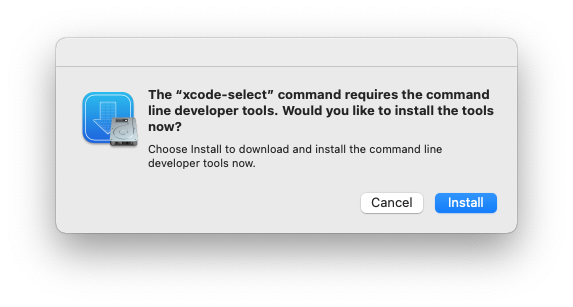
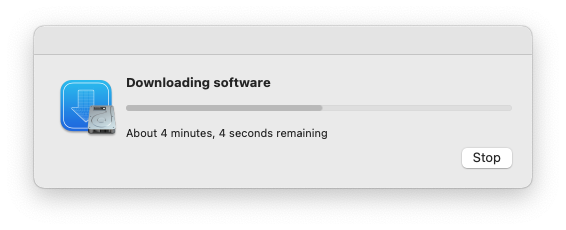
Click 'Install' to begin the download and installation process.
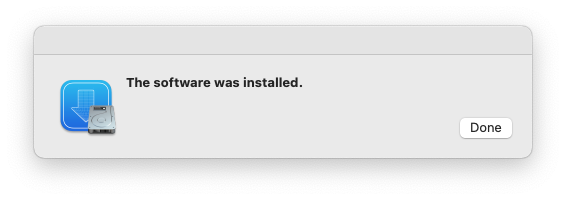
You'll see a confirmation message when installation is complete.
### Method 2: Homebrew
Alternatively, you can install and use the Homebrew package manager to install the gcc compiler.
To install the Homebrew package manager, use the following command.
``` Bash
/bin/bash -c "$(curl -fsSL https://raw.githubusercontent.com/Homebrew/install/HEAD/install.sh)"
```
You also want to add Homebrew to your PATH.
``` Bash
echo 'eval "$(/opt/homebrew/bin/brew shellenv)"' >> ~/.zprofile
eval "$(/opt/homebrew/bin/brew shellenv)"
```
Homebrew is now installed!
To use Homebrew, restart your current shell to reload the PATH.
``` Bash
exit
```
You can now use Homebrew to install packages.
To install the gcc compiler, do:
``` Bash
brew install gcc
```
gcc will now be installed.
# Installing a Editor
## Dev-C++ (Windows only)
Download Dev-C++ from [SourceForge](https://sourceforge.net/projects/embarcadero-devcpp/files/v6.3/)
Just click `next` for each option :D
To create a new source file, do:
`File` -> `New` -> `Source File`

To run your program, click the `compile and run` button.


## Code::Blocks (Windows only)
Download from Code::Blocks from the [official website](https://www.codeblocks.org/downloads/binaries/)
To create a new project, do:
`File` -> `New` -> `Project`

`Files` -> `C/C++ source` -> `Go`

Click `next`, and select a directory.

Click `Build and run` to run your program.

## CP Editor
The CP Editor is designed for Competitive Programming.
To download it, go to the [official website](https://cpeditor.org/download/)

Additionally, CP Editor can submit your code to Codeforces automatically.
See the [documentation](https://cpeditor.org/docs/setup/).
## Visual Studio
> Visual Studio is a powerful IDE, but it may be overkill for small projects.
Download Visual Studio from [Microsoft](https://visualstudio.microsoft.com/downloads/)
### Installation
Open the Visual Studio Installer, and choose `Desktop development with C++`

### Creating a CLI project
Open Visual Studio, and select `Create a new project`, `Console App`

Name your project and choose a location

Click `Local Windows Debugger` to run your code

## Visual Studio Code
Download Visual Studio Code from [Microsoft](https://code.visualstudio.com/)

Open the `Extensions` tab, install these 2 extensions

Open a folder.

To create a new file, use: `New File...`.

Click `Run C/C++ file` to run your program.

## Xcode (macOS)
> Xcode is a powerful IDE, but it may be overkill for small projects.
Download Xcode from the [App Store](https://apps.apple.com/tw/app/xcode/id497799835?l=en-GB&mt=12).
 Sign in with Wallet
Connect another wallet
Sign in with Wallet
Connect another wallet