# Score Your Podcast Guide (in Ableton Live)
If you read our guide on how to score your podcast inside GarageBand, you will know that Apple Loops offer a solid approach to implementing music. However, if you find yourself utilizing Ableton Live for your podcast, there is an easy way to create a score in Live too.
### *Clips...*
Live has [clips](https://www.ableton.com/en/manual/live-concepts/#4-3-arrangement-and-session) which can contain samples, melodies, drum grooves and everything in between. These serve as great building blocks in composing a score from scratch.
It is also important to select clips that fit with the overall theme of the podcast. You probably want to avoid adding heavy rock guitars to a podcast that focuses on meditation and human development. Find what fits!
In this example, we have a reflection-style podcast where the host gets asked a question about human creativity. There are many approaches we can take for our score, but in this case we will aim for a relaxed, dreamy 'lo-fi' beat.
Check out the voice-over itself below:
<iframe style="border: 0; width: 100%; height: 42px;" src="https://bandcamp.com/EmbeddedPlayer/album=2999037224/size=small/bgcol=333333/linkcol=ffffff/artwork=none/transparent=true/" seamless><a href="https://danielbermudes.bandcamp.com/album/scoreyourpodcastabletonliveguide-2">ScoreYourPodcastAbletonLiveGuide by Daniel Bermudes</a></iframe>
### 1.) Produce A Music Demo
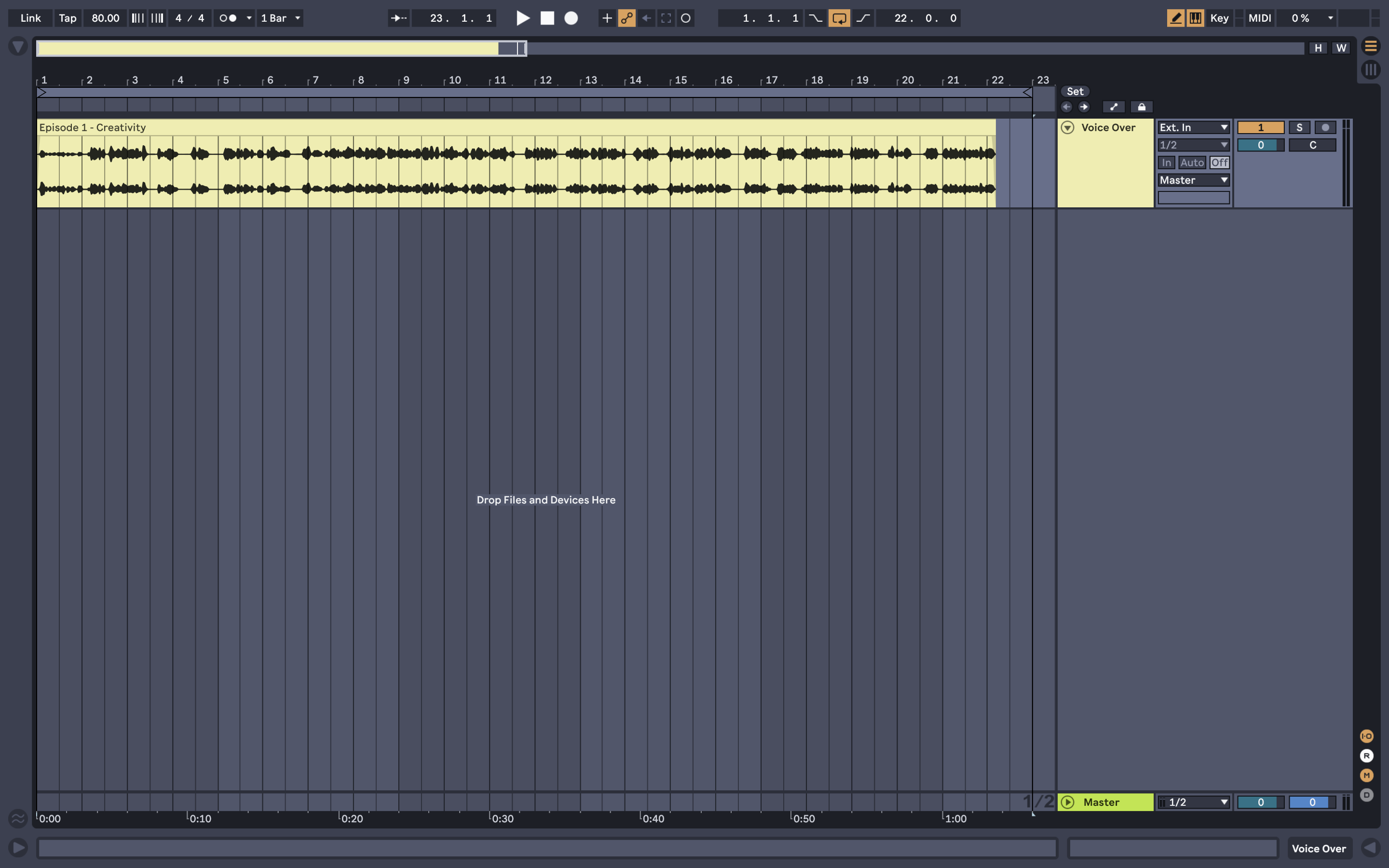
Working inside Live's [Arrangement View](https://www.ableton.com/en/manual/arrangement-view/),, mute the track with the voice-over for now (the slim orange rectangle box). While it seems counterintuitive to leave it out when starting, it helps to focus on creating a rough composition of different clips together. We will also refine it later.
Open Live's [browser](https://help.ableton.com/hc/en-us/articles/209774665-The-Live-Browser), select the Clips category, and after scrolling around and previewing your chosen clips, drag them onto the Arrangement View. You can also check out the Samples category for more sounds. Experiment as well with looping clips to fit the length of the voice-over by:
- Hovering your mouse over the top right of the clip until you see the "]" symbol, then simply drag.
*Note: While you can drag clips and samples onto a single track, it is important for each of them to be on their own track. This process will make mixing the score easier.*
As you try out different clips and samples together, begin to create a sense of cohesion among them. A way to look at this is to avoid having too many bass clips and drum clips together.
- This will create clutter and what is often reffered to in music production as "mud". There are ways to clean this out after, but it is much easier to avoid now than later.
For our example, we ended up with something like this:
<iframe style="border: 0; width: 100%; height: 42px;" src="https://bandcamp.com/EmbeddedPlayer/album=2999037224/size=small/bgcol=333333/linkcol=ffffff/artwork=none/track=2100956687/transparent=true/" seamless><a href="https://danielbermudes.bandcamp.com/album/scoreyourpodcastabletonliveguide-2">ScoreYourPodcastAbletonLiveGuide by Daniel Bermudes</a></iframe>
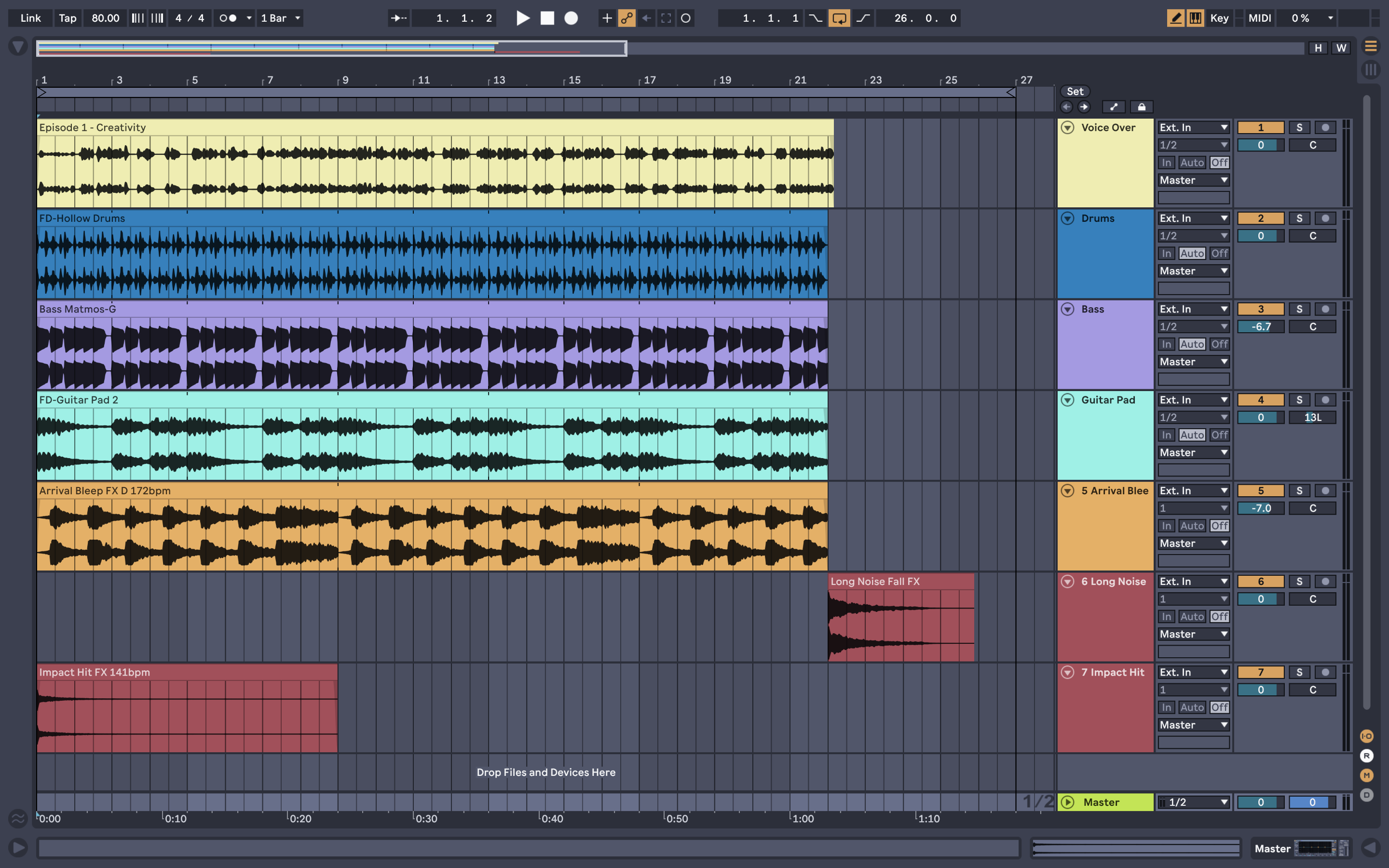
*Note: Try experimenting with the [tempo](https://www.ableton.com/en/manual/audio-clips-tempo-and-warping/#9-1-tempo) of the score by changing the value on the top left corner (next to 'Tap'). This is a great way of slowing down or speeding up the score to better fit the pace of the podcast.*
- "FD-Hollow Drums" is our drum clip.
- "Bass Matmos-G" is our bass clip.
- "FD-Guitar Pad 2" is a pad sound. It is very lo-fi!
- "Arrival Bleep FX D 172bpm" is a cool synth bleep sound.
- Ignore the labled BPM; we changed our score to 80BPM, so this clip now follows that new tempo.
- Those two clips in red are cool sound effects, and help introduce and conclude moments in a score.
**Tip: Less is more!**
### 2.) Compliment The Voice-Over
This is where things go up a notch. We now have a complete music demo to support our podcast. However, every clip repeats. There is no variety or change in the score, and some parts may not sync together as you would like them to. With a little bit of creative thinking, we can spruce things up.
Placement of your clips in relation to the voice-over is crucial to creating more synchronization. One way to start is by moving clips to different "cue points" in the voice-over. When does your speaker begin to talk? Where do they change subject? Are there closing remarks? Having different clips come in at these different points will make those moments significant and keep the score from being repetitive.
Another cool thought is to leave "pockets" of space throughout the score (as highlighted by the yellow boxes in the image below). This leaves room for the score to "breathe".
There is no rule to this; it is entirely up to you how you want to organize your score.
For our example, we ended up with something like this:
**<iframe style="border: 0; width: 100%; height: 42px;" src="https://bandcamp.com/EmbeddedPlayer/album=2999037224/size=small/bgcol=333333/linkcol=ffffff/artwork=none/track=4257525658/transparent=true/" seamless><a href="https://danielbermudes.bandcamp.com/album/scoreyourpodcastabletonliveguide-2">ScoreYourPodcastAbletonLiveGuide by Daniel Bermudes</a></iframe>**
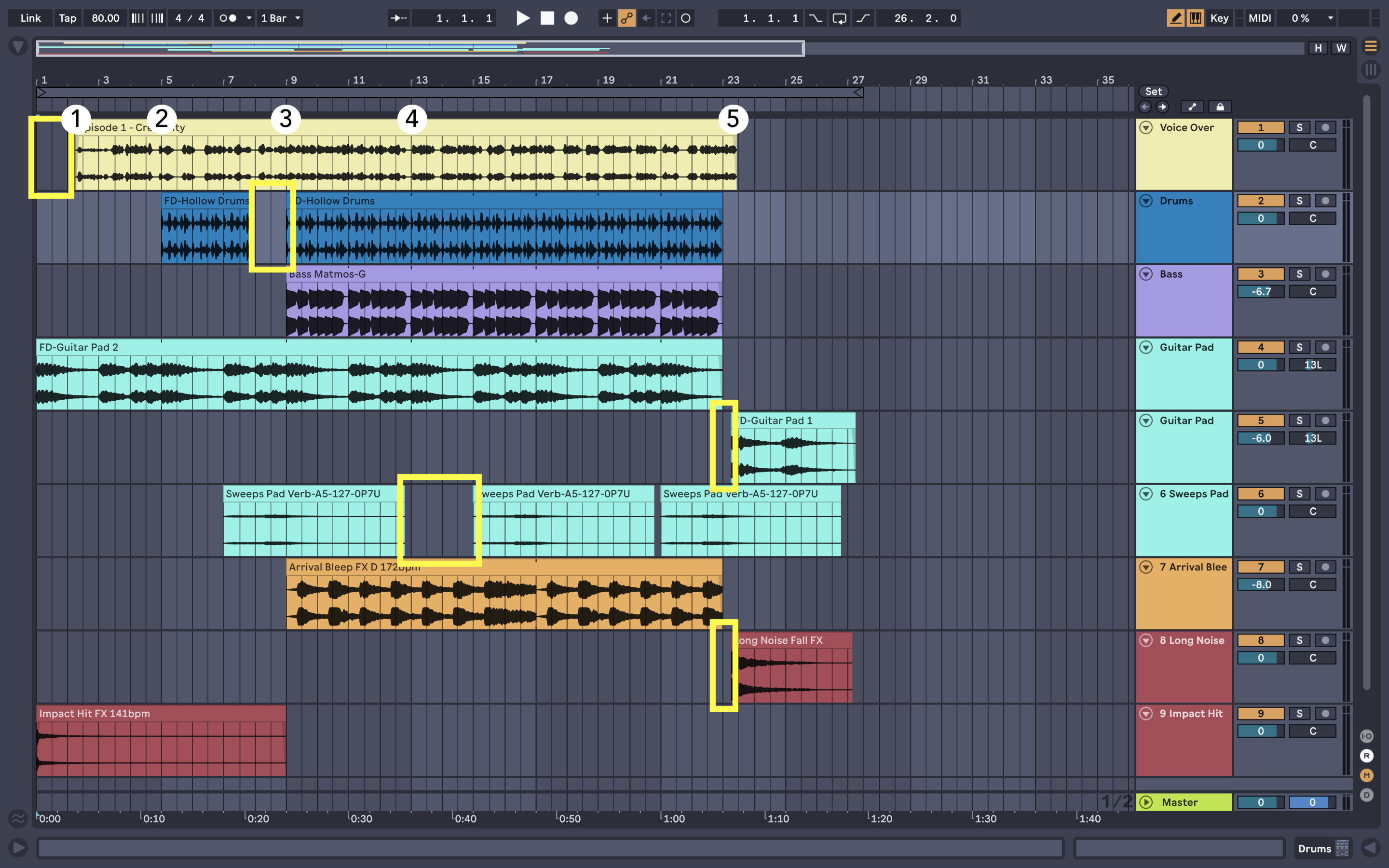
- We have 5 cue points which serve as potential good moments for musical ideas to occur. That does not mean we *have* to place a new sound there.
- We shifted the voice-over a bit to have the Guitar Pad clip start first by itself; this sets up the mood of the podcast.
- "FD-Guitar Pad 1" is introduced at the end as a closing musical chord.
- "Sweeps Pad Verb..." is an airy sound that helps keep the score moving.
### 3.) Mix Everything Together
As you have probably noticed by now, your voice-over may be really quiet with all of these different sounds layered over it. We can begin the process of mixing and adjusting volume levels for each track for the score to better fit **underneath** the voice-over.
With some simple adjustments, we now have this:
<iframe style="border: 0; width: 100%; height: 42px;" src="https://bandcamp.com/EmbeddedPlayer/album=2999037224/size=small/bgcol=333333/linkcol=ffffff/artwork=none/track=1259547124/transparent=true/" seamless><a href="https://danielbermudes.bandcamp.com/album/scoreyourpodcastabletonliveguide-2">ScoreYourPodcastAbletonLiveGuide by Daniel Bermudes</a></iframe>
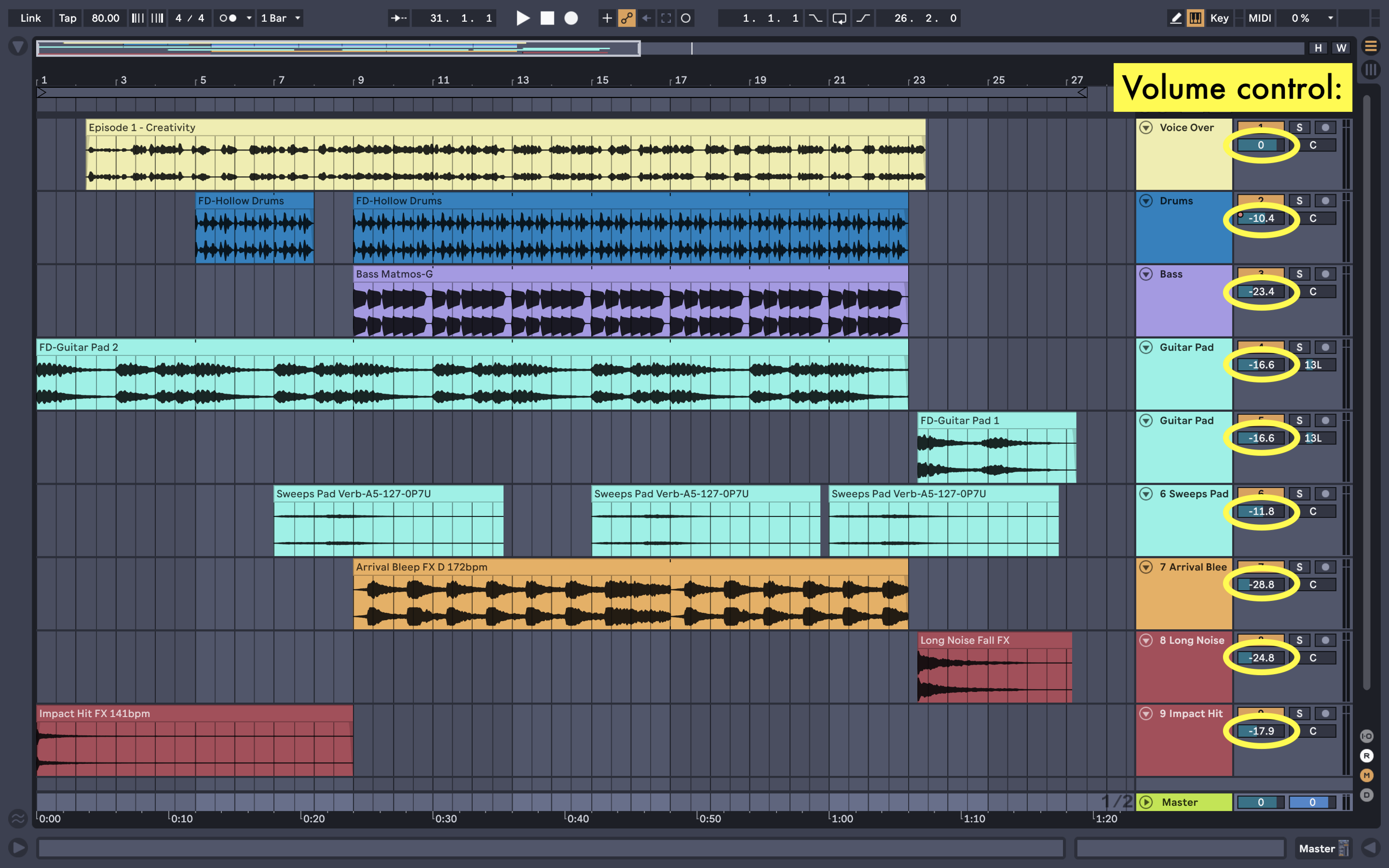
If you listen, you hear the drum clip begin to slowly fade in. This is through [automation](https://www.ableton.com/en/manual/automation-and-editing-envelopes/), and is a powerful way to bring in and bring out sounds. Feel free to explore this more in your own score.
-----------
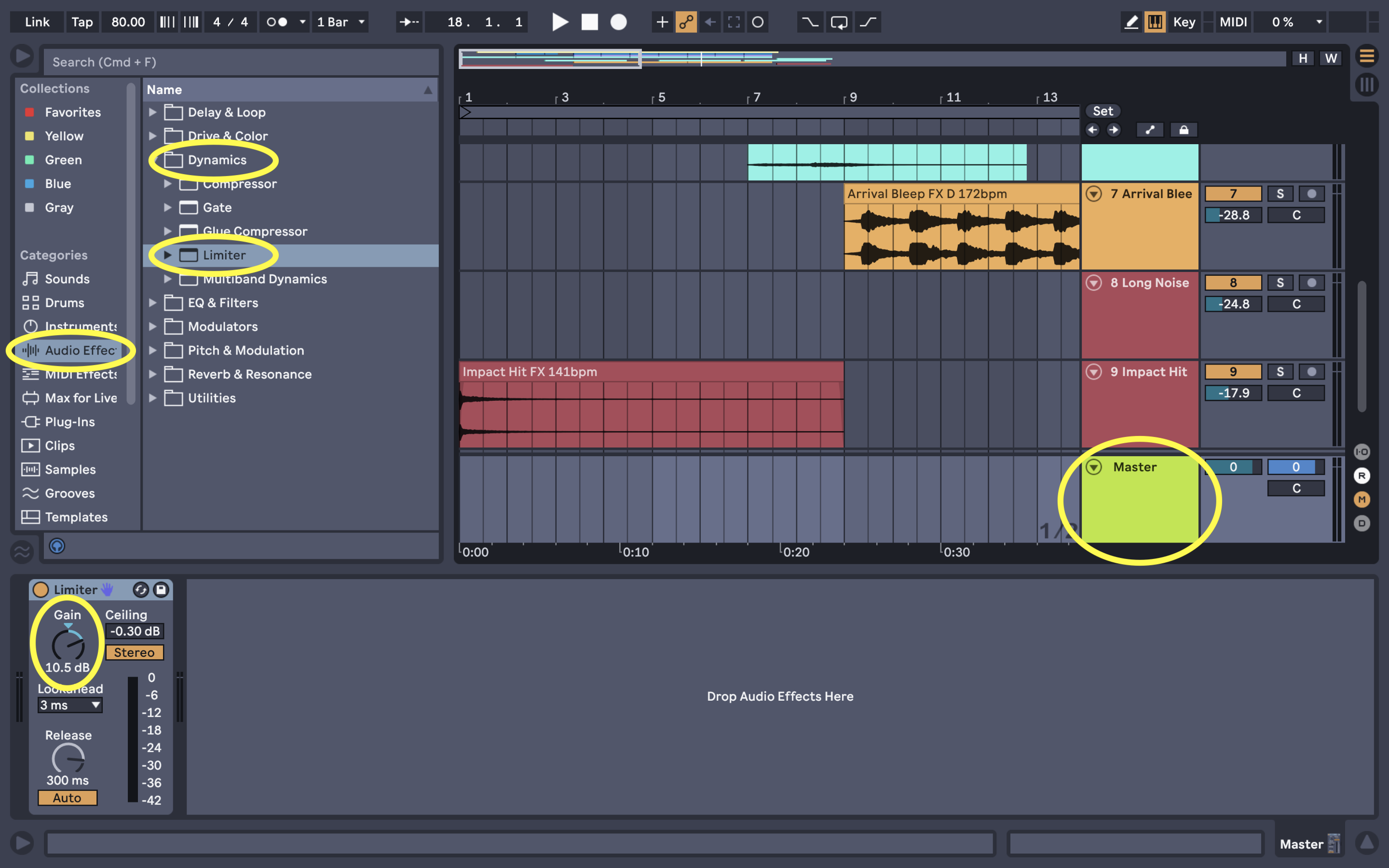
A common issue that can arise is the entire podcast itself may sound quieter now. In this case, an easy solution is to add a [*Limiter*](https://www.ableton.com/en/manual/live-audio-effect-reference/#24-26-limiter) to the entire podcast. Just as in GarageBand, a Limiter will allow us to bring everything up in volume.
In the Browser window, select 'Audio Effects', double-click the "Dynamics" folder, then click and drag the Limiter plug-in to your Master track on the bottom of the screen. You will see the Limiter plug-in appear.
Now increase the *Gain* parameter. But careful, for increasing this drastically can be fatiguing to the ears and cause unwanted distortion!
### *Want More Clips?...*
If you find that you desire a wider selection of clips and samples to choose from, check out [Ableton Packs](https://www.ableton.com/en/packs/). There, you can find more sounds, many of which are free as well!
 Sign in with Wallet
Connect another wallet
Sign in with Wallet
Connect another wallet