---
tags: Bedrock, AI/ML, AWS, Workshop
---
# DAM: Hackathon 2 - Tips and Tricks
## Jump to
Sections on
* [IAM](#IAM-Roles-amp-Permissions)
* [Lambda Function Tips](#Lambda-Tips)
* [Mock API Responses](#API-Responses)
# Administrivia, Schedule and Planning
The event will be delivered as follows:
| Team | Topics | Members | Points |
|---------|-----------------------------|----------|--------|
| 1 | **Tag** | 3 | 0 |
| 2 | **Search** | 3 | 0 |
| 3 | **Generate** | 3 | 0 |
* **Tag** - Perform Tagging on an image via Rekognition.
* **Search** - Perform embedding search against OpenSearch, return nearest neighbour.
* **Generate** - Send a existing image to Bedrock and modify the image based on prompt.
### Tag
Upload an image to S3 bucket
Execute a Lambda triggered on ```PUT``` S3 event
Send image to Rekogntion
Return Labels (Tags) with >80% accuracy
...
Review Search team work to understand how to generate embeddings of image tags and add the new entry to Opensearch.
### Search
Take search string and return embeddings
Pass the new search embeddings to OpenSearch and return ```X``` closest results.
### Generate
Take an image stored in S3
Send the image to Bedrock Titan Generate Image Model
Send image prompt to alter the original image
Return the image to S3 or Browser
## IAM Roles & Permissions
:::info
:warning: These IAM roles have already been configured in your dev account.
:::
[TAG](#IAM-Tag) | [SEARCH](#IAM-Search) | [GENERATE](IAM-Generate)
### IAM Tag
Rolename: **dam_image_tag_exec**
**Managed Policies**
* AmazonRekognitionFullAccess
* AmazonS3ReadOnlyAccess
* AWSLambdaBasicExecutionRole
**Customer Policy**
OpenSearch Serverless Permissions
```json=
{
"Version": "2012-10-17",
"Statement": [
{
"Sid": "VisualEditor0",
"Effect": "Allow",
"Action": "aoss:APIAccessAll",
"Resource": "arn:aws:aoss:us-west-2::collection/*"
}
]
}
```
Bedrock Permissions
```json=
{
"Version": "2012-10-17",
"Statement": [
{
"Sid": "VisualEditor0",
"Effect": "Allow",
"Action": "bedrock:ListFoundationModels",
"Resource": "*"
},
{
"Sid": "VisualEditor1",
"Effect": "Allow",
"Action": "bedrock:InvokeModel",
"Resource": "arn:aws:bedrock:us-west-2::foundation-model/amazon.titan-embed-image-v1"
}
]
}
```
### IAM Search
Rolename: **dam_search_execution**
**Managed Policies**
* AWSLambdaBasicExecutionRole
**Customer Policy**
OpenSearch Serverless Permissions
```json=
{
"Version": "2012-10-17",
"Statement": [
{
"Sid": "VisualEditor0",
"Effect": "Allow",
"Action": "aoss:APIAccessAll",
"Resource": "arn:aws:aoss:us-west-2::collection/*"
}
]
}
```
Bedrock Permissions
```json=
{
"Version": "2012-10-17",
"Statement": [
{
"Sid": "VisualEditor0",
"Effect": "Allow",
"Action": "bedrock:ListFoundationModels",
"Resource": "*"
},
{
"Sid": "VisualEditor1",
"Effect": "Allow",
"Action": "bedrock:InvokeModel",
"Resource": "arn:aws:bedrock:us-west-2::foundation-model/amazon.titan-embed-image-v1"
}
]
}
```
### Opensearch Serverless Data Access Control Permissions
Data access control for Amazon OpenSearch Serverless [info](https://docs.aws.amazon.com/opensearch-service/latest/developerguide/serverless-data-access.html?icmpid=docs_console_unmapped#serverless-data-access-cli)
Here is what my default rule now looks like, by adding the IAM permissions of the Lambda roles as principals they can invoke the Opensearch endpoint API. Without this Opensearch will deny the Lambda attempts.

Alternative view the json of the policy.
```json=
[
{
"Rules": [
{
"Resource": [
"collection/image-search-multimodal"
],
"Permission": [
"aoss:CreateCollectionItems",
"aoss:DeleteCollectionItems",
"aoss:UpdateCollectionItems",
"aoss:DescribeCollectionItems"
],
"ResourceType": "collection"
},
{
"Resource": [
"index/image-search-multimodal/*"
],
"Permission": [
"aoss:CreateIndex",
"aoss:DeleteIndex",
"aoss:UpdateIndex",
"aoss:DescribeIndex",
"aoss:ReadDocument",
"aoss:WriteDocument"
],
"ResourceType": "index"
}
],
"Principal": [
"arn:aws:sts::${AWS::AccountID}:assumed-role/Admin/YourAccount",
"arn:aws:iam::${AWS::AccountID}:role/service-role/dam_search_execution",
"arn:aws:iam::${AWS::AccountID}:role/service-role/dam_image_execution"
],
"Description": "Easy data policy"
}
]
```
**Note:** Replace ```${AWS::AccountID}``` with you numeric ID.
### IAM Generate
Rolename: **dam_image_gen-role**
**Managed Policies**
* AmazonS3FullAccess
* AWSLambdaBasicExecutionRole
**Customer Policy**
```json=
{
"Version": "2012-10-17",
"Statement": [
{
"Sid": "VisualEditor0",
"Effect": "Allow",
"Action": "bedrock:InvokeModel",
"Resource": [
"arn:aws:bedrock:*::provisioned-model/*",
"arn:aws:bedrock:*::foundation-model/*"
]
}
]
}
```
## Lambda Tips
[TAG](#Tag-Lambda) | [SEARCH](#Search-Lambda) | [GENERATE](Generate-Image-Lambda)
There are two Lambda Layers that I've used that aren't in the base runtime for python 3.11.
* [Opensearch](https://pypi.org/project/opensearch-py/) - copy of the layer can be [found here](https://github.com/arranpeterson/dam/blob/main/lambda_layers/opensearch-layer.zip)
* [AWS4Auth](https://pypi.org/project/requests-aws4auth/) - copy of the layer can be [found here](https://github.com/arranpeterson/dam/blob/main/lambda_layers/requests-aws4auth-layer.zip)
### Tag Lambda
Leverage the following packages
```python=
import json
import boto3
import os
from opensearchpy import OpenSearch, RequestsHttpConnection
from requests_aws4auth import AWS4Auth
from botocore.session import Session
```
To get short-lived, limited-privilege credentials from the STS service for the authentication to the OpenSearch Cluster API. We use the IAM Role for the Lambda's Execution role.
```python=
session = boto3.Session()
# Dynamic STS Credentials using botocore
credentials = Session().get_credentials()
awsauth = AWS4Auth(credentials.access_key, credentials.secret_key, region, service, session_token=credentials.token)
client = OpenSearch(
hosts = [{'host': host, 'port': 443}],
http_auth = awsauth,
use_ssl = True,
verify_certs = True,
connection_class = RequestsHttpConnection,
pool_maxsize = 20
)
```
Runtime clients
```python=
# Bedrock Runtime client used to invoke the model
bedrock_runtime = boto3.client(service_name='bedrock-runtime', region_name=region)
# Rekognition Runtime cliend to invoke API
client = session.client('rekognition', region_name=region)
```
### Search Lambda
Leverage the following packages
```python=
import json
import boto3
import os
from opensearchpy import OpenSearch, RequestsHttpConnection
from requests_aws4auth import AWS4Auth
from botocore.session import Session
```
To get short-lived, limited-privilege credentials from the STS service for the authentication to the OpenSearch Cluster API. We use the IAM Role for the Lambda's Execution role.
```python=
session = boto3.Session()
# Dynamic STS Credentials using botocore
credentials = Session().get_credentials()
awsauth = AWS4Auth(credentials.access_key, credentials.secret_key, region, service, session_token=credentials.token)
client = OpenSearch(
hosts = [{'host': host, 'port': 443}],
http_auth = awsauth,
use_ssl = True,
verify_certs = True,
connection_class = RequestsHttpConnection,
pool_maxsize = 20
)
```
### Generate Image Lambda
Leverage the Boto3 library and import clients
```python=
s3_client = boto3.client('s3')
client = boto3.client("bedrock-runtime", region_name="us-west-2")
```
Download the original file using bucket, location and output path.
```python=
s3_client.download_file(S3_bucket, 'image.jpeg', tmp_image_path)
```
You'll need to convert images to base64 encoded strings
```python=
image_base64 = image_to_base64(tmp_image_path)
```
Upload the new image file to S3. Remember the response data will be base64 encoded. you will need perform ```base64.b64decode```
```python=
s3_client.upload_file(tmp_new_image_path, s3_bucket, f'{input_s3_prefix}/{image_file_name_without_extension}_new.jpeg')
```
## API Responses
[TAG](#Tag-Response) | [SEARCH](#Search-Response) | [GENERATE](Generate-Response)
Here are some mock API responses that can be used for rendering React.
### Tag Response
The results for image tag
```json=
{
"statusCode": 200,
"headers": {
"Access-Control-Allow-Origin": "*"
},
"isBase64Encoded": false,
"body": {
"image_path": "002.jpg",
"image_title": "test2",
"image_labels": "Nature Outdoors Sea Water Shoreline Coast Person Beach Aerial View rekognition",
"image_class": "sealink",
"image_url": "https://d9yx5bzoplulh.cloudfront.net/002.jpg",
"multimodal_vector": [
0.017456055,
0.04272461,
-0.016845703,
-0.0044555664,
0.040527344,
....
]
}
}
```
### Search Response
The results of a search
```json=
{
"statusCode": 200,
"headers": {
"Access-Control-Allow-Origin": "*"
},
"isBase64Encoded": false,
"body": {
"took": 1811,
"timed_out": false,
"_shards": {
"total": 0,
"successful": 0,
"skipped": 0,
"failed": 0
},
"hits": {
"total": {
"value": 6,
"relation": "eq"
},
"max_score": 0.82725435,
"hits": [
{
"_index": "index_name",
"_id": "1%3A0%3AfFy85Y8B-JsMtKpYzrSR",
"_score": 0.82725435,
"_source": {
"image_labels": "Beach Ocean Sand Swimming",
"image_class": "sealink",
"image_path": "002.jpg",
"image_url": "https://d9yx5bzoplulh.cloudfront.net/002.jpg",
"image_title": "Beach"
}
},
{
"_index": "index_name",
"_id": "1%3A0%3AA14XBZABJ7FHc9GUgCn-",
"_score": 0.79651535,
"_source": {
"image_labels": "bedrock",
"image_class": "sealink",
"image_path": "002.jpg",
"image_url": "https://d9yx5bzoplulh.cloudfront.net/002.jpg",
"image_title": "test"
}
},
{
"_index": "index_name",
"_id": "1%3A0%3AgVy85Y8B-JsMtKpYzrSR",
"_score": 0.74610335,
"_source": {
"image_labels": "Coast Ocean Beach Rocks Swimming Rockpools",
"image_class": "sealink",
"image_path": "007.jpg",
"image_url": "https://d9yx5bzoplulh.cloudfront.net/007.jpg",
"image_title": "Coast Rocks"
}
},
{
"_index": "index_name",
"_id": "1%3A0%3ABF4eBZABJ7FHc9GUGynp",
"_score": 0.7082537,
"_source": {
"image_labels": "Nature Outdoors Sea Water Shoreline Coast Person Beach Aerial View rekognition",
"image_class": "sealink",
"image_path": "002.jpg",
"image_url": "https://d9yx5bzoplulh.cloudfront.net/002.jpg",
"image_title": "test2"
}
},
{
"_index": "index_name",
"_id": "1%3A0%3AOeimSZEB_wliBjotYTw0",
"_score": 0.7082537,
"_source": {
"image_labels": "Nature Outdoors Sea Water Shoreline Coast Person Beach Aerial View rekognition",
"image_class": "sealink",
"image_path": "002.jpg",
"image_url": "https://d9yx5bzoplulh.cloudfront.net/002.jpg",
"image_title": "test2"
}
}
]
}
}
}
```
### Generate Response
The results for a new generate image
```json=
{
"ResponseMetadata": {
"RequestId": "3e6a7f6f-8a03-4a19-b8b9-953b35dab2d3",
"HTTPStatusCode": 200,
"HTTPHeaders": {
"date": "Tue, 20 Aug 2024 02:42:39 GMT",
"content-type": "application/json",
"content-length": "2232557",
"connection": "keep-alive",
"x-amzn-requestid": "3e6a7f6f-8a03-4a19-b8b9-953b35dab2d3",
"x-amzn-bedrock-invocation-latency": "13103"
},
"RetryAttempts": 0
},
"contentType": "application/json",
"body": {
"Filename": "corgi1_new.jpeg",
"S3Bucket": "test",
"Data": "iVBORw0...."
}
}
```
----
# Appendix - Hackathon 1
## What is a Digital Asset Management (DAM)?
Refer to the following headings when working through the content and getting stuck.
Our solution uses our event-driven services [Amazon EventBridge](https://aws.amazon.com/eventbridge/), [AWS Step Functions](https://aws.amazon.com/step-functions/), and [AWS Lambda](https://aws.amazon.com/lambda/) to orchestrate the process of extracting metadata from the images using Amazon Rekognition. Amazon Rekognition will perform an API calls to extract labels from the image along with custom labels from the user input. The Amazon Rekognition `DetectLabels` API gives you the metadata from your images—text labels you can use to form a sentence to generate an embedding from.
### How will we search? Vectors and Semantic Seach
A key concept in **semantic search** is embeddings. A word embedding is a numerical representation of a word or group of words, in the form of a vector. When you have many vectors, you can measure the distance between them, and vectors which are close in distance are semantically similar. Therefore, if you generate an embedding of all of your images’ metadata, and then generate an embedding of your text, be that an article or tv synopsis for example, using the same model, you can then find images which are semantically similar to your given text.
Whats important to understand is that Vectors capture semantic meaning. So they can be used for relevency or context based search, rather than simple text search.
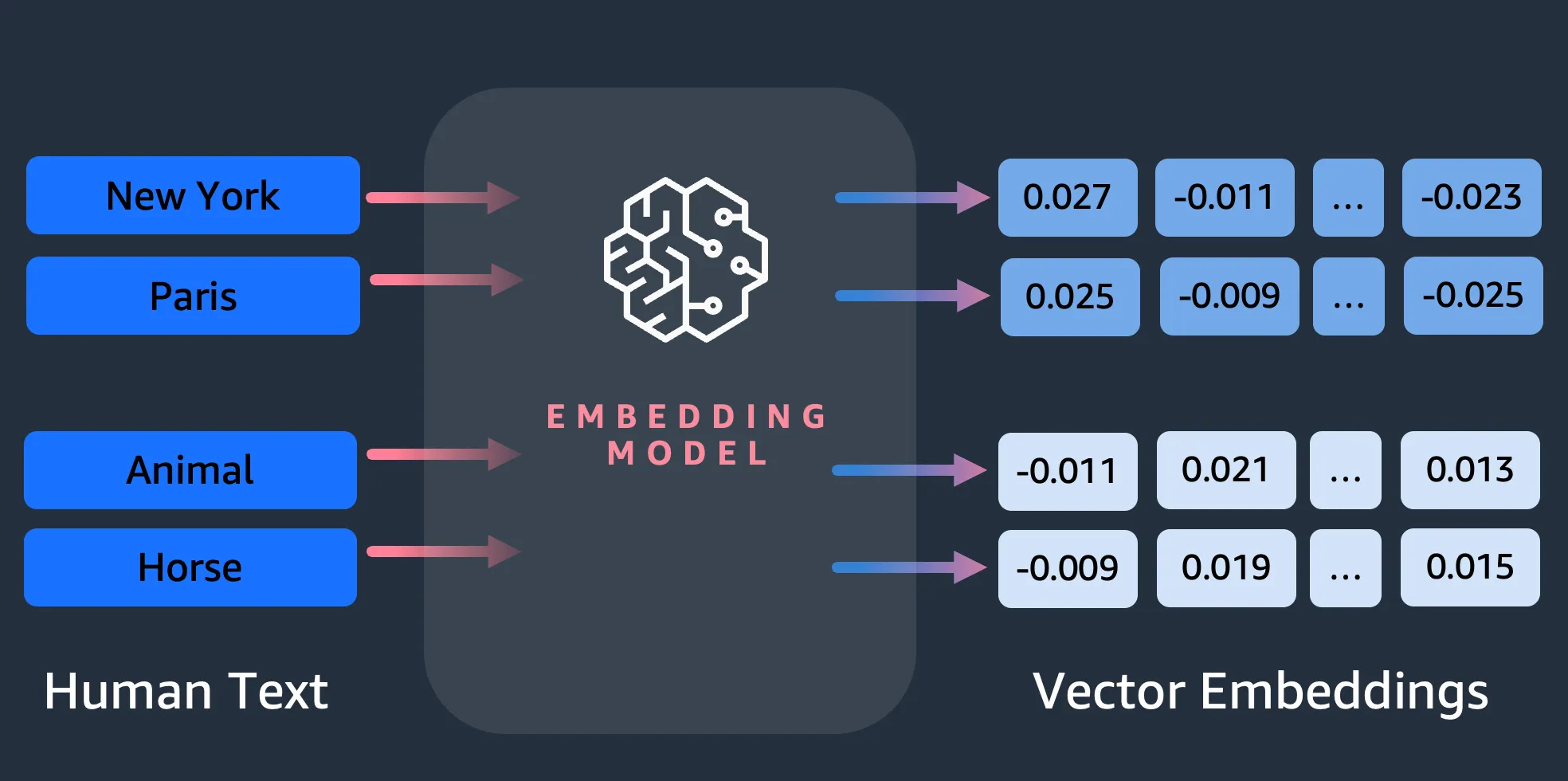
The following figure demonstrates plotting the vectors of our images in a 2-dimensional space, where for visual aid, we have classified the embeddings by their primary category.

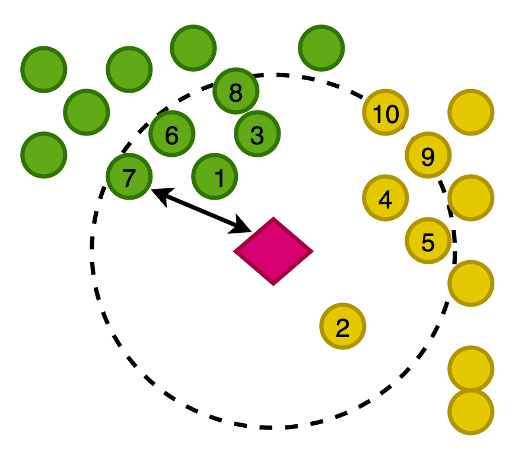
You also generate an embedding of this newly written image, so that you can search OpenSearch Service for the nearest images to the prompt in this vector space. Using the k-nearest neighbors (k-NN) algorithm, you define how many images to return in your results.
Zoomed in to the preceding figure, the vectors are ranked based on their distance from the prompt text and then return the K-nearest images, where K is 10 in this example.
Now you can run these specialised vector stores on AWS, via their dedicated cloud offerings. But I want to quickly give you a glimpse of the choices in terms of the first category that I referred to.
* **Amazon OpenSearch service** (*We will use this, widely documented*)
* Amazon Aurora with PostgreSQL compatibility
* Amazon DocumentDB (with MongoDB compatibility)
* Amazon MemoryDB for Redis which currently has Vector search in preview (at the time of writing)
Here is a simplified view of where vector databases sit in generative AI solutions
* You take your domain-specific data, split/chunk them up
* Pass them through an embedding model - This gives you these vectors or embeddings,
* Store these embeddings in a vector database
* And, then there are applications that execute semantic search queries and combine them in various ways.
## What is Amazon Rekognition?
A good place to start learning about Amazon Rekognition is https://aws.amazon.com/rekognition/faqs/
* **Working with images:** https://docs.aws.amazon.com/rekognition/latest/dg/images.html
* **Label detection feature** https://docs.aws.amazon.com/rekognition/latest/dg/labels.html
## What is Amazon Bedrock?
A good place to start learning about Amazon Bedrock is https://aws.amazon.com/bedrock/faqs/
* **Getting started with Amazon Bedrock Studio**
Amazon Bedrock Studio is a web app that lets you easily protoype apps that use Amazon Bedrock models and features https://docs.aws.amazon.com/bedrock/latest/studio-ug/getting-started.html
* **AWS re:Invent 2023**: Explore image generation and search with FMs on Amazon Bedrock (AIM332)
https://www.youtube.com/watch?v=ZW_z5o_gWhQ
# AWS Services
Some of the service we will use to build our features. We will start with Generative AI (GenAI) using Amazon Bedrock. Bedrock is a fully managed service that offers a choice of high-performing foundational models (FMs) through a single API. The foundational models that will help us are Amazon Titan FM's.
## What is Amazon Titan?
A good place to start learning about Amazon Titan Models is https://aws.amazon.com/bedrock/titan/
* **YouTube**: Amazon Titan Image Generator Demo | Amazon Web Services
https://www.youtube.com/watch?v=v2akUur4xho
You can use the base models as is, or you can privately customize them with your own data. To enable access to Amazon Titan FMs, navigate to the [Amazon Bedrock console](https://console.aws.amazon.com/bedrock/home) and select Model access on the bottom left menu. On the **model access** overview page, choose **Manage model access** and enable access to the Amazon Titan FMs.

### Amazon Titan Multimodal Embeddings model
Amazon Titan Multimodal Embeddings helps you **build** more accurate and contextually relevant **multimodal search** and **recommendation** experiences for end users. Multimodal refers to a system’s ability to process and generate information using distinct types of data (modalities). **With Titan Multimodal Embeddings, you can submit text, image, or a combination of the two as input**.
The model converts images and short English text up to 128 tokens into embeddings, which capture semantic meaning and relationships between your data. You can also fine-tune the model on image-caption pairs. For example, you can combine text and images to describe company-specific manufacturing parts to understand and identify parts more effectively.
#### Example
In this [example notebook](https://github.com/aws-samples/amazon-bedrock-workshop/blob/main/04_Image_and_Multimodal/bedrock-titan-multimodal-embeddings.ipynb), we demo to you how to generate embeddings for images and optionally texts using Amazon Titan Multimodal Embedding Models, then search the embeddings with a query.
Read More: [Build a contextual text and image search engine for product recommendations using Amazon Bedrock and Amazon OpenSearch Serverless](https://aws.amazon.com/blogs/machine-learning/build-a-contextual-text-and-image-search-engine-for-product-recommendations-using-amazon-bedrock-and-amazon-opensearch-serverless/)
### Amazon Titan Image Generator G1 model
Amazon Titan Image Generator G1 is an image generation model. It generates images from text, and **allows users to upload and edit an existing image**. This model can generate images from natural language text and can also be used to **edit or generate variations for an existing** or a generated **image**. Users can edit an image with a text prompt (without a mask) or parts of an image with an image mask. You can extend the boundaries of an image with outpainting, and fill in an image with inpainting. It can also generate variations of an image based on an optional text prompt.
#### Example
In this [tutorial](https://github.com/aws-samples/amazon-bedrock-workshop/blob/main/04_Image_and_Multimodal/bedrock-titan-image-generator.ipynb), we will show how to use the new Amazon Titan Image Generator on Amazon Bedrock model to generate (text-to-image) and edit (image-to-image) images
Read More: [Use Amazon Titan models for image generation, editing, and searching](https://aws.amazon.com/blogs/machine-learning/use-amazon-titan-models-for-image-generation-editing-and-searching/)
## What is CloudScape Design System?
One way to build a quick console experience in React is to use Cloudscape, an open source design system to create web applications. It was built for and is used by Amazon Web Services (AWS) products and services. We can use this to quickly build out a UI in React with components.
https://cloudscape.design/demos
#### Example

# High Level Architecture

1. Image PUT Request in S3
1. EventBridge listens to this event, initiates Step Function
1. Step Function takes S3 image details and runs actions
1. DetectLabels to extract object metadata
1. Lambda function performs image dimensions for ML embedding model
1. Lambda function inserts image object metadata and embedding as KNN vector in OpenSearch
1. S3 host static website with Cloudfront for the Front End UI. Authenticate using Cognito to search for images
1. Lambda function searches OpenSearch image index for matching the KNN.
## Session 1: User Stories
The following user stories make up the core features of the application that require AI/ML services. Lets start with these and work backwards.
### Team Image
1. As a user, I want to be able to upload images to S3, so that they can be processed and analyzed. **10 Points**
2. As a user, I want the system to automatically extract metadata from uploaded images, so that I can easily search and categorize them. **90 Points**
3. As a user, I want the system to generate ML embeddings for uploaded images, so that I can perform similarity searches and discover visually similar images. **100 Points**
:::spoiler
**HINT 1**
[Analyzing images stored in an Amazon S3 bucket](https://docs.aws.amazon.com/rekognition/latest/dg/images-s3.html)
Can you use S3 events to trigger your Lambda or Step Function?
:::
:::spoiler
**HINT 2**
[Process Amazon S3 event notifications with Lambda](https://docs.aws.amazon.com/lambda/latest/dg/with-s3.html)
Can you use S3 events to trigger your Lambda or Step Function?
:::
:::spoiler
Embedding request
```
{
"image_path": "001.jpg",
"image_title": "Driver Career",
"image_labels": "Bus Driver Transport Green",
"image_class": "tower",
"image_url": "https://d9yx5bzoplulh.cloudfront.net/001.jpg",
"multimodal_vector": [
0.043503903,
-0.011784887,
-0.021839952,
-0.014455186,
........
........
]
},
```
:::
### Team Search
1. As a user, I want to be able to search for images based on metadata and ML embeddings, so that I can find relevant images efficiently. **100 Points**
2. As a user, after searching for an image and selecting a result, I can enhance or modify it according to my specific requirements before further actions like sharing or saving.**100 Points**
Tutorial: Creating a search application with Amazon OpenSearch Service
:::spoiler
**HINT 3**
Tutorial: Creating a search application with Amazon OpenSearch Service
https://docs.aws.amazon.com/opensearch-service/latest/developerguide/search-example.html
:::
:::spoiler
**HINT 4**
```
from opensearchpy import OpenSearch, RequestsHttpConnection, AWSV4SignerAuth
service = 'aoss'
credentials = boto3.Session().get_credentials()
auth = AWSV4SignerAuth(credentials, os.environ.get("AWS_DEFAULT_REGION", None), service)
host_parts = host.split(':')
client = OpenSearch(
hosts = [{'host': host_parts[0], 'port': 443}],
http_auth = auth,
use_ssl = True,
verify_certs = True,
connection_class = RequestsHttpConnection,
pool_maxsize = 20
)
```
:::
:::spoiler
```
# Test
def get_embedding_for_text(text):
body = json.dumps(
{
"inputText": text
}
)
bedrock.send_request(
"POST",
"/text-embedding",
body=body,
headers={
"Content-Type": "application/json"
}
)
vector_json = json.loads(response['body'].read().decode('utf8'))
return vector_json, text
text_embedding = get_embedding_for_text("Beach")
query = {
"size": 5,
"query": {
"knn": {
"multimodal_vector": {
"vector": text_embedding[0]['embedding'],
"k": 5
}
}
},
"_source": ["image_title", "image_path", "image_labels", "image_class", "image_url"]
}
try:
text_based_search_response = client.search(body=query,
index="image-search-multimodal-index")
print(json.dumps(text_based_search_response, indent=2))
except Exception as ex:
print(ex)
```
:::
#### Backlog
Backlog items that can be done to earn more points. Pick up what you can from here.
1. As a user, I want the system to provide a user-friendly frontend interface for browsing and searching images, so that I can interact with the system easily. **300 Points**
2. As a user, I want the system to authenticate me securely using corporate credentials, so that my access to images and data is controlled and protected. **150 Points** [Leverage Cognito](https://docs.aws.amazon.com/prescriptive-guidance/latest/patterns/create-a-react-app-by-using-aws-amplify-and-add-authentication-with-amazon-cognito.html)
3. As a user, I want the system to be reliable and fault-tolerant, so that I can trust it to process and store my images reliably. **100 Points**
4. As a user, I want the system to be scalable and performant, so that it can handle large volumes of image uploads and searches efficiently. **100 Points**
5. As a user, I want to upload various types of assets (images, documents, videos, logos) to a structured library, so that I can organize and manage them efficiently. **20 Points**
6. As a user, I want to crop images with a focal point and use pre-defined sizes for social media, EDMs, and websites, so that my images are optimized for different platforms **80 Points** [S3 Trigger to create image sizes](https://docs.aws.amazon.com/lambda/latest/dg/with-s3-tutorial.html)
7. As a user, I want the system to store copyright and ownership details for each asset, with a notes section for additional information, so that I can manage and reference these details easily **50 Points**
8. As a user, I want to upload brand guidelines and make them easily accessible to staff, so that everyone can adhere to brand standards. **30 Points**
9. As a user, I want the system to implement an approval process with varied permission levels, so that asset management and usage are controlled and secure. **150 Points**
10. As a user, I want the system to enforce pre-defined naming conventions during uploads, using drop-down selections to auto-populate file names, so that asset names are consistent and organized. **50 Points**
11. As a user, I want the system to maintain version history for each asset, so that I can track changes and revert to previous versions if necessary. **100 Points** [Version control](https://docs.aws.amazon.com/AmazonS3/latest/userguide/versioning-workflows.html)
12. As a user, I want to integrate the system with third-party applications such as CMS, Salesforce, and Adobe, so that I can streamline asset management and usage across platforms.
13. As a user, I want to access and manage all assets via the cloud, so that I can work from anywhere with internet access.
14. As a user, I want to have an external asset library that I can share with others, so that collaboration with external parties is facilitated. **100 Points** [Serverless Example](https://aws.amazon.com/blogs/compute/enhancing-file-sharing-using-amazon-s3-and-aws-step-functions/)
# Self Paced Learning
* **Training**: Generative AI Learning Plan for Developers (11hrs 40mins)
https://explore.skillbuilder.aws/learn/learning_plan/view/2068/generative-ai-learning-plan-for-developers
* **Workshop**: Build and scale generative AI applications with Amazon Bedrock
https://catalog.us-east-1.prod.workshops.aws/workshops/e820beb4-e87e-4a85-bc5b-01548ceba1f8/en-US
* **Workshop**: Amazon Bedrock Workshop
https://catalog.us-east-1.prod.workshops.aws/workshops/a4bdb007-5600-4368-81c5-ff5b4154f518/en-US
* **Workshop**:Building with Amazon Bedrock and LangChain
https://catalog.workshops.aws/building-with-amazon-bedrock/en-US
:::info
:warning: Most workshops have the option to run in your own AWS account or as part of a AWS event. To run these workshops in your own time. Choose to run from your own AWS account. Otherwise you can work with AWS account team to have workshop setup at a specific time to complete.
:::
## Amazon Q for Builder Integration
Navigate to Extensions icon on the left-hand pane of your VS Code IDE.
In the search bar, enter `Amazon Q` and select Install.
From the AWS Toolkit, under the CodeWhisperer section, choose Sign in to get started.
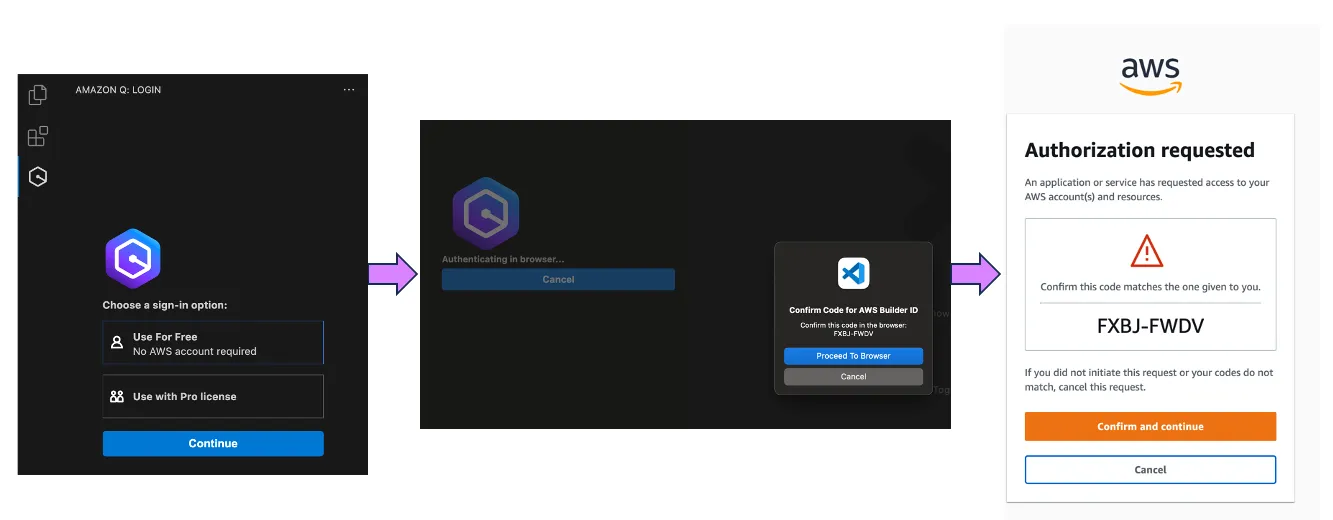
Create/Sign in with AWS Builder ID
https://docs.aws.amazon.com/signin/latest/userguide/sign-in-aws_builder_id.html
Open the Amazon Q Chat window in your IDE by selecting the Q Icon on the left-hand pane as shown below

Send to Amazon Q, Send to prompt as shown below

## AWS Toolkit for Visual Studio Code
### Installation
From Visual Studio Code, choose the Extensions icon on the Activity Bar. In the Search Extensions in Marketplace box, enter AWS Toolkit and then choose AWS Toolkit for Visual Studio Code as shown below. This opens a new tab in the editor showing the toolkit’s installation page. Choose the Install button in the header to add the extension.
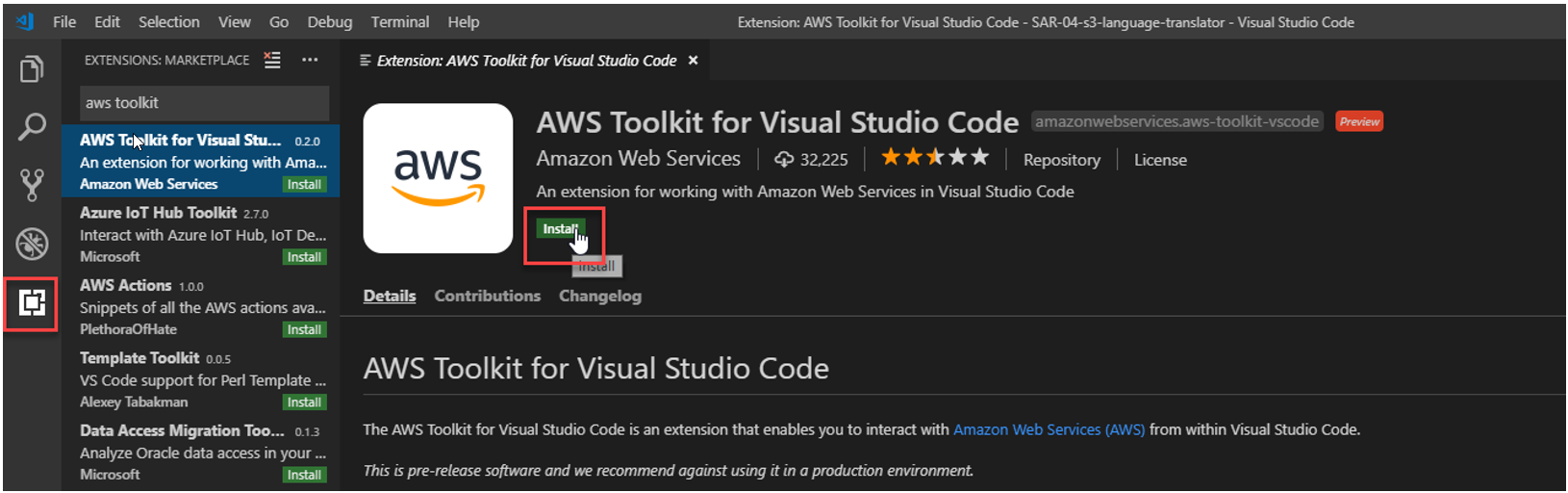
After you install the AWS Toolkit for Visual Studio Code, you must complete these additional steps to access most of its features:
Use those [AWS credentials](https://docs.aws.amazon.com/toolkit-for-vscode/latest/userguide/setup-credentials.html) to [connect the Toolkit to AWS.](https://docs.aws.amazon.com/toolkit-for-vscode/latest/userguide/connect.html)
Once authenticated with AWS credentials you will see your connection in the bottom toolbar.

 Sign in with Wallet
Connect another wallet
Sign in with Wallet
Connect another wallet