# Use Biovia cloud computing resource on TWCC ($\alpha$-test)
<div style="text-align: right">Author: An-Cheng Yang</div>
<div style="text-align: right">Department: Intelligent Application Division</div>
:::danger
:warning:This document will be constantly changed without notification. Please contact [Dr. An-Cheng Yang](mailto://acyang@narlabs.org.tw) or call +886-3-577-6085 ext.262 for more information.
:::
## Register on iService
iService-Computing Resource Service, (iService for short), provides the NCHC various service platforms for accounts application and management, including project member management, budget and fund management, use of resource report query, platform operation technical support, etc.
:::info
:bulb: Please refer iService [tutorial](https://iservice.nchc.org.tw/nchc_service/nchc_service_qa.php?target=11) for more information.
:::
## TWCC service Provisioning
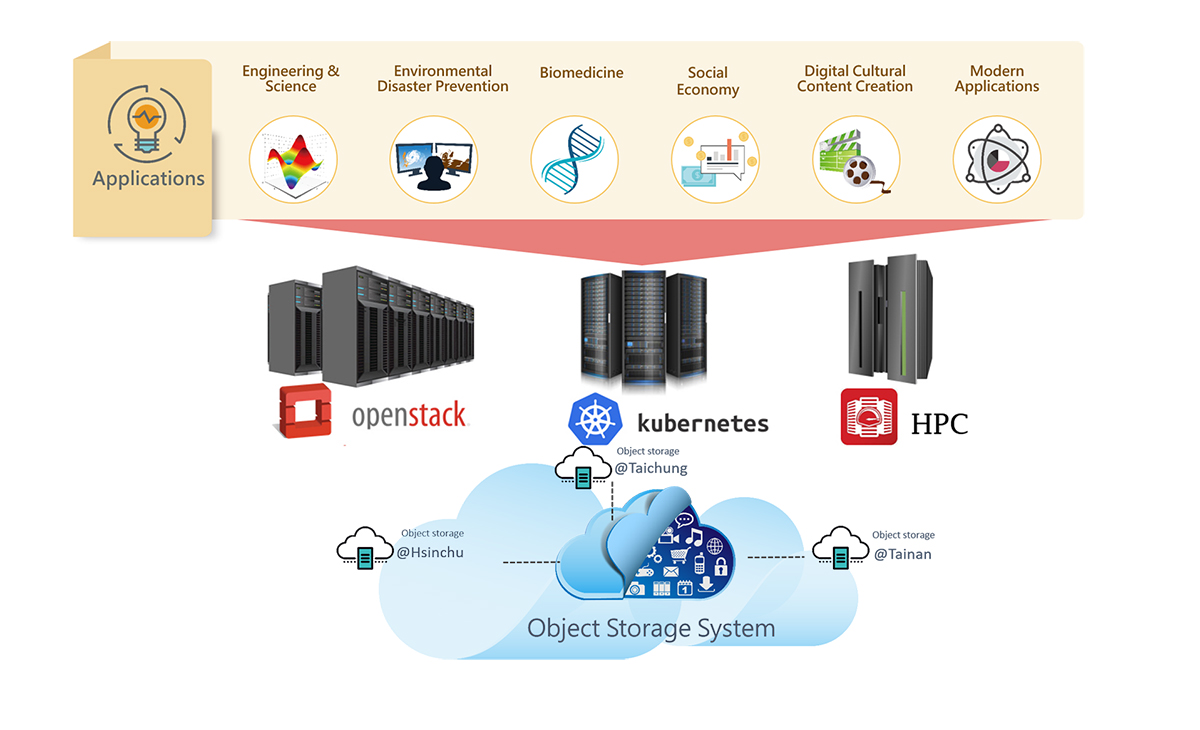
The AI Cloud Platform - "Taiwan Computing Cloud (TWCC) ", was implemented by the NCHC together with Taiwan Mobile, ASUS and Quanta Computer. TWCC give users in industries, academia, and research more timely and more convenient computing services.
:::info
:bulb: Please refer TWCC [tutorial](https://www.twcc.ai/doc?page=register_account&euqinu=true) for more information.
:::
## Creating a VCS instance
Virtual Compute Service (VCS) is a kind of computing resource provided by TWCC. It allows user
:::danger
:warning: Disclaimer Clause:
- Please note that this is a alpha version of the Virtual Compute Service platform.
- Virtual Compute Service on TWCC is still undergoing final testing.
- The platform, its software and all content found on it are provided on an “as is” and “as available” basis.
- NCHC does not give any warranties, whether express or implied, as to the suitability or usability of the website, its software or any of its content.
- NCHC will not be liable for any loss, whether such loss is direct, indirect, special or consequential, suffered by any party as a result of their use of TWCC, its software or content.
- Any downloading or uploading of material to the website is done at the user’s own risk and the user will be solely responsible for any damage to any computer system or loss of data that results from such activities.
- Should you encounter any bugs, glitches, lack of functionality or other problems on TWCC, please let us know immediately so we can rectify these accordingly.
- Your help in this regard is greatly appreciated!
- You can write to us at this address [isupport@twcc.ai](mailto://isupport@twcc.ai)
:::
- Select an activated project.

- Click Virtual Compute Service (VCS) icon.

- Enter Virtual Compute Service. On the VCS instance management page, click “+CREATE”.

- Select an Image Type. TWCC offers OS image templates that are frequently used so that they may be used once a VCS instnace has been created. Choose “Custom Image Windows”.

- On the basic information page, fill in the name and description of the instance, select the version of the image, and the specifications of the needed hardware, including different combinations of number of CPUs, memory size, storage volume. Click “NEXT: NETWORK>”
:::info
:bulb: Hint: 100 GB system disk space (built-in volume) is provided.
:::

- On the network setup page, choose the network and enable automatic distribution of public IP. You may use the system default, named “default_network” or create your own virtual network(Project Administrator only). Click “NEXT: STORAGE>”.

- On the storage information page, specify the size of volume in GB and choose volume type. Click “NEXT: PASSWORD>”.

:::info
:bulb: All additional storage will be charged. Use it carefully.
:::
- On the password information page, fill in the password of windows administrator. Copy & Paste function are disable in this two field. Click “NEXT: REVIEW & CREATE>”.

- Review the entire VCS instance setup and estimated usage credits, click “CREATE” to finish the process.

- Wait a few minutes. When the instance status is changed to “Ready”, the instance is ready to be connected and used.

## Managing the VCS instance
- The VCS instance management page lists information on all the instances, including ID, name, public IP, state, creation time, and who created it. The instance created most recently is listed on top. Click a column name sorts the list by the values in that column or toggle between ascending and descending order.
- Clicking  allows you to execute such functions as start, stop, and delete. Check the checkboxes on the left to apply the start, stop, or delete action to all the checked instances.

- The detailed information page shows basic information of the instance, detailed specifications, and network and storage information.
- Click “Connect” to see the way to connect to the instance or carry out start, stop, snapshot, delete, and refresh.

:::info
:bulb: Hint:
- When you stop an instance, the following happens:
-- We remove the instance from the host, and deallocate the resources.
-- The RAM is erased. The data in boot volume (100 GB) and additional volumes id kept.
-- Instance state transitions: Ready > Shelving > NotReady.
- When you start an instance, the following happens:
-- In most cases, we move the instance to another host.
-- Instance state transitions: NotReady > Queueing>Unshelving >Ready.
-- **A VCS instance continuous charge even the guest OS is poweroff.**
-- **To avoid continuous charge, use Stop or Delete function.**
- When you delete an instance, the following happens:
-- The boot volume (100 GB) is also erased, and please refer to Snapshot for preserving your data.
-- Additional volumes are preserved and detached from the instance.
-- Instance state transitions: Deleting > Disappear from the list on the management page.
:::
## Connecting to the VCS instance
:::info
:bulb: Please note that the instance only can be connected in the “Ready” state.
:::
### Windows instance
- By default, we enable RDP service in Windows VM. So user can connect to Windows VM with RDP client.

- Enjoy your VM.

### Linux instance
## Networking & Security
 Sign in with Wallet
Connect another wallet
Sign in with Wallet
Connect another wallet