---
tags: ironhack, lecture,
---
<style>
.markdown-body img[src$=".png"] {background-color:transparent;}
.alert-info.lecture,
.alert-success.lecture,
.alert-warning.lecture,
.alert-danger.lecture {
box-shadow:0 0 0 .5em rgba(64, 96, 85, 0.4); margin-top:20px;margin-bottom:20px;
position:relative;
ddisplay:none;
}
.alert-info.lecture:before,
.alert-success.lecture:before,
.alert-warning.lecture:before,
.alert-danger.lecture:before {
content:"👨🏫\A"; white-space:pre-line;
display:block;margin-bottom:.5em;
/*position:absolute; right:0; top:0;
margin:3px;margin-right:7px;*/
}
b {
--color:yellow;
font-weight:500;
background:var(--color); box-shadow:0 0 0 .35em var(--color),0 0 0 .35em;
}
.skip {
opacity:.4;
}
</style>

# Create React App
## Learning Goals
- Learn about `Create React App` generator and install it on our computers
- Create our first app using `create-react-app` CLI command
- Learn the basic structure of React project
- Understand how images and files can be added to projects
## Introduction
:::info lecture
Pour chaque projet : webpack + babel setup (remember `webpack.config.js`)... 😓 #boring
:::
Remember all the heavy setup we did the first time we mount our React App? Forget about it. Developers at Facebook created an excellent tool to help us start coding our app without all those tedious steps. **Create React App** is a tool to help you build React applications. It saves you from time-consuming setup and configuration.
You simply run one command, and `create-react-app` sets up the tools you need to start your React project. Let's *install it globally* on our computers:
:::info lecture
Solution apportée par Facebook : [CRA](https://create-react-app.dev/)
:::
```bash
$ npm install -g create-react-app
```
:::info lecture
ou "mieux" (sans avoir à l'installer):
```shell
$ npx create-react-app .
```
:::
<div class="skip">
### Create React App is divided into two packages:
- **`create-react-app`** which is a global command-line utility that is used to create new projects,
- **`react-scripts`** which is a development dependency in the generated projects.
:::info
You almost never need to update `create-react-app` itself: it delegates all the setup to `react-scripts`.
When you run `create-react-app`, it always creates the project with the latest version of `react-scripts` so you’ll get all the new features and improvements in newly created apps automatically.
:::
</div>
## Create our App
Since we already install the `create-react-app` command globally, now we can run it in order to create new app.
:::info lecture
Créons notre première CRA (avec ou sans `npx`) :
:::
```bash
$ create-react-app name-of-the-app
```
Let's call our app `my-new-app` so let's run the following command:
```bash
$ create-react-app my-new-app
```
It will create a directory called `my-new-app` inside the current folder. Inside that directory, it will generate the initial project structure and install the transitive dependencies:
:::info lecture
La structure de fichiers/dossiers est très similaire :
:::
```
my-new-app
├── README.md
├── node_modules
├── package.json
├── .gitignore
├── public
│ └── favicon.ico
│ └── index.html
│ └── manifest.json
└── src
└── App.css
└── App.js
└── App.test.js
└── index.css
└── index.js
└── logo.svg
└── registerServiceWorker.js
```
:::info lecture
On remarque au passage :
- la présence de `node_modules` : le `npm install` est déjà fait 🙌
- `.gitignore` 🙏
- `App.js` ❤️
- `index.html` and so on...
:::
As you can see, there's no configuration or complicated folder structures, just the files you need to build your app. Once the installation is done, you can open your project folder:
```bash
$ cd my-new-app
```
Inside the newly created project, you can run some built-in commands:
### `npm start` or `yarn start`
:::info lecture
Pour demarrer notre serveur `localhost:3000`, la commande est maintenant: `npm start`
NB : voir la commande dans `package.json#scripts`
:::
:::info lecture
Parler de `yarn`...
:::
This will run the app in development mode. Now go ahead and open [http://localhost:3000](http://localhost:3000) to view it in the browser.
**Best Part?** The page will automatically reload if you make changes to the code. You will see the build errors and lint warnings in the console. No `Webpack` configuration needed.
### Importing a Component
:::info lecture
Rappel `import` VS `require`...
cf. [Cheatsheet modules](https://www.notion.so/abernier/JS-aa22c24cf2374ef09e7b0841885e2c0d#c0bdf894c8b046e5b54082c443b00edd)
:::
By default, the project setup supports `ES6 modules` thanks to `Babel`. While you can still use `require()` and `module.exports`, React developers encourage us to use [`import` and `export`](http://exploringjs.com/es6/ch_modules.html#sec_importing-exporting-details) instead.
:::info
:bulb: Note that we can export literally any function or variable using just `export` keyword but it's very common practice to use `export default` whenever **module exports only a single thing** (for example, a component).
:::
You already saw this: `export default User;` and `import User from './User'`.
Named exports are used for utility modules that export several functions. A module may have at most one `default export` and as many named exports as you like.
## Practice :muscle:
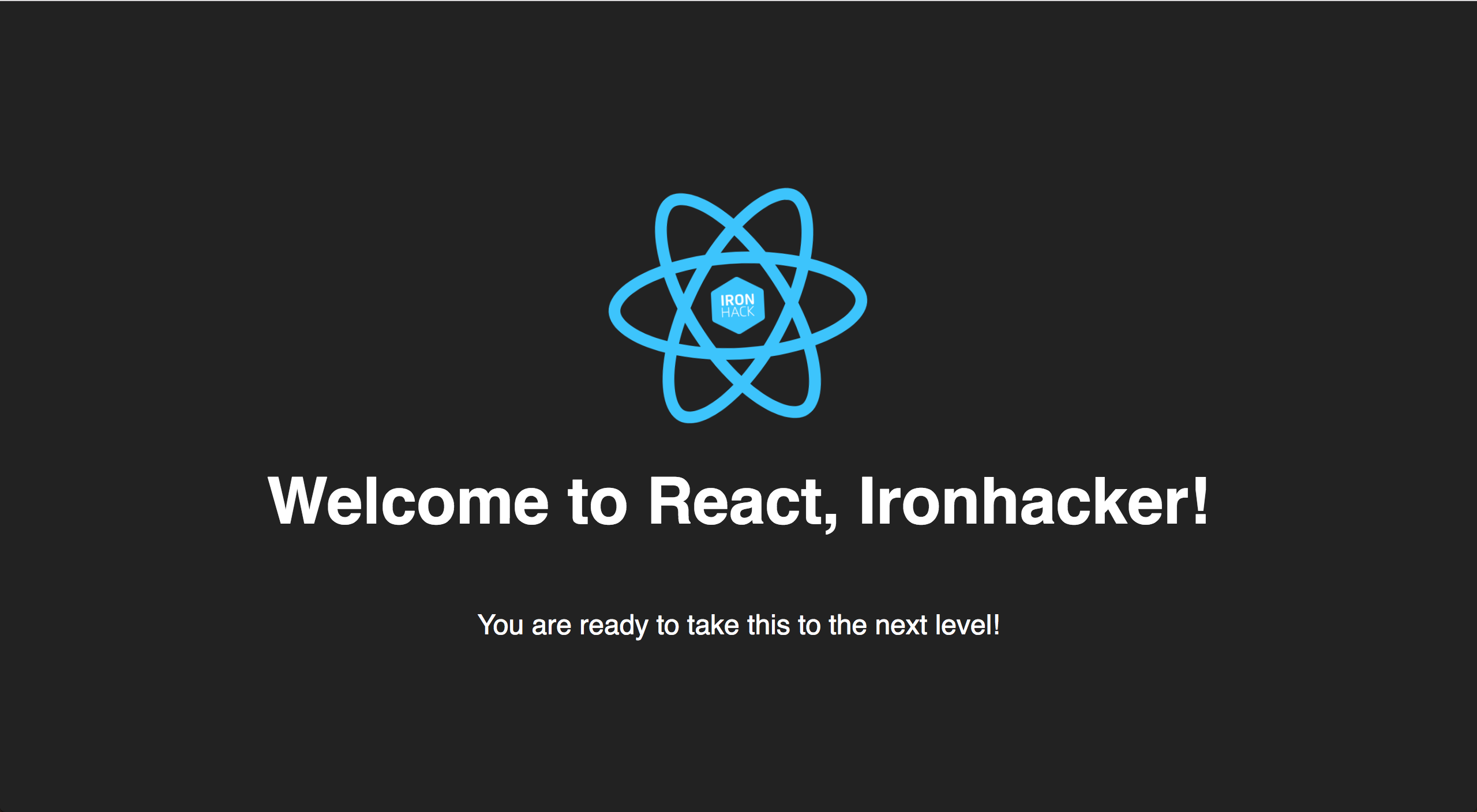
Now let's start building our example project. We will start with creating a simple welcome page like this:
### Splitting the Code
`create-react-app` creates a single `App.js` component, that will be the point of access for our application. If we have to much code inside the component, we should split it into different components.
For a better organization of the project, we recommend creating a `components` folder inside the `src` folder. Inside the `components` folder, create a `Header.js` file. We should have something like this:
:::info lecture
Convention d'un folder `components` abritant nos différents composants
:::
:::info lecture
Transformons le `<header>` de l'`App` en un sous-composant...
```shell
$ mkdir src/components
$ touch src/components/Header.js
```
:::
```
.....
└── src
└── components
└── Header.js
└── App.css
└── App.js
└── App.test.js
......
```
In the `Header.js` file, let's create a new component that will represent the `<header>` tag which we will include in our `App.js` file in one of the next steps.
:::info lecture
Introduire la notion de `function-component` !
:::
```jsx
// src/components/Header.js
import React from 'react';
import logo from '../logo.svg'; // importing logo from src folder
const header = () => {
return (
<header className="App-header">
<img src={logo} className="App-logo" alt="logo" />
<h1 className="App-title">Welcome to React, Ironhacker!</h1>
<h3>You are ready to take this to the next level!</h3>
</header>
);
}
export default header;
```
:::warning lecture
⚠️ Impossibilité d'`import`er une image extérieure à `src` :
```
Module not found: You attempted to import ../../public/images/logo.jpg which falls outside of the project src/ directory. Relative imports outside of src/ are not supported. You can either move it inside src/, or add a symlink to it from project's node_modules/.
```
:::
And, on the `App.js`, replace the `<header>` tag for the `Header` component.
Note that we exported `header` and we imported `Header` from *Header.js*. This is common practice because we represent our *components* with capital letters and since we use *export default*, which on the other hand also means we export a single thing from the file, when we import it we can use any suitable name and it will work perfectly fine because it's pointing to the same function(or variable or class, depending what we export).
:::info lecture
Instanciation du `<Header>` :
:::
```jsx
// App.js
import React, { Component } from 'react';
import './App.css';
import Header from './components/Header.js'
class App extends Component {
render() {
return (
<div className="App">
<Header></Header>
</div>
);
}
}
export default App;
```
:::info
Remember to import the `Header` component in the `App.js` file, and remove the rest of the code. Just leave the `<Header>` tag.
:::
### Your turn!
:::info lecture
faire du `<h1>` un composant `<Title>` acceptant une prop data (cf. L10)
:::
Inside the `Header.js` file we have an `<h1>` tag. Create a new `Title` component, and import it in *Header.js*. The `Title` component should render received `data` props. Also there's `<h3>` tag. Replace it with `Description` component (apply the same logic as for the Title component).
At the end, our `Header` component should look like this:
```jsx=
import React, { Component } from 'react';
import Title from './components/Title.js';
import Description from './components/Description.js';
import logo from '../logo.svg';
const header = () => {
return (
<header className="App-header">
<img src={logo} className="App-logo" alt="logo" />
<Title data="Welcome to React, Ironhacker!"></Title>
<Description data="You are ready to take this to the next level!"></Description>
</header>
);
}
export default header;
```
### Adding Images, Fonts, and Files
:::info lecture
data-URIs pour les petites images : réduction des requêtes HTTP
[](https://www.base64-image.de/)
:::
With Webpack, using static assets like images and fonts works similarly to CSS.
You can **`import` a file right in a JavaScript module**. This tells Webpack to include that file in the bundle. Unlike CSS imports, importing a file gives you a string value. This value is the final path you can reference in your code, e.g., as the `src` attribute of an image or the `href` of a link to a PDF.
To reduce the number of requests to the server, importing images that are less than 10,000 bytes returns a [data URI](https://developer.mozilla.org/en-US/docs/Web/HTTP/Basics_of_HTTP/Data_URIs) instead of a path. This applies to the following file extensions: bmp, gif, jpg, jpeg, and png. ~~SVG files are excluded due to [#1153](https://github.com/facebookincubator/create-react-app/issues/1153).~~
We actually covered this in our today's example using `logo.png` and rendering it to the DOM through our *Header* component. :wink:
```jsx
// components/Header.js
...
const header = () => {
return (
<header className="App-header">
<img src={logo} className="App-logo" alt="logo" />
// ...
</header>
);
}
...
```
:::info lecture
Parler des styles inline en JSX...
```jsx
<div style={{fontSize: '300%', color: 'red'}}></div>
```
:::
This ensures that when the project is built, Webpack will correctly move the images into the build folder, and provide us with correct paths.
:::info
Don't worry about the style for now! On the following lesson, we will see how we can style our components! 💅
:::
## Summary
`create-react-app` helps us to start our projects with no need to do all the previous configuration and setups. Sometime we will need to add more structure to the default one, but we save a lot of time.
This is the best way to start a new project! Later on the course, we will learn how we can build and deploy projects that have been generated with `create-react-app`.
## Extra Resources
- [Create React App](https://github.com/facebook/create-react-app)
 Sign in with Wallet
Connect another wallet
Sign in with Wallet
Connect another wallet