---
tags: ironhack, lecture,
---
<style>
.markdown-body img[src$=".png"] {background-color:transparent;}
.alert-info.lecture,
.alert-success.lecture,
.alert-warning.lecture,
.alert-danger.lecture {
box-shadow:0 0 0 .5em rgba(64, 96, 85, 0.4); margin-top:20px;margin-bottom:20px;
position:relative;
ddisplay:none;
}
.alert-info.lecture:before,
.alert-success.lecture:before,
.alert-warning.lecture:before,
.alert-danger.lecture:before {
content:"👨🏫\A"; white-space:pre-line;
display:block;margin-bottom:.5em;
/*position:absolute; right:0; top:0;
margin:3px;margin-right:7px;*/
}
b {
--color:yellow;
font-weight:500;
background:var(--color); box-shadow:0 0 0 .35em var(--color),0 0 0 .35em;
}
.skip {
opacity:.4;
}
</style>
<!-- 
# MongoDB | Introduction -->
# MongoDB | Introduction
## Learning Goals
After this lesson, you will be able to:
- Explain what Databases are and why we need them
- MongoDB Server: Install, configure, launch/stop
- MongoDB Compass: Install, connect to MongoDB
- Create your first Database, Collections, and Documents
- Use different MongoDB Data Types
## Introduction to Databases

:::info lecture
- persitence des données
- requetage des données
- SQL VS noSQL
:::
[Databases](https://en.wikipedia.org/wiki/Database) are **programs that allow us to save and retrieve data** to our applications. Until now, every program that we wrote will reset/refresh every time we run it (variables will lose its value).
In this lesson, we will learn how Databases can help us fix that problem!
Databases are typically [persisted](https://en.wikipedia.org/wiki/Persistence_(computer_science)), which means that even if our program stops/restarts, we can still access the data.
In addition to persistence, database systems provide a number of other properties that make them exceptionally useful and convenient:
- **Reliability**: Data can always be accessed
- **Efficiency**: We could just use files to store the data, but this solution will be slow for any serious program.
- **Scalability**: As our demands to get more and more data increases, databases also make it easy to increase our infrastructure capacity
- **Concurrency**: We can have many clients connected to our database (program) simultaneously
- **Data abstractions**: We can store data using complex data types that make it easy for us to save data without worrying about the underlying details of the implementation.
- **High-level query language**: Databases have a language in which we can ask them questions to get the data in whichever way we may need it.
## MongoDB Introduction

[MongoDB](https://www.mongodb.com/) Is a **free and open-source cross-platform document-oriented database program** and is developed by MongoDB Inc.
MongoDB is a non-relational database that stores data in collections. It stores data in flexible, JSON-like, meaning fields can vary from document to document and over the time the data structure can change.
MongoDB is a distributed database at its core, so high availability, horizontal scaling, and geographic distribution are built in and easy to use.
:::info lecture
MongoDB est une base de données noSQL. On y stock des documents JSON dans différentes collections d'une base de données :
:::

## MongoDB Installation
There are different ways to install MongoDB. We recommend manual installation because we have more control over how it's being set up.
### [MongoDB on MAC OS](https://docs.mongodb.com/manual/tutorial/install-mongodb-on-os-x/)
:::info lecture
Installons MongoDB sur notre machine :
:::
Run the following commands in your terminal:
1. Tap the MongoDB Homebrew Tap
```shell
$ brew tap mongodb/brew
```
2. Install MongoDB
```shell
$ brew install mongodb-community
```
#### Start your database
- Run this command in your terminal (and write it down somewhere):
```shell
$ brew services start mongodb-community
```
### [MongoDB on Ubuntu](https://docs.mongodb.com/manual/tutorial/install-mongodb-on-ubuntu/) (for versions 16.04 and 18.04)
We should install MongoDB from their servers because it's a more recent version than the one that comes with Ubuntu. You can find more about [how to install MongoDB on Ubuntu on the official MongoDB documentation](https://docs.mongodb.com/manual/tutorial/install-mongodb-on-ubuntu/).
- Run these commands one by one in your terminal:
```shell
$ sudo apt-key adv --keyserver hkp://keyserver.ubuntu.com:80 --recv 9DA31620334BD75D9DCB49F368818C72E52529D4
# FOR VERSION 16.O4 ONLY
echo "deb [ arch=amd64,arm64 ] https://repo.mongodb.org/apt/ubuntu xenial/mongodb-org/4.0 multiverse" | sudo tee /etc/apt/sources.list.d/mongodb-org-4.0.list
# FOR VERSION 18.O4 ONLY
echo "deb [ arch=amd64 ] https://repo.mongodb.org/apt/ubuntu bionic/mongodb-org/4.2 multiverse" | sudo tee /etc/apt/sources.list.d/mongodb-org-4.2.list
# NEXT STEPS FOR ALL VERSIONS
sudo apt-get update #to reload local package database
sudo apt-get install -y mongodb-org #to install the MongoDB packages
```
#### Start your database
:::warning
:warning: Now and every time you restart your computer, you will have to start your database.
:::
To start MongoDB on your Ubuntu machine, run this command in your terminal (and please make sure you save it somewhere or remember to come back to it here in the learning unit or on the official website, until you repeat it multiple times and memorize it):
```shell
$ sudo service mongod start
```
### [MongoDB on Windows](https://docs.mongodb.com/manual/tutorial/install-mongodb-on-windows/)
- To install MongoDB, run these commands one by one in your terminal:
```shell
$ wget -qO - https://www.mongodb.org/static/pgp/server-4.2.asc | sudo apt-key add -
$ echo "deb [ arch=amd64 ] https://repo.mongodb.org/apt/ubuntu bionic/mongodb-org/4.2 multiverse" | sudo tee /etc/apt/sources.list.d/mongodb-org-4.2.list
$ sudo apt update
$ sudo apt install mongodb --assume-yes
$ sudo apt remove mongo-tools mongodb mongodb-clients mongodb-server mongodb-server-core --assume-yes
$ sudo apt install mongodb-org --assume-yes
```
#### Start your database
:::warning
:warning: Every time you restart your computer, you will have to start your database again in order to access it.
:::
- To start your database, run this command in your terminal (and write it down somewhere):
```shell
$ sudo service mongodb start
```
<!-- ### :exclamation: Advanced Users!!!
We need to disable a kernel memory management option that makes MongoDB run slower:
`$ sudo nano /etc/systemd/system/disable-transparent-hugepages-before-mongodb.service`
```
[init]
Description="Disable Transparent Hugepage before MongoDB boots"
Before=mongod.service
[Service]
Type=oneshot
ExecStart=/bin/bash -c 'echo never > /sys/kernel/mm/transparent_hugepage/enabled'
ExecStart=/bin/bash -c 'echo never > /sys/kernel/mm/transparent_hugepage/defrag'
[Install]
RequiredBy=mongod.service
```
`$ sudo systemctl enable disable-transparent-hugepages-before-mongodb.service`
`$ sudo systemctl start disable-transparent-hugepages-before-mongodb.service` -->
## MongoDB Compass
:::info lecture
Afin d'intéragir avec notre base de données, MongoDB met un logiciel à notre disposition : Compass
:::
To interact with our MongoDB database, we will use **[MongoDB Compass](https://docs.mongodb.com/compass/master/)**, the official GUI (Graphical User Interface) for MongoDB.
Using MongoDB Compass allows us to quickly analyze and understand the contents of our data collections and perform queries, within other cool features, such as a graphical view of our MongoDB schema and data.
### Install [MongoDB Compass](https://www.mongodb.com/products/compass)
- Visit [the Download and Install Compass page](https://docs.mongodb.com/compass/master/install/).
- Select *MACOS* for Mac, *DEBIAN* for Ubuntu or *WINDOWS* for Windows OS.
- Follow the instructions to install the MongoDB Compass app.
:::warning
:bulb: You must download the **normal version, not the Community Edition**
:::
### Connect to MongoDB
:::info lecture
Tentons de nous connecter à notre service Mongo grâce à Compass :
:::
Once **Compass** is running, an initial connection dialog like the following appears:
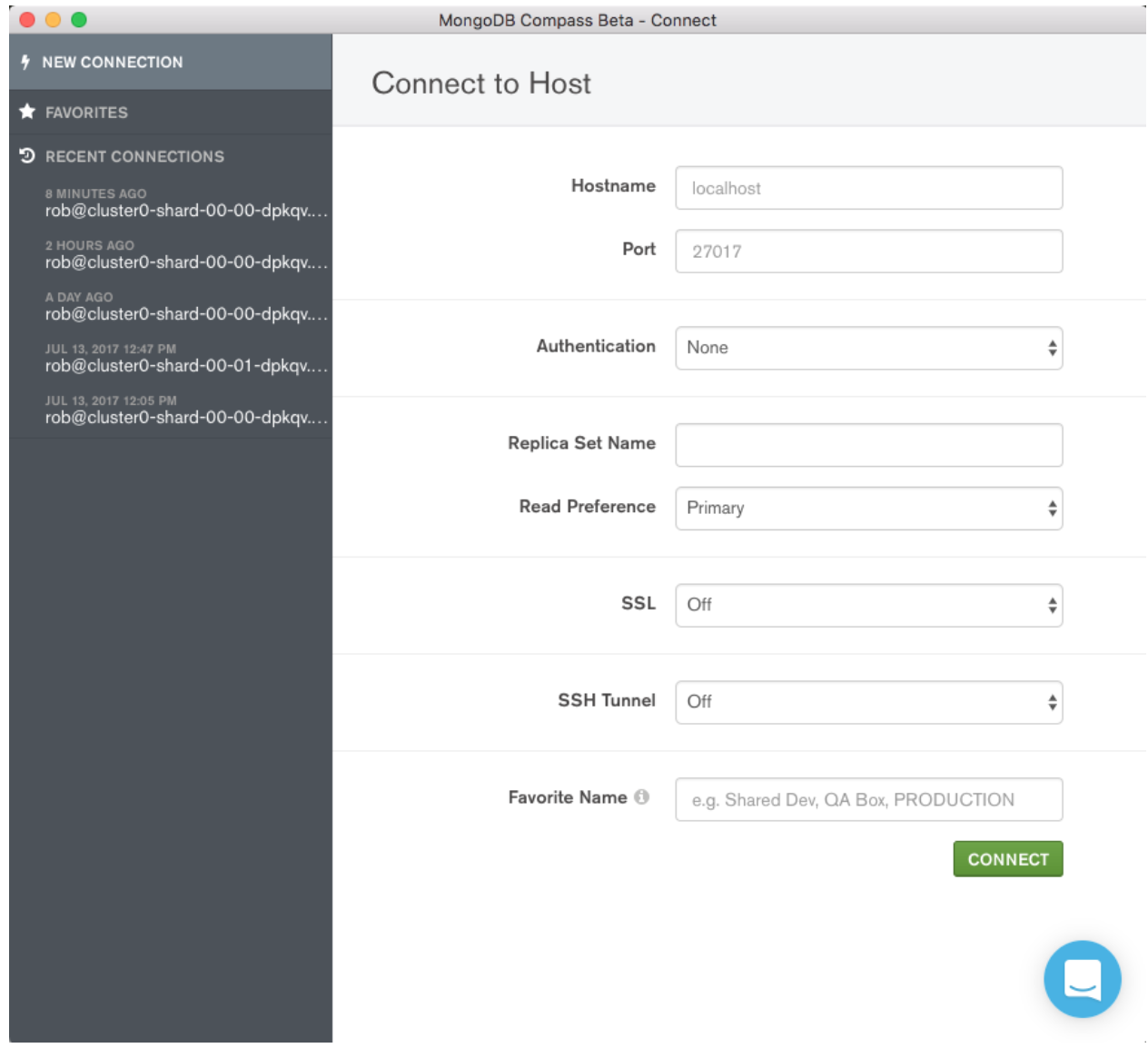
Even though there are many configuration options to create a connection, we just need to know about these:
- **Hostname**. The hostname (or IP address) of the machine where the MongoDB instance is running. Remember you can always reference your computer from `127.0.0.1` or `localhost`
- **Port**. The port on which mongod is running. (`27017`, unless you changed it)
If you are interested in learning what all the other parameters are, you can read the [MongoDB Compass - Connect](https://docs.mongodb.com/compass/master/connect/) manual page
## Create a Database
:::info lecture
Créons notre première database/collection :
:::
Now we are ready to start working with databases, the first thing we will need is to create one, right?

Using MongoCompass is pretty straightforward: we just need to click on the **Create Database** button. Choose a **Database Name**, and create your first **Collection**.
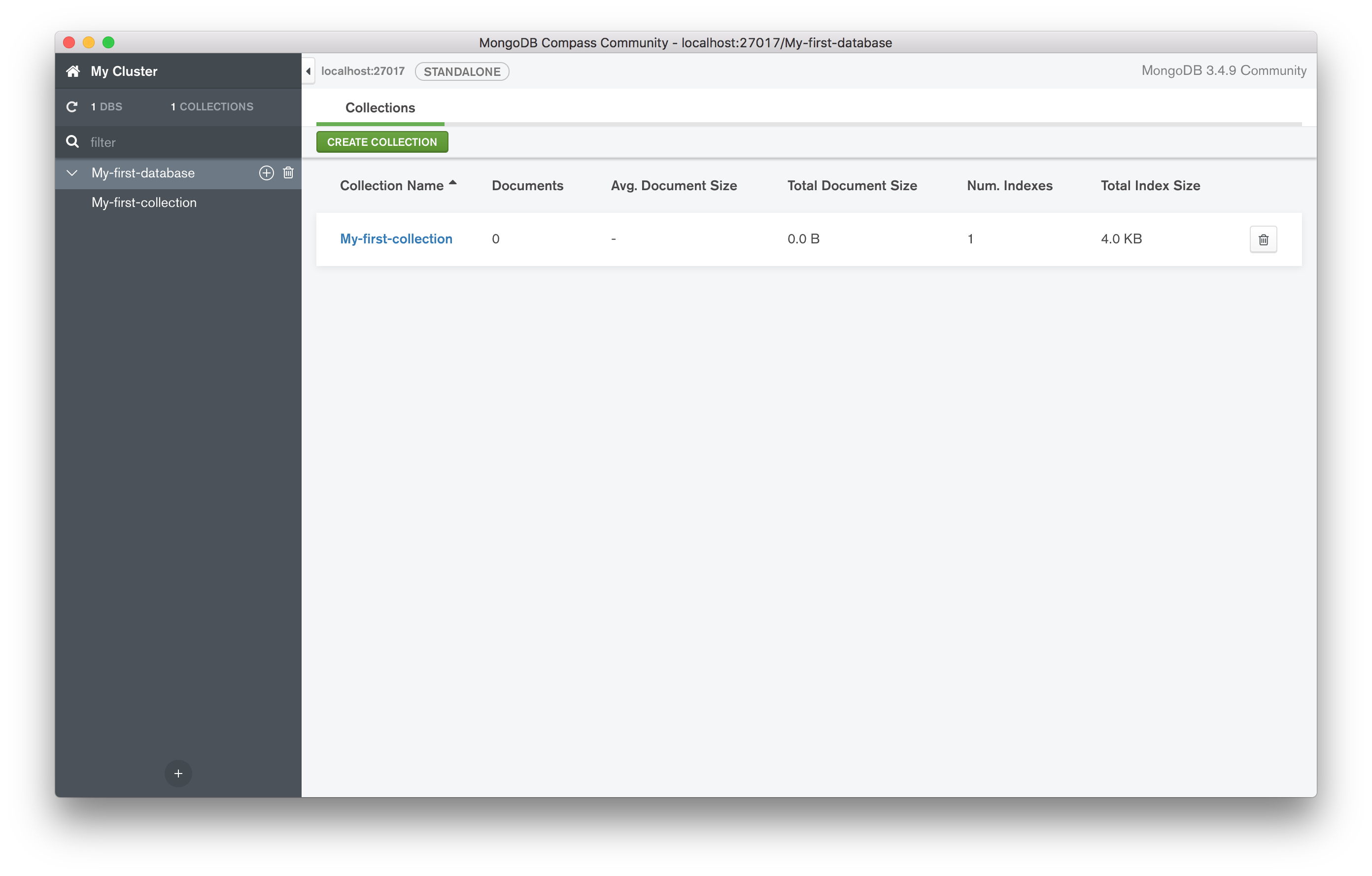
We do not have any documents yet, but our Database **'My-first-database'** has already a collection **'My-first-collection'**.
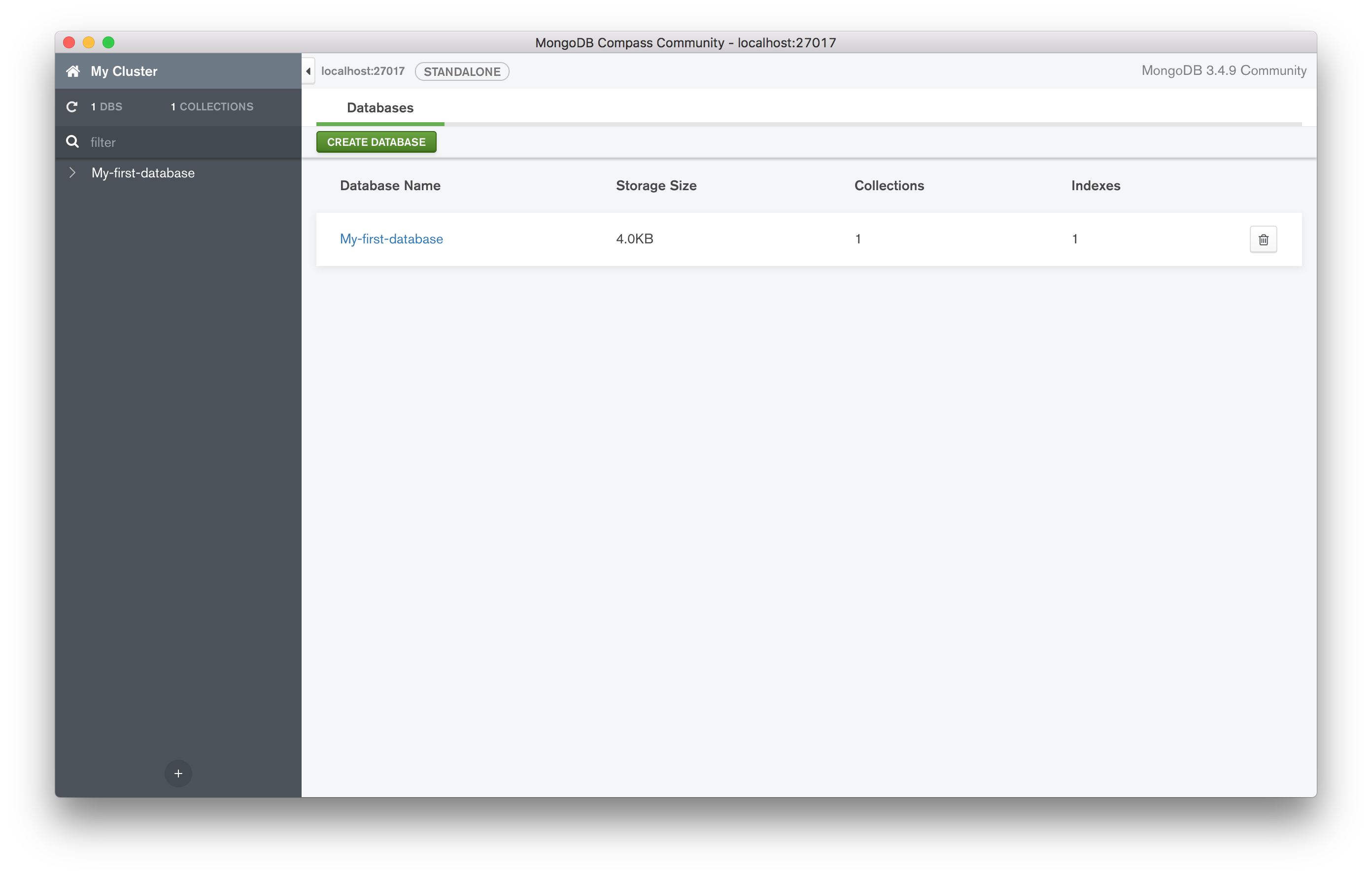
If you click on the name of the Database (**'My-first-database'**), you will see a list of collections inside:
### Databases on Compass
On the left column, we have a list of all of the databases that we have available on the connected server we had connected (you should have none for now :wink: ).
:::info lecture
En cliquant sur `🏠 My cluster`, on voit toutes nos DBs : leurs nbr de collections/taille...
:::
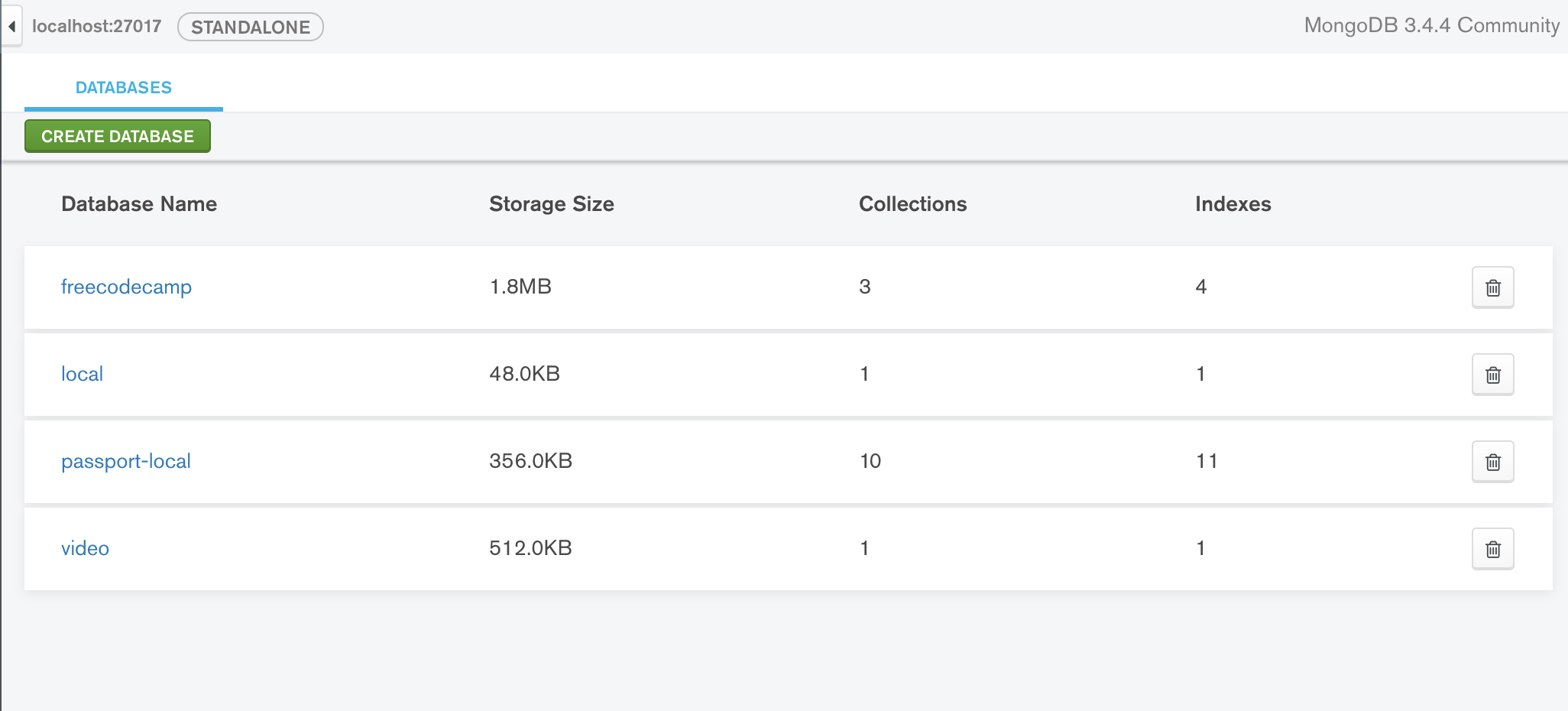
If we click on the **home** button in the top-left corner, we can see a list of all these databases with some info about each of them.
- Storage size
- Number of Collections
- Number of Indexes
### Create Documents
:::info lecture
Créons notre premier document : on rentre dans notre database > puis dans notre collection > `insert Document`
:::
Inside our collection, we can start creating some documents to fill our database. We just need to click on "Insert Document".
Documents are created using JSON format (or BSON). They are key-value objects, so we need to specify both to create our first one.
Let's add our friend Elon Musk into our database.
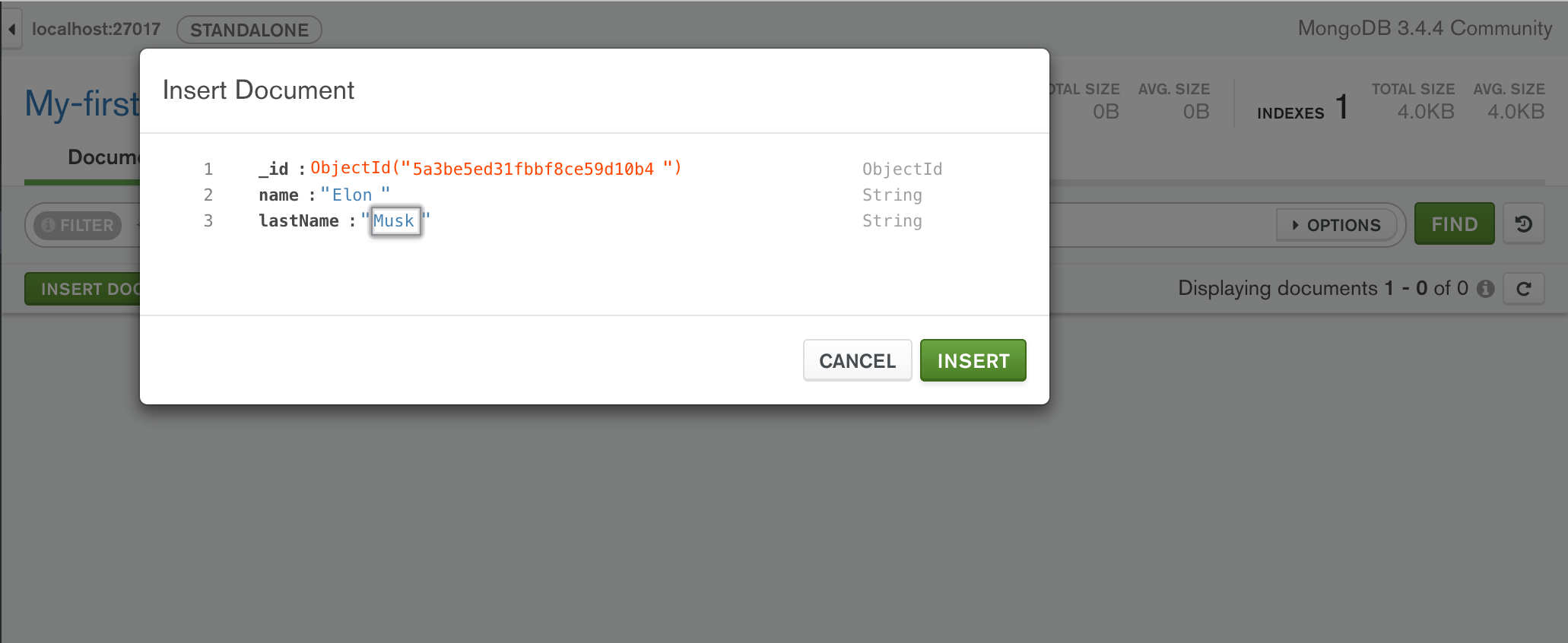
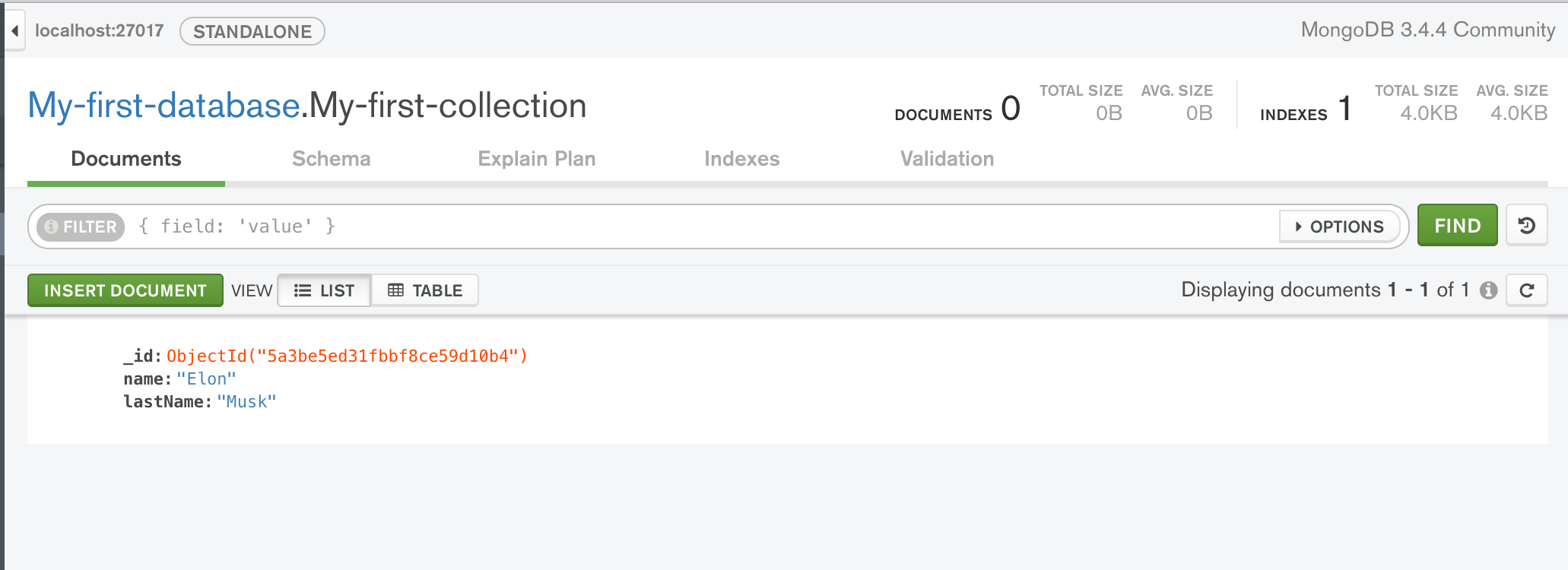
After clicking on **"Insert"** button, we should see the document in our database. Yes! We just insert the first user into our database! :)
### Data types in MongoDB
When we add a new field to a document, we will see a label on the right specifying the **data type** that *values* must have for that *key*. In our previous example, `name` and `lastName` were both Strings.
Our documents can store different type of values. So for example, we can save our `name` as a string, but our `dateOfBirth` as a Date.
:::info lecture
Voici les principaux types de propriétés disponibles :
:::
These are some of the most useful data types used in mongo documents:
|type | Examples
|--------------|--------
| Double | 3.141625
| String | "IronHack Coding Bootcamp"
| Date | "Sun Dec 08 07:15:44 UTC 2013"
| Boolean | true
| Object | { foo: 'bar', }
| Array | ["apple", "oranges", "kiwis"]
| ObjectID | ObjectId("52cdef7c4bab8bd675297d8a")
| Null | null
### ObjectID
:::info lecture
`ObjectID` est un type spécial, qui sera une clé unique afin d'identifier chaque document de notre base de données.
:::
`ObjectID` is a MongoDB type used to identify documents in a collection uniquely. MongoDB will create them automatically for us.
In the previous example, when we added the `Elon Musk` document, MongoDB automatically created a key `_id` for the document.
We will use this `_id` key later to identify a particular document in a collection. Even if we introduce two documents with the same information, we can always refer to each document unequivocally using the `_id` property.
As we will see later, the `_id` property is not an integer or a string; it's aN [ObjectId BSON data type](https://docs.mongodb.com/v3.2/reference/bson-types/#objectid) generated by using MongoDB's [ObjectId](https://docs.mongodb.com/v3.2/reference/method/ObjectId/) function.
## Summary
Now you know what MongoDB and MongoCompass are and how to install them. We also learn how to connect MongoCompass to our localhost, how we can create a database, a collection, and a document.
## Extra Resources
- [MongoDB Official documentation](https://docs.mongodb.com/manual/introduction/)
- [CAP Theorem](http://robertgreiner.com/2014/08/cap-theorem-revisited/)
- [Beginners Guide to Compass](https://www.mongodb.com/presentations/the-beginners-guide-to-compass-the-gui-for-mongodb?p=59f0d681a323cf200b4c1030)
{%youtube CvIr-2lMLsk %}
 Sign in with Wallet
Connect another wallet
Sign in with Wallet
Connect another wallet