Linux Install Fest Doc
# Overview
Welcome to the Linux Install Fest. We're going to have 3 choices of distros, Ubuntu, EndeavourOS and Manjaro.
## Ubuntu
Arguably the most famous linux distro out there, based on Debian and uses the same [package manager](https://ubuntu.com/server/docs/package-management) as Debian, `apt`. It ships with Gnome as the Desktop Environment along with a lot of gnome utilities. It is fairly locked down from linux standards, but is a stable distro. Ubuntu Server which is just a stripped down version of the desktop version is quite popular in the server world.
## EndeavourOS
The user friendly and easy to install version of the famously hard to set up, Arch Linux. It ships with KDE Plasma as the default Desktop Environment but also gives the option to install a LOT of other DEs or not install one at all. The installer gives you a lot of options, giving you the flexibility of the Arch Experience™ on a GUI interface. The defaults are very sane tho and so a beginner (and most sane people) can just go ahead with the defaults (you can change most of the things post installation anyways).
## Manjaro
Manjaro is another distro based on Arch Linux, but unlike EndeavourOS, it takes a more curated and beginner-friendly approach. It focuses heavily on making Arch approachable while still keeping most of its flexibility. It comes with its own repositories that are synced from Arch’s after some testing, so while it’s technically a rolling release, it’s much less likely to break randomly after an update
# Intro to Linux
There are a lot of terms that seasoned linux users use casually, this adds to the confusion of people who are new to the linux ecosystem. It isn't possible to cover everything here but we've tried to explain some of them here so that your journey becomes a lot smoother.
## Distros
Linux is just the kernel and is in no way a full OS, a full OS requires a lot of different components that do a lot of different essential tasks. A distro is a collection of a default set of these essential components and their configuration. You may have heard about GNU+Linux which is a very common bundle choice shared by almost all the distros. There are some parent distros on which a lot of other distros are based- **Debian** (Ubuntu and its many derivatives, Linux Mint, Kali, Deepin, MX), **Arch** (EndeavourOS, Manjaro, ArchCraft, Garuda, Artix, etc), and **Gentoo**. There are 2 other popular distros that don't have a parent distro but are pretty similar, being RPM based, **Fedora** and **OpenSUSE**.
## Terminal Emulators
So basically the window with a prompt that you probably always called a 'terminal' or 'console' is technically a Terminal Emulator, Terminal is an ancient physical machine with a keyboard and a printer...I know it is kinda pedantic a lot of people in the community feel very strongly about it.
See [this](https://unix.stackexchange.com/questions/254359/terminal-vs-terminal-emulator) and [this](https://www.reddit.com/r/linux4noobs/comments/12ivdwr/what_is_the_difference_between_a_terminal_and_a/).
## Shell
Wikipedia says-
> A shell is a computer program that exposes an operating system's services to a human user or other programs.
> In general, operating system shells use either a command-line interface (CLI) or graphical user interface (GUI), depending on a computer's role and particular operation.
In practice though when we're talking about shells, its mostly about CLI shells. Generally in the context of linux we ignore shells like the python interpreter, lua interpreter and bluetoothctl, etc and talk about the general shells like `bash`, `zsh` and `fish`. Shells are typically interpreters that work on their own interpreted languages
## Desktop Environments (DEs)
The desktop environment (DE) is the graphical user interface (GUI) that the user interacts with in order to make use of the operating system (OS).
Some major DEs are-
1) Gnome (super stable)
2) KDE (super customizable and lightweight)
3) xfce (ultra lightweight)
4) COSMIC (exciting new approach but only in Alpha rn🥲)
#### Gnome
Gnome (GNU Network Object Model Environment) as you could tell is maintained by the GNU project. In stock state feels very Mac like to use and follows a very windows like philosophy of being locked down and allowing minimal customization, for which they have been criticised a lot in recent years, however it has been historically very stable and so is the default on many distros, making it the most used DE out there.
#### KDE Plasma
Plasma is a DE developed by the KDE project. It is very user friendly and insanely customisable while being
#### xfce
Xfce is a lightweight desktop environment for UNIX-like operating systems. It aims to be fast and low on system resources, while still being visually appealing and user friendly.
#### COSMIC
Developed by System76 primarily developed for their PopOS distro, this is a very new DE which aims to bring the tiling window manager experience to a more user friendly interface but at the moment it is very new and still in an experimental alpha phase, so is not really stable at the moment.
It’s not uncommon to have more than one DE installed on a system nor is it wrong to do so. Linux is a multiuser capable system, and your choices may not be for everyone. There is usually a login widget that allows you to choose which one to use for your session.
## Window Managers (WMs)
A window manager (WM) is a single component of a (DE) that exclusively is responsible for placing windows on the screen, but it does not provide for all the settings and controls one normally would expect to have when using an OS. You can just use a WM as a stand alone service, but you will need to find other applications to manage all the other aspects of using an OS, such as a file manager, package manager, or settings manager, device manager, etc.
## Packages
A package in Linux is a collection of files bundled together to provide a piece of software. This can include executables, libraries, configuration files, and documentation. Programs are usually installed by installing a package that contains them.
## Package Managers
On Windows if you want to install any application on Windows you probably don't use Microsoft Store very often, cuz honestly almost nothing can be found on it. On linux however, a huge number of applications can be installed via your *package manager*.
Package managers use "repositories" which are huge stores of packages, which are maintained and kept updated. The size of these repositories defines how many packages are on a particular distro, the larger and better maintained the repositories, the more packages you can install directly with a single command. Essentially, instead of hunting down .exe files like on Windows, you just tell your package manager what you want, and it downloads, installs, and keeps it updated for you.
## Display Protocols
If you ever explored some window managers, you must have heard the terms `xorg` or `wayland`. The applications need some way to communicate with the window manager, in linux there are mainly 2 widely adopted protocols, `xorg` and `Wayland`.
# Installing Linux
### Pre-install steps:
##### Step 1 - Backup
Back up any important data before you begin. Even though we’ll be careful, partitioning and OS installs always come with a bit of risk. Better safe than sorry.
##### Step 2 - Partition
Partition 80-100gbs for the linux to install and run on. You can do this using Windows Disk Management or using any other third party tool.
##### Step 3 - Create a bootable USB
You can use Rufus or Ventoy to create one. Google and follow the steps. For LIF, we will be providing you with thebootable USBs.
##### Step 4 - Disable Bitlocker
BitLocker encrypts your entire Windows drive. So it makes sure that nothing has changed since the last boot, it expects the same bootloader and the same disk layout. When you dual boot you change that, so not disabling it would lock your drive and would ask for your recovery key.
##### Step 5 - Change UEFI Settings (Disable Secure Boot, Enable USB Boot, Change Boot Order)
# Installing the distros
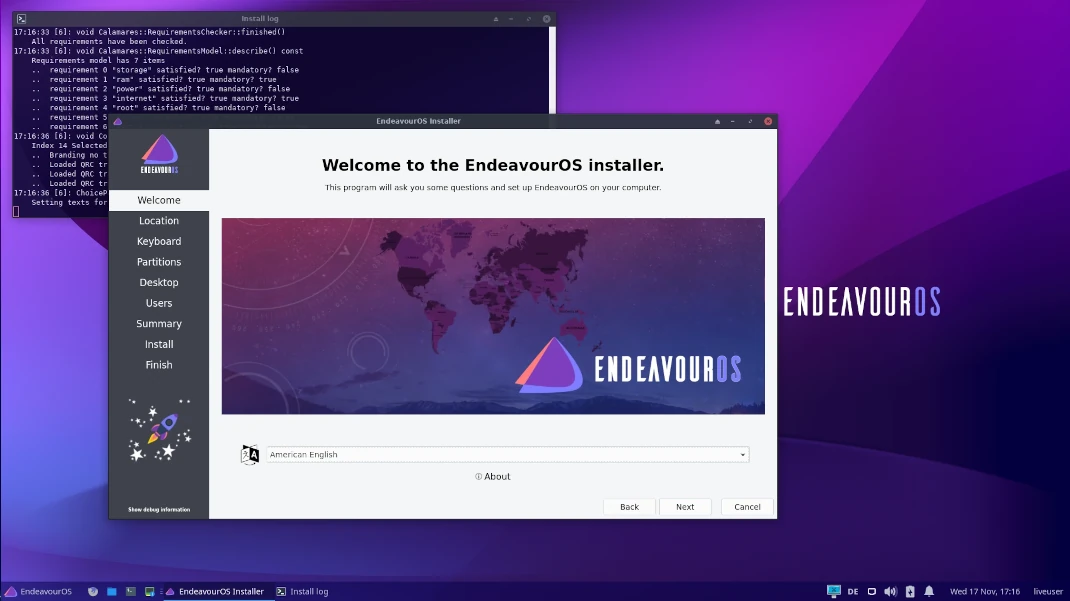
##### Step 1 - Boot into the live USB and start the installation wizard
Open the installation wizard
...
Choose online-offline
...
You will see this window pop up
##### Step 2 - Choose the Language, Timezone and Keyboard Layout
This should be pretty self-explainatory.
##### Step 3 - Partitioning [Careful]
We will be helping you here.
##### Step 4 - Choose your Desktop Environment [Only for Online Install]
##### Step 5 - Install
The steps are more or less for the other two distros, with the main step being partitioning in which we will help you.
If internet connection is not available, you can also do an offline install.
# FAQs (or smth)
## How do I get help with my Linux issues
There are 3 ways you can get your issues resolved-
1) **Search for it -** If you're facing an issue more likely than not somebody else also faced the same issue and fixed it (trust me this is much more common than what you may think). With some google fu you'll be able to find the solutions, most commonly on some forum, reddit, one of the stackexchange sites or reddit (Too many reddit users running ~~arch~~ linux). Arch wiki is another great source of information, not only for Arch Linux and its derivatives but also for most other distros out there, again because on a lower level, most linux distros are mostly similar.
2) **Go ask on a forum -** Your distro's official form is one of the best places to ask for help when you're lost and don't know what exactly may be going wrong (Can vouch for the various arch based distros like endeavour, manjaro and garuda...most of these share mods, they are very helpful and **very** experienced). Forums like [Ubuntu Stackexchange](https://askubuntu.com/) and [Unix&Linux Stackexchange](https://unix.stackexchange.com) are also great places to ask. Finally there are some linux subreddits for new linux users but then again I would try to sick to the official forum or googling.
3) **Open an issue -** If you know exactly which program is at fault you can log an issue in that project's repository. Issues should however be logged only when there is an explicit error or if the program is not behaving like it should. Many projects have a very active subreddit in which the contributors themselves often solve problems, these are great places to ask if you know what package is at fault but don't think that
## What is the best distro
There is not 'best' distro, it all depends on your preferences, your usecase and your level of newness. Some distros require a lot of technical skills to operate, some can be used by my grandma. Some are very opinionated on what the user should use, some leave every little choice to the user. You need to find the distro that perfects the balance for you.
> When you become sufficiently familiar with linux, you'll realize that the only real difference between the different distros is the choice of default packages and the package manager. (and maybe the default wallpaper lol)
## Is disabling secure boot bad for me
To answer that we need to first understand what Secure Boot is. Secure Boot is a feature of the UEFI firmware that checks if the bootloader getting loaded has been signed with a key stored on the motherboard to prevent you from booting into some other OS that may be installed by someone else...yeah thats it. This does provide an extra layer of protection and some distros like Ubuntu and openSUSE do use it but most distros don't support it by default, there are many reasons for it-
- **If you don't use a UEFI password then what's the point**, anybody with physical access trying to install the compromised OS can disable secure boot easily. (absolutely no one I know has a UEFI password)
- The firmware on almost every pc comes with Microsoft's keys, meaning secure boot only allows OSes that have a Microsoft signature on them, lets just say Microsoft isn't very keen on promoting linux usage.
- The UEFI standard does allow you to add your own keys, but you cannot expect a normal user to tinker with the firmware, and even then many companies don't follow the standard exactly and sometimes make it impossible to change/add keys.
- Getting your bootloader signed by a third party would maybe not be a huge deal for versioned distros like Debian, Ubuntu, Fedora, OpenSUSE who release new versions only a few times a year, but for rolling release distros like Arch Linux and its derivatives, which do not have different versions, but a single version that is constantly kept up to date, it is a huge hassle in itself, not even considering the monitory angle.
- It may not be true for an average windows user, but trust me you will be able to tell if you boot onto some random OS that someone else installed.
- If someone is actually trying to modify your OS/install a malicious OS specifically for your setup and has the physical access and skills to go through with it, you have way bigger problems to deal with than secure boot.
cuz there are some major roadblocks and lets be real if you are installing any OS for yourself you probably know when the OS you're booting into was installed by you or someone else, sure the attacker could theoretically disguise the compromised OS to look like your setup but then again it is doable on like windows cuz it really has only one look and a majority of people use it, what are the chances the attacker knows exactly which bootloader you use, what
# Tips
- There is also a tool called Ventoy which allows us to write multiple ISOs to a USB at once without even the long process of burning it and also make a separate partition where you can store data normally without affecting the Live ISOs.
 Sign in with Wallet
Connect another wallet
Sign in with Wallet
Connect another wallet