# Cleanup Devices, Users, Groups & Resources
---
## Introduction
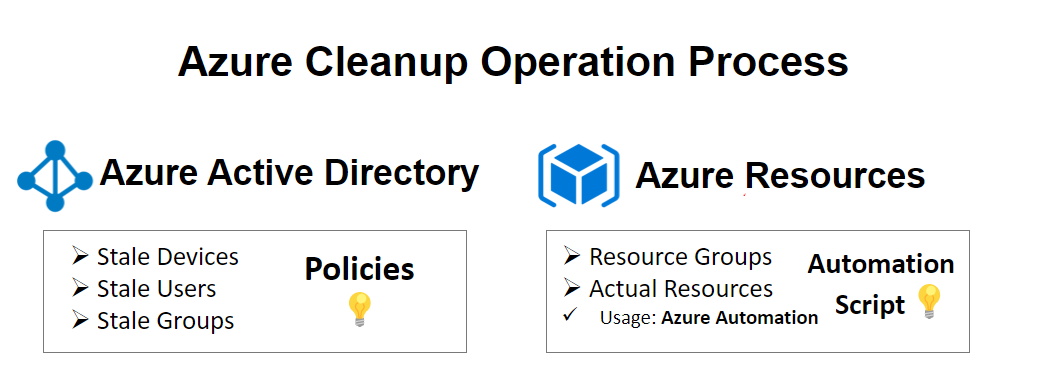
This document describes how to clean AAD devices, user, groups, and Azure resources in an automated manner.
> Hint: It will be easier to find related resources if you inspect within the resource groups.
# Azure Active Directory Cleanup
Understand **Stale devices**, It is one that has been registered with Azure AD but has not been used to access any cloud apps for an extended period.
Prerequisites:
The user must fit one of the responsibilities listed below to begin the cleaning procedure
- Global Administrator
- Cloud Device Administrator
- Intune Service Administrator
> Hmm, what is [Microsoft Intune](https://blog.yahya-abulhaj.dev/microsoft-intune-control-over-your-devices)
## Policy
To effectively remove obsolete equipment from your environment, you should implement a related policy. You can use policy to ensure that your account for all factors related to obsolete technology.
### 1: [Device Menu Blade](https://portal.azure.com/#blade/Microsoft_AAD_IAM/DevicesMenuBlade/Devices)
Within the Azure portal, you will see a list of devices that are enrolled. Simply click and enter your login information. Following the title hyperlink.
Usage **the timestamp parameter**, which is a string of characters or encoded data that indicates the time and date of an event. Within the powershell it's also refered to: ApproximateLastLogonTimestamp.
#### Get devices to CSV
```
Get-AzureADDevice -All:$true | select-object -Property AccountEnabled, DeviceId, DeviceOSType, DeviceOSVersion, DisplayName, DeviceTrustType, ApproximateLastLogonTimestamp | export-csv devicelist-summary.csv -NoTypeInformation
```
#### Disable Devices
```
$dt = (Get-Date).AddDays(-90) $Devices = Get-AzureADDevice -All:$true | Where {$_.ApproximateLastLogonTimeStamp -le $dt} foreach ($Device in $Devices) {Set-AzureADDevice -ObjectId $Device.ObjectId -AccountEnabled $false}
```
#### Delete Devices
```
$dt = (Get-Date).AddDays(-120) $Devices = Get-AzureADDevice -All:$true | Where {($_.ApproximateLastLogonTimeStamp -le $dt) -and ($_.AccountEnabled -eq $false)} foreach ($Device in $Devices) { Remove-AzureADDevice -ObjectId $Device.ObjectId}
```
### 2: PowerShell Commands
The following PowerShell commands as administrator can be used to clean up azure ad devices.
- **Connect-MsolService** : connect to the Azure AD tenant.
- **Get-MsolDevice**: Get the list of devices
- **Get-MsolDevice -all**: get all the device details without any filter.
- **Get-MsolDevice -all | select-object -Property Enabled, DeviceId, DisplayName,
DeviceTrustType, ApproximateLastLogonTimestamp | export-csv C:\devicelist-
summary.csv**: stale devices to excel
- **Disable-MsolDevice**: Disable Stale devices
- **Remove-MsolDevice**: delete stale devices
---
# Azure Resources Cleanup
In the case of unused resources, we can delete them automatically with a powershell script. You must use the ExpiresOn tag on the resources and then specify a date that is earlier than today.
## Script
```
$connectionName = "AzureRunAsConnection"
try
{
# Get the connection "AzureRunAsConnection "
$servicePrincipalConnection=Get-AutomationConnection -Name $connectionName
Connect-AzAccount `
-ServicePrincipal `
-Tenant $servicePrincipalConnection.TenantId `
-ApplicationId $servicePrincipalConnection.ApplicationId `
-CertificateThumbprint $servicePrincipalConnection.CertificateThumbprint
}
catch {
if (!$servicePrincipalConnection)
{
$ErrorMessage = "Connection $connectionName not found."
throw $ErrorMessage
} else{
Write-Error -Message $_.Exception
throw $_.Exception
}
}
$expResources= Search-AzGraph -Query 'where todatetime(tags.expireOn) < now() | project id'
foreach ($r in $expResources) {
Remove-AzResource -ResourceId $r.id -Force -WhatIf
}
$rgs = Get-AzResourceGroup;
foreach($resourceGroup in $rgs){
$name= $resourceGroup.ResourceGroupName;
$count = (Get-AzResource | Where-Object{ $_.ResourceGroupName -match $name }).Count;
if($count -eq 0){
Remove-AzResourceGroup -Name $name -Force -WhatIf
}
}
```
## Implementation of the Script
#### 1- Import Modules
- Create an Azure Automation within the portal
- Give it a name, RG, Service principal default
- Once created, Modules within the left tab
- Browser Galery
- Import az.accounts
- Import az.resourceGraph
- Import az.resources
#### 2- Create Runbooks
- Give it name
- Powershell Type
- Paste the script and click save
- Publish so we can use it
#### 3- Launch the Automation
- Create a schedule,
- Specify name & start date.
- Run the runbook to test if it worked.
> [Helpful Link!](https://dev.to/azure/keep-your-azure-subscription-clean-automatically-mmi)
### Final Thoughts
As I did, you may encounter an account that has been in sleep mode for a while. So having a clearer vision of what to consider is a good first step. Good luck cleaning up the mess. More investigation is required!
 Sign in with Wallet
Connect another wallet
Sign in with Wallet
Connect another wallet