# COMP0233 - Day 1 (6th October 2022)
:::info
## :tada: Welcome to the first day!
COMP0233
### Today
Today we will have a
- short introduction about the what's we will be covering in this course and how to use the tools we need, and
- an introduction to version control with Git.
:::
### Course and tools
#### Tools
- [Introduction to Zoom](/_dV6qEXdS8SRhBspna9o1A)
- [Introduction to HackMD](/TDUKBE0BRDaVRaPo7aVCeQ)
- We will also use [GitHub][gh] - [create an account **now**][gh-account] if you've not done it already.
- You will need to [set ssh keys](/xu7lBQWETqaTHAY0OrL_zg) to be able to use it during the course.
#### Course
- [Introduction to COMP0233](/4neKEB-xTKqxfor3-em-Eg)
### Git
#### Group Discussion 1: Why we need a version control system?
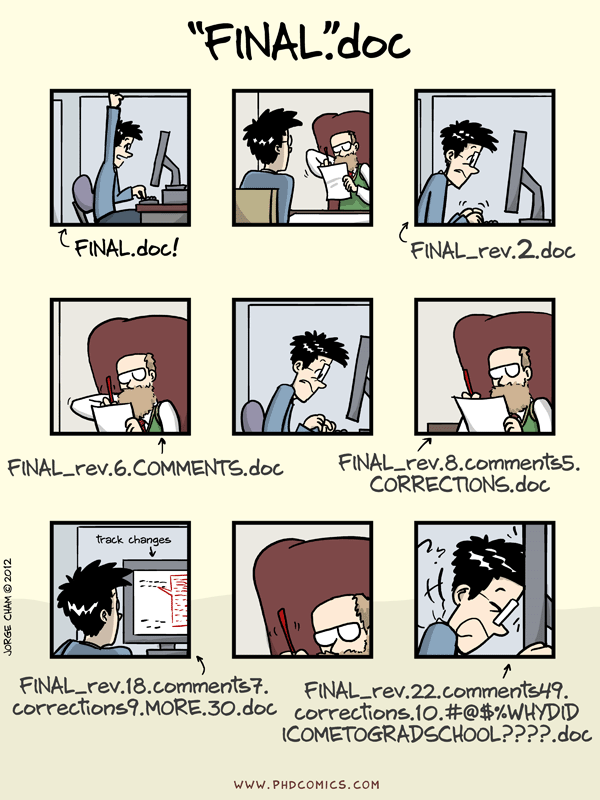
In your groups discuss this image and write your conclusions about why a VCS is useful.
#### Discussion comments
- When (not if) you screw up, you can go back without losing earlier progress
- It allows you to track, test, implement, and revert changes; and collaborate in a structured way.
- Hitting face against monitor is an effective coding tactic
- 'It works'
- Long file names lead to anguish
- If a change breaks the code, it allows you to go back and see what changes were made
- Make sure the latest version saved
- Stops you wasting time on bad/old/outdated code
- .So you can manage all the old file methodically
- .--
- print('Hello world'), 1337Heker
- So all members of a team know what the latest version of a code repository is -- prevents people from working on versions which are not up to date
- .Better kind of backup. Review history ("When did I introduce this bug?").Restore older code versions. Ability to undo mistakes. Maintain several versions of the code at a time.
- .\\__(oo)_/
- .:)
- .So you can easily run different versions of a script
- .simplify manage process
- I LOVE STACKOVERFLOW
- .It allows your Supervisors/Colleagues/Partners to see the changes you've made and comment/change what you've done so far and/or in the past.
- Saves time when needing to make changes and easier to keep track of said changes. Keeps file labeling consistent to maintain better workflow, espcially on iterative tasks.
- .Good practice of documentation. It avoids conflict of changes when working on group projects.
- .
- Keep track of progress/changes
- Go back to previous versions before a mistake is made
- Better for collaboration
- Allows other people to view your work as you make commits so that feedback is given regularly and in smaller, more manageable chunks. Allows user to keep previous versions of their work on a Git platform, rather than on their personal device, and so storage space is saved.
-
- Allows easy collaboration on large projects with many people working on the same codebase
- Improve the efficiency
- .See your mistakes in the past. Easy for you to track somethings
-
- Recording the whole process of working.
- Avoid the problem of untracked merging.
-
-
- easy to roll back to the old version or do the modular development in different groups in the same time
#### Introduce ourselves to git
Follow live coding using a git bash (windows) or a terminal (Mac/Linux).
:::warning
If you are unfamiliar with the bash shell, you can learn about it going through the [Software Carpentry's introduction to the Unix shell](https://swcarpentry.github.io/shell-novice/).
You have also got access to courses in:
- LinkedIn Learning: [Learning Linux Command Line](https://www.linkedin.com/learning/learning-linux-command-line-2/learning-linux-command-line?u=69919578) (check Chapters 2-4)
- O'reilly Learning: [Linux Command Line for Beginners](https://learning.oreilly.com/videos/linux-command-line/9781771374446/) (Chapters 1-4)
<br>
If you are unfamilliar with git:
- Go through our [course notes on git](http://github-pages.ucl.ac.uk/rsd-engineeringcourse/ch02git/) (also linked on moodle)
- You can learn learn more through the [Software Carpentry's Version Control with Git](https://swcarpentry.github.io/git-novice/)
:::
First try
`git config --list` Do you get an output?
No?
```bash
git config --global user.name "Your Name"
git config --global user.email "your_email@email.com"
git config --global core.editor "nano -w"
git config --global init.defaultBranch "main"
```
#### Create a repository
```bash
pwd # Note where we are standing-- MAKE SURE YOU INITIALISE THE RIGHT FOLDER
cd Desktop/
mkdir family_recipes
```
```
cd family_recipes
git init
```
#### Creating recipes
```bash
nano index.md
```
contents of `index.md`:
```
# Family secret recipes
Set of recipes as given by my grandma.
```
```bash
git add index.md
git commit -m "Setting up the title for the book"
```
running `git status` should say `...nothing to commit, working tree clean`
running `git log` will have the single commit
##### Visual studio code
adding and committing:
- File > Open Folder ... `family_recipes`
- Left hand side can see the index.md file, can open it and edit it :
- contents of `index.md`:
```
# Family secret recipes
Set of recipes as given by my grandma.
- pizzas (TODO)
- sauces (TODO)
- spreads (TODO)
```
- Source Control/branch icon shows that a single file is modified
- click on the Source Control icon
- files have 4 icons in this panel: open file / discard changes / stage changes (i.e. git add) / state of file
- click stage changes icon -> the file is now in the `staged changes` section
- Type in the commit message above the staged changes.
- `Ctrl + Enter` or click check mark to commit
git log (requires git graph extension, install it if you don't have it):
- click on graph icon to the right of where the git commit check mark is
- Can explore the commit information, click on the file to see side by side differences that were made to the file
##### making mistakes
- update index.md to have mistakes:
```markdown=
# Family secret recipes
Set of recipes as given by my grandma.
- pizas (TODO)
- sauses (TODO)
- reads (TODO)
```
- save file, stage and then commit the file, which has some typos
- Now make a change that is valid
```markdown=
# Perez's Family secret recipes
Set of recipes as given by my grandma.
- pizas (TODO)
- sauses (TODO)
- reads (TODO)
```
- save file, stage and then commit the file
- Go to git graph and view the commits
- revert the previous commit at the command line by doing one of the following, (edit the commit message if you'd like and exit the editor):
- `git revert HEAD^`
- `git revert HEAD~1`
- `git revert <commit hash/barcode>`
- current state of `index.md`
```markdown=
# Perez's Family secret recipes
Set of recipes as given by my grandma.
- pizzas (TODO)
- sauces (TODO)
- spreads (TODO)
```
#### github
- log in to [github][gh]
- click create a [new repository][gh-new]
- make the repository name `family_recipes`
- don't tick any of the options boxes
- click the create repository button
- copy the github url (make sure you are using the ssh option)
- add the github url as the remote and push local changes to github
```
git remote add origin <github url>
git branch -M main
git push -u origin main
```
---
#### Collaboration
Add your username to [the list of gh usernames](/UeSsz1LUTLSaQlCyO_QYzQ) and tell your partner.
Decide who is :one: and :two:, add it next to your username.
| person :one: | person :two: |
| ------------ | ----------- |
| write your GH username after your name | |
| | Add GH user name from :one: as collaborator |
| | Give to person :one: a link to the invitation |
| Accept invitation of :two: | |
| Go to your desktop and clone the repository of :two: with `git clone <url> <name2>_recipes`| |
| Add a new file to :two: repository and push ||
| | Pull the changes produced by :one:|
| :heavy_check_mark: | :heavy_check_mark: |
# Next week
We will learn:
- How to merge conflicts,
- Git branching, and
- better strategies about collaborating with others.
# Questions
Here you can post any question you have while we are going through this document. A summary of the questions and the answers will be posted in moodle after each session. Please, use a new bullet point for each question and sub-bullet points for their answers.
For example writing like this:
```
- Example question
- [name=student_a] Example answer
- [name=TA_1] Example answer
```
produces the following result:
- Example question
- [name=student_a] Example answer
- [name=TA_1] Example answer
Write new questions below :point_down:
- [name=student_a] Example answer
- [name=TA_1] Example answer
###### tags: `COMP0233` `teaching` `class`
[gh]: https://github.com/
[gh-account]: https://github.com/signup?ref_cta=Sign+up&ref_loc=header+logged+out&ref_page=%2F&source=header-home
[gh-new]: https://github.com/new
 Sign in with Wallet
Connect another wallet
Sign in with Wallet
Connect another wallet