# Zendesk
## Short description:
Connect Zendesk to popular cloud apps and databases, back up and manage Zendesk data.
## Long description:
### Data Integration (ETL and ELT)
Automate data flows between Zendesk and Zendesk Sell and major cloud apps and databases and let Skyvia do all common and tedious work for you. Load contacts from your CRM, e-support app, website database, online forms or any other sources. Import/Export CSV or even perform bi-directional sync.
Configure Zendesk data replication to databases for data analysis and reporting with Skyvia’s ELT tool in under 5 minutes or perform Reverse ETL back from database to ActiveCampagn.
### Data Backup and Other Tools
Get automatic daily Zendesk backup with backed up data search, preview, and restore in a couple of clicks. Query Zendesk data with SQL or visually built queries from Google Sheets and Excel. Publish Zendesk data via OData and SQL web API and access them via ODBC and ADO.NET.
### Key Features
* 100% cloud – no software required except a web browser
* A tool for business users – simple scenarios can be implemented in under 5 minutes
* 100% visual configuration – no coding required
* Advanced tools for more complex and advanced scenarios
* flexible pricing plans for any business size
### Supported Data Sources:
Accounting: FreshBooks, QuickBooks, Xero, Zoho Books
Ads: Facebook Ads, Google Ads, Google Analytics, LinkedIn Ads, Outbrain, Twitter Ads
Communication: CallRail, ClickSend, Confluence Cloud, Slack, Twilio, Zoom
CRM: Agile CRM, Capsule CRM, Close, Dynamics 365, Freshsales, Freshworks CRM, HubSpot, Insightly CRM, NetSuite, Nimble, Pipedrive, RepairShopr, Salesforce, Streak, SugarCRM, Zendesk Sell, Zoho CRM
Developer Tools: Azure DevOps
Documents: Formstack Documents
E-commerce: AfterShip, BigCommerce, ChargeBee, ChargeOver DEAR Inventory, Drip, Magento, ReCharge, Shippo, ShipStation, Shopify, Starshipit, WooCommerce, Zoho Inventory, Zoho Invoice
Email Marketing: AWeber, CleverReach, Constant Contact, Email Octopus, G Suite, Intercom, Iterable, Mailchimp, Mailgun, Mailjet, PersistIQ, SendGrid, Sendinblue, SendPulse
Forms & Surveys: Delighted, Formstack, SurveyMonkey, Survicate, Typeform
Help Desk: Freshdesk, Freshservice, Help Scout, Zendesk, Zoho Desk
Human Resources: Greenhouse, Zoho People
Marketing Automation: ActiveCampaign, Customer.io, Klaviyo, Marketo, Marketing Cloud, Reply
Misc: GitHub, Google Sheets, OData, ODBC, Okta, Pinterest, UserVoice, WordPress
Payment Processing: Chargify, Recurly, Square, Stripe, Zuora
Product Management: Aha!, Onfleet, ProdPad
Project Management: Amplitude, Asana, Jira, Jira Service Management, Podio, Trello, Wrike
Scheduling & Booking: Acuity Scheduling, Calendly, Float
Task Management: Todoist
Time Tracking: Everhour, Harvest, QuickBooks Time, Timely
Databases and Cloud Data Warehouses: Amazon Redshift, Azure Synapse Analytics, Google BigQuery, MySQL, Oracle, PostgreSQL, Snowflake, SQL Server
File Storages: Amazon S3, Azure File Storage, Box, Dropbox, Google Drive, OneDrive, FTP, SFTP
## Installation Instructions
To connect Zendesk and Skyvia, you need to [create Skyvia account](https://app.skyvia.com/register) first. Then you need to sign in to Skyvia and [create a connection](https://docs.skyvia.com/connections/#creating-connections) to Zendesk or Zendesk Sell.
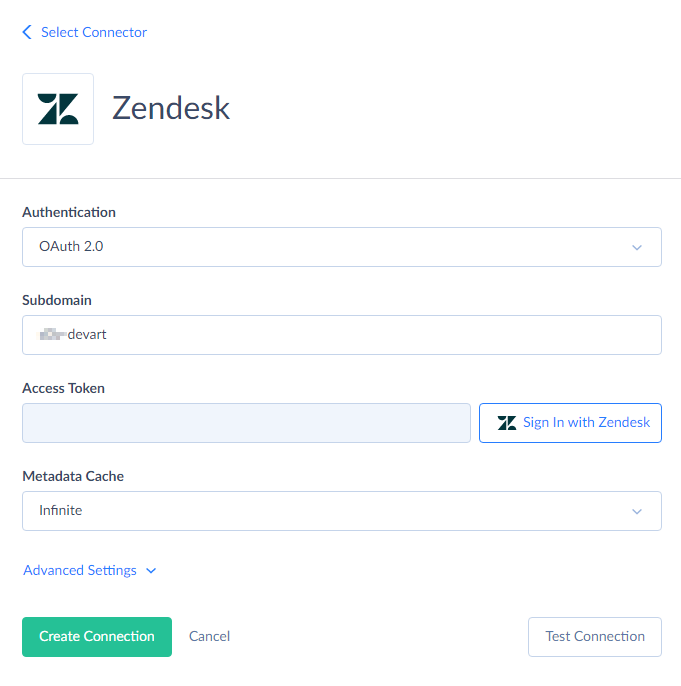
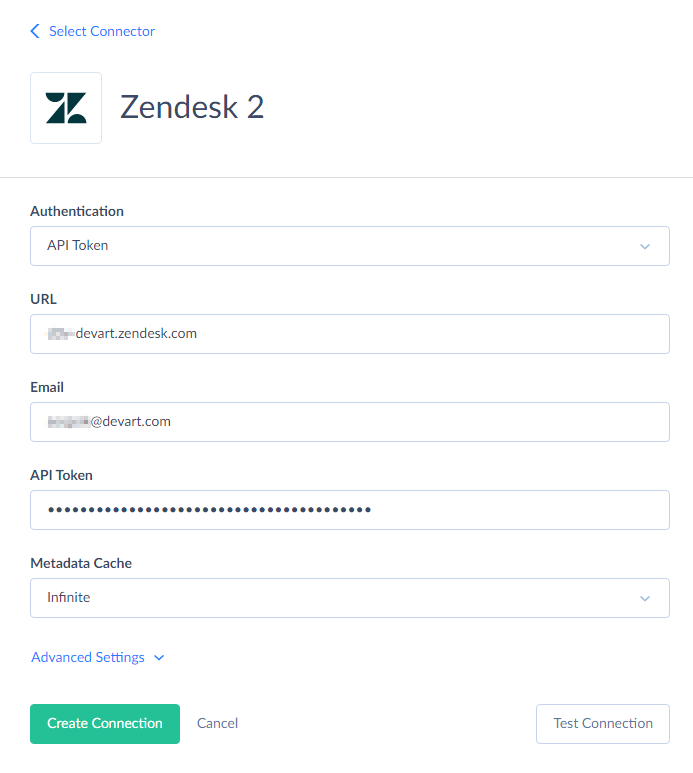
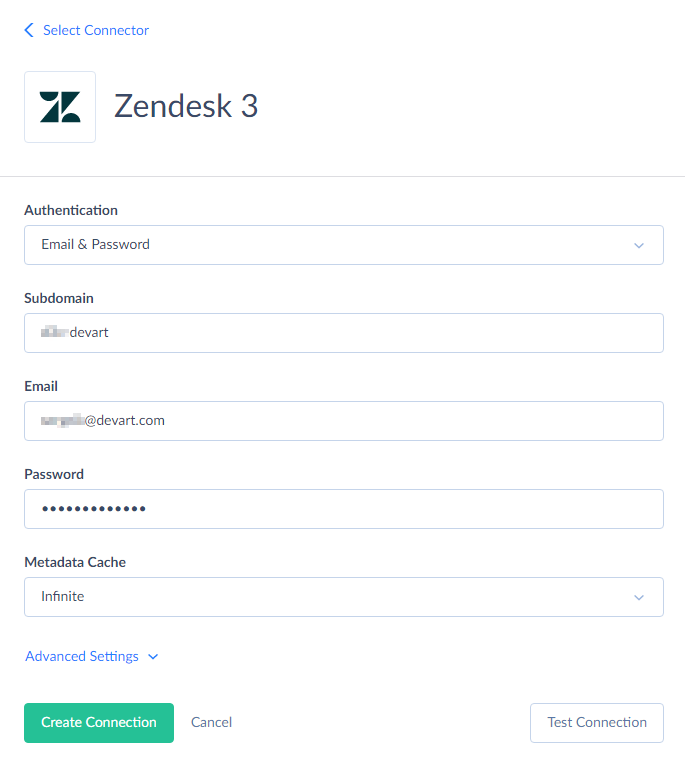
For Zendesk, Skyvia supports different authentication kinds: OAuth 2.0, API Token, and Email & Password.
### OAuth Authentication
If you don’t want to store your username and password in Skyvia, you can select the **OAuth 2.0** authentication method to connect directly to Zendesk with no need to specify your credentials in Skyvia. You need to click the **Sign In with Zendesk** button in the connection editor and sign in to Zendesk.
### API Token Authentication
To use the _API Token_ authentication, you need to specify the url to connect to, user login email and API Token. The tokens are managed in the Zendesk Admin interface at Admin > Channels > API.
### Email & Password Authentication
To use the _Email & Password_ authentication, you need to specify the subdomain, user login email and password.
### Zendesk Sell
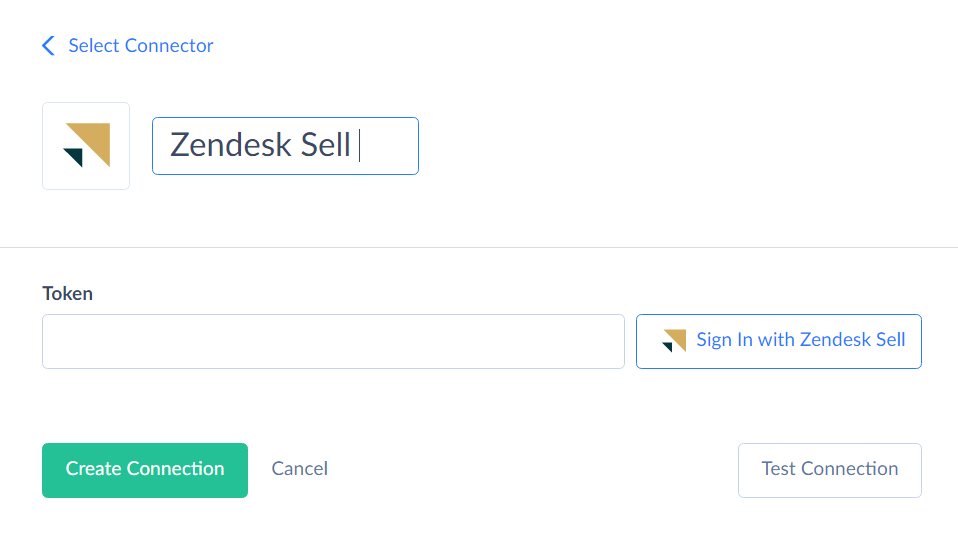
For Zendesk Sell, Skyvia uses OAuth authentication. You need to click the **Sign In with Zendesk Sell** button in the connection editor, sign in to Zendesk Sell, and authorize the required permissions.
### After Creating Zendesk Connections
After you create a connection to Zendesk or Zendesk Sell on Skyvia, you will be able to further configure and perform the operations you want:
* [Data Integration](https://docs.skyvia.com/data-integration/)
* [Backup](https://docs.skyvia.com/backup/working-with-backups/how-to-create-backup.html)
* [Publishing data via OData endpoints](https://docs.skyvia.com/connect/odata-endpoints/how-to-configure-odata-endpoint-in-simple-mode.html)
* [Querying data from web browser](https://docs.skyvia.com/query/)
* Creating refreshable reports in [Google Sheets](https://docs.skyvia.com/skyvia-query-google-sheets-add-on/) or [Excel](https://docs.skyvia.com/skyvia-query-excel-add-in/)
For Data Integration you may also need to [create connections to other cloud apps and databases](https://docs.skyvia.com/connectors/).
 Sign in with Wallet
Connect another wallet
Sign in with Wallet
Connect another wallet