---
tags: Project
---
[TOC]
# Kubernetes
- [Minikube hello world on Ubuntu 16.04](https://wyde.github.io/2017/11/01/Minikube-hello-world-on-Ubuntu-16-04/)
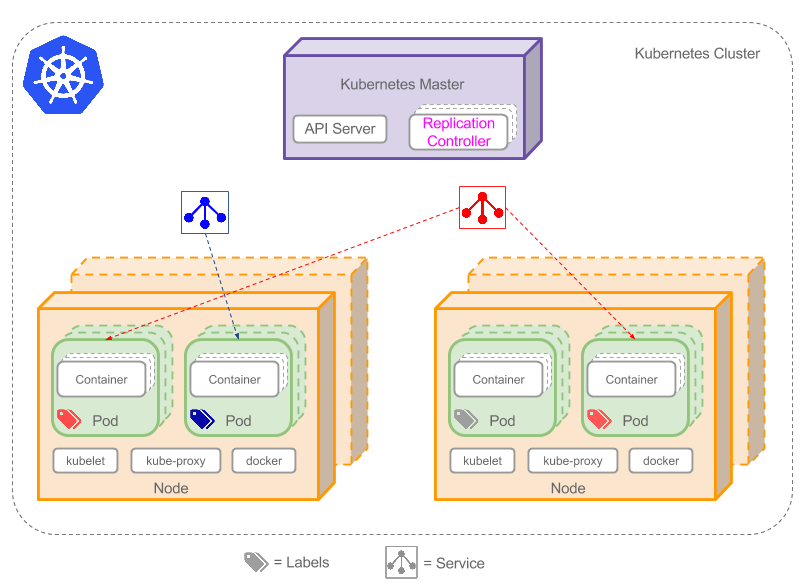
- 透過 k8s 可以管理容器集群服務
- Pod 是 k8s 中能夠被創建、調度和管理的最小單元,有自己獨立的 IP address (private)
- 一個 Pod 由一個或多個容器構成,這些容器共享 Pod 的所有資源
- K8s 分成 Master 和 Node,Node 可以想成實際存放 Pod 的虛擬或實體機器,所有 Node 統一由 Master 集中管理
- Default 情況下 Pod 只允許 cluster 內部訪問,若是要讓外部可以訪問的話可以將容器的 port 對應到 Node 的 Port

- [Kubernetes in 5 mins](https://www.youtube.com/watch?v=PH-2FfFD2PU&ab_channel=VMwareCloudNativeApps)
## minikube (single node)
- 只提供 **signle-node Kubernetes Cluster**
- [How To Install Minikube on Ubuntu 20.04/18.04 & Debian 10 Linux](https://computingforgeeks.com/how-to-install-minikube-on-ubuntu-debian-linux/)
### Start
- VM環境
- Ubuntu desktop 18.04
- 2 CPUs
- 2GB of free memory
- 32GB of free disk space
- Internet connection
- Docker version 20.10.3
- 前置作業
```
$ sudo apt-get install curl apt-transport-https
```
```
$ sudo apt install virtualbox virtualbox-ext-pack
```
> And also need to install Docker
- Install minikube & kubectl
```
$ wget https://storage.googleapis.com/minikube/releases/latest/minikube-linux-amd64
$ chmod +x minikube-linux-amd64
$ sudo mv minikube-linux-amd64 /usr/local/bin/minikube
```
```
$ curl -LO https://storage.googleapis.com/kubernetes-release/release/`curl -s https://storage.googleapis.com/kubernetes-release/release/stable.txt`/bin/linux/amd64/kubectl
```
```
$ chmod +x ./kubectl
$ sudo mv ./kubectl /usr/local/bin/kubectl
```
- Check install
```
$ kubectl version -o json
```
### Basic usage
- Start the service
```
minikube start
minikube status
```
- View local cluster
```
kubectl cluster-info
```
- View configuration
```
kubectl config view
```
- Stop minikube
```
minikube stop
```
- Delete local cluster
```
minikube delete
```
- Dashboard
```
minikube dashboard
minikube dashboard --url
```
- **api-server** 是 Master 的元件,**kubelet** 則是 Node 上負責跟 Master 溝通的元件。因為 Minikube 只有單一個 Node,所以同時具備 Master 與 Node 的元件。
- [minikube doc - handbook](https://minikube.sigs.k8s.io/docs/handbook/controls/)
### 部屬 Python Flask 應用程式到 Minikube 上
- [教學實作](https://medium.com/starbugs/kubernetes-%E6%95%99%E5%AD%B8-02-%E5%9C%A8-minikube-%E4%B8%8A%E9%83%A8%E5%B1%AC%E4%B8%80%E5%80%8B-python-flask-%E6%87%89%E7%94%A8%E7%A8%8B%E5%BC%8F-e7a3b9448f2c)
- 需撰寫一.yaml檔
- [yaml file in k8s](https://kubernetes.io/docs/concepts/overview/working-with-objects/kubernetes-objects/)
```yaml=
apiVersion: v1
kind: Service
metadata:
name: flask-app-service
spec:
selector:
app: flask-app
ports:
- protocol: "TCP"
port: 5000
targetPort: 5000
type: LoadBalancer
---
apiVersion: apps/v1
kind: Deployment
metadata:
name: flask-app
spec:
selector:
matchLabels:
app: flask-app
replicas: 3
template:
metadata:
labels:
app: flask-app
spec:
containers:
- name: flask-app
image: flask_app:latest
imagePullPolicy: Never
ports:
- containerPort: 5000
```
- 將 flask_app (已建立之 docker container) 部屬至 minikube
```
kubectl apply -f k8s.yaml
```
- 查看服務對應的IP:Port
```
minikube service flask-app-service --url
```
## K8s (multiple nodes)
### VM config
- Memory: 2048 MB
- CPU: 2(controller), 1(node)
- Storage: 32 GB
- OS: Ubuntu-20.04-desktop
> I created 1 VM as controller, and 2 as nodes.
> master: 10.22.23.169
> node1: 10.22.22.174
> node2: 10.22.22.173
### Tools
> 建 k8s 的主要工具由以下三個組成
- **kubeadm**: 類似 Docker swarm,透過初始化 master 快速部屬環境以提供各 nodes 加入 cluster。
- **kublet**: 運行在每個 node 上的 k8s 工具,基於 PodSpec(即配置 Pod 的 .yaml/.json 檔)執行 master 指派的工作。
- **kubectl**: k8s command-line tool。
### Install
- [官方doc - Installing kubeadm](https://kubernetes.io/docs/setup/production-environment/tools/kubeadm/install-kubeadm/#installing-kubeadm-kubelet-and-kubectl)
- [(參考用)How To Install Kubernetes On Ubuntu 18.04](https://phoenixnap.com/kb/install-kubernetes-on-ubuntu)
- [(參考用)Install Kubernetes Cluster on Ubuntu 20.04 with kubeadm](https://computingforgeeks.com/deploy-kubernetes-cluster-on-ubuntu-with-kubeadm/)
> 以官方文件為主
> Install both on master and nodes
1. Install Docker as container runtime
```bash=
sudo apt update
sudo apt -y upgrade
sudo apt-get install -y apt-transport-https ca-certificates curl gnupg2 software-properties-common
sudo apt-get install -y docker.io
sudo systemctl enable docker
```
```bash=
docker --version
docker run busybox echo "hello world"
```
2. Install k8s (kubelet & kubeadm & kubectl)
```bash=
sudo curl -fsSLo /usr/share/keyrings/kubernetes-archive-keyring.gpg https://packages.cloud.google.com/apt/doc/apt-key.gpg
echo "deb [signed-by=/usr/share/keyrings/kubernetes-archive-keyring.gpg] https://apt.kubernetes.io/ kubernetes-xenial main" | sudo tee /etc/apt/sources.list.d/kubernetes.list
sudo apt update
sudo apt-get install -y kubelet kubeadm kubectl
sudo apt-mark hold kubelet kubeadm kubectl
sudo systemctl enable kubelet
```
- Check installation
```bash=
kubelet --version
kubeadm version
kubectl version --client
```
- Pull container images
```bash=
sudo kubeadm config images pull
```
3. Disable swap
- [Why disable swap on kubernetes](https://kubernetes.io/docs/setup/production-environment/tools/kubeadm/create-cluster-kubeadm/)
```bash=
sudo swapoff -a
```
> - 每次 server 重開機就要重新關閉 swap,雖然 error massage 也會提示
> - 如果想要永久關閉 swap,還需編輯 `/etc/fstab` ,將其中的 `/swapfile` 那一行注解(#)掉
> - check via `cat /proc/swaps` if swap is off or not

### Create cluster
- [官方doc - 使用kubeadm 創建集群](https://kubernetes.io/zh/docs/setup/production-environment/tools/kubeadm/create-cluster-kubeadm/)
- Set hostname for master and nodes (非必要)
```bash=
sudo hostnamectl set-hostname master
```
> for master(controller)
```bash=
sudo hostnamectl set-hostname node1
```
> for every nodes as workers
- **master** 端要記得把 node server 加進去 **/etc/hosts**,之後要加新的 node 可再編輯
```bash=
sudo vim /etc/hosts
10.22.22.174 node1
10.22.22.173 node2
```
1. Initialize k8s **on master**
```bash=
sudo kubeadm init
```
> 此為簡易版指令(沒加入特定參數,但可直接執行),如有特殊需求請查閱官方文件。
> 注意執行後 output 的末兩行指令,複製後在 node server 上執行即可馬上將該 node 加至 master 底下管理。
> > 看起來會像: ```kubeadm join XX.XX.X.X --token XXX... \
> > --discovery-token-ca-cert-hash sha256:XXX...```
> > node 端執行時可能需要加個 sudo
> > token 跟 hash 值具有時效性,default 為 24 hr
```
kubeadm join 10.22.23.169:6443 --token z1lays.8d2ytr0bpfg05xbn \
--discovery-token-ca-cert-hash sha256:d2c1f3400a9e77fbfb06834d15dce7d75b4826aefb271ba5e2f06f47160549fb
```
:::spoiler Error solution
- ```kubeadm join``` 指令失效時
- 在 master 端建立新的 token
```
kubeadm token create
```
- 查看新的 token
```
kubeadm token list
```
- 新獲取 ca 認證 sha256 編碼的 hash 值
```bash=
openssl x509 -pubkey -in /etc/kubernetes/pki/ca.crt | openssl rsa -pubin -outform der 2>/dev/null | openssl dgst -sha256 -hex | sed 's/^.* //'
```
- 在 node 端更換 ```kubeadm join 10.21.22.164:6443 --token XXX...``` 中的 token 及 hash 值即可執行。
:::
2. Create a directory for the cluster, then copy a default **config file** from k8s to the local (**master**).
```bash=
mkdir -p $HOME/.kube
sudo cp -i /etc/kubernetes/admin.conf $HOME/.kube/config
sudo chown $(id -u):$(id -g) $HOME/.kube/config
```
3. 查看 master 管理的 nodes,status **not ready**
```bash=
kubectl get nodes
```
```
NAME STATUS ROLES AGE VERSION
master NotReady control-plane,master 6m12s v1.21.0
node1 NotReady <none> 85s v1.21.0
```
> 執行過 ```kubeadm join XXX...``` 的 node 才會出現
4. Deploy **Pod Network** to Cluster
- Status of master and nodes will change from **not ready** to **ready**
- A Pod Network is a way to allow communication between different nodes in the cluster.
- [flannel](https://github.com/flannel-io/flannel#flannel)
```bash=
kubectl apply -f https://raw.githubusercontent.com/coreos/flannel/master/Documentation/kube-flannel.yml
```
- [Calico](https://www.projectcalico.org/)
```bash=
kubectl apply -f https://docs.projectcalico.org/manifests/calico.yaml
```
> 因為 fannel 載入時出現 error,目前還找不到方法解決,我改用 Calico
- Check running pods
```bash=
kubectl get pods --all-namespaces
```
- 再 ```kubectl get nodes``` 一次會發現 master 跟 nodes 的 status 都已變為 ready
```
NAME STATUS ROLES AGE VERSION
master Ready control-plane,master 12h v1.21.0
node1 Ready <none> 12h v1.21.0
```
#### Error solution
- 當 master 重新開機時發現執行 k8s 出現錯誤,需要重新 init kubeadm
```bash=
sudo kubeadm reset
```
- reset 後有部分設定檔需要手動刪除,系統通常也有提醒:
```
The reset process does not clean CNI configuration. To do so, you must remove /etc/cni/net.d
The reset process does not reset or clean up iptables rules or IPVS tables.
If you wish to reset iptables, you must do so manually by using the "iptables" command.
If your cluster was setup to utilize IPVS, run ipvsadm --clear (or similar)
to reset your system's IPVS tables.
The reset process does not clean your kubeconfig files and you must remove them manually.
Please, check the contents of the $HOME/.kube/config file.
```
- 確認該刪除的都刪了再重新 init 並執行接續的動作
```bash=
sudo systemctl enable kubelet
sudo kubeadm init
......
```
> node 端也確認 kubelet service 是否為 active,若沒有則一樣要重新 enable
> ```sudo systemctl status kubelet```
### Pod
- confige file: mypod.yaml
- 建立 Pod
```yaml=
apiVersion: v1
kind: Pod
metadata:
name: myPod
labels:
env: test
spec:
containers:
- name: mycontainer
image: ubuntu
ports:
- containerPort: 10732
```
> apiVersion: 元件版本號
> kind: 元件類型
> metadata: 元件基本設定(名稱 name、分類 labels)
> spec: 元件組成(容器設置 containers)
>> containerPort: 容器開放外部訪問的端口
- Port mapping between localhost and container
```bash=
kubectl port-forward kubernetes-demo-pod 3000:10732
```
- Create the pod
```bash=
kubectl create -f pod.yaml
```
#### Else
- [Assigning Pods to Nodes](https://kubernetes.io/docs/concepts/scheduling-eviction/assign-pod-node/)
- Attach label to the node
```bash=
kubectl label nodes <node-name> <label-key>=<label-value>
kubectl get nodes --show-labels
```
- Add a nodeSelector field to your pod configuration
```yaml=
apiVersion: v1
kind: Pod
metadata:
name: myPod
labels:
env: test
spec:
containers:
- name: mycontainer
image: ubuntu
ports:
- containerPort: 10732
nodeSelector:
<label-key>: <label-value>
```
> nodeSelector: 指定擁有該 label 的 node 執行
>> `kubectl get pods -o wide` looking at the node that the Pod was assigned to.
### Deployment
- config file: mydeploy.yaml
- Pod scaling: 集體建立、管理多個相同的 Pods
```yaml=
apiVersion: apps/v1
kind: Deployment
metadata:
name: my-deployment
spec:
replicas: 3
selector:
matchLabels:
app: demoApp
template:
metadata:
labels:
app: demoApp
spec:
containers:
- name: kubernetes-demo-container
image: hcwxd/kubernetes-demo
ports:
- containerPort: 3000
```
> replicas: 維持支援該應用的 replicas (pods)數量
> selector: defines how the Deployment finds which Pods to manage.
>> `matchLabels:` manage pods which has the label (需對應到 `template:` 底下 `metadata: labels:`,也就是為此次創建的 pod 賦予的 label)
- Replication Controller (Deployment 前身)
```
kubectl get rc
```
### Service
- config file: myservice.yaml
- 定義多個已建立的 Pods 如何被連線與存取,並可提供 cluster 內部訪問
```yaml=
apiVersion: v1
kind: Service
metadata:
name: my-service
spec:
type: NodePort
selector:
app: demoApp
ports:
- protocol: TCP
port: 3000
nodePort: 30390
targetPort: 3000
```
> type: 有 NodePort 及 LoadBalancer 兩種
> port: service's port,會 mapping 到 targetPort。 `<ClusterIP>:<port>`
> nodePort: 端口範圍只能是30000-32767,不建議手動設定,由系統自行分配。 `<NodeIP>:<nodePort>`
> targetPort: pod's port
#### Service Type
- [Kubernetes的三種外部訪問方式:NodePort、LoadBalancer 和Ingress](http://dockone.io/article/4884)
- [Connecting Applications with Services](https://kubernetes.io/docs/concepts/services-networking/connect-applications-service/)
- **ClusterIP (default)**: Exposes the Service on a cluster-internal IP. Choosing this value makes the Service only reachable from within the cluster.
- Kubernetes gives every pod its own cluster-private IP address.
- You'll be able to contact the Service from other pods inside the cluster by requesting `<ClusterIP>:<port>`.
- **NodePort**: Exposes the Service on each Node's IP at a static port. A ClusterIP Service, to which the NodePort Service routes, is automatically created.
- You'll be able to contact the NodePort Service from outside the cluster by requesting `<NodeIP>:<nodePort>`. (NodeIP = VM's IP)
- **LoadBalancer**: Exposes the Service externally using a cloud provider's load balancer. NodePort and ClusterIP Services, to which the external load balancer routes, are automatically created.
- **ExternalName**
### Ingress
- config file: myingress.yaml
- [doc - Ingress](https://kubernetes.io/docs/concepts/services-networking/ingress/#prerequisites)
- [在 Kubernetes 中實現負載平衡 - Ingress Controller](https://ithelp.ithome.com.tw/articles/10196261)
```yaml=
apiVersion: networking.k8s.io/v1
kind: Ingress
metadata:
name: my-ingress
annotations:
nginx.ingress.kubernetes.io/rewrite-target: /
spec:
rules:
- host: "foo.bar.com"
http:
paths:
- path: /testpath
pathType: Prefix
backend:
service:
name: test
port:
number: 80
```
> name: must be a valid **DNS subdomain name**(contains no more than 253 characters, only lowercase alphanumeric characters, '-' or '.').
> **annotations**: configure some options depending on the Ingress controller.
>> An example of which is the rewrite-target annotation.
>> Different Ingress controller support different annotations.
> spec: information needed to configure a load balancer or proxy server, contains a list of rules matched against all incoming requests.
:::warning
Ingress resource only supports rules for directing **HTTP(S)** traffic.
:::
- [Rewrite annotations](https://github.com/kubernetes/ingress-nginx/blob/master/docs/examples/rewrite/README.md)
- rules
- host: [DNS for Services and Pods](https://kubernetes.io/docs/concepts/services-networking/dns-pod-service/)
- path
- pathType
- Exact: Matches the URL path exactly and with case sensitivity.
- Prefix: Matches based on a URL path prefix split by `/`.
- backend
## kube-proxy
## Load Balance
## 反向代理
---
# 1102 K8S course
## Why we need it
- Monolithic architecture (DevOps)
- dev team should hand pkg over to ops team
- break a big project into small processes
## Containers
### Namespace
- Each process sees its own personal view of system.
### Control Groups
- Limit the amount of resourses a process can consume.
### Docker
- Isolation
- Portable
- Package up a whole OS file system into a protable file.
## K8S Architecture
### Control Plane (master)
- **API server**
- K8S components communications
- 不做任何決策
- **Scheduler**
- schedule apps
- **Controller Manager**
- performs cluster-level functions
- 追蹤 workers 的狀態
- **etcd**
- stores the cluster configuration
### Worker nodes
- runs **container runtime**
- `kubelet`
- talks to the API server
- manages containers on its node
- `kube-proxy`
- load-balances network traffic
## Benefits
- Simplifying App Deployment
- Better Hardware Utilization
- Health checking and Self-Healing
- Automatic Scaling
## ReplicaSet
## Pods
## Service
## Volumes
- It's **a component of a pod**(defined in the pod’s specification).
- In each container in the same pod, you can mount the volume in any location of its filesystem.

### Volume types
- The volume types serve various purposes.
- Special types of volumes (**secret**, **downwardAPI**, **configMap**) aren’t used for storing data, but for **exposing Kubernetes metadata to apps running in the pod**.
#### `emptyDir`
- Starts out as **an empty directory**.
- The app running inside the pod can then write any files it needs to it.
- The volume’s **lifetime is tied the pod**, the volume’s contents are lost when the pod is deleted.
```yaml=
apiVersion: v1
kind: Pod
metadata:
name: fortune
spec:
containers:
- image: luksa/fortune
name: html-generator
volumeMounts:
- name: html
mountPath: /var/htdocs
- image: nginx:alpine
name: web-server
volumeMounts:
- name: html
mountPath: /usr/share/nginx/html
readOnly: true
ports:
- containerPort: 80
protocol: TCP
volumes:
- name: html
emptyDir: {}
```
#### `gitRepo`
- Basically an `emptyDir` volume **gets populated by cloning a Git repository** and checking out a specific revision when the pod is starting up (but before its containers are created).
- If your pod is managed by a **ReplicationController**, deleting the pod will result in a new pod being created and **the new pod’s volume will then contain the latest commits**.
#### `hostPath`
- Points to a specific file or directory **on the node’s filesystem**.
- Both the `gitRepo` and `emptyDir` volumes’ contents get deleted when a pod is torn down, whereas a hostPath volume’s contents don’t.
- Pods running on **the same node** and using the same path in their hostPath volume see the same files.
### Persistant Storage
- Have the same data available even when the pod is rescheduled to another node.
- Stored on network-attached storage(NAS).
#### Database
- MongoDB
- SQLite
#### `nfs`
- To mount a simple **NFS** share, only need to specify the NFS server and the path exported by the server.
```yaml=
volumes:
- name: mongodb-data
nfs:
server: 1.2.3.4
path: /some/path
```
#### PersistentVolume(PV)
- A piece of storage in the cluster.
- Have a lifecycle independent of any individual Pod that uses the PV.
```yaml=
apiVersion: v1
kind: PersistentVolume
metadata:
name: mongodb-pv
spec:
capacity:
storage: 1Gi
accessModes:
- ReadWriteOnce
- ReadOnlyMany
persistentVolumeReclaimPolicy: Retain
gcePersistentDisk:
pdName: mongodb
fsType: ext4
```
> After you create the PV with the `kubectl create` command, it should be ready to be claimed.
```bash=
kubectl get pv
```
- Or, claiming a PersistentVolume by creating a `PersistentVolumeClaim`
#### PersistentVolumeClaims(PVC)
- A **request for storage** by a user.
- It is similar to a Pod. Pods consume node resources and PVCs **consume PV resources**.
- Claims can request specific size and access modes.
```yaml=
apiVersion: v1
kind: PersistentVolumeClaim
metadata:
name: mongodb-pvc
spec:
resources:
requests:
storage: 1Gi
accessModes:
- ReadWriteOnce
storageClassName: ""
```
- Access modes
<table>
<tr>
<td>RWO</td>
<td>Only a single node can mount the volume for reading and writing.</td>
</tr>
<tr>
<td>ROX</td>
<td>Multiple nodes can mount the volume for reading.</td>
</tr>
<tr>
<td>RWX</td>
<td>Multiple nodes can mount the volume for both reading and writing.</td>
</tr>
</table>
:::warning
These modes pertain to the number of worker nodes that can use the volume at the same time, not to the number of pods!
:::
```bash=
kubectl get pvc
```
#### Dynamic provisioning of PersistentVolumes
 Sign in with Wallet
Connect another wallet
Sign in with Wallet
Connect another wallet