# Mobile Technologies (CSUT122) Notes
## Chapter 1: Mobile Technologies
1. **Explain the following terms for mobile device:**
1. **Portability**
2. **Mobility**
> Portability is the ability to given to the device due to which communication device can move from one place to another with or without a user.
>
> Mobility is the ability to send and receive communications anytime anywhere. It refers to user who has access to same telecommunication service at different place.
2. **What are the limitations of mobile computing?**
> 1. **Resource constraints**: Battery
> 2. **Interference**: Radio transmission cannot be protected against interference using shielding and result in higher loss rates for transmitted data or higher bit error rates respectively
> 3. **Bandwidth**: Although they are continuously increasing, transmission rates are still very low for wireless devices compared to desktop systems. Researchers look for more efficient communication protocols with low overhead.
> 4. **Dynamic changes in communication environment**: variations in signal power within a region, thus link delays and connection losses
> 5. **Network Issues:** discovery of the connection-service to destination and connection stability
> 6. **Interoperability issues:** the varying protocol standards
> 7. **Security constraints:** Not only can portable devices be stolen more easily, but the radio interface is also prone to the dangers of eavesdropping. Wireless access must always include encryption, authentication, and other security mechanisms that must be efficient and simple to use.
## Chapter 2: Android Fundamentals
1. **What is Android OS? Explain it's architecture in detail.**
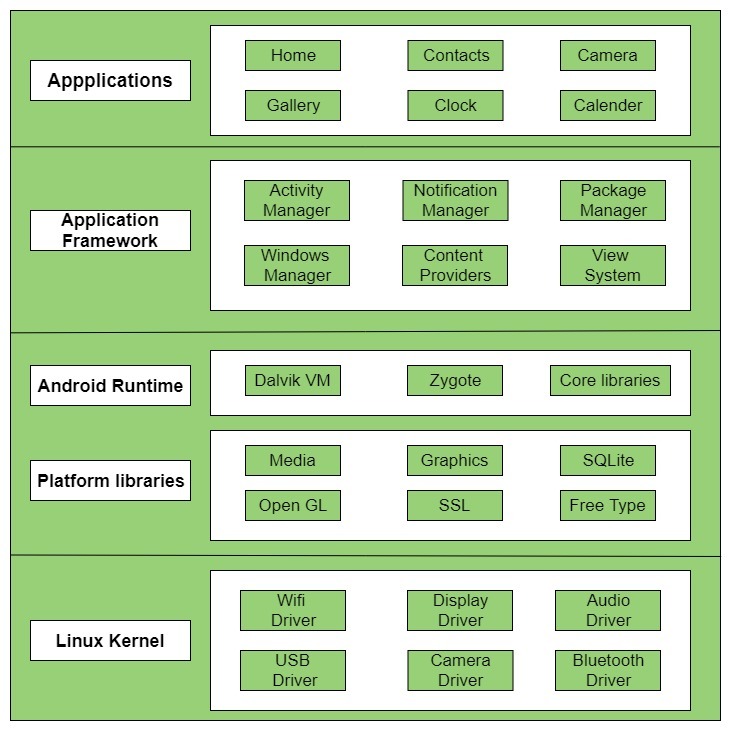
> Android is a mobile operating system based on a modified version of the Linux kernel and other open source software, designed primarily for touchscreen mobile devices such as smartphones and tablets. It is developed and maintained by Google.
>
> 
>
> **Applications**:
>
> Applications is the top layer of android architecture. The pre-installed applications like home, contacts, camera, gallery etc and third party applications downloaded from the play store like chat applications, games etc. will be installed on this layer only.
> It runs within the Android run time with the help of the classes and services provided by the application framework.
>
> **Application framework**:
>
> Application Framework provides several important classes which are used to create an Android application. It provides a generic abstraction for hardware access and also helps in managing the user interface with application resources. Generally, it provides the services with the help of which we can create a particular class and make that class helpful for the Applications creation.
>
> It includes different types of services activity manager, notification manager, view system, package manager etc. which are helpful for the development of our application according to the prerequisite.
>
> **Application runtime**:
>
> Android Runtime environment is one of the most important part of Android. It contains components like core libraries and the Dalvik virtual machine(DVM). Mainly, it provides the base for the application framework and powers our application with the help of the core libraries.
>
> Like Java Virtual Machine (JVM), **Dalvik Virtual Machine (DVM)** is a register-based virtual machine and specially designed and optimized for android to ensure that a device can run multiple instances efficiently. It depends on the layer Linux kernel for threading and low-level memory management. The core libraries enable us to implement android applications using the standard JAVA or Kotlin programming languages.
>
> **Platform libraries**:
>
> The Platform Libraries includes various C/C++ core libraries and Java based libraries such as Media, Graphics, Surface Manager, OpenGL etc. to provide a support for android development.
>
> - **Media** library provides support to play and record an audio and video formats.
> - **Surface manager** responsible for managing access to the display subsystem.
> - **SGL** and **OpenGL** both cross-language, cross-platform application program interface (API) are used for 2D and 3D computer graphics.
> - **SQLite** provides database support and **FreeType** provides font support.
> - **Web-Kit** This open source web browser engine provides all the functionality to display web content and to simplify page loading.
> - **SSL (Secure Sockets Layer)** is security technology to establish an encrypted link between a web server and a web browser.
>
> **Linux Kernel**:
>
> Linux Kernel is heart of the android architecture. It manages all the available drivers such as display drivers, camera drivers, Bluetooth drivers, audio drivers, memory drivers, etc. which are required during the runtime.
>
> The Linux Kernel will provide an abstraction layer between the device hardware and the other components of android architecture. It is responsible for management of memory, power, devices etc.
>
> The features of Linux kernel are:
>
> - **Security:** The Linux kernel handles the security between the application and the system.
> - **Memory Management:** It efficiently handles the memory management thereby providing the freedom to develop our apps.
> - **Process Management:** It manages the process well, allocates resources to processes whenever they need them.
> - **Network Stack:** It effectively handles the network communication.
> - **Driver Model:** It ensures that the application works properly on the device and hardware manufacturers responsible for building their drivers into the Linux build.
2. **Discuss features and life cycle of Android.**
> **Features of Android**:
>
> 1. **User Interface:** The user interface of the Android operating system is straight forward, and these features make it very user friendly.
>
> 2. **Multiple Language Support:** Android supports multiple languages in its operating system and one can change the language very easily based on one’s requirement.
>
> 3. **Multi-tasking:** Android provides support to run apps and services in the background with ease which allows the users to use multiple apps at the same time.
>
> 4. **Connectivity:** Android has extensive support to the connectivity and it supports connectivity such as WiFi, Bluetooth, Hotspot, CDMA, GSM, NFC, VOLTE, UBB, VPN, 3G network band, and 4G Network Band and even 5G network band.
>
> 5. **Extensive Application Support:** Android have Play store which is used as the major tool to download and update applications on the operating system, however, one can download the installer (often called as APK file) and install it manually (called as sideloading).
>
> 
3. **Discuss components of android application.**
> In android, **application components** are the basic building blocks of an application and these components will act as an entry point to allow system or user to access our app.
>
> The following are the basic core application components that can be used in Android application.
>
> - [Activities](https://www.tutlane.com/tutorial/android/android-activity-lifecycle "Android Activities with Examples")
> - [Intents](https://www.tutlane.com/tutorial/android/android-intents-implicit-explicit "Android Intents with Examples")
> - [Content Providers](https://www.tutlane.com/tutorial/android/android-content-providers-with-examples "Android Content Providers with Examples")
> - [Broadcast Receivers](https://www.tutlane.com/tutorial/android/android-broadcastreceivers-with-example "Android Broadcast Receivers with Examples")
> - [Services](https://www.tutlane.com/tutorial/android/android-services-with-examples "Android Services with Examples")
> 1. **Activities**
>
> > In android, [Activity](https://www.tutlane.com/tutorial/android/android-activity-lifecycle "Android Activities with Examples") represents a single screen with a user interface (UI) and it will acts an entry point for the user’s to interact with app.
> >
> > For example, a contacts app that is having multiple activities like showing a list of contacts, add a new contact, and another activity to search for the contacts. All these activities in the contact app are independent of each other but will work together to provide a better user experience.
>
> 2. **Intents**
>
> > In android, [Intent](https://www.tutlane.com/tutorial/android/android-intents-implicit-explicit "Android Intents with Examples") is a messaging object which is used to request an action from another component.
> >
> > In android, [intents](https://www.tutlane.com/tutorial/android/android-intents-implicit-explicit "Android Intents with Examples") are mainly used to perform the following things.
> >
> > - Starting an [Activity](https://www.tutlane.com/tutorial/android/android-activity-lifecycle "Android Activities with Examples")
> >
> > - Starting a [Service](https://www.tutlane.com/tutorial/android/android-services-with-examples "Android Services with Examples")
> >
> > - Delivering a [Broadcast](https://www.tutlane.com/tutorial/android/android-broadcastreceivers-with-example "Android Broadcast Receivers with Examples")
> >
> > There are two types of intents available in android, those are
> >
> > - [Implicit Intents](https://www.tutlane.com/tutorial/android/android-implicit-intents-with-examples "Android Implicit Intents with Examples")
> >
> > - [Explicit Intents](https://www.tutlane.com/tutorial/android/android-explicit-intents-with-examples "Android Explicit Intents with Examples")
>
> 3. **Services**
>
> > In android, [Service](https://www.tutlane.com/tutorial/android/android-services-with-examples "Android Services with Examples") is a component that keeps an app running in the background to perform long-running operations based on our requirements. For [Service](https://www.tutlane.com/tutorial/android/android-services-with-examples "Android Services with Examples"), we don’t have any user interface and it will run the apps in background like play music in background when the user in different app.
> >
> > We have two types of [services](https://www.tutlane.com/tutorial/android/android-services-with-examples "Android Services with Examples") available in android, those are
> >
> > - Local Services
> >
> > - Remote Services
>
> 4. **Broadcast Receivers**
>
> > In android, [Broadcast Receiver](https://www.tutlane.com/tutorial/android/android-broadcastreceivers-with-example "Android Broadcast Receivers with Examples") is a component that will allow a system to deliver events to the app like sending a low battery message to the app. The apps can also initiate broadcasts to let other apps know that required data available in a device to use it.
> >
> > Generally, we use [Intents](https://www.tutlane.com/tutorial/android/android-intents-implicit-explicit "Android Intents with Examples") to deliver broadcast events to other apps and Broadcast Receivers use status bar notifications to let the user know that broadcast event occurs.
>
> 5. **Content Providers**
>
> > In android, [Content Providers](https://www.tutlane.com/tutorial/android/android-content-providers-with-examples "Android Content Providers with Examples") are useful to exchange the data between the apps based on the requests. The Content Providers can share the app data that stores in the file system, [SQLite database](https://www.tutlane.com/tutorial/sqlite "SQLite Tutorial with Examples"), on the web or any other storage location that our app can access.
> >
> > By using [Content Providers](https://www.tutlane.com/tutorial/android/android-content-providers-with-examples "Android Content Providers with Examples"), other apps can query or modify the data of our app based on the permissions provided by content provider. For example, android provides a Content Provider (**ContactsContract.Data**) to manage **contacts** information, by using proper permissions any app can query the content provider to perform read and write operations on contacts information.
>
> **Additional Components**
>
> In android, we have additional components which are used to build the relationship between the above components ([Activities](https://www.tutlane.com/tutorial/android/android-activity-lifecycle "Android Activities with Examples"), [Intents](https://www.tutlane.com/tutorial/android/android-intents-implicit-explicit "Android Intents with Examples"), [Content Providers](https://www.tutlane.com/tutorial/android/android-content-providers-with-examples "Android Content Providers with Examples"), [Services](https://www.tutlane.com/tutorial/android/android-services-with-examples "Android Services with Examples") and [Broadcast Receivers](https://www.tutlane.com/tutorial/android/android-broadcastreceivers-with-example "Android Broadcast Receivers with Examples")) to implement our application logic, those are
>
> | Component | Description |
> | ------------- | ------------------------------------------------------------------------------------------------------------------------------------------------------------------------------------------------------------------------------------------------------------------------------------------------------------------------------------------------------------------------------------------------------------------------------------------------------------------------------------------------------------------------------------------------------------------------------------------------------------------------------------------------------------------------------------------------------------------------------------------------------------------------------------------------------------ |
> | Fragments | These are used to represent the portion of user interface in an activity |
> | Layouts | These are used to define the user interface (UI) for an activity or app |
> | Views | These are used to build a user interface for an app using UI elements like buttons, lists, etc. |
> | Resources | To build an android app we required external elements like images, audio files, etc. other than coding |
> | Manifest File | It’s a configuration file (**AndroidManifest.xml**) for the application and it will contain the information about [Activities](https://www.tutlane.com/tutorial/android/android-activity-lifecycle "Android Activities with Examples"), [Intents](https://www.tutlane.com/tutorial/android/android-intents-implicit-explicit "Android Intents with Examples"), [Content Providers](https://www.tutlane.com/tutorial/android/android-content-providers-with-examples "Android Content Providers with Examples"), [Services](https://www.tutlane.com/tutorial/android/android-services-with-examples "Android Services with Examples"), [Broadcast Receivers](https://www.tutlane.com/tutorial/android/android-broadcastreceivers-with-example "Android Broadcast Receivers with Examples"), permissions, etc. |
4. What is the difference between JVM and Dalvik VM?
> Some differences between JVM and DVM is as follows:
>
> 1. **Architecture**:
>
> > The JVM is a stack-based VM where all the arithmetic and logic operations are carried out via push and pop operands and results are stored on the stack. The stack is also the data structure to store methods.
> >
> > Contrastingly the DVM is a register-based VM. These registers located in the CPU carry out all the arithmetic and logic operations. The register is the data structure to store operands.
>
> 2. **Compilation**:
>
> > Java code is compiled inside the JVM to an intermediary format called Java bytecode (.class files). Then, the JVM parses the resulting Java bytecode and translates it to machine code.
> >
> > On an Android device, the DVM compiles the Java code to an intermediate format called Java bytecode (.class file) like the JVM. Then, with the help of a tool called Dalvik eXchange or dx, it transforms Java bytecode to Dalvik bytecode. Finally, the DVM translates the Dalvik bytecode to binary machine code.
> >
> > Both VMs use the Just-In-Time (JIT) Compiler. The JIT Compiler is a type of compiler that performs the compilation during the runtime.
## Chapter 3: Android UI Design
1. **Explain different android form widgets.**
> *Read from Vision Textbook, dumbass! (I ain' t got all day)*
2. **Explain different View Groups.**
> **The `ViewGroup` is a subclass of `View` and it will act as a base class for layouts and layouts parameters. The `ViewGroup` will provide an invisible containers to hold other Views or ViewGroups and to define the layout properties.**
>
> Following are the commonly used `ViewGroup` subclasses in android applications:
>
> - [Linear Layout](https://www.tutlane.com/tutorial/android/android-linearlayout-with-examples "Android Linear Layout with Examples")
>
> - [Relative Layout](https://www.tutlane.com/tutorial/android/android-relativelayout-with-examples "Android Relative Layout with Examples")
>
> - [Table Layout](https://www.tutlane.com/tutorial/android/android-tablelayout-with-examples "Android Table Layout with Examples")
>
> - [Frame Layout](https://www.tutlane.com/tutorial/android/android-framelayout-with-examples "Android Frame Layout with Examples")
>
> - [Web View](https://www.tutlane.com/tutorial/android/android-webview-with-examples "Android WebView with Examples")
>
> - [List View](https://www.tutlane.com/tutorial/android/android-listview-with-examples "Android List View with Examples")
>
> - [Grid View](https://www.tutlane.com/tutorial/android/android-gridview-with-examples "Android Gridview with Examples")
3. **What is Layout? Explain different types of Layouts.**
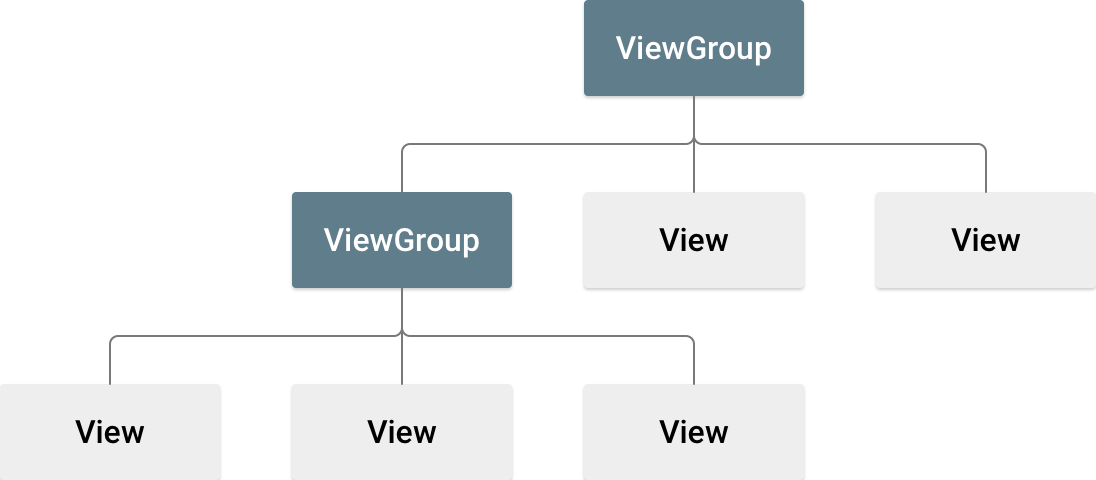
> A layout defines the structure for a user interface in your app, such as in an [activity](https://developer.android.com/guide/components/activities). All elements in the layout are built using a hierarchy of [`View`](https://developer.android.com/reference/android/view/View) and [`ViewGroup`](https://developer.android.com/reference/android/view/ViewGroup) objects. A [`View`](https://developer.android.com/reference/android/view/View) usually draws something the user can see and interact with. Whereas a [`ViewGroup`](https://developer.android.com/reference/android/view/ViewGroup) is an invisible container that defines the layout structure for [`View`](https://developer.android.com/reference/android/view/View) and other [`ViewGroup`](https://developer.android.com/reference/android/view/ViewGroup) objects, as shown in figure below.
>
> 
>
> **Types of Layouts**:
>
> | Sr.No | Layout & Description |
> | ----- | -------------------------------------------------------------------------------------------------------- |
> | 1 | LinearLayout is a view group that aligns all children in a single direction, vertically or horizontally. |
> | 2 | RelativeLayout is a view group that displays child views in relative positions. |
> | 3 | TableLayout is a view that groups views into rows and columns. |
> | 4 | AbsoluteLayout enables you to specify the exact location of its children. |
> | 5 | The FrameLayout is a placeholder on screen that you can use to display a single view. |
> | 6 | ListView is a view group that displays a list of scrollable items. |
> | 7 | GridView is a ViewGroup that displays items in a two-dimensional, scrollable grid. |
4. **What is Menu? Explain different types of Menus.**
> In android, **Menu** is a part of the user interface (UI) component which is used to handle some common functionality around the application. By using Menus in our applications, we can provide better and consistent user experience throughout the application.
>
> Types of menus:
>
> 1. **Options menu and app bar**
>
> > The [options menu](https://developer.android.com/guide/topics/ui/menus#options-menu) is the primary collection of menu items for an activity. It's where you should place actions that have a global impact on the app, such as "Search," "Compose email," and "Settings."
> >
> > See the section about [Creating an Options Menu](https://developer.android.com/guide/topics/ui/menus#options-menu).
>
> 2. **Context menu and contextual action mode**
>
> > A context menu is a [floating menu](https://developer.android.com/guide/topics/ui/menus#FloatingContextMenu) that appears when the user performs a long-click on an element. It provides actions that affect the selected content or context frame.
> >
> > The [contextual action mode](https://developer.android.com/guide/topics/ui/menus#CAB) displays action items that affect the selected content in a bar at the top of the screen and allows the user to select multiple items.
> >
> > See the section about [Creating Contextual Menus](https://developer.android.com/guide/topics/ui/menus#context-menu).
>
> 3. **Popup menu**
>
> > A popup menu displays a list of items in a vertical list that's anchored to the view that invoked the menu. It's good for providing an overflow of actions that relate to specific content or to provide options for a second part of a command. Actions in a popup menu should **not** directly affect the corresponding content—that's what contextual actions are for. Rather, the popup menu is for extended actions that relate to regions of content in your activity.
> >
> > See the section about [Creating a Popup Menu](https://developer.android.com/guide/topics/ui/menus#PopupMenu).
5. **What are Intents? Explain different types of Intents?**
> An `Intent` is a messaging object you can use to request an action from another [app component](https://developer.android.com/static/guide/components/fundamentals#Components).
>
> Although intents facilitate communication between components in several ways, there are three fundamental use cases:
>
> 1. Starting an activity
>
> 2. Starting a service
>
> 3. Delivering a broadcast
>
> There are two types of intents:
>
> 1. **Explicit intents**:
>
> > Explicit intents specify which application will satisfy the intent, by supplying either the target app's package name or a fully-qualified component class name. You'll typically use an explicit intent to start a component in your own app, because you know the class name of the activity or service you want to start. For example, you might start a new activity within your app in response to a user action, or start a service to download a file in the background.
> >
> > Example:
> >
> > ```java
> > // Executed in an Activity, so 'this' is the Context
> > // The fileUrl is a string URL, such as "http://www.example.com/image.png"
> > Intent downloadIntent = new Intent(this, DownloadService.class);
> > downloadIntent.setData(Uri.parse(fileUrl));
> > startService(downloadIntent);
> > ```
>
> 2. **Implicit intents**:
>
> > Implicit intents do not name a specific component, but instead declare a general action to perform, which allows a component from another app to handle it. For example, if you want to show the user a location on a map, you can use an implicit intent to request that another capable app show a specified location on a map.
> >
> > Example:
> >
> > ```java
> > // Create the text message with a string.
> > Intent sendIntent = new Intent();
> > sendIntent.setAction(Intent.ACTION_SEND);
> > sendIntent.putExtra(Intent.EXTRA_TEXT, textMessage);
> > sendIntent.setType("text/plain");
> >
> > // Try to invoke the intent.
> > try {
> > startActivity(sendIntent);
> > } catch (ActivityNotFoundException e) {
> > // Define what your app should do if no activity can handle the intent.
> > }
> > ```
6. **What do you understand by Adapters? Explain different types of Adapters.**
> [Adapter](http://developer.android.com/reference/android/widget/Adapter.html) in android acts as bridge between an `AdapterView` and the underlying data for that view. The Adapter provides access to the data items. The Adapter is also responsible for making a View for each item in the data set.
>
> 
>
> Types of Adapters:
>
> - **BaseAdapter –** BaseAdapter is the parent adapter for the rest of the Adapters.
> - **CursorAdapter –** This adapter makes it easy and more controlled to access the binding of data values.
> - **ArrayAdapter –** ArrayAdapter presents the items in a single list backed by an array.
> - **Custom ArrayAdapter –** It displays the custom list of an Array.
> - **SimpleAdapter –** SimpleAdapter is an easy adapter to map static data to the views through the XML file.
> - **Custom SimpleAdapter –** It displays a customized list and enables us to access the child data of the list or grid view.
7. Explain events and event handling.
> **Events** are a useful way to collect data about a user's interaction with interactive components of Applications. Like button presses or screen touch etc. The Android framework maintains an event queue as first-in, first-out (FIFO) basis. You can capture these events in your program and take appropriate action as per requirements.
>
> There are following three concepts related to Android Event Management −
>
> **Event Listeners** − An event listener is an interface in the View class that contains a single callback method. These methods will be called by the Android framework when the View to which the listener has been registered is triggered by user interaction with the item in the UI.
>
> **Event Listeners Registration** − Event Registration is the process by which an Event Handler gets registered with an Event Listener so that the handler is called when the Event Listener fires the event.
>
> **Event Handlers** − When an event happens and we have registered an event listener for the event, the event listener calls the Event Handlers, which is the method that actually handles the event.
## Chapter 4: Android Thread and Notification
1. **What is Thread? Explain runOnUIThread() with example.**
> > The UI Thread is the main thread of execution for your application. This is where most of your application code is run. All of your application components (Activities, Services, Content Providers, Broadcast Receivers) are created in this thread, and any system calls to those components are performed in this thread.
>
> **A thread is a lightweight sub-process, it performs background operations without interrupting UI thread** (also called as main thread).
>
> However, this means you cannot update the UI from any thread other than the UI thread or the "main" thread.
>
> To fix this problem, Android offers several ways to access the UI thread from other threads. Here is a list of methods that can help:
>
> - [`Activity.runOnUiThread(Runnable)`](https://developer.android.com/reference/android/app/Activity#runOnUiThread(java.lang.Runnable))
> - [`View.post(Runnable)`](https://developer.android.com/reference/android/view/View#post(java.lang.Runnable))
> - [`View.postDelayed(Runnable, long)`](https://developer.android.com/reference/android/view/View#postDelayed(java.lang.Runnable,%20long))
>
> `runOnUiThread(Runnable)` is one solution where a background thread wants to make changes in UI.
2. **What is worker thread?**
> Worker threads are background threads where blocking of UI thread is restricted (due to single threaded model).
>
> An example of the creation and working of worker thread is given below:-
>
> ```java
> public void onClick(View v) {
> new Thread(new Runnable() {
> public void run() {
> Bitmap b = loadImageFromNetwork(“http://example.com/image.png");
> mImageView.setImageBitmap(b);
> }
> }).start();
> }
> ```
>
> In the above example code, the download operation is handled by a second thread other than the UI thread. But the program violates the second rule. The imageView from UI thread is manipulating from this worker thread.
>
> Since UI could not be accessed from outside the UI thread. The solution for such a restriction is `runOnUiThread(Runnable)`method. The main or UI thread can be accessed from other threads using `runOnUiThread(Runnable)` method.
>
> As a result, the specified runnable action passed through this method will run on the UI thread. The action will execute immediately if the current thread is in the UI itself or-else the action will be posted to the event queue.
3. **Explain AsynTask in detail with example.**
> Android AsyncTask is an abstract class provided by Android which gives us the liberty to perform heavy tasks in the background and keep the UI thread light thus making the application more responsive.
>
> Android application runs on a single thread when launched. Due to this single thread model tasks that take longer time to fetch the response can make the application non-responsive. To avoid this we use android AsyncTask to perform the heavy tasks in background on a dedicated thread and passing the results back to the UI thread. Hence use of AsyncTask in android application keeps the UI thread responsive at all times.
>
> The basic methods used in an android AsyncTask class are defined below :
>
> - **`doInBackground()`** : This method contains the code which needs to be executed in background. In this method we can send results multiple times to the UI thread by `publishProgress()` method. To notify that the background processing has been completed we just need to use the return statements
> - **`onPreExecute()`** : This method contains the code which is executed before the background processing starts
> - **`onPostExecute()`** : This method is called after `doInBackground` method completes processing. Result from `doInBackground` is passed to this method
> - **`onProgressUpdate()`** : This method receives progress updates from `doInBackground` method, which is published via `publishProgress` method, and this method can use this progress update to update the UI thread.
>
> Example:
>
> ```java
> package com.example.asynctask;
>
> import android.view.View;
> ...
>
> public class MainActivity extends AppCompatActivity {
> private Button button;
> private EditText time;
> private TextView finalResult;
>
> @Override
> protected void onCreate(Bundle savedInstanceState) {
> super.onCreate(savedInstanceState);
> setContentView(R.layout.activity_main);
> time = (EditText) findViewById(R.id.in_time);
> button = (Button) findViewById(R.id.btn_run);
> finalResult = (TextView) findViewById(R.id.tv_result);
> button.setOnClickListener(new View.OnClickListener() {
> @Override
> public void onClick(View v) {
> AsyncTaskRunner runner = new AsyncTaskRunner();
> String sleepTime = time.getText().toString();
> runner.execute(sleepTime);
> }
> });
> }
>
> private class AsyncTaskRunner extends AsyncTask<String, String, String> {
>
> private String resp;
> ProgressDialog progressDialog;
>
> @Override
> protected String doInBackground(String... params) {
> publishProgress("Sleeping..."); // Calls onProgressUpdate()
> try {
> int time = Integer.parseInt(params[0])*1000;
>
> Thread.sleep(time);
> resp = "Slept for " + params[0] + " seconds";
> } catch (InterruptedException e) {
> e.printStackTrace();
> resp = e.getMessage();
> } catch (Exception e) {
> e.printStackTrace();
> resp = e.getMessage();
> }
> return resp;
> }
>
>
> @Override
> protected void onPostExecute(String result) {
> // execution of result of Long time consuming operation
> progressDialog.dismiss();
> finalResult.setText(result);
> }
>
>
> @Override
> protected void onPreExecute() {
> progressDialog = ProgressDialog.show(MainActivity.this,
> "ProgressDialog",
> "Wait for "+time.getText().toString()+ " seconds");
> }
>
>
> @Override
> protected void onProgressUpdate(String... text) {
> finalResult.setText(text[0]);
>
> }
> }
> }
> ```
> Output:
>
> 
4. **What is Broadcast Receiver? Explain in detail.**
> In android, **Broadcast Receiver** is a component that will allow an android system or other apps to deliver events to the app.
>
> Android apps can send or receive broadcast messages from the Android system and other Android apps, similar to the [publish-subscribe](https://en.wikipedia.org/wiki/Publish%E2%80%93subscribe_pattern) design pattern. These broadcasts are sent when an event of interest occurs. For example, the Android system sends broadcasts when various system events occur, such as when the system boots up or the device starts charging. Apps can also send custom broadcasts, for example, to notify other apps of something that they might be interested in (for example, some new data has been downloaded).
>
> Apps can register to receive specific broadcasts. When a broadcast is sent, the system automatically routes broadcasts to apps that have subscribed to receive that particular type of broadcast.
>
> Generally, we use [Intents](https://www.tutlane.com/tutorial/android/android-intents-implicit-explicit "Android Intents with Examples") to deliver broadcast events to other apps and Broadcast Receivers use status bar notifications to let the user know that broadcast event occurs.
5. **Explain Notification with help of example.**
> **Notifications provide short, timely information about events in your app while it's not in use.**
>
> This example shows how to create a simple notification that starts an application when the user clicks it:
>
> **Specify the notification's content**:
>
> ```java
> NotificationCompat.Builder mBuilder = new NotificationCompat.Builder(this)
> .setSmallIcon(R.drawable.ic_launcher) // notification icon
> .setContentTitle("Simple notification") // title
> .setContentText("Hello word") // body message
> .setAutoCancel(true); // clear notification when clicked
> ```
>
> **Create the intent to fire on click:**
>
> ```java
> Intent intent = new Intent(this, MainActivity.class);
> PendingIntent pi = PendingIntent.getActivity(this, 0, intent, Intent.FLAG_ACTIVITY_NEW_TASK);
> mBuilder.setContentIntent(pi);
> ```
>
> **Finally, build the notification and show it**:
>
> ```java
> NotificationManager mNotificationManager =
> (NotificationManager)getSystemService(Context.NOTIFICATION_SERVICE);
> mNotificationManager.notify(0, mBuilder.build());
> ```
6. **Explain Alarm and Toast with example.**
> A **Toast** provides simple feedback about an operation in a small popup. It only fills the amount of space required for the message and the current activity remains visible and interactive. Toasts automatically disappear after a timeout.
>
> Example:
>
> ```java
> Context context = getApplicationContext();
> CharSequence text = "Hello toast!";
> int duration = Toast.LENGTH_SHORT;
>
> Toast toast = Toast.makeText(context, text, duration);
> toast.show();
> ```
>
> ---
>
> **Alarms** (based on the [`AlarmManager`](https://developer.android.com/reference/android/app/AlarmManager) class) give you a way to perform time-based operations outside the lifetime of your application. For example, you could use an alarm to initiate a long-running operation, such as starting a service once a day to download a weather forecast.
## Chapter 5: Advanced Android Programming
1. **Explain Content Providers.**
> In android, **Content Provider** will act as a central repository to store the data of the application in one place and make that data available for different applications to access whenever it’s required.
>
> Generally, the **Content Provider** is a part of an android application and it will act like more like a relational database to store the app data. We can perform multiple operations like insert, update, delete and edit on the data stored in content provider using **insert()**, **update()**, **delete()** and **query()** methods.
2. **Explain JSON parsing with example.**
> JSON stands for JavaScript Object Notation. It is an independent data exchange format and is the best alternative for XML.
>
> Android provides four different classes to manipulate JSON data. These classes are
>
> - `JSONArray`
>
> - `JSONObject`
>
> - `JSONStringer`
>
> - `JSONTokenizer`
>
> The first step is to identify the fields in the JSON data in which you are interested in. For example. In the JSON given below we interested in getting temperature only.
>
> ```xml
> {
> "sys":
> {
> "country":"GB",
> "sunrise":1381107633,
> "sunset":1381149604
> },
> "weather":[
> {
> "id":711,
> "main":"Smoke",
> "description":"smoke",
> "icon":"50n"
> }
> ],
> "main":
> {
> "temp":304.15,
> "pressure":1009,
> }
> }
> ```
>
> **JSON - Elements**
>
> An JSON file consist of many components. Here is the table defining the components of an JSON file and their description −
>
> | Sr.No | Component & description |
> | ----- | --------------------------------------------------------------------------------------------------- |
> | 1 | `Array([)` : In a JSON file , square bracket ([) represents a JSON array |
> | 2 | `Objects({)`: In a JSON file, curly bracket ({) represents a JSON object |
> | 3 | `Key`: A JSON object contains a key that is just a string. Pairs of key/value make up a JSON object |
> | 4 | `Value`: Each key has a value that could be string , integer or double e.t.c |
>
> **JSON - Parsing**
>
> For parsing a JSON object, we will create an object of class `JSONObject` and specify a string containing JSON data to it. Its syntax is −
>
> ```java
> String in;
> JSONObject reader = new JSONObject(in);
> ```
>
> The last step is to parse the JSON. A JSON file consist of different object with different key/value pair e.t.c. So `JSONObject` has a separate function for parsing each of the component of JSON file. Its syntax is given below −
>
> ```java
> JSONObject sys = reader.getJSONObject("sys");
> country = sys.getString("country");
>
> JSONObject main = reader.getJSONObject("main");
> temperature = main.getString("temp");
> ```
>
> The method **`getJSONObject`** returns the JSON object. The method **`getString`** returns the string value of the specified key.
>
> Apart from the these methods , there are other methods provided by this class for better parsing JSON files. These methods are listed below −
>
> | Sr.No | Method & description |
> | ----- | ------------------------------------------------------------------------------------- |
> | 1 | `get(String name)`: This method just Returns the value but in the form of Object type |
> | 2 | `getBoolean(String name)`: This method returns the boolean value specified by the key |
> | 3 | `getDouble(String name)`: This method returns the double value specified by the key |
> | 4 | `getInt(String name)`: This method returns the integer value specified by the key |
> | 5 | `getLong(String name)`: This method returns the long value specified by the key |
> | 6 | `length()`: This method returns the number of name/value mappings in this object. |
> | 7 | `names()`: This method returns an array containing the string names in this object. |
3. **Explain Content Values and Cursors with example.**
> **ContentValues** are used to insert new rows into tables. Each Content Values object represents a single table row as a map of column names to values.
>
> Queries in Android are returned as **Cursor** objects. Rather than extracting and returning a copy of the result values, Cursors are pointers to the result set within the underlying data. Cursors provide a managed way of controlling your position (row) in the result set of a database query.
>
> Example:
>
> ```java
> int id = 1;
> String firstName = "Bob";
> String lastName = "Smith";
>
> ContentValues contentValues = new ContentValues();
> contentValues.put("id", id);
> contentValues.put("first_name", firstName);
> contentValues.put("last_name", lastName);
>
> SQLiteDatabase db = getDatabase();
> db.insert("people", null, contentValues);
> ```
4. **Explain SMS and MMS with example.**
> Android provides us `SMSManager` API or device's built-in SMS application to send SMS. If we use `SMSManager` API, it will directly send SMS from our application. If we use Intent with proper action (`ACTION_VIEW`), it will invoke built-in SMS app to send SMS from our application.
>
> `SMSManager` API requires `SEND_SMS` permission to be added in `AndroidManifest.xml`, which is shown as follows:
>
> ```xml
> <uses-permission android:name="android.permission.SEND_SMS"/>
> ```
>
> To send SMS using `SMSManager` API following syntax will be used:
>
> ```java
> SmsManger smgr = SmsManger.getDefault();
> smgr.sendTextMessage("tel:910000000000", null, "Your message", null, null);
> ```
## Chapter 6: PhoneGap Programming
1. **Explain PhoneGap.**
> **PhoneGap** is a software development framework by Adobe System, which is used to develop mobile applications. To develop apps using PhoneGap, the developer does not require to have knowledge of mobile programming language but only web-development languages like, HTML, CSS, and JavaScript. PhoneGap produces apps for all popular mobile OS platforms such as iOS, Android, BlackBerry, and Windows Mobile OS etc.
> [Refer to official docs](https://cordova.apache.org/docs/en/latest/guide/overview/index.html)
2. **Explain working of PhoneGap.**
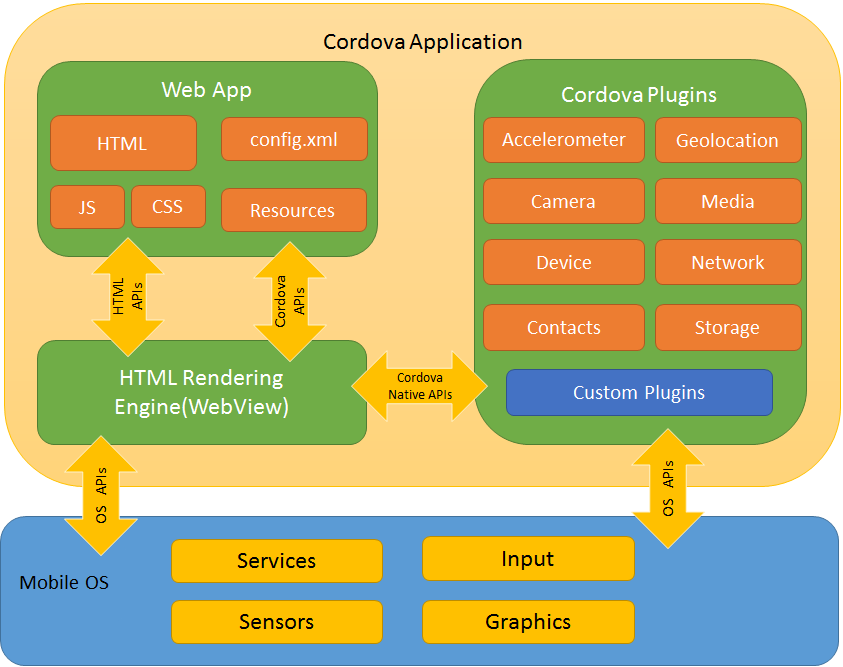
> PhoneGap allows us to build native app the same way you build an website. Using PhoneGap means that a good web developer can create a mobile app which is cross-platform across mobile OS's and also without learning the native programming languages (Like Java, Kotlin for Android, Objective-C, Swift for iOS, etc). It is not an native application development framework.
>
> In simple words, it provides a *WebView with extended capabilities.*
>
> Using PhoneGap one can access the following device features:
>
> 1. Geolocation
>
> 2. Accelerometer
>
> 3. Contacts
>
> 4. Camera
>
> 5. Media
>
> 6. Notification
>
> 7. File system
>
> 
3. **Describe pros and cons of PhoneGap.**
> **Pros of Apache Cordova/PhoneGap:**
>
> - Cordova offers a single platform that can be used to create cross-platform mobile applications. As such, you don’t have to worry about learning different programming languages for each platform.
> - Saves time as hybrid apps take lesser time to develop as compared to developing an app for each native platform separately.
> - Easier to maintain as it bypasses version making it simple to update. With native apps, developers need to deliver a new version for each update and users need to update the app for each new version release.
> - Cost-effective as you don’t have to spend resources on different platforms. Instead, you can use a single code base to create an app for multiple platforms.
>
> **Cons of Apache Cordova/PhoneGap:**
>
> - Because of its cross-compilation capabilities, hybrid apps tend to be slower.
> - There may be compatibility issues for some plugins across different platforms and devices.
> - Plugins may not function properly so it may need to be forked and modified.
4. **Write PhoneGap application for creating, searching, cloning and removing contacts.**
> The PhoneGap Contacts API provides applications with an interface that can be used to create, locate, edit, copy and delete contact records from the device's native Phone application.
>
> **Creating Contact**
>
> To create contact from PhoneGap application following code is used:
>
> ```js
> var contact = navigator.contacts.create();
> ```
>
> **Cloning Contacts**
>
> To make a clone of an existing contact, an application simply calls the `clone()` method, as shown in the following example:
>
> ```js
> var contact2 = contact1.clone();
> ```
>
> **Removing Contacts**
>
> To remove an existing contact, an application will simply call the `remove()` method, as shown in the following example:
>
> ```js
> contact.remove(onContactRemoveSuccess, onContactRemoveError);
> ```
>
> `onContactRemoveSuccess` and `onContactRemoveError` are callback functions.
>
> Also, to search contacts, `find()` method is used.
5. **Explain accelerometer.**
> Accelerometer API allows an PhoneGap app to determine a device orientation in a 3D space using x, y and z coordinates. Developers can query accelerometer API to determine device orientation at a particular time or can watch the accelerometer to monitor the devices acceleration repeatedly with periodic time interval.
>
> To query the API for current orientation of device, use the following code:
>
> ```js
> navigator.accelerometer.getCurrentAcceleration(onAccelSuccess, onAccelFailure);
> ```
>
> The above two parameters are callback functions.
>
> ```js
> function onAccelSuccess(accel){
> ...
> // Data can be accessed as:
> accel.x; // x-coordinate
> accel.y; // y-coordinate
> accel.z; // z-coordinate
> ...
> }
> ```
## Chapter 7: iOS Fundamentals
1. **Explain iOS architecture.**
> iOS architecture consists of four distinct layers:
>
> 1. Cocoa Touch Layer
>
> 2. Media Service Layer
>
> 3. Core Service Layer
>
> 4. Core OS Layer
>
>
>
> 1. **Cocoa Touch Layer**
>
> > - Top layer of iOS architecture.
> >
> > - Contains the key framework UI kit.
> >
> > - Defines the basic application
> > infrastructure.
> >
> > - Provides core functionalities such as
> > multitasking and touch based inputs.
> >
> > - It contains frameworks such as EventKit
> > framework, GameKit framework, MapKit
> > framework, MessageKit framework.
>
> 2. **Media Service Layer**
>
> > - Media layer provides iOS with all the
> > functionalities to support audio, video,
> > animation and graphics.
> >
> > - It contains frameworks such as Core
> > Audio framework, Core Text framework,
> > Core Image framework.
>
> 3. **Core Service Layer**
>
> > - Below the media layer, there is a
> > Core service layer which provides
> > services used in upper layers.
> >
> > - It contains frameworks such as
> > Address Book framework, Core
> > Location framework, Core Telephony
> > framework
>
> 4. **Core OS Layer**
>
> > - The lowest layer of the iOS architecture
> > is the Core OS.
> >
> > - Which provides processing, interfacing
> > and security support for iOS application.
> >
> > - It contains frameworks such as
> > Accelerate framework, System
> > framework, External Accessory and
> > security framework
>
> <img src="https://miro.medium.com/max/1400/0*b63SiHhv8qnD9-sc" title="" alt="" width="500">
2. Explain iOS application cycle with example.
> Every iOS application has five state in it's lifecycle, as shown in the diagram below:
>
> <img src="https://miro.medium.com/max/1400/1*6V0s6gR2wV81LXMAbpte6A.png" title="" alt="" width="310">
>
> 1. **Not running** The app has not been launched or was running but was terminated by the system.
>
> 2. **Inactive** The app is running in the foreground but is currently not receiving events. (It may be executing other code though.) An app usually stays in this state only briefly as it transitions to a different state.
>
> 3. **Active** The app is running in the foreground and is receiving events. This is the normal mode for foreground apps.
>
> 4. **Background** The app is in the background and executing code. Most apps enter this state briefly on their way to being suspended. However, an app that requests extra execution time may remain in this state for a period of time. In addition, an app being launched directly into the background enters this state instead of the inactive state.
>
> 5. **Suspended** The app is in the background but is not executing code. The system moves apps to this state automatically and does not notify them before doing so. While suspended, an app remains in memory but does not execute any code. When a low-memory condition occurs, the system may purge suspended apps without notice to make more space for the foreground app.
3. **What is Swift? Describe swift features and characteristics.**
> Swift is a [general-purpose](https://en.wikipedia.org/wiki/General-purpose_programming_language "General-purpose programming language"), [multi-paradigm](https://en.wikipedia.org/wiki/Multi-paradigm_programming_language "Multi-paradigm programming language"), [compiled](https://en.wikipedia.org/wiki/Compiled_language "Compiled language") [programming language](https://en.wikipedia.org/wiki/Programming_language) developed by Apple and open source community. It is used to create apps for iOS, macOS, watchOS, and so on. Swift code is concise yet expressive (easier to understand and write). It is inspired by Objective-C.
> Features of Swift:
>
> - Swift makes use of safe programming patterns.
>
> - Swift provides modern programming features.
>
> - Swift provides Objective-C like syntax.
>
> - Swift is a fantastic way to write iOS and OS X apps.
>
> - Swift provides seamless access to existing Cocoa frameworks.
>
> - Swift unifies the procedural and object-oriented portions of the language.
>
> - Swift does not need a separate library import to support functionalities like input/output or string handling.
4. **Write advantages and disadvantage of Swift.**
> **Advantages:**
>
> 1. **Transparency**:
>
> 1. Swift is open source.
>
> 2. Swift is easier to grasp since the syntax is very similar to Objective-C.
>
> 2. **Automatic memory management**:
> To achieve best app performance and avoid memory leaks, Swift employs Automatic Reference Counting across all APIs. In other words, it handles memory on its own, enabling the most efficient resource consumption. No manual memory settings are needed, and while making the necessary adjustments developers are guided and supported by Swift’s convenient tools.
>
> 3. **Safety**:
> Unlike Objective-C, Swift is a strongly and statically typed language, which allows developers to notice bugs prior to compilation and fix them on the fly. Moreover, Swift has smart nil-pointer safety measures that prevent compiling errors due to null references
>
> 4. **Interoperability with Objective-C**
>
> Although this is not an outright advantage *over* Objective-C, it is definitely a merit on its own. Swift isn’t to completely replace Objective-C, which is and will stay a part of many mobile apps that will need maintenance in the future. The new iOS development language is fully interoperable with its predecessor and can coexist with it in one app, file or code line.
>
> **Disadvantages:**
>
> 1. Lack of support for earlier iOS versions
>
> 2. Poor interoperability with third-party tools and IDE's.
5. **Explain data types in Swift.**
> - **Int or UInt** − This is used for whole numbers. More specifically, you can use Int32, Int64 to define 32 or 64 bit signed integer, whereas UInt32 or UInt64 to define 32 or 64 bit unsigned integer variables. For example, 42 and -23.
>
> - **Float** − This is used to represent a 32-bit floating-point number and numbers with smaller decimal points. For example, 3.14159, 0.1, and -273.158.
>
> - **Double** − This is used to represent a 64-bit floating-point number and used when floating-point values must be very large. For example, 3.14159, 0.1, and -273.158.
>
> - **Bool** − This represents a Boolean value which is either true or false.
>
> - **String** − This is an ordered collection of characters. For example, "Hello, World!"
>
> - **Character** − This is a single-character string literal. For example, "C"
>
> - **Optional** − This represents a variable that can hold either a value or no value.
>
> - **Tuples** − This is used to group multiple values in single Compound Value.
6. **What is storyboard?**
> A **storyboard** is a visual representation of the user interface of an iOS application, showing screens of content and the connections between those screens. A storyboard is composed of a sequence of scenes, each of which represents a view controller and its views; scenes are connected by segue objects, which represent a transition between two view controllers.
>
> Xcode provides a visual editor for storyboards, where you can lay out and design the user interface of your application by adding views such as buttons, table views, and text views onto scenes. In addition, a storyboard enables you to connect a view to its controller object, and to manage the transfer of data between view controllers. Using storyboards is the recommended way to design the user interface of your application because they enable you to visualize the appearance and flow of your user interface on one canvas.
>
> 
7. **Explain RESTful web services in detail.**
> **REST** stands for **RE**presentational **S**tate **T**ransfer. REST is web standards based architecture and uses HTTP Protocol. It revolves around resource where every component is a resource and a resource is accessed by a common interface using HTTP standard methods. REST was first introduced by Roy Fielding in 2000.
>
> In REST architecture, a REST Server simply provides access to resources and REST client accesses and modifies the resources. Here each resource is identified by URIs/ global IDs. REST uses various representation to represent a resource like text, JSON, XML. JSON is the most popular one
>
> Web services based on REST Architecture are known as **RESTful web services**. These web services uses HTTP methods to implement the concept of REST architecture. A RESTful web service usually defines a URI, Uniform Resource Identifier a service, provides resource representation such as JSON and set of HTTP Methods.
 Sign in with Wallet
Connect another wallet
Sign in with Wallet
Connect another wallet