# Pilot Onboarding Instructions
**Thank you for participating in the Public Domain Map pilot!**
Public Domain Map is a new collaborative mapping tool from [OpenStreetMap US](https://openstreetmap.us/) that allows volunteers to contribute to government datasets and OpenStreetMap simultaneously. Developed in collaboration with federal partners, Public Domain Map is designed to multiply the power and impact of volunteer mappers contributing to the public good by combining crowdsourcing efforts. Using familiar tools and workflows, volunteers will contribute map data that is reviewed by government agencies before publishing to OpenStreetMap and federal datasets. As a result, volunteer-contributed data can be leveraged by a greater number of agencies, citizens, companies, and nonprofits to better inform decision-making.
## User Testing Overview
Your participation in the pilot will play a critical role in ensuring that Public Domain Map is accessible, functional, and an enjoyable experience. You should expect to spend up to 5 hours participating in this user testing process over the course of several weeks, depending on your experience with OpenStreetMap and your role as a mapper or validator.
The pilot will be broken into 2-3 separate parts (depending on your role), each of which will conclude with a short feedback form that we ask all participants to complete. These forms will capture any challenges and feedback from the tasks completed. We encourage participants to capture screenshots of issues, bugs, etc. to be shared in the feedback forms. These sections are:
* Onboarding
* Mapping
* Validation (Restricted to specific users identified prior to pilot)
If you have any questions or encounter roadblocks during the course of the pilot, please do not hesitate to reach out to info@publicdomainmap.org
As is the nature of our work, this is a collaborative project. If you have ideas on how we can improve communication, instructions, or any aspect of this project, please share with us either by feedback form or email.
## Onboarding Objectives
By the end of this section you will have:
* Created an OpenStreetMap Account
* Signed into the OpenStreetMap US Tasking Manager
* Learned how to search for projects in the OpenStreetMap US Tasking Manager
* Learned how to navigate a project and find project-specific instructions
(If you are proficient in some of the skills listed above, please briefly review all sections to provide feedback. All participations will be required to complete Step 3 to continue.)
## Step 1: Creating Your OpenStreetMap Account
*If you already have an OpenStreetMap account, skip ahead to Step 2.*
OpenStreetMap is a collaborative project to create a free editable world map. The power of OpenStreetMap is that it empowers anyone, anywhere in the world to add information to a collective map and use the data for any purpose. You can think of OSM as the “Wikipedia of maps” – it is an online database and global community of over 5 million registered users. This community collaborates to build a free and open map of the world to which anyone can contribute and which anyone can use in their own context. All that is needed to contribute to OSM is an internet connection and email address.

OpenStreetMap can, and has, been used for a wide variety of purposes - from disaster response to recreation. It is used by thousands of companies, nonprofits, governments, and other organizations around the world including Amazon, Lyft, All Trails, the Red Cross, Doctors without Borders, and the United Nations. As a collaborative map, every contribution you make contributes to data democracy and can be used for countless applications and users around the world.
### Creating an Account
To get started, you will need to create an account on www.openstreetmap.org. Please use the “Sign Up” tab in the top right corner to begin.
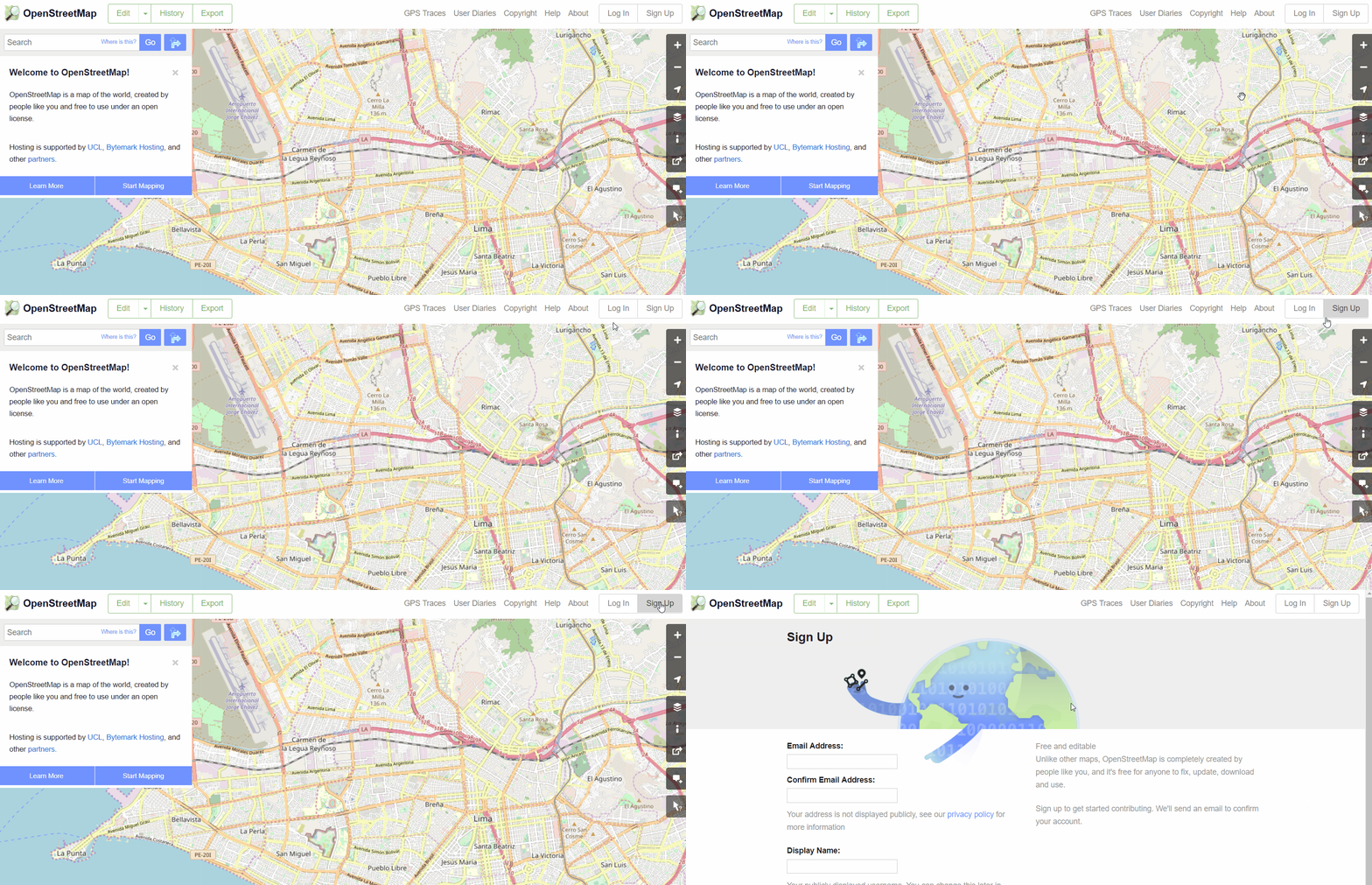
Please fill in all the fields in the form. We recommend using an email you have easy access to e.g. your personal email, as you will receive a confirmation email to verify your account. You will not receive any spam/marketing emails. Click the blue “Sign Up” button when finished.
Note: If an issue occurs, a problem message will appear. Make sure that the email you entered is the same as in the first two boxes and the same with your password. If the box for the user name is red, then someone else has already used the username and you have to try another. Please take note of your username, password, and the email you used as you will need to log-in with this information on different applications.

Next, please read and accept the contributor terms and agreements by selecting where you are based (France, Germany, or the Rest of the World), and clicking the blue “Agree” button on the bottom of your screen.

To activate your account, please now check your email and click on the link provided. In some cases, it may take several minutes for you to receive your confirmation email. If you do not receive an email after 15 minutes, please check your spam folder. You may also need to use an alternate email if you used a work or school email, as your administrator settings may be blocking the email from coming through.
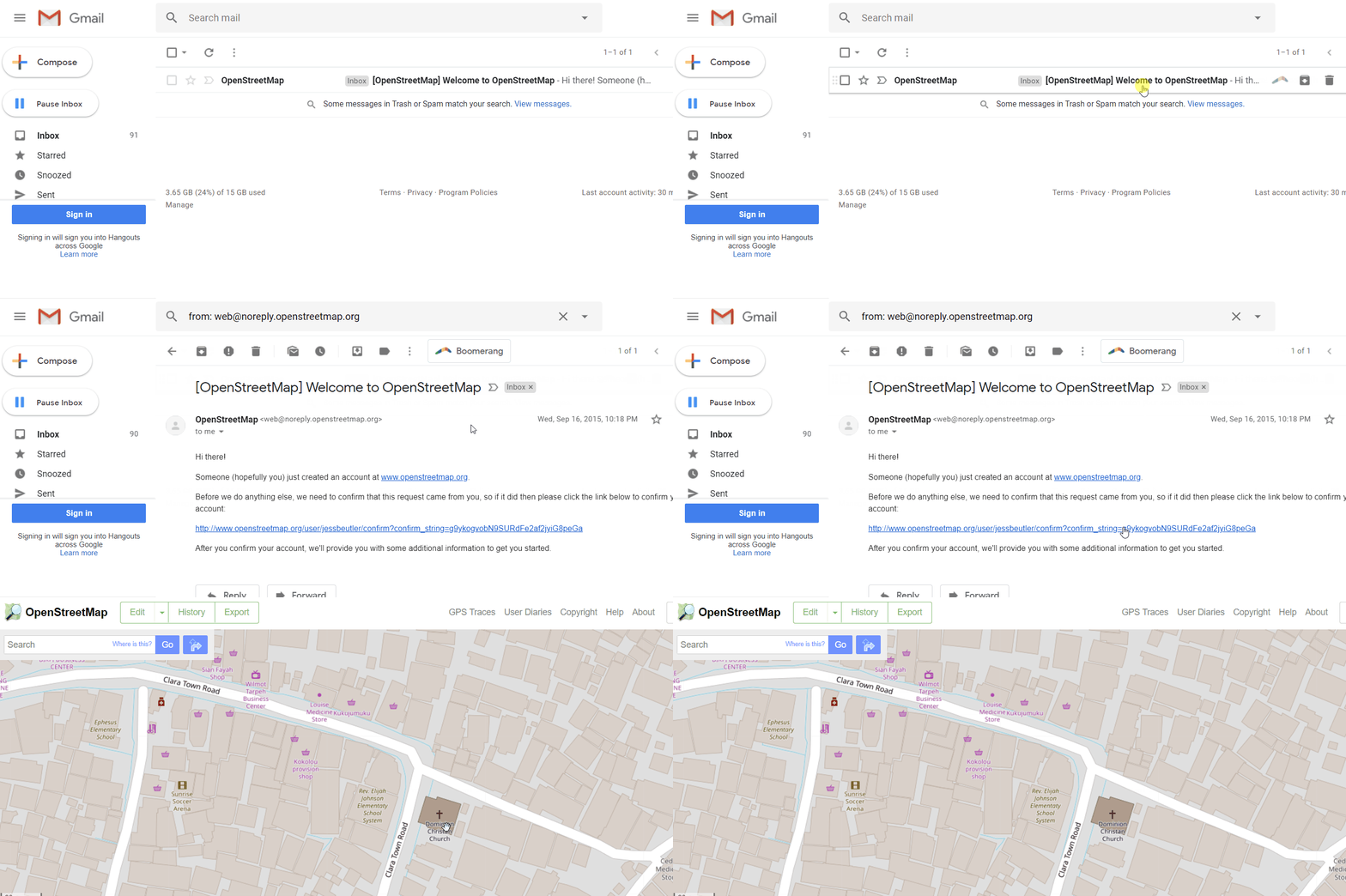
On the OpenStreetMap page, click Log In in the upper right corner. Enter your OpenStreetMap username and password then press Enter. You should now be logged in and you will see your username on the top right of the OpenStreetMap site.
### Complete the Walkthrough
The next step is to learn how to do basic mapping in OpenStreetMap. After you've logged in with you account, zoom in to anywhere on the map until the "Edit" button in the upper left-hand corner is no longer greyed out. Click on Edit (you may need to select the arrow to the right of edit, and select 'Edit with iD Editor').

This will bring you to the iD Editor. In the pop-up window, select "Start the Walkthrough". Complete the walkthrough.

If you do not receive the welcome message as shown above or if you would like to revisit the walkthrough in the future, you can always access the walkthrough in the iD Editor Help Menu. Once in the iD Editor, select the "Help" option on the right-hand toolbar. In the Help menu, you can select "Start the Walkthrough".

## Step 2: OpenStreetMap US Tasking Manager
*If you already have signed into the OpenStreetMap US Tasking Manager, skip ahead to Step 3.*
The Tasking Manager is a mapping tool designed for the collaborative mapping process in OpenStreetMap. The purpose of the tool is to divide up a mapping project into smaller tasks that can be completed rapidly with many people working on the same overall area. It shows which areas need to be mapped and which areas need the mapping reviewed. Originally built by Humanitarian OpenStreetMap Team, many instances of the Tasking Manager have been created to serve different audiences and purposes in the OpenStreetMap community.
All Public Domain Map projects are hosted on the OpenStreetMap US Tasking Manager. Please note: we are currently updating the branding of the OpenStreetMap US Tasking Manager. So some images & visuals that you encounter may look different from the instructions here. However, all steps will remain the same.
### Sign in to the OpenStreetMap US Tasking Manager
Navigate to tasks.openstreetmap.us. To sign in, click on the ‘Log in’ button in the top right corner of the page. Once you click on the login button a popup will appear with the OpenStreetMap login form. Please enter your OSM username and password.

The first time you are logging into Tasking Manager with your OSM username and password from the device you are using, an authorisation message will appear. Click ‘Grant Access’ so that your OSM login details will sync to the Tasking Manager. You will notice that your username now displays in the upper right hand corner of the page.
After you've logged in, you will be taken to your user profile. At any time, you can return to this page by clicking on your username, then "Settings" in the upper right hand corner of the Tasking Manager to see your stats as well as update your user profile.
### Exploring Projects
Next, click on the ‘Explore Projects’ button along the top of the Tasking Manager to view a list of current mapping projects.

You can view the list of projects on a map. You can switch the map on and off by selecting the toggle in the upper right hand side. Projects are clustered together on the map into circles which display the number of projects in a particular area.
You can zoom into an area to view a breakdown of projects in a particular region.
Each project tile on the left will describe:
* The urgency of the project
* The project number and name - this will often include the location, the type of humanitarian response, and the focus feature being mapped
* Any important information e.g. type of mapper needed / experience level
* A description of the project
* The organization requesting the project
* The category of the project
* The level of experience a mapper needs to contribute
* The percentage of the project mapped so far (dark grey in the progress bar)
* The percentage of the project validated so far (red in the progress bar)
* The total number of contributors
If you have a specific project to contribute to, you can always search for it in the sidebar to the left of your screen. You can search by:
* Project name or number
* Level of mapping difficulty
* Organization
* Campaign
* Location
* Type of mapping (features being mapped)
In the search bar, please enter "362". This will take you to our example project. Click on the tile that appears.
### Navigating a Project
This page provides specific details on the project objectives and requirements. Be sure to review this page before starting any mapping project on a Tasking Manager.
Underneath the project description you will see a series of icons. The bold icons indicate which entities to map (which features e.g. buildings, roads).
Mapping features which are the focus point of the project are explained in further detail underneath the Project Specific Mapping Needs. These feature specifications will describe common tags used for each main feature and provide tips for mapping that feature.
The overview map on the right-hand side of the project you have selected is split into squares which are colour coded dependent on the completion of the mapping in that square. If you do not see the grid on the map, click "Zoom to Tasks".

The colours represent the following:
* White: a tile is ready to be mapped and needs to be completed
* Blue: a tile has been mapped and is ready to be validated
* Yellow: a tile has been invalidated. This could be because an area was not fully mapped or multiple errors need to be corrected
* Green: a tile has been validated. This means that the mapping in this area has been quality checked, edited if necessary, and approved. Validators will leave comments next to a tile to show the changes they have made
* Grey: a tile has been marked as having bad imagery
* Black padlock: a tile is locked by another user
* Red padlock: a tile is locked by you
### Contribute
Select ‘Contribute’ in the lower-right hand corner. After selecting Contribute, more detailed instructions are provided, with specific guidelines (mapping notes). The Project Specific Mapping Notes section gives detailed instructions on the imagery to use, how to trace specific features, and how to tag features. Read through these instructions.
### END PRACTICE
For now, we will stop here with the Tasking Manager. We will cover how to map and start contributing to Public Domain Map projects in the upcoming Mapping section.
## Step 3: Complete the Onboarding Feedback Form
Fill out the Onboarding Feedback form below. After completing the survey, your OpenStreetMap account will be added to the Public Domain Map Testing Team and you will receive further instructions via email.
*Please note: there may be a few weeks between completion of this form and receipt of further instructions.*
<iframe height="2520" title="Embedded Wufoo Form" allowtransparency="true" frameborder="0" scrolling="yes" style="width:100%;border:none" sandbox="allow-popups-to-escape-sandbox allow-top-navigation allow-scripts allow-popups allow-forms allow-same-origin" src="https://osmus.wufoo.com/embed/quqhk691nc3z4v/"> <a href="https://osmus.wufoo.com/forms/quqhk691nc3z4v/">Fill out my Wufoo form!</a> </iframe>
___
# Part II: Mapping
**Thank you for your continued participation in the Public Domain Map pilot!**
## Overview
If you have been invited to participate in the Pilot but have not completed Part I, please [do so here](https://publicdomainmap.org/pilot/) before continuing.
In this part of the pilot, you will be diving into mapping railroad tunnels for the Federal Railroad Administration using the OpenStreetMap US Tasking manager. If you would like a refresh on mapping in OpenStreetMap, please feel free to go through the OpenStreetMap walkthrough again. Instructions on how to access the walkthrough can be found in [Part 1](https://publicdomainmap.org/pilot/).
As always, if you have any questions or encounter roadblocks during the course of the pilot, please do not hesitate to reach out to info@publicdomainmap.org
## Mapping Objectives
By the end of this section you will have:
* Navigated to the Public Domain Map Pilot projects in the OpenStreetMap US Tasking Manager
* Read through the Description & Instructions for a Public Domain Map project
* Completed a tunnel mapping task
## Step 1: Navigate to a Public Domain Map project
All Public Domain Map projects are hosted on the OpenStreetMap US Tasking Manager. The OpenStreetMap US Tasking Manager will now host mapping projects that either a) directly contribute to OpenStreetMap, or b) contribute to Public Domain Map. After Public Domain Map contributions are reviewed by federal agencies, contributions can then be brought into OpenStreetMap[1].
Please note: This pilot does not involve conflation with OpenStreetMap or Federal datasets. It cannot be guaranteed that any data contributed during the pilot will be later available in either OpenStreetMap or Federal datasets.
Navigate to [tasks.openstreetmap.us](https://tasks.openstreetmap.us/). We recently updated the branding of the OpenStreetMap US Tasking Manager. The visual branding may look different than you previously have experienced, however, all steps and functions are the same.
[sign in image]
Sign in by clicking on the ‘Log in’ button in the top right corner of the page. Once you click on the login button a popup will appear with the OpenStreetMap login form. Please enter your OSM username and password. Then click on the ‘Explore Projects'.
Scroll through the first page of projects until you find a Public Domain Map project. Do not click on a project yet but instead, note that both OpenStreetMap and Public Domain Map projects are accessible from this portal.
[explore gif]
You can also filter for Public Domain Map projects. Scroll back to the top of the 'Explore' page. In the top row of filter options, select 'Database' and then 'Public Domain Map'. Now you will see all Public Domain Map projects available for mapping.
Click on one of the projects. (If for some reason there are not projects available to map, please reach out to us via email.)
## Step 2: Read through the project instructions
After selecting a project to map, read through the description. Next, click "Contribute".
This will take you to the instructions page. Please review the instructions before continuing. When you're ready to map, select "Map a Task".
You will be taken to the iD editor with the task area highlighted in magenta. This is the bounding area of your mapping activities. **Do not map outside of the magenta boundary.**
The instructions are also available in the iD editor, in the right-hand panel under "Instructions."
## Step 3: Complete mapping per project instructions
Once you are ready, please complete the task by following the project instructions. Return here when you have saved and completed your work.
If you would like to map another task, please select another from the available Public Domain Map projects.
**Please complete no more than two Public Domain Map projects at this time.** This will ensure that all participants have the chance to complete the mapping portion of the pilot.
## Step 4: Complete Mapping Feedback Form
After completing at least one tunnel mapping task, fill out the Mapping Feedback form below. For now, this is the completion of your role in the pilot. Thank you so much for your time! If you would like to be considered for additional testing activities, including further mapping, please indicate your interest on the form below.
<iframe height="2196" title="Embedded Wufoo Form" allowtransparency="true" frameborder="0" scrolling="no" style="width:100%;border:none" sandbox="allow-popups-to-escape-sandbox allow-top-navigation allow-scripts allow-popups allow-forms allow-same-origin" src="https://osmus.wufoo.com/embed/qr9krs00lhuq53/"> <a href="https://osmus.wufoo.com/forms/qr9krs00lhuq53/">Fill out my Wufoo form!</a> </iframe>
[1] The workflow and tooling to bring Public Domain Map data into OpenStreetMap is still being developed, and will be tested at a later phase of the project.
___
# Validation Instructions (outline)
`These tasks will be done once mapping is completed. Validation instructions do not need to be completed before pilot launch`
## Step 1: Learn how to validate
## Step 2: Review the basic validation rubric
## Step 3: Navigate to assigned validation tasks
## Step 4: Complete validation
## Step 5: Answer Validation Feedback Form
 Sign in with Wallet
Connect another wallet
Sign in with Wallet
Connect another wallet