---
sidebar_label : Documents
title: Document Cognition
---
Documents (Document cognition/ Doc-cog)is a feature on yellow cloud and app that allows the customer to upload the documents, integrate their knowledge source to the yellow platform and enable the end users to extract relevant information from these documents quickly.
Doc-cog can process both unstructured textual data and structured tables.
When you have multiple documents(20+) containing mostly(~70%) text, it is humanly impossible to convert this large pile of data into a structured format to feed it to a chatbot. In such cases, you can leverage this knowledge by feeding it to the Doc-Cog engine which utilizes its NLP model and directly searches for the most relevant response from within these documents.
By using **Documents** feature, you can expect the model to answer queries and take you to the right page/paragraph content with ~75-85% accuracy depending on the type and size of documents.
In this article, you will learn:
1. [How documents can be used?](#uc)
2. [How to upload files to Document section?](#f)
- [via. local system](#yls)
- [Integration with customer’s external Knowledge Base Integrations](#extkb)
- [via. AWS-S3](#awss3)
- [via. Sharepoint](#shpt)
3. [What is Q&A extract?](#d)
4. [Understand active learning](#l)
5. [How to add Acronyms?](#a)
7. [FAQs realted to document](#q)
----
## <a name="uc"></a> 1 Use case
:::note
**Prerequisite**
These use cases can be leveraged only after the Documents are sucessfully uploaded on the Documents section.
To upload the document in the Document section:
- Open **Studio**> **Train** > **Document**.
- Add the required file.
Learn how to upload files to Documents in the [next section](#f).
:::
The document knowledge can be used in two different methods:
1. **Fallback**: Doc Cog can be used as a fallback mechanism for unidentified queries for the bot. When the bot is not able to understand the query from the intent, it goes as a fallback to document search and fetches the response from the uploaded doc.
- On the Studio landing page, click **Document Search**. **Enable** the toggle button next to **Actions**.

2. **Node**: Doc Cog can be used as a node in flows. [Document Search](https://docs.yellow.ai/docs/platform_concepts/studio/build/nodes/action-nodes/#14-document-search) - action node can be added in a flow and used as a searching tool for any user query.
- Open **Studio** > **Build** > **Flows**.
- Add a node to store the user input (Query that is expected to be searched via Doc Cog)in a [variable](https://docs.yellow.ai/docs/platform_concepts/studio/build/nodes/action-nodes/#22-variables) (For example: store a reply in a variable- agentquery).
- Add a [Document Search node](https://docs.yellow.ai/docs/platform_concepts/studio/build/nodes/action-nodes/#14-document-search). Select Query value as the previously stored variable.
- Metadata filters can be added when you only specific documents are required to be searched for the user query.

:::info
**View Analytics on Document search**
Doc cog can provide analytics about the search results performance, categories of searches etc. on the [Insights](https://docs.yellow.ai/docs/platform_concepts/growth/overview) module.
- Open **Insights**.
- Select **Document cognition**.

:::
------
## <a name="f"></a> 2. Upload files to Document section
Follow the steps below to upload a file:
1. On **Studio** > **Train**.
- Open **Documents**-> Files section.
- Click **+Upload Documents**.

2. Select one of the 4 options. You can upload a file from:
- [Your local system](#yls)
- [Upload URL- integrate your bot with customer’s external knowledge base integrations](#extkb)
- [AWS-S3](#awss3)
- [Sharepoint](#shpt)

---
### <a name="yls"></a> 2.1 Upload a local file
1. After selecting **Your Computer**. Click **Upload File**. You will be redirected to your computer file storage from where you can select files to upload.

> You can also select multiple files at the same time to get uploaded.
2. Click **Add (1)** after enabling the options below (1 indicates that one document will get uploaded. If there are multiple documents, the number upgrades accordingly).
- Select “**Generate Q&A**” when you want to generate questions and answers automatically from the document. Otherwise, leave it as it is. (These questions and answers will be visible on the ‘**Document QnA**’ tab, just beside the ‘Files’ tab at the top left.
- Select “**Enable table parsing**” when you are aware that there are tables in the document. That will help index the documents better. If it is not the case leave the option as it is.
- Select the **language** in which the document is.
:::info
Languages such as German, French, Spanish, Romanian and Polish are supported apart from English. For that, you will have to upload your documents in these languages.
When there is a user query entered in a particular language from the list, the bot detects which language is the query in. It respectively searches for the query from the documents uploaded in the same language and provides the results.

:::
3. After clicking **Add**, wait for the indexing to complete.
4. After the indexing is completed, the file is uploaded.
> If you want to upload more documents, click **+Upload documents**.
>
> 
5. To see the properties of the documents, hover over the information - icon.

#### **Other Settings**
6. Click the three dots on right to view different action items:
- **Edit Tags**: This allows you to limit the search results to certain documents. For example: If you assign a tag to this Sample.pdf doc as “Department: HR” then it can limit the search to HR only.
- **Edit properties**: It allows us to change the file name and if the customer has the requirement of redirecting the search results to a certain static URL, then it can be configured from here.
- **Preview**: It enables to preview of the uploaded document.
- **Delete**: This will delete the file from the cloud.
---
### <a name="extkb"></a> 2.2 Upload files via. External knowledgebase/ URL
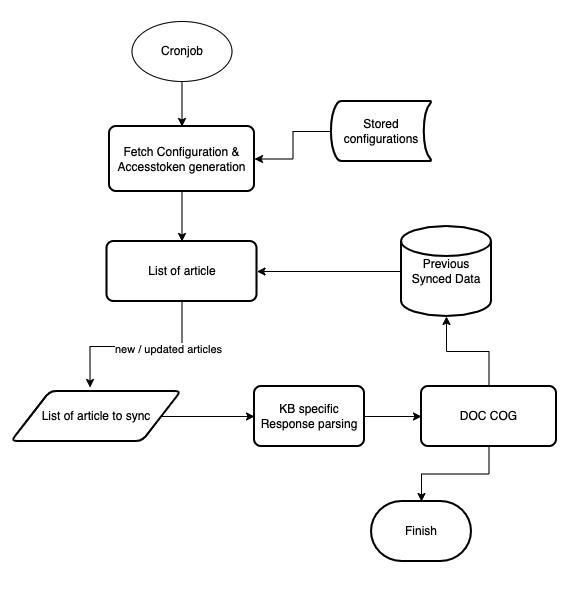
A KnowledgeBase(KB) gives centralized and organize access to solutions in form of FAQs and documentation (eg. Prismic, Salesforce, Confluence, Service-now, etc). Doc cog provides seamless integration and powerful search on these API-based KBs without requiring to upload it on the yellow.ai platform. It is a generic integration framework that can help to sync external knowledge base articles with the Yellow.ai Doc cog.
:::info
**Key features**
1. Capable of fetching the article's content directly from online KBs based on GET rules.
2. Articles' contents are automatically synced at regular intervals.
:::
**Prerequisites**
1. KB should have knowledge APIs(Article listing API and Article content API).
2. Auth(Basic/token/Bearer(with long duration token)) or API to generate the key.
3. Structured response(JSON/HTML).
**Validation of prerequisite (predefined in yellow.ai)**
| KB | Listing API | Article API | Auth Type | Response Type |
| ---------- | ----------- | ----------- | --------- | ------------- |
| Prismic | Yes | Yes | Token | JSON |
| Salesforce | Yes | Yes | Bearer | JSON |
| Confluence | Yes | Yes | Token | JSON + HTML |
| ServiceNow | Yes | Yes | Bearer | JSON + HTML |
:::
#### 2.2.1 Salesforce KB integration
1. Open Setup in **salesforce admin** > **Platform Tools** > **Apps** > **App Manager** > **New Connected app**.
2. Fill out the details and enable OAuth Setting.
3. Add the following scopes.

4. Add Callback URL (any webhook/logging URL): a public URL which can listen & log any request on it. (You will receive a code on that URL post OAuth login in step 8). Click on **Save**.
5. Goto **App Manager** > select the created app > View. Copy the Consumer key (client id) & Consumer secret (client secret) and save them for future use.
6. Go to **Manage Connected Apps** > Select the created app > **Edit**.
7. Set Permitted users to All users may self-authorize & IP Relaxation > Relax IP Restrictions > **Save**.
8. Open the following URL after replacing the client id and callback URL accordingly.
```
https://login.salesforce.com/services/oauth2/authorize?client_id=<client_Id>&redirect_uri=<callback_url>&response_type=code
```
9. Click **Allow** in the permission window, and you will receive a code in the callback_url logs.
10. Use the following curl in postman to generate a refresh token.
```
curl --location --request POST 'https://login.salesforce.com/services/oauth2/token' \
--header 'Content-Type: application/x-www-form-urlencoded' \
--data-urlencode 'grant_type=authorization_code' \
--data-urlencode 'code=<code>' \
--data-urlencode 'client_id=<cliend_id>' \
--data-urlencode 'client_secret=<client_secret>' \
--data-urlencode 'redirect_uri=<callback_url>'
```
11. Share the instance_url, refresh_token, and api_version with the Doc cog team.
12. Share the token generation curl (if required/exist).
#### 2.2.2 Service-Now integration
**Prerequisites**
1. Instance URL (eg. https://dev76197.service-now.com).
2. Basic Authentication key or Bearer Authentication with the long duration access token.
3. Share the token generation CURL (if any / exist): If the Authentication token (Step 2) is not fixed and needs to be generated using an additional API.
4. API enabled for listing and details page
- Listing URL: https://dev76197.service-now.com/api/now/table/kb_knowledge?sysparm_fields=sys_id,number,short_description,categoy,sys_updated_on
- Article Url: https://dev76197.service-now.com/api/now/table/kb_knowledge?sysparm_fields=sys_id,number,short_description,category,text,sys_updated_on&sysparm_query=number={{article_id}}
#### 2.2.3 Confluence integration
**Prerequisites**
1. Instance URL (https://testdoccog1.atlassian.net/wiki/rest/api/search?cql=(type=page)or(type=blogpost)
2. Authentication Token (https://id.atlassian.com/manage-profile/security/api-tokens)
3. Token generation CURL (if any): If the Authentication token (Step 2) is not fixed and needs to be generated using an additional API.
----
### <a name="awss3"></a> 2.3 Upload file via. AWS
> Yellow.ai’s document cognition feature supports integration with AWS S3.
:::info
**Key Features**
1. Capable of fetching the documents from AWS sites (along with all sub-sites) which include documents uploaded to document libraries, documents created online and list attachments.
2. Allows selecting a list of folders/subfolders/sites.
3. Documents’ contents are automatically synced at regular interval.
4. Supports '.docx', '.doc', '.pptx',' .ppt', ‘.txt' & ‘.pdf’ document extensions.
5. Supports AWS S3 Rest APIs.
:::
Follow to steps below to upload documents the using AWS:
1. Give User Access To Only One S3 Bucket Only.
2. Click the s3 bucket and copy its **ARN**.
3. Select Policy Type as **IAM policy**.
4. Add Statement(s): past the ARN in the Amazon Resource Name twice first the actual value ‘,’ and then ARN.
For example:
```
arn:aws:s3:::testbucketpritam<br> arn:aws:s3:::testbucketpritam/
```

5. Click **Add statements**.

6. Open the IAM dashboard select **policy** > **create policy**, and paste the JSON generated from the previous step.
7. Go to the **user** in the IAN dashboard and **create a user**.

8. Open **attach existing policies**.

9. You can add the s3 bucket policy you just created to the user.

10. You have created a new user with access to only a single bucket. Click the **AWS console link** in the above screenshot and login with this new user as an IAN user, you will have access to the s3 bucket.
#### 2.3.1 Validate AWS credentials
The only way to verify AWS credentials is to use them to sign a request and see if it works. Simply creating the connection object tells you nothing because it doesn’t perform a request.
---
#### 2.3.2 Introduction to Amazon S3 REST API
Making REST API calls directly from your code can be cumbersome. It requires you to write the necessary code to calculate a valid signature to authenticate your requests.
Following alternatives are recommended:
:::note
Use the AWS SDKs to send your requests. With this option, you don’t need to write code to calculate a signature for request authentication because the SDK clients authenticate your requests by using the access keys that you provide. Unless you have a good reason not to, you should always use the AWS SDKs.
Use the AWS CLI to make Amazon S3 API calls.
:::
AWS SDK is available in a lot of different languages like JS, PYTHON, JAVA, DOTNET, PHP etc.
**AWS SDK for JavaScript (Alternative approach):**
```For Python: pip install boto3```
#### Configuring credentials
Boto3 will look in several locations when searching for credentials. The mechanism in which Boto3 looks for credentials is to search through a list of possible locations and stop as soon as it finds credentials. The order in which Boto3 searches for credentials is:
1. Passing credentials as parameters in the `boto.client()`method.
2. Passing credentials as parameters when creating a `Session` object.
3. Environment variables.
4. Shared credential file (~/.aws/credentials).
5. AWS config file (~/.aws/config).
6. Assume a Role provider.
7. Boto2 config file (/etc/boto.cfg and ~/.boto).
8. Instance metadata service on an Amazon EC2 instance that has an IAM role configured.
**Passing credentials as parameters in the boto.client**
```
import boto3
client = boto3.client('s3',
aws_access_key_id=ACCESS_KEY,
aws_secret_access_key=SECRET_KEY,
aws_session_token=SESSION_TOKEN
)
```
Shared credential file `(~/.aws/credentials)`
You need to create a credential file at `~/.aws/credentials`. and add credentials-
**Default**
```
aws_access_key_id = YOUR_ACCESS_KEY
aws_secret_access_key = YOUR_SECRET_KEY
```
The shared credentials file also supports the concept of profiles. Profiles represent logical groups of configuration. The shared credential file can have multiple profiles:
**Default**
```
aws_access_key_id=foo
aws_secret_access_key=bar
```
**Dev**
```
aws_access_key_id=foo2
aws_secret_access_key=bar2
```
**Prod**
```
aws_access_key_id=foo3
aws_secret_access_key=bar3
```
**You can then specify a profile name via the AWS_PROFILE environment variable or the profile_name argument when creating a Session.**
For example, you can create a Session using the “dev” profile and any clients created from this session will use the “dev” credentials:
```
import boto3
session = boto3.Session(profile_name=‘dev’)
dev_s3_client = session.client(‘s3’)
```
Boto3 makes it easy to integrate your Python application, library, or script with AWS services including Amazon S3, Amazon EC2, Amazon DynamoDB, and more.
Client and Resource are two different abstractions within the boto3 SDK for making AWS service requests. You would typically choose to use either the **Client abstraction** or the **Resource abstraction** to make AWS service requests.
**Client**
- This is the original boto3 API abstraction.
- Provides low-level AWS service access.
- All AWS service operations are supported by clients.
- Exposes botocore client to the developer.
- Typically maps 1:1 with the AWS service API.
- Snake-cased method names (e.g. ListBuckets API => list_buckets method).
- Generated from AWS service description.
**Resource**
- This is the newer boto3 API abstraction.
- Provides high-level, object-oriented API.
- Does not provide 100% API coverage of AWS services.
- Uses identifiers and attributes.
- Has actions (operations on resources).
- Exposes subresources and collections of AWS resources.
- Generated from resource description.
**Code to list all buckets**
> This only works if the user has the proper access eg: ListAllMyBuckets access.
```
“Resource”: “arn:aws:s3:::*”
import boto3<br>
s3 = boto3.resource(‘s3’)
for bucket in s3.buckets.all():
print(bucket.name)
```
**Code to list all files in a bucket**
```
import boto3
s3 = boto3.resource(‘s3’)
objects = s3.Bucket(name='<YOUR AWS S3 BUCKET NAME>’).objects.all()
for o in objects:
print(o)
s3.ObjectSummary(bucket_name='<YOUR AWS S3 BUCKET NAME>’, key=‘Algorithms to Live By_ The Computer Science of Human Decisions ( PDFDrive ).pdf’),
s3.ObjectSummary(bucket_name='<YOUR AWS S3 BUCKET NAME>’, key=‘All the fundamental React.js concepts, jammed into this single Medium article (updated August 2019) _ by Samer Buna _ EdgeCoders _ Medium.pdf’)
```
**Code to upload a file**
```
import boto3
s3_client = boto3.client(‘s3’)
s3_client.upload_file(‘hello.txt’, '<YOUR AWS S3 BUCKET NAME>’, ‘hello.txt’)
upload_file(<name of the file in local>, <bucket name>, <name of the file in s3>)
```
**Code to Download a file from s3**
```
import boto3
s3_client = boto3.client(‘s3’)
s3_client.download_file('<YOUR AWS S3 BUCKET NAME>’, ‘hello.txt’, ‘hello2.txt’)
download_file(<Bucket Name>, <FileName in S3>,<file name that u want in local)
```
**Code to Edit a file in s3**
```
import boto3
s3_client = boto3.client(‘s3’)
open(‘hello.txt’,‘a+’).write(‘Hello, world!’)
`13`
s3_client.upload_file(‘hello.txt’, '<YOUR AWS S3 BUCKET NAME>’, ‘hello.txt’)
```
**Code to get all file metadata**
```
import boto3
s3client = boto3.client(‘s3’)
paginator = s3client.get_paginator(‘list_objects_v2’)
page_iterator = paginator.paginate(Bucket='<YOUR AWS S3 BUCKET NAME>’)
for bucket in page_iterator:
for file in bucket[‘Contents’]:
print(file[‘Key’])
try:
metadata = s3client.head_object(Bucket='<YOUR AWS S3 BUCKET NAME>’, Key=file[‘Key’])print(metadata)
except:
print(“Failed {}”.format(file[‘Key’]))
```
**Algorithms to Live By_ The Computer Science of Human Decisions ( PDFDrive ).pdf**
```
{‘ResponseMetadata’: {‘RequestId’: ‘7C74267CF4193023’, ‘HostId’: ‘IasZHHYmUPug6/qe4W53fJSSxcrnPerVCt5xOB/WsPDr2qgQcs0xqb7zJxPYxtxEogvQ552LrA4=’, ‘HTTPStatusCode’: 200, ‘HTTPHeaders’: {‘x-amz-id-2’: ‘IasZHHYmUPug6/qe4W53fJSSxcrnPerVCt5xOB/WsPDr2qgQcs0xqb7zJxPYxtxEogvQ552LrA4=’, ‘x-amz-request-id’: ‘7C74267CF4193023’, ‘date’: ‘Tue, 02 Mar 2021 08:26:57 GMT’, ‘last-modified’: ‘Tue, 02 Mar 2021 06:13:44 GMT’, ‘etag’: ‘“b926ad30c85d7bb4bd5da12ee2651e37”’, ‘accept-ranges’: ‘bytes’, ‘content-type’: ‘application/pdf’, ‘content-length’: ‘2732141’, ‘server’: ‘AmazonS3’}, ‘RetryAttempts’: 0}, ‘AcceptRanges’: ‘bytes’, ‘LastModified’: datetime.datetime(2021, 3, 2, 6, 13, 44, tzinfo=tzutc()), ‘ContentLength’: 2732141, ‘ETag’: ‘“b926ad30c85d7bb4bd5da12ee2651e37”’, ‘ContentType’: ‘application/pdf’, ‘Metadata’: {}}
```
**All the fundamental React.js concepts, jammed into this single Medium article (updated August 2019) _ by Samer Buna _ EdgeCoders _ Medium.pdf**
```
{‘ResponseMetadata’: {‘RequestId’: ‘7FBA9FCC1B69CC4B’, ‘HostId’: ‘hCZxPciVILDGXJvfjtac9irPOkFDEjwr9BKG8Dq69DIdgv7YmFVuoD3p0Z7srI/3YeLZkkN4F9U=’, ‘HTTPStatusCode’: 200, ‘HTTPHeaders’: {‘x-amz-id-2’: ‘hCZxPciVILDGXJvfjtac9irPOkFDEjwr9BKG8Dq69DIdgv7YmFVuoD3p0Z7srI/3YeLZkkN4F9U=’, ‘x-amz-request-id’: ‘7FBA9FCC1B69CC4B’, ‘date’: ‘Tue, 02 Mar 2021 08:26:57 GMT’, ‘last-modified’: ‘Tue, 02 Mar 2021 06:13:42 GMT’, ‘etag’: ‘“4f6f8b7d2de81151f34170777c301ba6”’, ‘accept-ranges’: ‘bytes’, ‘content-type’: ‘application/pdf’, ‘content-length’: ‘3668501’, ‘server’: ‘AmazonS3’}, ‘RetryAttempts’: 0}, ‘AcceptRanges’: ‘bytes’, ‘LastModified’: datetime.datetime(2021, 3, 2, 6, 13, 42, tzinfo=tzutc()), ‘ContentLength’: 3668501, ‘ETag’: ‘“4f6f8b7d2de81151f34170777c301ba6”’, ‘ContentType’: ‘application/pdf’, ‘Metadata’: {}}
```
**hello.txt**
```
{‘ResponseMetadata’: {‘RequestId’: ‘2893E89438DCAFC9’, ‘HostId’: ‘1bQ8mGMeZh+nQSYsirplyuk67yHabWl7q1Cv/GKsJFk+RlfAmG6cgPCvPdQBucXfHqlRjnz1A3E=’, ‘HTTPStatusCode’: 200, ‘HTTPHeaders’: {‘x-amz-id-2’: ‘1bQ8mGMeZh+nQSYsirplyuk67yHabWl7q1Cv/GKsJFk+RlfAmG6cgPCvPdQBucXfHqlRjnz1A3E=’, ‘x-amz-request-id’: ‘2893E89438DCAFC9’, ‘date’: ‘Tue, 02 Mar 2021 08:26:57 GMT’, ‘last-modified’: ‘Tue, 02 Mar 2021 08:23:43 GMT’, ‘etag’: ‘“738de4578efc7f327bb3897d162fb758”’, ‘accept-ranges’: ‘bytes’, ‘content-type’: ‘binary/octet-stream’, ‘content-length’: ‘27’, ‘server’: ‘AmazonS3’}, ‘RetryAttempts’: 0}, ‘AcceptRanges’: ‘bytes’, ‘LastModified’: datetime.datetime(2021, 3, 2, 8, 23, 43, tzinfo=tzutc()), ‘ContentLength’: 27, ‘ETag’: ‘“738de4578efc7f327bb3897d162fb758”’, ‘ContentType’: ‘binary/octet-stream’, ‘Metadata’: {}}
```
**hello1.txt**
```
{‘ResponseMetadata’: {‘RequestId’: ‘8445E9AC02B726B7’, ‘HostId’: ‘gsMC+IZY8hzl77Z8Gmuad1kNlMmBCIfNppu85lGK0AvzgZ8Uxvqb+sDXmH0mITLPeFNiq9pi+aw=’, ‘HTTPStatusCode’: 200, ‘HTTPHeaders’: {‘x-amz-id-2’: ‘gsMC+IZY8hzl77Z8Gmuad1kNlMmBCIfNppu85lGK0AvzgZ8Uxvqb+sDXmH0mITLPeFNiq9pi+aw=’, ‘x-amz-request-id’: ‘8445E9AC02B726B7’, ‘date’: ‘Tue, 02 Mar 2021 08:26:58 GMT’, ‘last-modified’: ‘Tue, 02 Mar 2021 08:15:21 GMT’, ‘etag’: ‘“d41d8cd98f00b204e9800998ecf8427e”’, ‘accept-ranges’: ‘bytes’, ‘content-type’: ‘binary/octet-stream’, ‘content-length’: ‘0’, ‘server’: ‘AmazonS3’}, ‘RetryAttempts’: 0}, ‘AcceptRanges’: ‘bytes’, ‘LastModified’: datetime.datetime(2021, 3, 2, 8, 15, 21, tzinfo=tzutc()), ‘ContentLength’: 0, ‘ETag’: ‘“d41d8cd98f00b204e9800998ecf8427e”’, ‘ContentType’: ‘binary/octet-stream’, ‘Metadata’: {}}
```
**Code to download previous versions**
```
import boto3
from boto3.s3.transfer
import S3Transfer<br> ACCESS_KEY = ‘<YOUR AWS ACCOUNT ACCESS KEY>’
SECRET_KEY = ‘<YOUR AWS ACCOUNT SECRET ACCESS KEY>’
BUCKET_NAME = '<YOUR AWS S3 BUCKET NAME>’
key = ‘hello1.txt’
client = boto3.client(
‘s3’,
aws_access_key_id=ACCESS_KEY,
aws_secret_access_key=SECRET_KEY)
s3 = boto3.resource(‘s3’)
versions = s3.Bucket(BUCKET_NAME).object_versions.filter(Prefix=key)
transfer = S3Transfer(client)
for version in versions:
obj = version.get()
print(obj[‘LastModified’].strftime("%Y%m%d%H%M%S")+ "_" + key)
transfer.download_file(BUCKET_NAME, key,
obj[‘LastModified’].strftime("%Y%m%d%H%M%S")+ "_" + key, extra_args={‘VersionId’: obj[‘VersionId’] })
```
---
### <a name="shpt"></a> 2.4 Upload file via. SharePoint
> Yellow.ai's document cognition search feature supports integration with SharePoint.
:::info
**Key Features**
1. Capable of fetching the documents from SharePoint sites (along with all sub-sites) which includes documents uploaded to document libraries, documents created online and list attachments.
2. Allows selecting a list of folders/subfolders/sites.
3. Document contents are automatically synced at regular interval.
4. Supports '.docx', '.doc', '.pptx',' .ppt', ‘.txt' & ‘.pdf’ document extensions.
5. Supports Sharepoint Rest APIs and AAD Graph APIs.
:::
#### 2.4.1 Integration using SP Rest APIs
Follow the steps below to integrate using SharePoint REST APIs:
1. **Login**: Login to your SharePoint account and click the site you want to access.

2. **App Registration**.
- Click **+New** -> **App**.

- To register an app in SharePoint, navigate to the "New App Registration" page by replacing 'addanapp.aspx' with 'appregnew.aspx'.

- The URL of that page will be similar to
```https://{{tenantname}}.sharepoint.com/_layouts/15/appregnew.aspx```
- Fill in the details on that page as per the following table and click **Create**.
- **Client Id** - Click Generate
- **Client Secret** - Click Generate
- **Title** - Any value
- **App Domain** - `localhost`
- **Redirect URI** - `https://localhost`

:::note
Copy and save the generated Client Id and Client Secret as these will be required in later steps.
:::
- On the next screen, Click **OK**.

3. **Add Permissions**.
- Now that the app is registered, provide the app with the required permissions so that it can access data. In order to do that, replace "settings.aspx" with "appinv.aspx".

``` The URL of that page will be similar to the one below [](https://yourtenantname.sharepoint.com/_layouts/15/appinv.aspx) ```
- On that page, paste the **Client Id** in the "**App Id**" text box and click "**Lookup**". This will load the details of the app we registered previously In the "Permission Request XML" paste the following XML. This XML says that the app can have full control over the current web.
```
<AppPermissionRequests AllowAppOnlyPolicy="true"> <AppPermissionRequest Scope="http://sharepoint/content/sitecollection/web" Right="Read"/></AppPermissionRequests>
```
- Once that is added click "**Create**".

- On the next screen click "**Trust It**" and this will mean that the app will have the required permissions.

4. **Check Tenant ID**.
- Navigate to app permissions page by replacing 'settings.aspx' by 'appprincipals.aspx'.

The text after '@' in the app identifier is the 'tenant id' or 'realm'.
**Required Permissions**
Run the following commands on PowerShell. Without these steps, your app won't have the required permissions.
```
Install-Module -Name Microsoft.Online.SharePoint.PowerShell
$adminUPN="<the full email address of a SharePoint administrator account, example: jdoe@contosotoycompany.onmicrosoft.com>"
$orgName="<name of your Office 365 organization, example: contosotoycompany>"
$userCredential = Get-Credential -UserName $adminUPN -Message "Type the password."
Connect-SPOService -Url [](https://$orgName-admin.sharepoint.com) -Credential $userCredential
set-spotenant -DisableCustomAppAuthentication $false
```
:::note
Once an app is created you can give access to any site to it. You can view all the apps that have access to the site and add new apps to a site.
:::
5. **Update on yellow.ai configuration**
- Open the yellow platform. **Studio** > **Train** > **Documents** > **Upload documents** > **Select Sharepoint**.
- Fill in the following details and select the required folders.

6. Click the **upload** button, and your docs will be scheduled for the sync.
#### 2.4.2 Integration using AAD Graph APIs
1. **Login to AAD**.
> Follow the AAD app registration: https://docs.yellow.ai/docs/platform_concepts/appConfiguration/azure-ad
**Required permissions**
| Scope | Description |
| --------------------------------- | -------------------------------------------------------------- |
| OpenID, email, profile, User. Read | Used to retrieve login details & their profile using Graph API |
| offline_access | Required to obtain refresh token |
| Sites.Read.All | To fetch the site/folders structure |
| Files.Read.All | To read the content of files |
2. **Updating on yellow.ai configuration**
- Open the yellow platform. **Studio** > **Doc cog** > **Upload documents** > **Select Sharepoint**
- Fill in the following details > Sync > select the required folders.
| Client ID, Client Secret, Realm | Obtain from AAD App, Realm (tenant ID) |
| ------------------------------- | -------------------------------------- |
| Target Host | azure_api |
| Site URL | Site ID |

3. Click the **upload** button, and your docs will be scheduled for sync.
---
## <a name="d"></a> 3. Q&A extract
Doc Cog has the capability of auto-generating Questions and Answers.
1. Open the **QnA extract** tab.

2. Expand the file you want to generate QnA.

3. Go to Each File to see automatically generated Questions and Answers. Click the checkbox for the questions you want to add to FAQs.
- Click on **Add FAQ**. It will add to the FAQ section of the bot.

---
## <a name="l"></a> 4. Active learning
The bot can learn based on the feedback received for the search results. When the bot shows certain search result documents, the user has the option to click **thumbs up** if the user feels the bot has given the result they were looking for or **thumbs down** if the search results are not up to their expectation. The feedback is recorded and the bot is retrained to improve the search results.
> Search for any query by triggering this Document Search Node. It will display the result. Users can upvote and downvote the search results so that the bot can be re-trained based on the feedback from the user.

---
### <a name="a"></a> 5. Add acronyms
There are cases when we expect the user to search for certain text, but the entered text is not present in our documents in that searched format.
For example, if we have a document where it is written The “United States of America” but the user searches for the USA, US etc.
In these cases, acronyms and synonyms can be configured to accept USA and US as input. This will look for the United States of America in documents and provide the results accordingly.
Follow the given steps to Configure:
1. Open **Acronyms** Tab
2. Click **Add new acronym**.

3. Add the Acronym **Name** and **List item**.

4. Acronyms have been configured.

---
## <a name="q"></a> Document related FAQs
1. **What does a good document format look like?**
The following are some of the characteristics of a document that’ll be processed well during document cognition. It's recommended to follow these guidelines while pre-processing your document -
* It does not have scanned pages and images, these will be skipped if present in the doc.
* At least 80% of the content is textual and well-formatted (e.g. Wikipedia articles)
* Remove content and index pages, appendix pages, etc. (we will add the logic to skip these automatically in coming releases)
* No bullet points before headings. Headings should have a larger font size and no spaces so that the parser can detect headings easily.
* Simple tabular data works better than complex or merged tabular data in the documents.
2. **Why am I not getting the right result in the first suggestion?**
Because document cognition is a probabilistic model that is “predicting” the relevance of a specific paragraph or page by looking at the input string. There is no guarantee that the first result will be the most relevant. The most relevant results are expected to come in the top 3 results.
3. **Why am I getting the other documents in suggestions which don't have the answer?**
Same answer as above. The model assigns individual scores to all the documents’ paragraph and use them show the results, so if the confidence threshold is low it can still show irrelevant answers. You can fine-tune the confidence threshold using some test cases.
4. **Why am I getting multiple occurrences of the same document in the results?**
Because there might be multiple pages/occurrences of relevant content in the same document. In such cases, we rank them, based on the score and return only two occurrences in each document by default. If you want to see more or fewer occurrences within the same document, you can control it by passing the value of `results per document` in your search query.
5. **Can the model read tabular data or image presents in the documents?**
Tables can be indexed by enabling the Parse table option while uploading, Simpler table works better than complex/merged tables. Images/diagrams will be skipped.
6. **Why am I not able to access a document link, from a conversation I had yesterday? Can I change this dynamic URL to some fixed redirection URL?**
Currently, we have restricted the life of each SAS link to an hour for security reasons. This can be removed/updated as per the client request. You can generate a new link by asking the same query again in the bot. You can also change this redirection URL to a fixed URL using the document properties option.

7. **How do I ensure that the bot shows only relevant documents?**
There is no specific logic added to detect irrelevance right now. However, we do provide a relevance score with each search result that the bot developer can use. The model returns all documents which contain even a few keywords in the query in decreasing order of relevance. The bot developer can choose to show only Top N (e.g. Top 5) or Top 25% of the results based on relevance score.
8. **Can the Doc cog work if the documents are stored in a different system?**
Doc cog has in-build integrations for Sharepoint, S3, URLs, and KBs (Salesforce, Service-now, Confluence). Any other KB can also be integrated which has APIs to access the articles/documents.
9. **Docs QNAs is not being generated, Do I need it for working of doc cog? or
Can I edit the response of doc cog results?**
Doc cog search will work fine without the QNAs. If the upload docs are showing completed status, you can just enable doc cog fallback or add Action Node and start using it. QNAs is only required for editing the answers and adding it to the FAQs section.
10. **Is permission-based Doc cog results possible so that only certain groups of people can search in a certain list of Docs / External KBs?**
Yes, It is possible, User can add tags to the documents and pass the tag value as a variable in the doc cog action node while searching.
11. **If a single document has different answers/responses wrt user profile like CEO, HR, SDE etc, Can we filter and show just the answers related to the User profile?**
If the results are on different page, page logic can be used to filter the results
if answers are in a tabular structure, you can try adding the role of the user in the query itself, like
```<query>: SDE”, eg. Annual leave entitlement?, SDE"```
12. **Why my documents are taking so long for indexing, is it stuck?**
Doc cog uses queue base indexing flow which has a common queue among all the bots. A pending/queued status represents doc is still in the queue and waiting for indexing while the indexing status represents the doc is being indexed.
13. **Is there any limit on documents uploading?**
Yes, for a Tier 0 (Free Tier) bot there is a limit of a max 50 total pages or a max 5 documents and Tier 1 bot has a max 200 documents limit. Tiers other than T0 can have max 500 pages per document.
14. **Can I index my articles present on ServiceNow / Confluence / Salesforce etc.?**
Yes, Using Doc cog External KB integration it is possible to index the articles using the APIs.
15. **Why my bot is showing Journey Suggestions (Did you mean) instead of Doc cog results in fallback**?
A bot has a specific priority order of actions in the fallback case.
Order: Journey -> FAQs -> Journey suggestion -> Doc cog -> Other fallback.
So if the Journey suggestions are enabled and with good suggestion confidence, Journey suggestion will be triggered due to the priority order. You can try disabling the suggestion or increase the confidence threshold of the suggestion.
16. **Can I change the layout of the doc cog results cards?**
Yes, but the default layout is recommended which helps us in analytics, improves accuracy and provides a better user experience.
A layout that can be changed: Change vertical to horizontal cards, change the display name, remove tags, and remove the preview button.
-----


 Sign in via Google
 Sign in via Facebook
 Sign in via X(Twitter)
 Sign in via GitHub
 Sign in via Dropbox
 Sign in with Wallet
Connect another wallet
Sign in with Wallet
Connect another wallet