---
title: Testing Voice agents using WebRTC feature
sidebar_label : WebRTC for voice agents testing
---
Yellow.ai offers a **WebRTC (Web Real-Time Communication)** calling feature that enables browser-based calls directly from the platform. This allows bot developers to simulate and experience agent interactions with both Indian and international numbers—without the need to procure or map PSTN phone numbers.
By removing the dependency on external telephony systems, it significantly speeds up voice bot development and testing.
This feature is especially useful for testing voice agents and previewing their responses for customers outside India (e.g., in the US, UK, or UAE).
:::note
WebRTC testing is enabled by default at no cost for the following regions: **R0, R2, R3, R4, and R5**. To enable it for regions **R1, R6, or R7**, please contact the support team at [support@yellow.ai](mailto:support@yellow.ai).
:::
## Testing voice agent using WebRTC
:::info
WebRTC testing is only **available** in **Sandbox, Staging and Development** environments and not available in *Production/Live*.
:::
To test a voice agent using the WebRTC feature, follow these steps:
1. **Open the Preview Mode**
- Navigate to **Automation > Flows > Preview**.
- Select **Voice** from the dropdown.

> You cannot preview an individual flow for voice agents. When you click **Preview**, the entire agent is launched starting from the Welcome/Start flow. Switching between flows during the session will disconnect the call.
2. **Start the Call**
- Ensure microphone access is granted.
- Click the **Start Call** button to initiate the WebRTC-based call.
<img src="https://cdn.yellowmessenger.com/assets/yellow-docs/startcall.png" alt="Phone Number Input" width="40%"/>
4. **Answer and Test**
- Interact with the voice agent to test various call flows and behaviors.
- Use the on-screen keypad to enter DTMF inputs, if required. WebRTC calls support DTMF INFO-based input transmission instead of audio tone detection.
- Click **Disconnect** once your testing is complete.
<img src="https://cdn.yellowmessenger.com/assets/yellow-docs/voicecall.png" alt="Call Screen" width="35%"/>
-------------
### Network monitoring & feedback
* If **internet connectivity** drops or either party disconnects, UI will display feedback indicating disconnection.
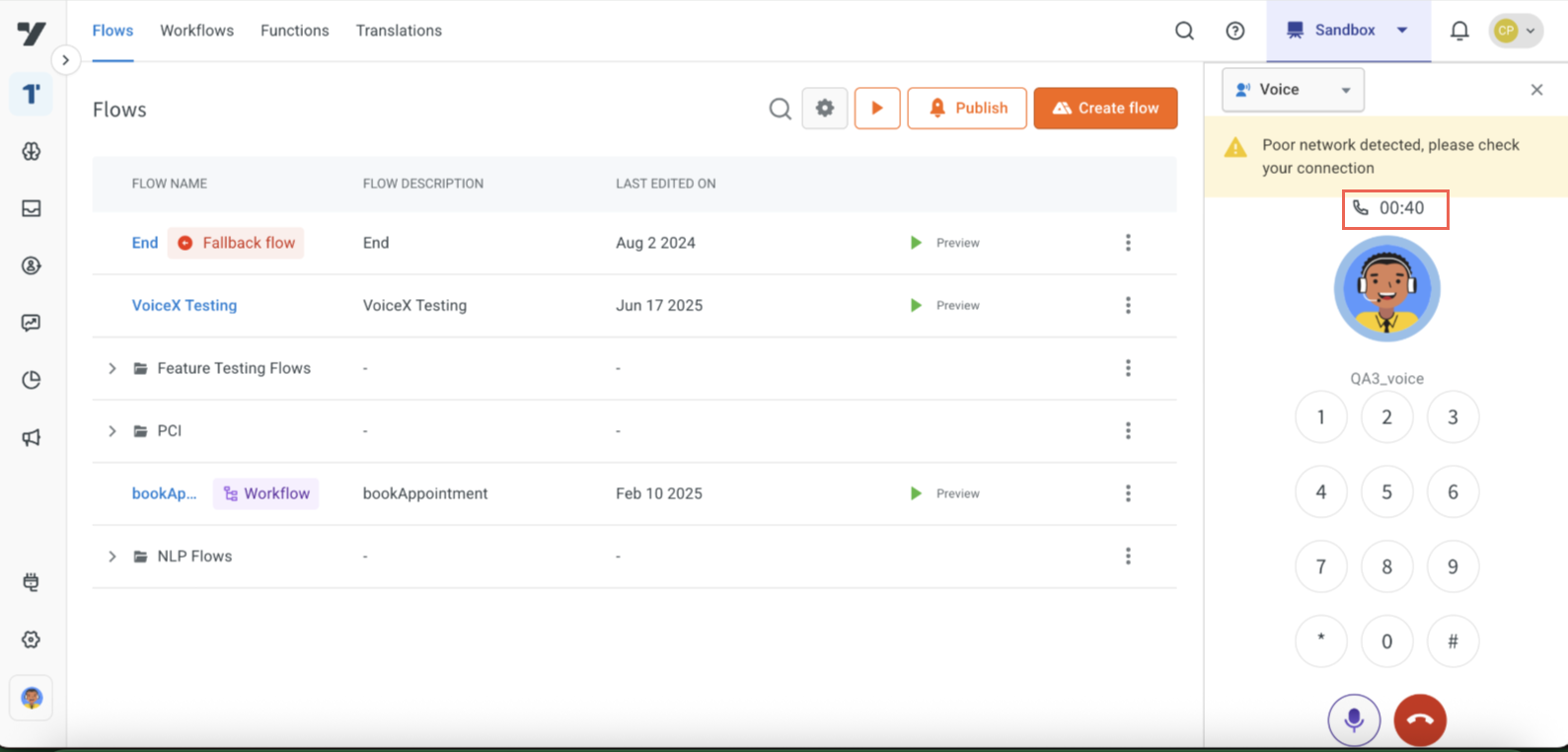
* If **packet loss or jitter** exceeds acceptable thresholds, visual warnings will be shown to notify the developer.
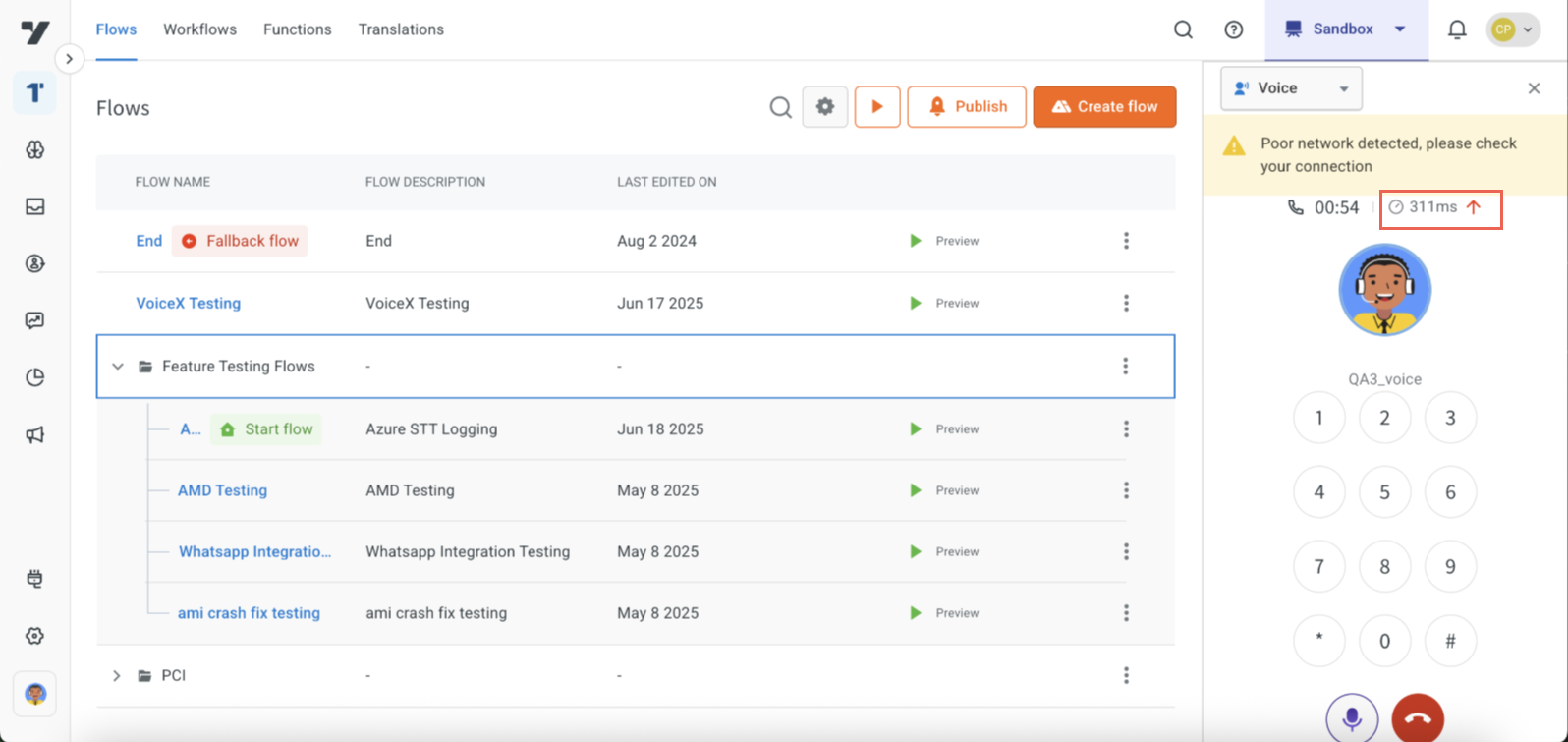
* When making calls to numbers in different regions, you may experience latency, with the Round Trip Time (**RTT**) displayed. However, RTT isn't a direct indicator of connection quality. For example, a call from Region 0 to a voice agent hosted in Region 4 might show around 300ms RTT, even with excellent connectivity.
---
### Agent transfer during testing
When testing a voice agent and the **agent transfer** flow is triggered, the call will remain active for up to **2 minutes** before being automatically terminated by the system.
> This 2-minute limit applies **only** when the call is transferred to a **human agent**. All other bot interactions are not subject to this timeout.
#### (Optional) Set a Caller Line Identity (CLI)
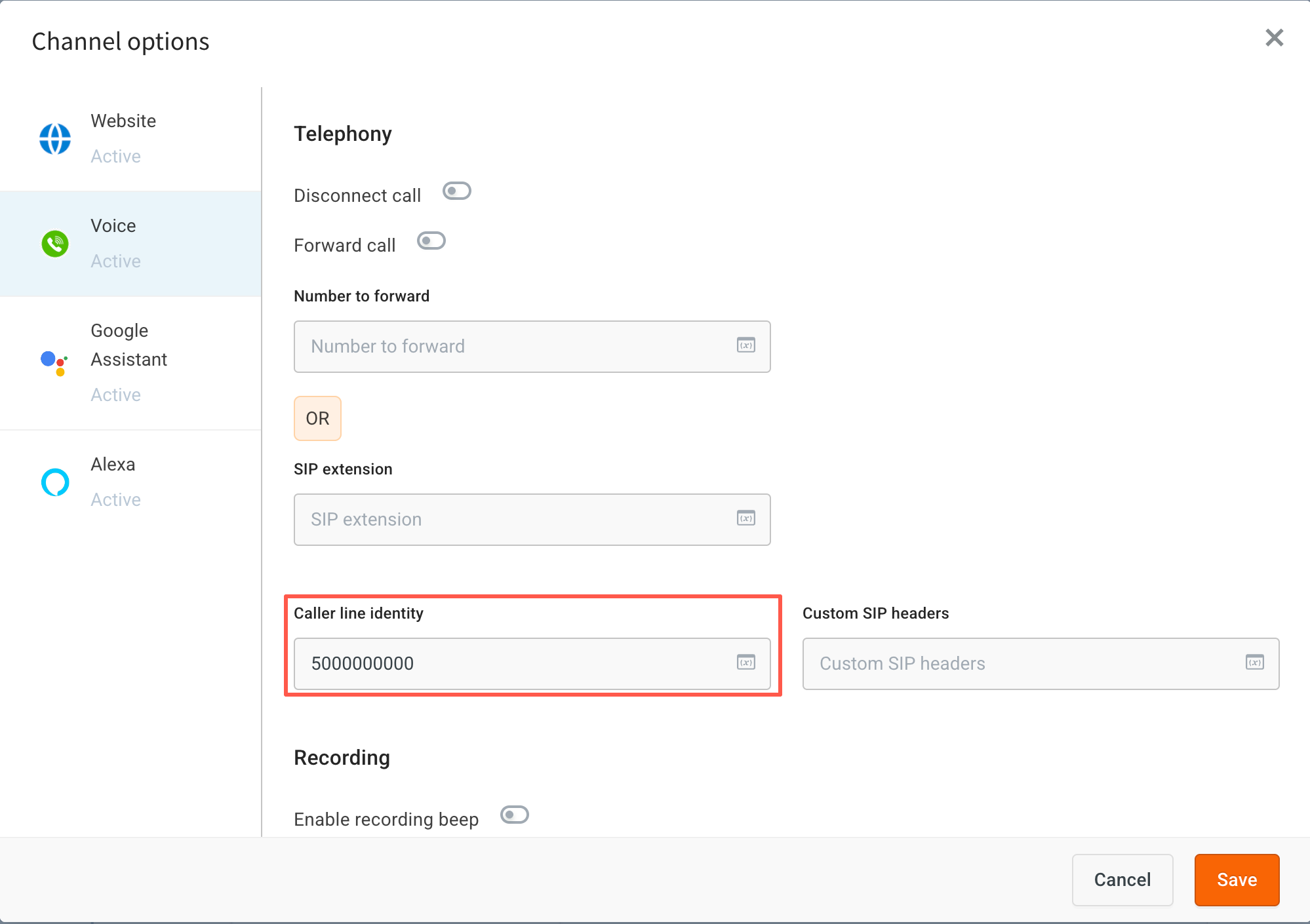
To display a test-friendly number (instead of the default voice agent number) when your call connects to a human agent during WebRTC testing, you can configure a **Caller Line Identity (CLI)**:
- Go to **Node > Settings > Channels > Voice**.
- In the **Caller Line Identity** field, enter the number you want to show as the caller ID.
- Click **Save**.
#### Before call disconnection, developers should validate
- The call is successfully transferred or assigned to a human agent.
- Relevant metadata (e.g., user’s email, name, or transcript) is correctly passed to the agent interface.
 Sign in with Wallet
Connect another wallet
Sign in with Wallet
Connect another wallet