---
title: Search, sort and filter tickets
sidebar_label : Search and filter
---
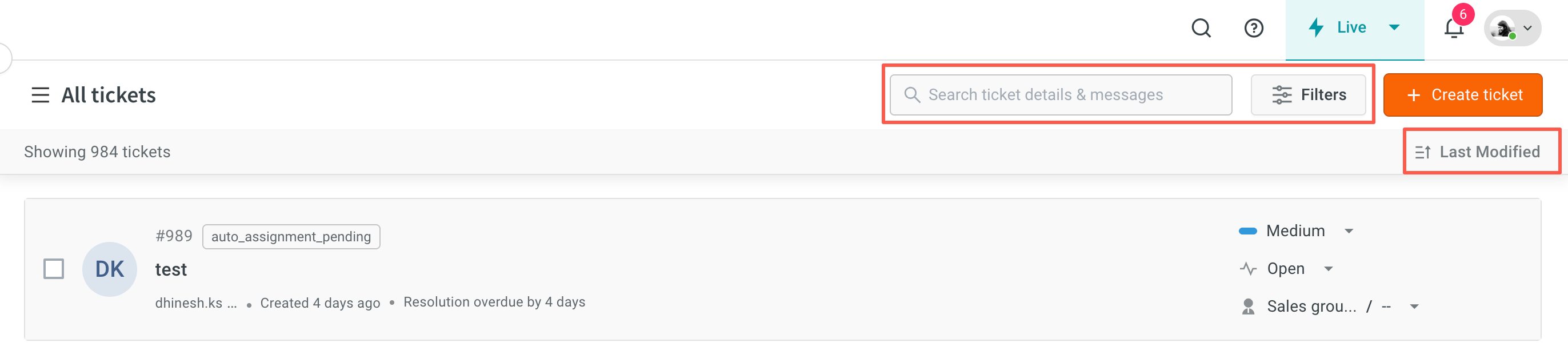
In this article, you will learn how to [search](#1), [sort](#2), and [filter](#3) the email tickets.
------
## <a name="3"></a> Filters tickets
With **Filters** you can refine the ticket list according to a particular condition.
1. Go to the **All tickets** list. Click **Filters**.
<img src="https://cdn.yellowmessenger.com/assets/yellow-docs/tfilters.png" alt="drawing" width="70%"/>
2. You can filter tickets based on the following:
| **Field** | **Description** |
|---------------------------|----------------------------------------------------------------------------------|
| **Created Date** | The date and time when the ticket was created. |
| **Tags** | Tags used to categorize and filter tickets. |
| **Groups** | Group assigned to handle the ticket. |
| **Agents** | The support agents responsible for managing or resolving the ticket. |
| **Status** | The current state of the ticket (e.g., Open, Pending, On-hold). |
| **Priority** | The urgency or importance level assigned to the ticket (e.g., Low, High). |
| **Source Email** | The email address from which the ticket was received or created. |
| **Due Date** | The final date by which the ticket should be resolved. |
| **Start Date** | The date when work on the ticket began. |
| **End Date** | The date when the ticket was closed or resolved. |
| **Resolution Due By** | The deadline for resolving the issue according to SLAs. |
| **First Response Due By** | The deadline for the first agent response based on SLAs. |
| **Next Response Due By** | The deadline for the next agent follow-up or update based on SLAs. |
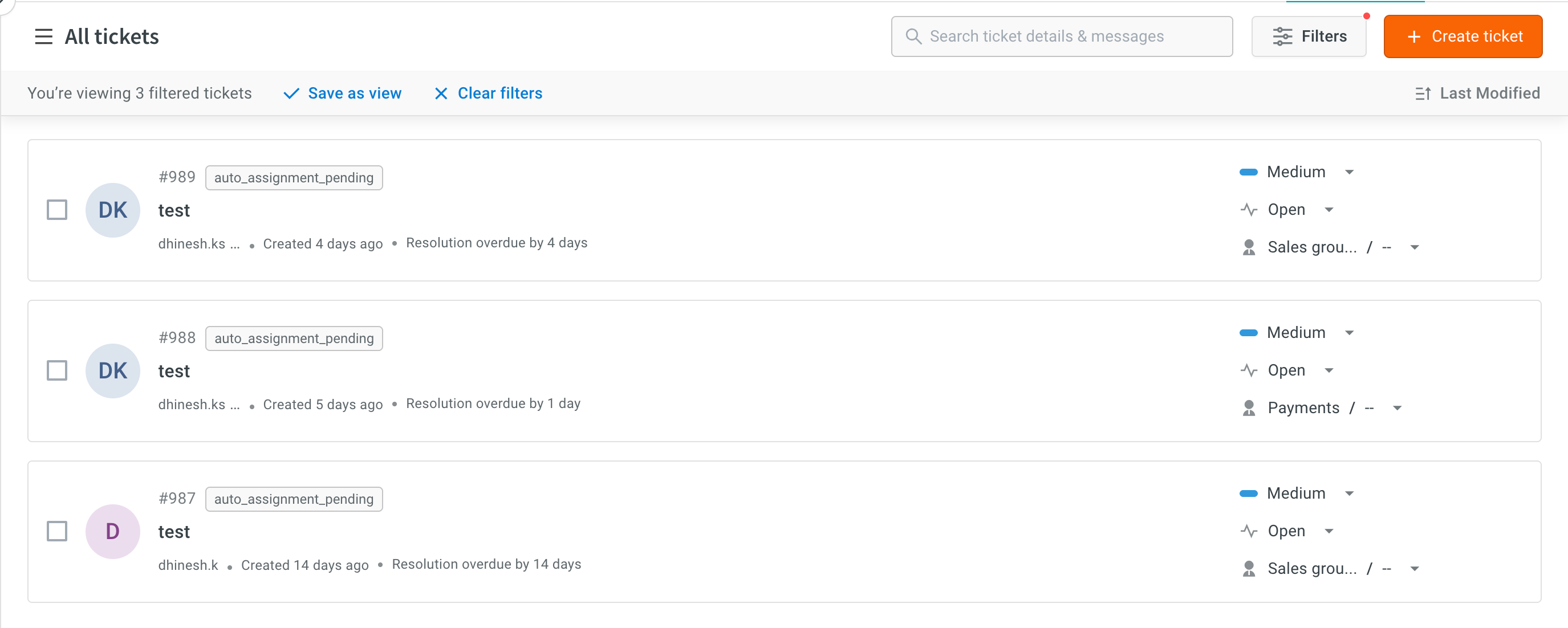
3. Click **Apply Filter** to see the results.
:::note
Currently, it is not possible to conduct a keyword search within the filtered results.
:::
**Save search results as View**
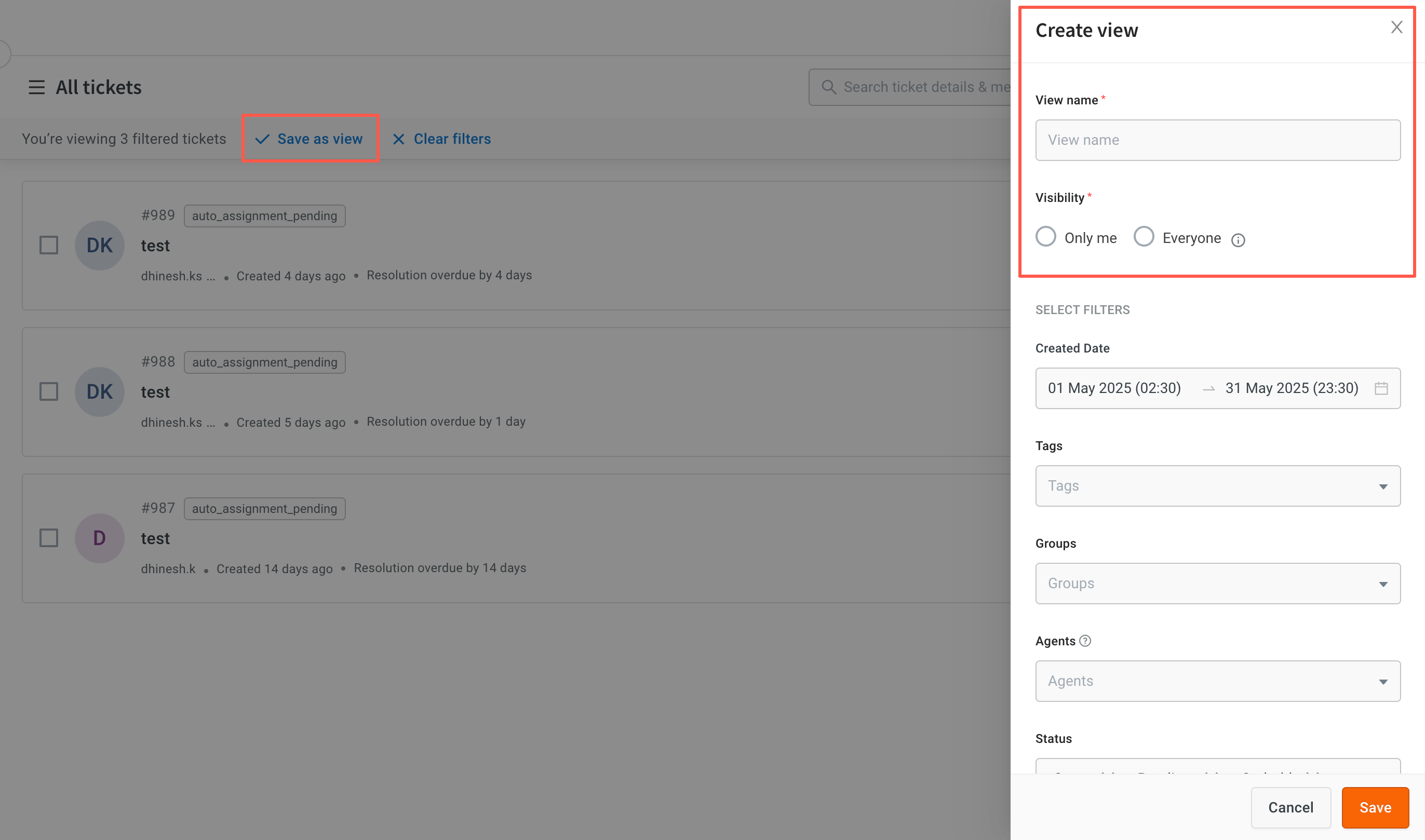
1. Click **Save as view** to create a view.
2. Enter your **View name** and select **Visibility** (Only me or Everyone).
3. You can reselect the filtes if needed and click **Save**.
> Click [here](https://docs.yellow.ai/docs/platform_concepts/inbox/chats/customview) to understand Views.
**Clear filters on tickets page**
Click **Clear filters** on the filters panel or on the results page.
<img src="https://i.imgur.com/m3u6jw6.png" alt="drawing" width="30%"/>
-------
## <a name="2"></a> Sort tickets
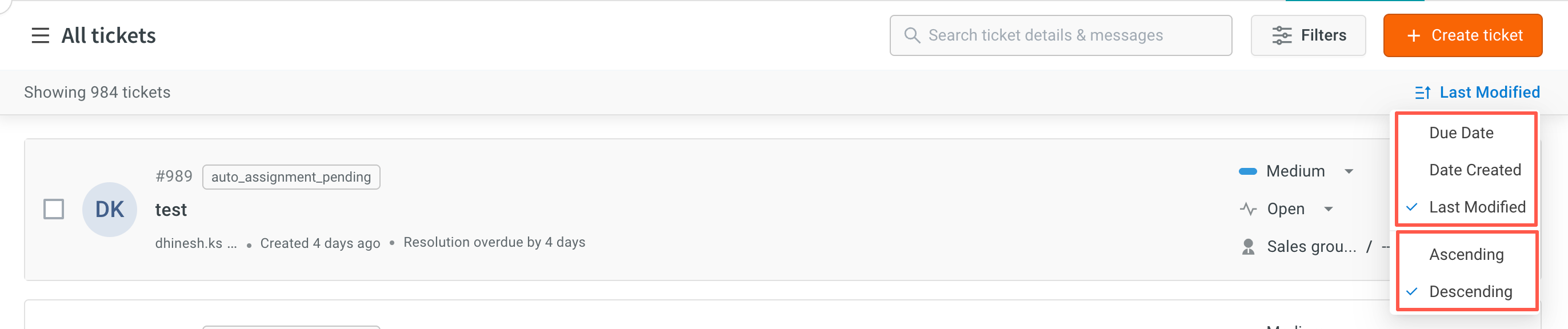
You can sort the list of tickets based on **dates** by clicking **Last modified** dropdown:
- **Due Date**: The latest date for the agent's response
- **Date Created**: The date when the ticket was created
- **Modified Date**: The date when the ticket was last updated
> You can further sort the ticket list in either **Ascending** or **Descending** order of the ticket ID.
-------
## <a name="1"></a> Search for/within a ticket
:::note
* **Admins** have the ability to search for any ticket.
* **Collaborators** and **supervisors** can only search for tickets that were created within the group they have access to.
* **Agents** can only search for tickets that they have been assigned to or resolved.
:::
#### Search category
Once you type text within the Search bar and enter, the search functionality offers two search categories:
1. **Ticket details**: This category allows you to search for email subject, ticket ID, customer's email ID, custom fields (except the type [number and date](https://docs.yellow.ai/docs/platform_concepts/inbox/inbox-settings/workflows/chat_custom_fields#-21-types-of-custom-fields)) and other details related to the ticket.
2. **Message details**: This category enables you to search for specific keywords contained within the email body.
#### Search functionalities
The search feature provides several options, like:
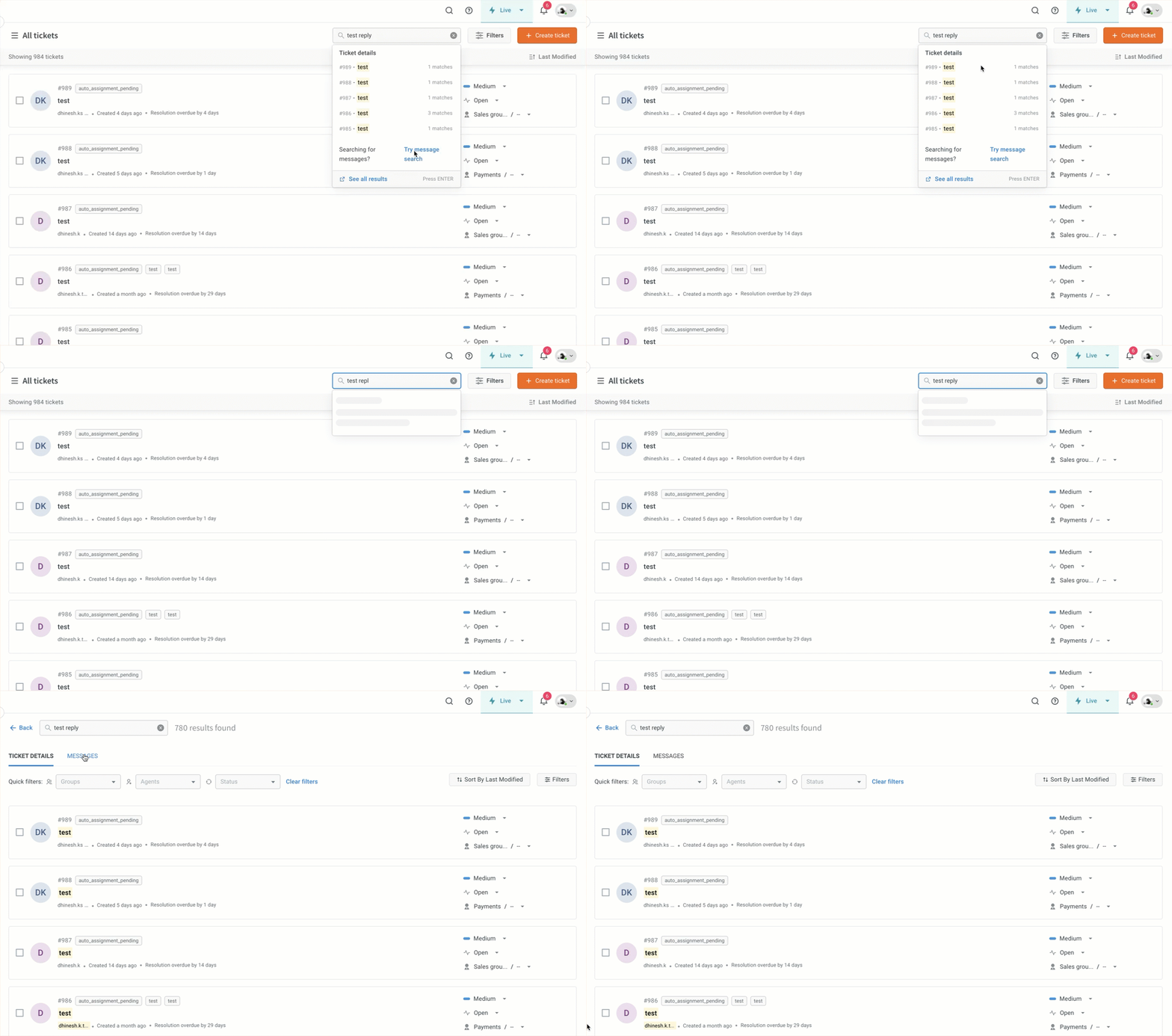
* **Recently searched** keywords will appear when you access the search bar.
* The **top five results** related to the keyword within the ticket details will be displayed when you enter a keyword into the search bar.
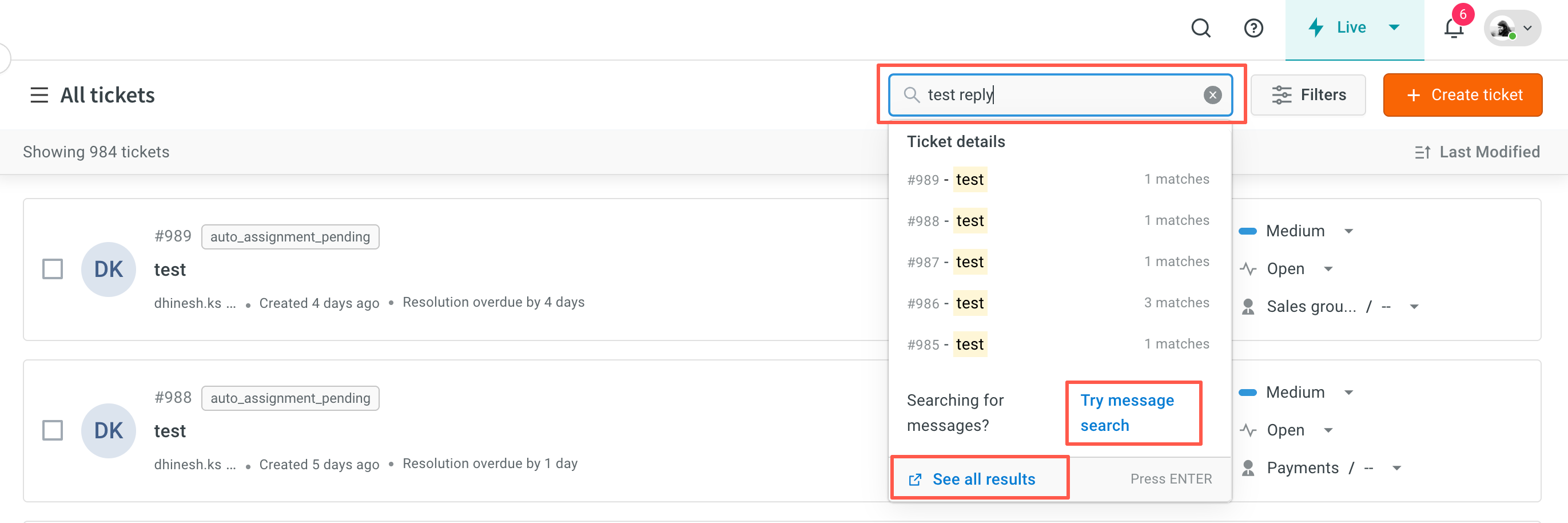
* Click on **Try message search**, to conduct a keyword search within the email body directly.
* Click on **See all results**, to view all the search results related to the keyword entered.
#### Ticket and message details search results
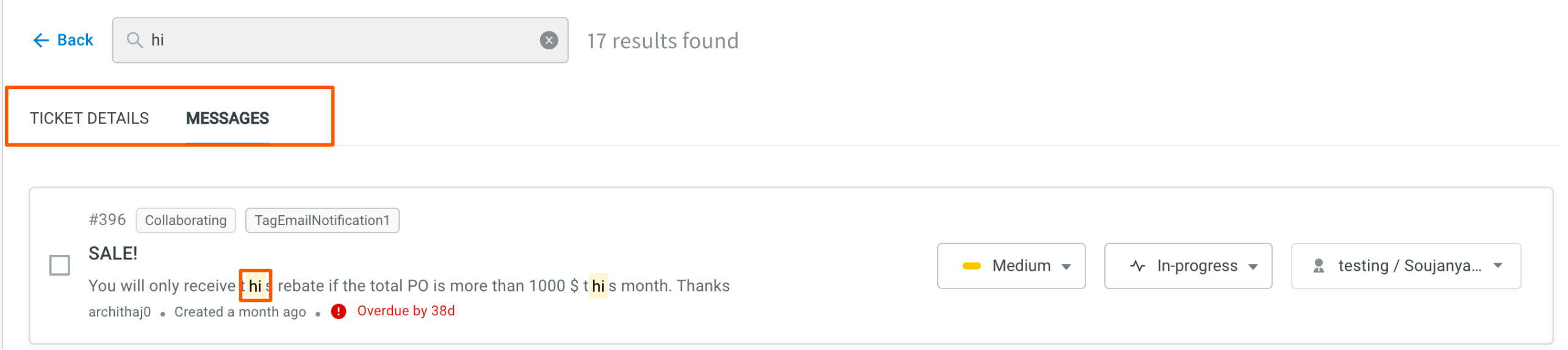
Upon clicking **See all results**, you will be directed to the results page, where you can choose to view the matches found in either the **Ticket** details or **Message** details.
- The screen will **highlight** the entered keyword in yellow, allowing you to easily identify the matches. Examples of highlighted matches include the ticket ID, message body, and more.
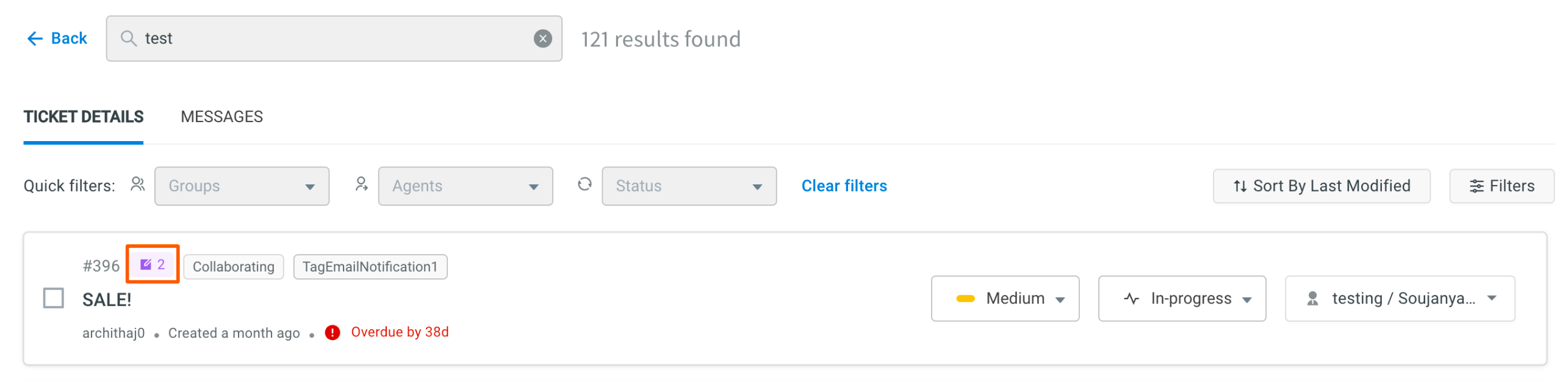
- **Custom field** match is displayed as purple box.
- The **filter** operation is integrated with the search functionality. It allows you to add filters or quick filters (Group, Agent name, and Ticket status) to the search results (only for ticket details), which can help refine your search further.
> These filters are added only for the search results. They can be deleted by clicking **Clear filters**.
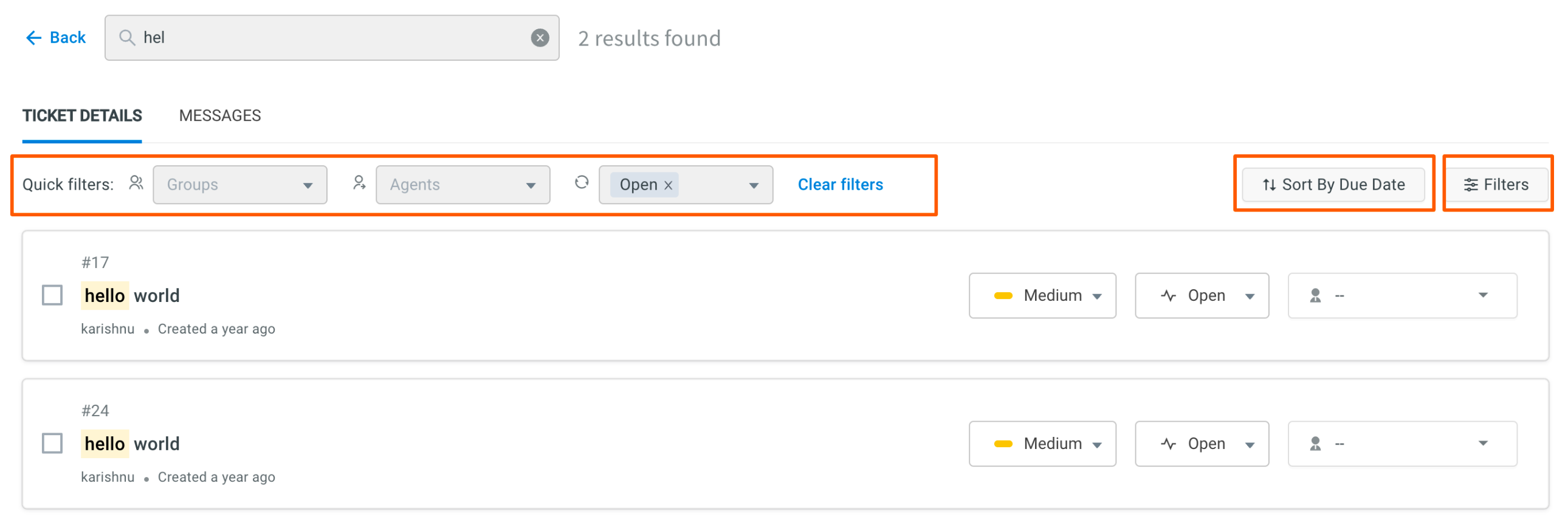
> The results can also be **sorted** based on date. By default, the results are sorted based on the last modified date in decending order to easily access the recent tickets.
--------
:::info
**Point to remember:**
* Text entered within Search should be less than **50 characters** in total.
* You can only search for keywords that are **at least 2 characters** long. For instance, typing "t" won't yield any results, while "tes" will.
* Search keywords are **not case-sensitive**, meaning that the search results will be the same regardless of whether the characters are in uppercase or lowercase.
* You can get an **exact match** by using double quotes in your search.
* Searching for *test reply* (without quotes) may return results like `test`, `reply`, `test case`, `quick reply`, `this is a test reply`, and more.
* Searching for *"test reply"* (with quotes) will return only results that contain the exact phrase `test reply`.

* The search results will also display merged tickets.
* Bulk actions cannot be performed on the searched results.
:::
 Sign in with Wallet
Connect another wallet
Sign in with Wallet
Connect another wallet