
# Basic Mac OS installations
<br />
## Introduction
This document will guide you through the process of installing all the necessary tools to be able to finish your prework successfully.
:::danger
:rotating_light: It is **absolutely essential** that your Mac user account **has Admin rights**. You won't be able to install and use everything you need without those rights. If you are using a work computer with limited privileges, contact your IT person to grant you admin access.
:::
### Important to know beforehand
- **You won't be able to see the password as you type it in the terminal.**
Sometimes you will be prompted to type a password in the terminal for security reasons. Keep in mind one thing:
:::info
:closed_lock_with_key: **In the terminal, passwords are invisible.**
:::
This means that the _password is not going to be revealed_ as you type. The main reason for this is security. Passwords won't be visually represented, not even with asterisks. If asterisks are shown, then others can see the length of the password, and that could lead to easier guessing what could be the password.
- **Don't type the dollar sign (`$`) in the terminal when adding commands.**
:grin::question: What's up with those **dollar signs `$`** you might see before lines of code? Those are to visually distinguish **terminal commands** from other kinds of code. Remember, **we don't have to type the `$`**.
:::info
So for:
```shell
$ some-command
```
you only have to write `some-command` in your terminal.
:::
If all this sounds pretty vague at this moment, do not worry. Soon you will know exactly what we are talking about.
Let's go!
## Step #1: Install [iTerm2](https://www.iterm2.com/documentation.html)
1. Go to the [downloads](https://www.iterm2.com/downloads.html) page.
2. Download the **Stable Release**.
3. Decompress the zip file.
4. In `Finder`, drag-and-drop the iTerm2 Application file into the `Applications` folder.
5. Launch iTerm2 by simply clicking on the [`Spotlight Search`](https://support.apple.com/en-us/HT204014) and type iTerm2.
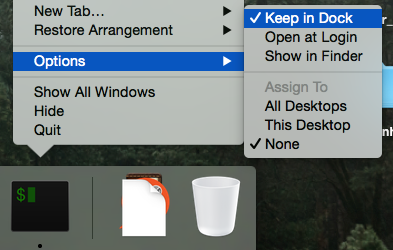
6. :bulb: Fix the launcher in the Dock navigation bar:
<br>
<details>
<summary> Check the image inside</summary>
</details>
7. To launch iTerm later, click on its icon in the App Launcher.
Now we should be able to run iTerm2!
<br>
<details>
<summary> Check the image inside</summary>

</details>
## Step #2: Install the Xcode Command Line Tools
**Xcode** is Apple's development bundle and can be installed by running the following command in terminal (don't type the `$` sign):
```shell
$ xcode-select --install
```
- Follow the installations step in the pop-up window.
- Once Xcode is installed, start it up. The tools we need will not work unless the app has run once, and you’ve accepted the license agreement. You don’t need to do anything with the app. Just start it up (it might take a while to run the first time, even on a fast machine), click agree, and then you can exit from it.
- Don't worry if you get the following message. It means it is already installed.
> xcode-select: error: command line tools are already installed, use "Software Update" to install updates
## Step #3: Install [Homebrew](https://brew.sh/)
**Homebrew** is a popular and fantastic package manager for OS X. _Package managers_ keep all the big and small tools that we need to install on our machines tidy and up-to-date.
- Run these commands one by one in your terminal:
For MacOS Catalina, MacOS Mojave, and MacOS Big Sur:
```shell
$ /bin/bash -c "$(curl -fsSL https://raw.githubusercontent.com/Homebrew/install/master/install.sh)"
```
For macOS High Sierra, Sierra, El Capitan, and earlier:
```shell
$ /usr/bin/ruby -e "$(curl -fsSL https://raw.githubusercontent.com/Homebrew/install/master/install)"
```
You might be asked to type the administrator password - remember, as you type it, you won't see what you type in the terminal. Just press enter when you are done.
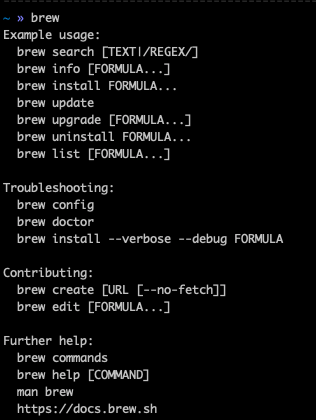
- To verify if `brew` works type in terminal:
```shell
$ brew
```
<br>
<details>
<summary> Check the image inside: The expected output</summary>
</details>
:+1: Don't worry if it takes a bit to install. Once it is done, that is it; you can proceed to the next step.
_If you’re not sure if your needed program is available through Homebrew, you can search [here](https://brewformulas.org/)_.
## Step #4: Install [ZSH](http://zsh.sourceforge.net/Doc/Release/index.html)
[Zsh](https://en.wikipedia.org/wiki/Z_shell) is an interactive login [shell](https://en.wikipedia.org/wiki/Unix_shell). As with the regular terminal, it enables the communication between the user and the computer. It provides many useful features as [bash](<https://en.wikipedia.org/wiki/Bash_(Unix_shell)>) but also adds many new ones.
Now that we have Homebrew installed, installing ZSH is as easy as:
```shell
$ brew install zsh
```
And we can verify everything is set up correctly by typing:
```shell
$ zsh --version
```
## Step #5: Install [Oh-My-ZSH](http://ohmyz.sh/)
Many developers choose to add the `Oh-My-Zsh` library on top of ZSH. [Oh-My-Zsh](http://ohmyz.sh/) is an open-source framework for managing your ZSH configuration. Once installed, we will be able to take advantage of the hundreds of [bundled plugins](https://github.com/robbyrussell/oh-my-zsh/wiki/Plugins) and [pretty themes](https://github.com/robbyrussell/oh-my-zsh/wiki/Themes) that are available on the Internet.
To install Oh-My-ZSH, just run the following command in your terminal:
```shell
$ curl -L http://install.ohmyz.sh | sh
```
You can find more information about the themes and plugins in its [documentation page](https://github.com/robbyrussell/oh-my-zsh).
## Step #6: Install [Visual Studio Code](https://code.visualstudio.com/)
**VS Code** is a source code editor, an application that facilitates writing code. It is a text editor but is specially made for editing source code of computer programs. This will be your fundamental programming tool when writing and editing code.
VSCode’s site will detect our [OS](https://en.wikipedia.org/wiki/Operating_system) automatically. Visit [https://code.visualstudio.com/](https://code.visualstudio.com/) and download it by clicking on the button to download the application.
<details>
<summary> As a Mac user, you should see the following page:</summary>

</details>
- The installation steps:
1. Download the application from [https://code.visualstudio.com/](https://code.visualstudio.com/);
2. Extract the zip file you just downloaded in your "Desktop";
3. Drag the new Visual Studio Code application into your "Applications" folder - _this step is super important since it will allow you to open your files (.html, .css, .js, etc.) directly from the terminal just by typing `code name-of-the-file`_;
4. To launch it, double click on the VS Code icon.
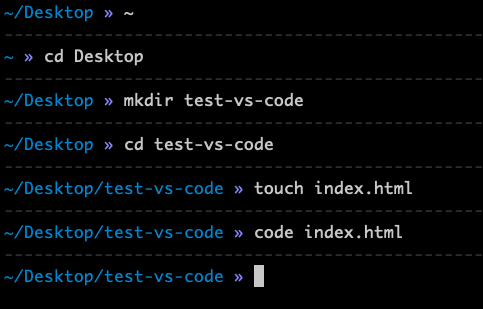
- Let's test if it works as it should: 1. In your terminal, navigate to the root (the root is represented with [`tilde`](https://en.wikipedia.org/wiki/Tilde), and it is placed in the upper left corner of your keyboard - use shift when pressing the button):
```bash
# don't type the $ sign - it is there since it represents
# that you should be typing this in your terminal
$ ~
$ cd Desktop # cd stands for change directory, and we use it to navigate
$ mkdir test-vs-code # mkdir is the terminal command to create a new folder
$ cd test-vs-code
$ touch index.html # touch is a terminal command that allows us to create files
$ code index.html # this line allows us to open index.html using VS Code
```
If this worked correctly, you are all set!
<details>
<summary> Check the image inside </summary>
<br>
</details>
:warning: _What could have gone wrong?_:
In case you got an error after `code index.html` that says **code: command not found**, that means that you didn't drag VS Code app to the Application folder. Go ahead and put it to the right place, and try to do open the file again (type again `code index.html`). If it still doesn't work, do the next:
1. Open VS Code app (double click on the icon)
2. Open the Command Palette via `Shift + Command + p` (⇧⌘p) and type shell command to find the Shell Command: **`Install 'code' command in PATH`**.
<details>
<summary> Check the image inside </summary>
<br>
 
</details>
3. Close VS Code and go to terminal and try opening _index.html_ again.
Now you are all set for sure. :wink:
## Step #7: Install [Google Chrome](https://www.google.com/chrome/)
Similar to VS Code, just by visiting [https://www.google.com/chrome/](https://www.google.com/chrome/), it will automatically detect your OS and provide a proper edition for your system.
- Steps to follow:
1. Visit [https://www.google.com/chrome/](https://www.google.com/chrome/) and click on _Download Chrome_
2. In the dialogue box, click on accept and install. A compressed file will then be downloaded from the site.
3. Click on it and follow the installation instructions.
## Step #8: Install [Git](https://git-scm.com/)
**Git** is a system for keeping track of changes you make to files and folders in your projects. Don't get confused; later we will talk about GitHub - Git lives on your computer, GitHub is the online "storage" where you will keep your work and be able to share it with your collaborators.
Git is part of the [Xcode](https://developer.apple.com/xcode/) Command Line Tools, so if you have already installed them, you already have git.
Just type `git` into the terminal. If you don’t have the Xcode Command Line Tools already installed, you will be prompted to do so.
Otherwise, you can download this [Git installer](http://git-scm.com/download/mac), which will guide you through the process.
To check if it is working, open up a terminal and type:
```bash
$ git --version
# the result: git version 2.19.0
```
If you can see that, you have git installed!
If you’re still having problems, or if you prefer to install Git from source, here’s more information: [Getting Started Installing Git](http://git-scm.com/book/en/v2/Getting-Started-Installing-Git).
### Basic configuration
The first thing you should do is to set your **username** and **email address**. This is important because every git commit uses this information to identify the user who made changes in the document. _This all will make much more sense when you get familiarized with git and start using it daily._
In your terminal enter the following two lines, one after another:
```bash
$ git config --global user.name "John Doe"
$ git config --global user.email "johndoe@example.com"
```
**:warning: Replace "John Doe" and the johndoe@example.com with your own info.**
You are good to go! :heart:
## Extra resources
- [Terminal on Mac OS](https://www.macworld.co.uk/how-to/mac-software/how-use-terminal-on-mac-3608274/)
- [iTerm2 - official docs](https://www.iterm2.com/documentation.html)
- [oh-my-zsh - official docs](https://github.com/robbyrussell/oh-my-zsh)
- [“code .” Not working in Command Line for VSCode on OSX/Mac - StackOverflow](https://stackoverflow.com/questions/29955500/code-not-working-in-command-line-for-visual-studio-code-on-osx-mac)
- [How to Install Command Line Tools in Mac OS X ](https://osxdaily.com/2014/02/12/install-command-line-tools-mac-os-x/)
 Sign in with Wallet
Connect another wallet
Sign in with Wallet
Connect another wallet