Creating [animations](https://www.w3schools.com/css/css3_animation) and [transitions](https://www.w3schools.com/css/css3_transitions.asp) in [Vanilla CSS](https://www.w3schools.com/css/) has always been fun, but what’s even more fun is creating animations and transitions in [Tailwind CSS](https://tailwindcss.com/). Developers have reacted positively to the creation of Tailwind CSS as a Front end tool which makes it a very sought-after tool in modern web development. Similarly, you would agree there’s very little chance of avoiding the use of animations in your project, especially with the trend of complex visual designs by UI/UX designers, this makes it important for Front End developers to get acquainted with these tools and use them with the best practices. The major catch of Tailwind CSS is that you can make animations right from your inline styling without creating a separate file as you would in Vanilla CSS. Isn’t that amazing?
In this article, you will learn how to create animations and transitions in Tailwind CSS while using the best practices and also aiming for optimization. I will be making it very easy to follow through but you should have a basic knowledge of [HTML](https://www.w3schools.com/html/) and [CSS](https://www.w3schools.com/css/).
## Adding Tailwind CSS to Your Project
[Tailwind CSS](https://tailwindcss.com/) supports a very wide range of Front End frameworks and build tools like [React](https://react.dev/), [Next.js](https://nextjs.org/), [Vue](https://vuejs.org/), [GatsbyJS](https://www.gatsbyjs.com/), [Nuxt.js](https://nuxt.com/), [Remix](https://remix.run/), and many others. Let's see how we would add Tailwind CSS using the popular frameworks.
In the course of this tutorial, we would not be using any framework, so provided you have [Node js](https://nodejs.org/en/download) installed in your computer, you add it following these steps :
1. Open your terminal and run the install command
```
npm install -D tailwindcss postcss autoprefixer
npx tailwindcss init
```
2. Open your `tailwind.config.js` file and configure your template paths, this is to show what files we want our Tailwind CSS plugin to have an effect on. In this, we are including `html` and `js`, if we you are using a framework like React JS, you would include the `jsx` path or `vue` path for a framework like Vue.js
```
module.exports = {
content: ["./src/**/*.{html,js}"],
theme: {
extend: {},
},
plugins: [],
}
```
3. Next, add the Tailwind directives to your CSS file
```
@tailwind base;
@tailwind components;
@tailwind utilities;
```
4. Finally, run the build command for Tailwind CSS
```
npx tailwindcss -i ./src/input.css -o ./dist/output.css --watch
```
And we're all set! We can now proceed to include the link in the `<head> `tag in our `index.html` file and start using it.
If you're using [React](https://tailwindcss.com/docs/guides/create-react-app) or [Next.js](https://tailwindcss.com/docs/guides/nextjs) as a framework, the major difference in the setup is configuring our template paths. For React, we configure our template path like this :
```
module.exports = {
content: [
"./app/**/*.{js,ts,jsx,tsx,mdx}",
"./pages/**/*.{js,ts,jsx,tsx,mdx}",
"./components/**/*.{js,ts,jsx,tsx,mdx}",
// Or if using `src` directory:
"./src/**/*.{js,ts,jsx,tsx,mdx}",
],
theme: {
extend: {},
},
plugins: [],
}
```
For Vue.js and [Nuxt.js](https://tailwindcss.com/docs/guides/nuxtjs), we configure our template path like this :
```
module.exports = {
content: [
"./components/**/*.{js,vue,ts}",
"./layouts/**/*.vue",
"./pages/**/*.vue",
"./plugins/**/*.{js,ts}",
"./nuxt.config.{js,ts}",
],
theme: {
extend: {},
},
plugins: []
```
**NB**: I recommend you use build tools like [Vite](https://vitejs.dev/guide/), [Parcel](https://parceljs.org/recipes/react/),[ Next](https://nextjs.org/docs/getting-started/installation) or [Remix](https://remix.run/docs/en/1.18.1/tutorials/blog) in scaffolding a React Application because the [Create React App](https://create-react-app.dev/docs/getting-started/) build directive does not support [PostCSS](https://postcss.org/) configuration and other PostCSS commands.
In the [Tailwind CSS documentation](https://tailwindcss.com/docs/installation), you can check out how to install Tailwind CSS in other frameworks not mentioned here.
## Overview of Animation and Transition in CSS
In creating a basic animation sequence in CSS, we go to our CSS file and put in all the properties we want to apply while using the `@keyframes` rule For example, if we want to animate a colour change, we do this:
```css
div {
width: 75px;
height: 75px;
background-color: red;
animation-name: colorChange;
animation-duration: 4s;
}
@keyframes example {
from {
background-color: blue;
}
to {
background-color: green;
}
}
```
Here, we specify the name of our animation using the `animation-name` property, and the duration using the `animation-duration` property and we specify the sequence using the `@keyframes` rule. The above code snippet changes the background colour of our `div` from blue to green and the process takes 4 seconds.
Likewise, for transitions, suppose we want to create a basic transition of a div element to expand by 200px on hover, we do this:
```css
div {
width: 200px;
height: 200px;
background: green;
transition:
width 3s,
height 5s;
}
div:hover {
width: 400px;
height: 400px;
}
```
In this code snippet, our `div` increases in width and height from 200px to 400px when it is hovered upon.
Now that we have had a brief overview of how we would add animations and transitions to our CSS file, let's get started using Tailwind CSS!
## Animations in Tailwind CSS
Unlike CSS, Tailwind CSS has some built-in [animation classes](https://tailwindcss.com/docs/animation) that would save you the stress of explicitly defining the values of a particular animation property. It follows the syntax of `animate-{property}` where the property specifies how want our element to be animated. Compared to Vanilla CSS, that's quite straightforward, isn't it?
The logic behind Tailwind CSS utility classes is that all that lengthy CSS code has been written for you. For example, suppose we add a property like `animate-spin` to our element, this is what we would have written if was Vanilla CSS.
```css
animation: spin 1s linear infinite;
@keyframes spin {
from {
transform: rotate(0deg);
}
to {
transform: rotate(360deg);
}
}
```
These lines of code being implemented with a single line of code is the major benefit of using Tailwind CSS.
## The `animate` utility class
All built-in animation classes in Tailwind CSS are done using the `animate` class. Tailwind provides a bulk of animation sequences to choose from, some of which we will discuss in this section.
### The `animate-none` property
The `animate-none` property adds no animation to an element. You might ask "Isn't this the default state?", that's a valid question. This property becomes useful when we do not want the animation from a parent element to apply to the child element. Consider the block of code below:
```htmlmixed
<div class="animate-bounce">
<div>
<h3>Animation here</h3>
</div>
<div class="animation-none">
<h3>No Animation here</h3>
</div>
</div>
```
In this code snippet, the `animation-spin` property applies to the first `div`, but not the second `div` with the `animation-none` property.
Here's how the output looks:
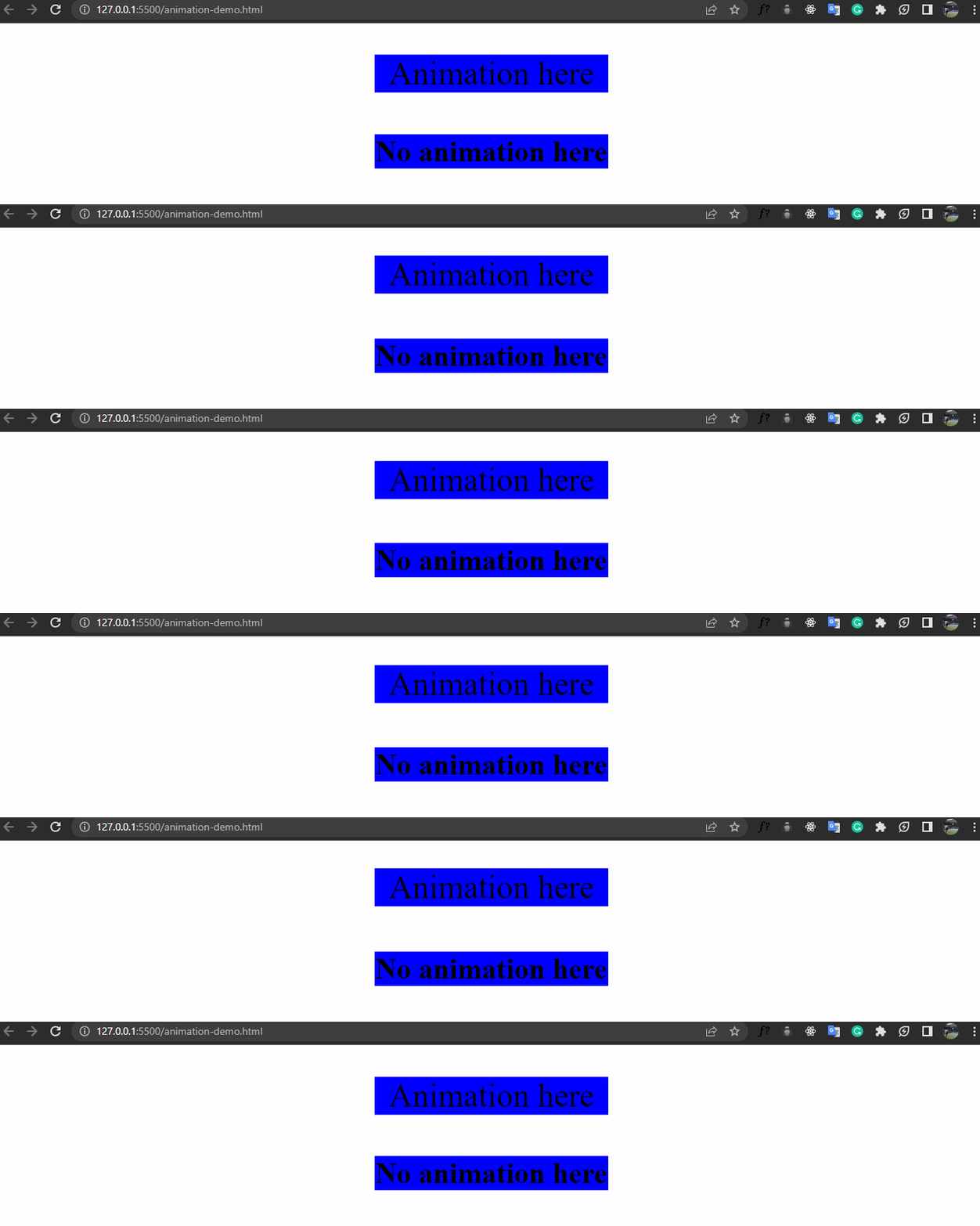
We see that the top `div` named "Animation here" title has a soft bounce effect to it, while the bottom `div` named "No Animation here" does not move, even though they belong to the same parent. We do this using the `animate-none` property.
### The `animate-spin` property
The `animate-spin` provides a spin effect on an element. It can be used in place of or alongside the "loading..." text which indicates a particular action on the web is still loading. The code snippet is shown below:
```htmlmixed
<div class="bg-blue">
<svg class="animate-spin h-10 h-10 m-auto" viewBox="0 0 24 24">
<!-- ... -->
</svg>
</div>
```
Here's the output of the above code snippet:
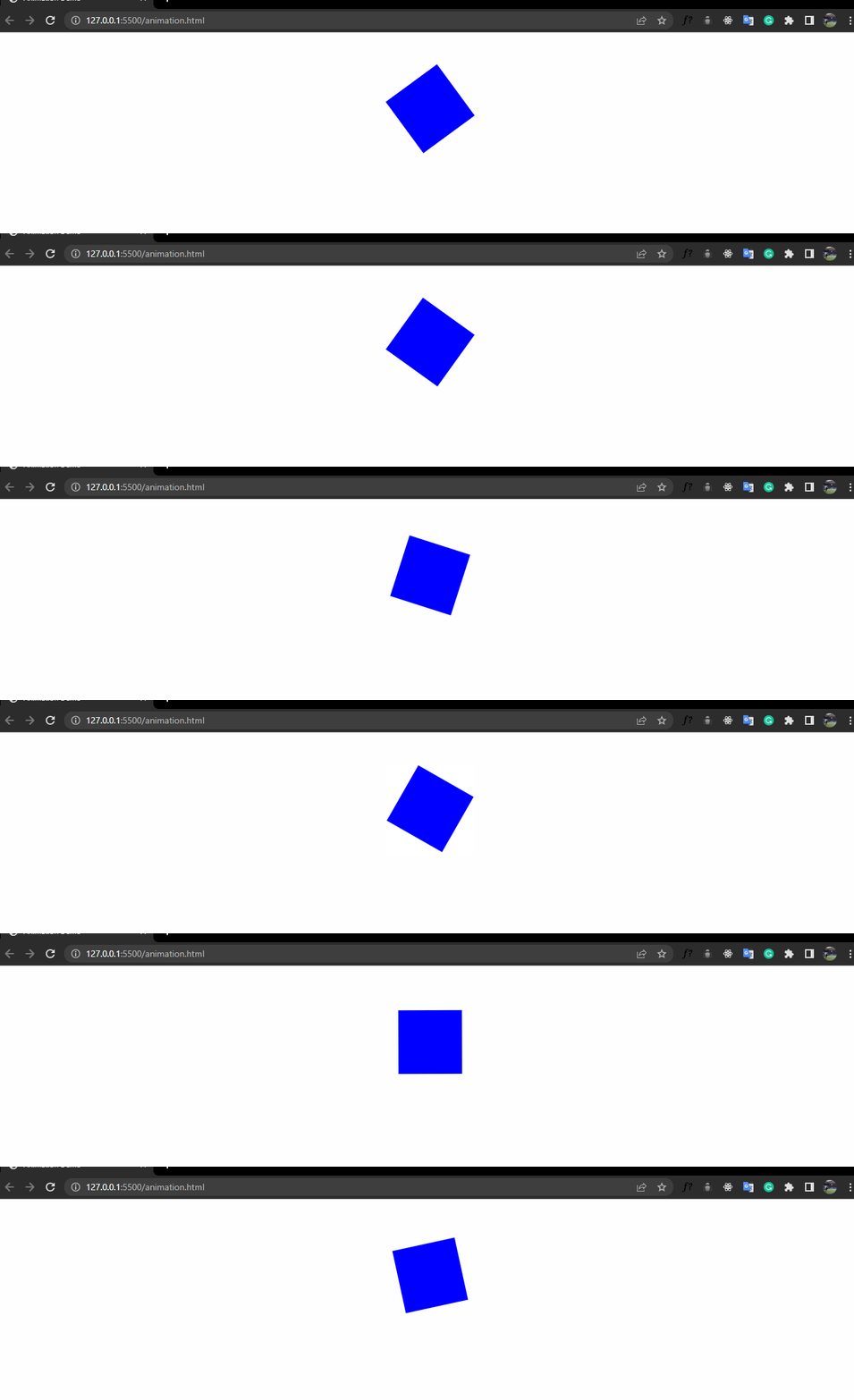
Just to show how much time we're saving by using Tailwind CSS, this would be the output if it is written with Vanilla CSS :
```css
svg {
display: block;
background-color: blue;
animation: spin 1s linear infinite;
margin: 70px auto;
width: 40px;
height: 40px;
}
@keyframes spin {
from {
transform: rotate(0deg);
}
to {
transform: rotate(360deg);
}
}
```
Quite lengthy, isn't it? Creating animations with Tailwind CSS is relatively faster and more efficient than using Vanilla CSS. Let's see the other animation properties.
### The `animate-ping` property
The `animate-ping` property creates a blinking effect element, which is often used as a notification badge. It gives a "ping" effect as if to say you have a new message notification. Here's how it's used :
```htmlmixed
<h3 class="animate-ping m-auto bg-blue text-center">
New Article From OpenReplay
</h3>
```
The output looks like this :
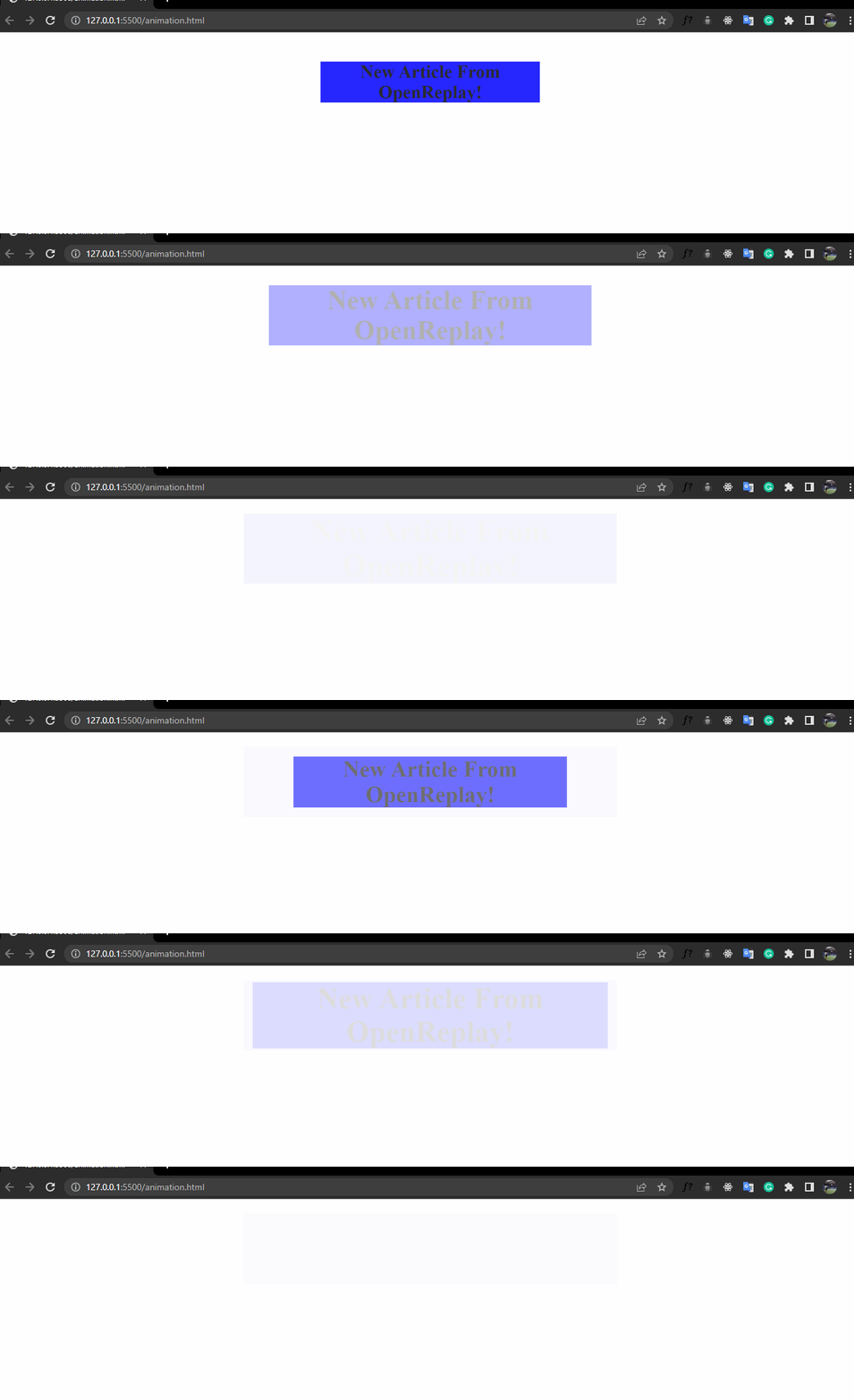
Here's the CSS equivalent :
```css
.ping {
margin: 50px auto;
background-color: blue;
width: 300px;
font-size: 25px;
animation: ping 2s cubic-bezier(0, 0, 0.2, 1) infinite;
text-align: center;
}
@keyframes ping {
90%,
100% {
transform: scale(2);
opacity: 0;
}
}
```
### The `animate-pulse` property
The `animate-pulse` property is used in creating a fade-in fade-out effect. Let's see how this is used. In comparison to the `animate-ping` property, this gives a more gentle effect.
```htmlmixed
<h3 class="animate-pulse m-auto bg-blue text-center">
New Article From OpenReplay
</h3>
```
Here's how the output looks :
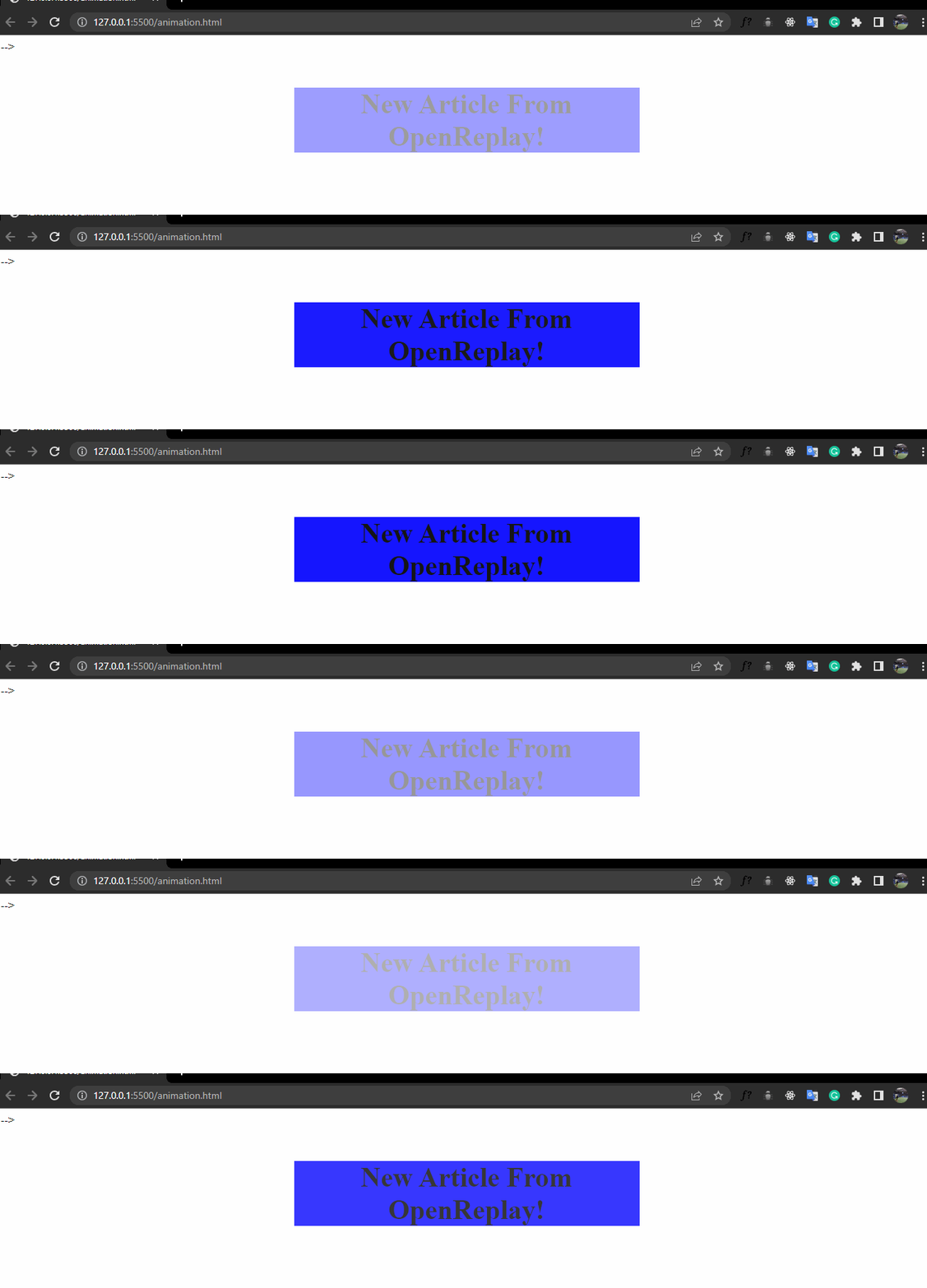
The CSS equivalent is shown below:
```css
.pulse {
margin: 50px auto;
background-color: blue;
width: 300px;
font-size: 25px;
animation: pulse 2s cubic-bezier(0.4, 0, 0.6, 1) infinite;
text-align: center;
}
@keyframes pulse {
0%,
100% {
opacity: 1;
}
50% {
opacity: 0.5;
}
}
```
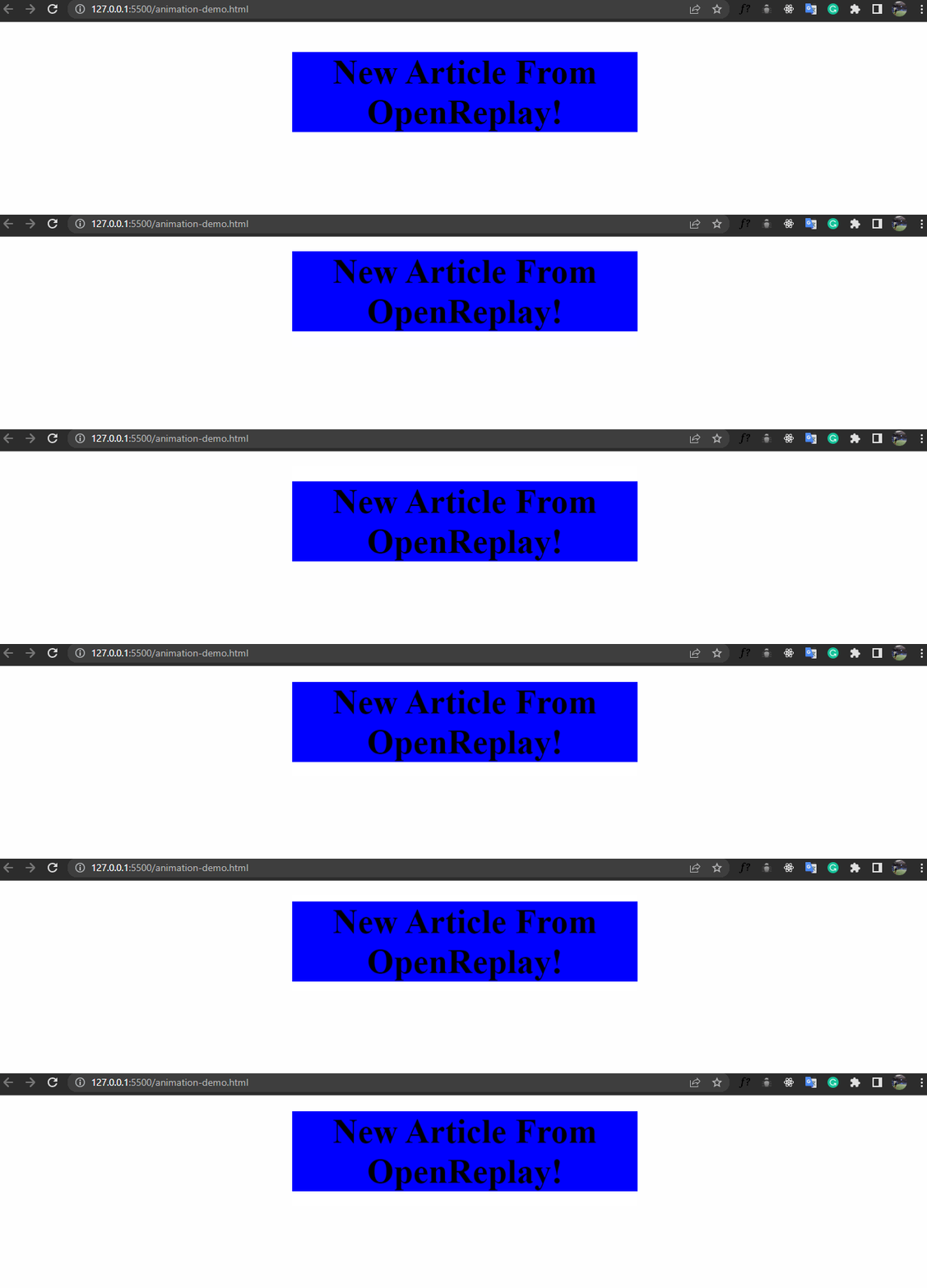
### The `animate-bounce` property
The animate-bounce property gives an up-and-down movement. It is often used in calling the user's attention to a particular part of the webpage or in giving directions.
```htmlmixed
<h3 class="animate-bounce m-auto bg-blue text-center">
New Article From OpenReplay
</h3>
```
The output looks like this:
The CSS equivalent is shown below :
```css
.bounce {
margin: 50px auto;
background-color: blue;
width: 300px;
font-size: 50px;
animation: bounce 1s infinite;
text-align: center;
}
@keyframes bounce {
0%,
100% {
transform: translateY(-25%);
animation-timing-function: cubic-bezier(0.8, 0, 1, 1);
}
50% {
transform: translateY(0);
animation-timing-function: cubic-bezier(0, 0, 0.2, 1);
}
}
```
We have discussed how we would create animations in Tailwind CSS using the `animate-spin`, `animate-ping`, `animate-pulse` and `animate-bounce` utility classes. In a bit, we would discuss how to create our custom classes but before then, let's see how we would create transitions in Tailwind CSS.
## Transitions in Tailwind CSS
Like animation, [transitions](https://tailwindcss.com/docs/transition-property) follow the `transition-{property}` syntax for implementation in Tailwind CSS, where the property represents the transition sequence we want the element to follow. The logic behind this is also similar to the animation property, Tailwind CSS gives us the flexibility of converting lines of CSS code into a single line of code.
### The `transition` property
All built-in transitions are done using the `transition` property, and all the transition values that might be explicitly defined in Vanilla CSS are written using the `transition` property. It is often used with the `:hover` pseudo-class.
To efficiently make use of transitions in Tailwind CSS, three properties must be well understood; the **transition duration**, the **transition timing function** and the **transition delay**. Let's see what this is all about:
* The **Transition Duration** specifies the total amount of time we want a particular transition class to use. Tailwind CSS uses the `duration-{value}` syntax where value represents the amount of time in milliseconds. Suppose a transition class has a value of `duration-100`, it means that a particular transition class will run for 100 milliseconds.
* The **Transition Timing Function** specifies how our elements undergo their transition. Does our transition move at the same pace all through the duration? Does it start slow and then finish in a fast manner? Or does it start fast and finishes slowly? All these are determined using the transition timing function. Suppose an element has a timing function of `ease-in`, it means it starts slow and finishes fast. Similarly, `ease-out` means it starts fast but finishes slowly.
* The **Transition Delay** specifies the start time of our transitions. We can decide not to start our transition sequence immediately, or we can choose to wait a while before the effect kicks in, and this is done using the transition delay. It follows the `delay-{value}` syntax where the value specifies the time of delay in milliseconds. Suppose a transition class has a value of `delay-100`, it means the transition effect is delayed for 100 milliseconds.
### Utilizing Pseudo-classes Variants for Transitions
The use of pseudo-classes is an integral part of implementing transitions. For instance, we might want our transition to take effect when we hover on an element, or when we focus on an input bar. We use the `pseudo-class:{value}` syntax in Tailwind CSS. For example, to show a background colour of red when an element is hovered on, we use the `hover:bg-red` line of code.
Enough talking! Let's see a practical example showing all the transition properties and the use of pseudo-classes as discussed.
```htmlmixed
<h3
class="transition ease-in delay-1000 duration-1000 bg-blue w-[300px] hover:bg-green hover:text-white hover:w-[500px] "
>
Hover on me!
</h3>
```
In this code snippet, we have a transition timing function of `ease-in`, a duration of 1s, a delay of 1s. When it is hovered upon, we have our width set to 500px, our text to white, and our background color to green.
The output gives this:

We see that when we hover on it, the transition delays by 1s before it begins and also delays by 1s before returning to its normal state, we notice the transition process is a bit slower, this is because we set the duration to 1s(the default transition duration value is 0s). Also, our element increases from 200px to 500px, the background color changes from blue to green, and the text color changes from black to white in the transition process.
## Creating Custom Animations and Transitions
There's always a chance you may not want to make use of Tailwind CSS [utility classes](https://tailwindcss.com/docs/utility-first), well that's no problem because you can create your custom class using your defined values! How do we do this? Before we get into that, let's define two key components :
* **The `@keyframes` directive** : This is used to specify the animation code. We use it to explicitly define how we want our element to behave. It is often measured in percent where 0% represents the start of the animation and 100% represents the end of the animation. At 0%, we specify the events we want to happen on our element, at 100%, we also specify the events we want. A basic understanding of the `@keyframes` directive is important in making custom animations in Tailwind CSS. We'll see how that works in a bit!
* **The `@apply` directive** : The `@apply` directive is used to write custom CSS code in our Tailwind CSS. It is also useful to avoid inline repetition in our code. So, in instances where you want to use your own CSS values in making adding events to your animation, the `@apply` directive comes in handy. Let's see how this works.
### Creating Custom Animations
To make custom animations,
1. Head to your `tailwind.config.js` file and add your custom animation. Suppose we want to add a utility class that moves sideways, we proceed like this:
```
module.exports = {
theme: {
extend: {
animation: {
sideways: "sideways 3s linear infinite",
},
},
},
};
```
2. Configure your `@keyframes` value.
```
module.exports = {
theme: {
extend: {
keyframes: {
sideways: {
"0%, 100%": { left: "0", top: "0" },
"50%": { left: "100px", top: "0" },
},
},
},
},
};
```
3. Finally, reference the custom `@keyframes` value you have created.
```
module.exports = {
theme: {
extend: {
animation: {
sideways: "sideways 1s linear infinite",
},
},
},
};
```
And that's set! In any instance in your code where you use the `animate-sideways` property in your code, the element moves sideways.
### Creating Custom Transitions
Tailwind CSS only provides a few [transition utility classes](https://tailwindcss.com/docs/transition-property) for adding transitions. However, it gives the flexibility of adding your properties. Suppose we want to add height and spacing, we can do this by extending the values of the `transitionProperty` in our `tailwind.config.file` as shown below.
```
module.exports = {
theme: {
extend: {
animation: {
sideways: "sideways 1s linear infinite",
},
},
},
}
```
And we're set. We can now proceed to use `transition-height` and `transition-spacing` property that isn't among the Tailwind CSS utility classes.
## Aiming for Performance and Optimization
As much fun using animations can be, it is important to use them in a very moderate manner to get the best out of them. Here are some tips to help you create high performant animations and transitions:
* Ensure cross-browser compatibility of the properties you are using.
* One animation per element is enough, too many animation classes slow down the browser.
* In instances where you want to make use of more than one animation, create a custom animation.
* Ensure every instance of animations is necessary, this helps in the satisfaction of users of your site.
## Best Practices
To have the best experience in using animation and transitions in Tailwind CSS, consider these practices:
* Arrange your classes according to their functions, for example, `width` and `height` should come after each other. This practice helps in debugging.
* Make use of the `@apply` directive when you notice a repetition of utility classes across many elements.
* Remove unused utility classes, this contributes to the build size of the file.
## Conclusion
In this article, you have learnt how to create basic animations and transitions in [Tailwind CSS](https://tailwindcss.com/), how to create custom animations and transitions, utilizing pseudo-classes in transitions and the use of` @keyframes` and `@apply` directives, but it doesn't end here. There are still loads of fun things to do. You can check out Tailwind's documentation [here](https://tailwindcss.com/docs) for more cool stuff! Thanks for reading.
 Sign in with Wallet
Connect another wallet
Sign in with Wallet
Connect another wallet