# Custom Spine Loader

This is a guide on how to use custom spine loader.
You can get the mod via [NexusMods](https://www.nexusmods.com/cultofthelamb/mods/49).
Custom Spine Loader is a mod that helps with spine related features in COTL, and it some has other extra features too.
The current features available for this mod are:
- Custom Player Spines with multi skin select
- Override Existing Structure's designs
- Full Follower Color Control (RGBA)
# Features
## Custom Player Spine

This allows you to import your own spine skeletons into game and apply it to the player. You can customize everything from the sprites used to the animations that plays during actions performed by the player.
## Override Existing Structure
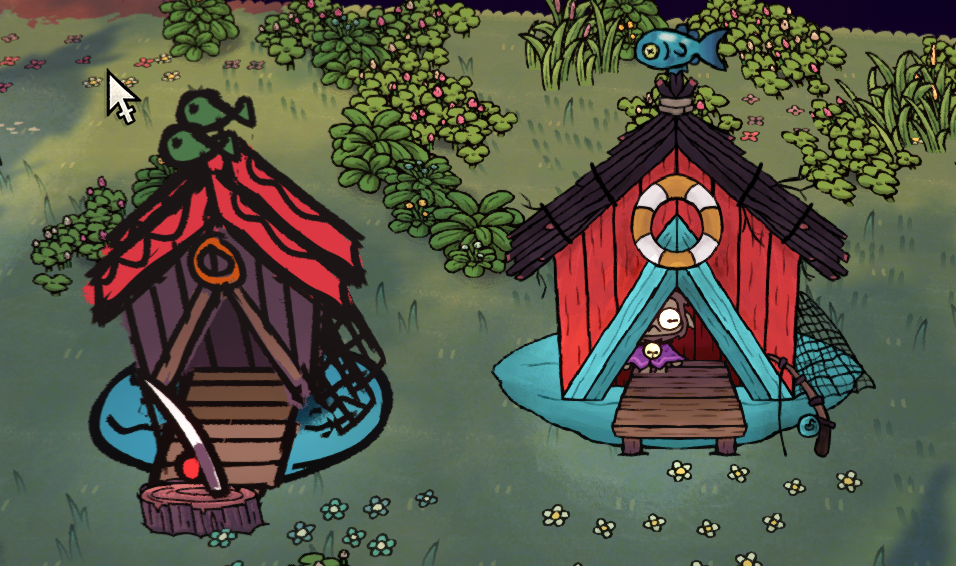
This allows you to modify the looks of any structures, and build 3d designs for the buildings that you want to override.
## Full Follower Color Control (RGBA)

This allows you to fully control the color value of each individual follower, including transparency.
# Guide
## Building a Custom Player Spine Skin
To build a custom player spine skin, there are two methods. The first method uses spine, which allows for full control over the skeleton and its animations. The second method uses spritesheet replacement, which limits you to only modifying the design of the player.
> [!Tip]Base Skin Template
> You can get the "Base Skin Template" from [NexusMods](https://www.nexusmods.com/cultofthelamb/mods/49?tab=files) to get started
If you have downloaded the Base Skin Template, you will get a folder that looks like this

- `player-main.atlas` file: this is the file that spine uses to know which part of the spritesheet to apply to the skeleton.
- `player-main.json` file: this is the file with the skeleton data, animations and all other details of the spine skeleton.
- png files: these are the spritesheets that are packaged by spine to be used for the skeleton
### Building a skin with Spine
Cult of the Lamb's Spine version is 3.8.99, you will need to run that version so that you can import it into game later on.
After downloading the Base Skin Template, you can now open it in Spine.
#### Loading the skeleton into spine
- Open Spine and select version 3.8.99

- Select new Project

- Select Import Data

- Select the `player-main.json` file and press Import

If the new project asks you to save after importing, you can just discard changes. Give it a moment to load as it is a big file. Once it is loaded, you should see an empty preview area, as we have not loaded the images and set a skin to preview yet.
#### Loading the atlas into Spine
Once you are done loading the skeleton into spine, you can now also import the textures.
- Select Texture Unpacker

- Select the `player-main.atlas` file, and set the output folder to the same folder, then press Unpack.

Once you have unpacked the atlas, your folder should now have a few more subfolders in it, each holding multiple images related to things such as the weapon, curses, etc.

In the Preview scene, open the Skins section with Alt+S or via the Views tab on the top right. Select any skin to check if the sprites has loaded correctly. If it did, it should show a proper preview.

> [!Tip] Missing Texture?
> If the preview still shows missing textures even after doing the above steps correctly, try saving the project, or reopening the project.
You can now edit the spine skeleton in any way you like, using the tools provided by Spine. If you have created new named skins, then you will have to do some additional steps for it to show in game, which we will be going through later.
> [!Important] Making Animations?
> If you make new animations or overwrite existing ones, make sure that the foley data still exists, if not, certain actions in the game may not work as intended, e.g. hitboxes
#### Packing the Spine skin for use in game
> [!Note] Packaged Skin Organization
> You may want to output the packaged skin in a different folder, for organization purposes.
To Package a skin correctly for Cult of the Lamb, follow these steps:
- Select Export

- Select an output folder, set `Nonessential data: TRUE`, `Animation clean up: TRUE`, `Warnings: TRUE` and Texture atlas `Pack: TRUE` with default Pack Settings and press Export

> [!Warning] Check for Warnings
> If any warnings occur after export, it may be best to fix them, or the skin may not load into game.
Give the exporter some time as the files are big. If it appears to be stuck for a very long time (more than 5 minutes), you might need to check if you have broken something during your edits.
Once the export is done, you should find that the output folder has similar contents to the "Base Skin Template" folder.
### Building a skin without Spine
After downloading the Base Skin Template, you should find some png files. Those are spritesheets that you can edit to customize your skin.
Open the spritesheets in your preferred photo editing tool, and make changes to the sprites that you want to modify.
Modifying the default lamb skin sprites would be the easiest method to create your custom skin. Save your edits and load the skin into game.
### Loading the Skin into Game
Navigate to your skin folder, and add a file called `config.json`. The contents should be the following:
```json
{
"defaultSkin": "CustomSkinName",
"skins": [
"CustomSkinName",
"CustomSkinName2"
]
}
```
the defaultSkin will be the initial skin name to load when you enter the game. This should be whatever you named your skin in the Spine software. If you modified the Lamb skin, either via Spine or photo editing, then set the defaultSkin to "Lamb".
the string array of "skins" should have all the names of the skins that you want to load into game, so that you can pick them in the settings menu.
Place the skin folder inside `CotLSpineLoader/PlayerSkins`, such that it looks like `CotLSpineLoader/PlayerSkins/tutorialSkin` for a skin folder that is named "tutorialSkin".
### Known Issues
- The Custom Player Spines may not have the correct color when attacking with certain weapons.
- The custom player spine may break in the resurrection zone
- The Custom Player Spine may have red marks around the skin
### Like the Mod?
If you liked the mod, consider [donating](https://ko-fi.com/infernodragon0)! It will be greatly appreciated :)
 Sign in via Facebook
 Sign in via X(Twitter)
 Sign in via GitHub
 Sign in via Dropbox
 Sign in with Wallet
Connect another wallet
Sign in with Wallet
Connect another wallet