# Git
<!-- .slide: data-background="https://git-scm.com/images/logo@2x.png" data-background-size="50vw" data-background-position="bottom right" -->
---
# Agenda
- About Version Control System(VCS)
- Distributed VCS: Git
- Git Branch
- Git Routine
- *How Git Works*
---
# About Version Control System(VCS)
----
- Version control is a system that <span><!-- .element: class="fragment highlight-red" -->records changes</span> to a file or set of files over time so that you can <span><!-- .element: class="fragment highlight-red" -->recall specific versions</span> later.
- It allows you to
- <span><!-- .element: class="fragment highlight-red" -->revert back</span> to a previous state
- <span><!-- .element: class="fragment highlight-red" -->compare changes</span> over time
- see who <span><!-- .element: class="fragment highlight-red" -->last modified</span> something that might be causing a problem.
- Using a VCS also generally means that if you <span><!-- .element: class="fragment highlight-red" -->screw things up</span> or lose files, you can easily <span><!-- .element: class="fragment highlight-red" -->recover</span>.
----
# VCS Evolution
<small>*think about the world without VCS...*</small>
----
```flow
st=>start: copy files into another directory ↓
e=>end: ???
op1=>operation: 1. Local VCS ←
op2=>operation: 2. Centralized VCS
op3=>operation: 3. Distributed VCS
st->op1->op2->op3->e
```
<small>use VCS for yourself</small>
----
# **Local** VCS
----

- It has a simple database that kept all the changes to files.
----
```flow
st=>start: copy files into another directory
e=>end: ???
op1=>operation: 1. Local VCS ↓
op2=>operation: 2. Centralized VCS ←
op3=>operation: 3. Distributed VCS
st->op1->op2->op3->e
```
<small>collaborate with people</small>
----
# **Centralized** VCS
----

- Is has a single server that contains all the versioned files, and a number of clients that **check out** files from that central place.
----
```flow
st=>start: copy files into another directory
e=>end: ???
op1=>operation: 1. Local VCS
op2=>operation: 2. Centralized VCS ↓
op3=>operation: 3. Distributed VCS ←
st->op1->op2->op3->e
```
<small>Server died, we died, or disk died, the full history is gone</small>
----
# **Distributed** VCS
----
- If that <span><!-- .element: class="fragment highlight-red" -->server goes down</span> for an hour, then during that hour nobody can collaborate at all or <span><!-- .element: class="fragment highlight-red" -->save versioned changes</span> to anything they’re working on.
- If <span><!-- .element: class="fragment highlight-red" -->the hard disk becomes corrupted</span>, and proper backups haven’t been kept, you lose absolutely everything -- <span><!-- .element: class="fragment highlight-red" -->the entire history of the project</span> except whatever single snapshots people happen to have on their local machines.
----

----
- Clients don’t just check out the latest snapshot of the files; rather, they <span><!-- .element: class="fragment highlight-red" -->fully mirror the repository, including its full history</span>.
- If any server dies, and these systems were collaborating via that server, <span><!-- .element: class="fragment highlight-red" -->any of the client repositories can be copied back up</span> to the server to restore it.
---
<!-- .slide: data-background="https://git-scm.com/images/logo@2x.png" data-background-size="50vw" data-background-position="bottom right" -->
# Distributed VCS: Git
----
<!-- .slide: data-background="https://git-scm.com/images/branching-illustration@2x.png" data-background-size="25vw" data-background-position="bottom left" -->
- Git is a free and open source <span><!-- .element: class="fragment highlight-red" -->distributed version control system </span>designed to handle everything from small to very large projects with speed and efficiency.
- Git is <span><!-- .element: class="fragment highlight-red" -->easy to learn</span> and has a tiny footprint with lightning <span><!-- .element: class="fragment highlight-red" -->fast performance</span>.
- <span><!-- .element: class="fragment highlight-red" -->It outclasses SCM tools</span> like Subversion, CVS, Perforce, and ClearCasewith features like cheap local branching, convenient staging areas, and multiple workflows.
----
# Git Basics
- **Snapshots, Not Differences**
- Nearly Every Operation Is Local
- Git Has Integrity
- Git Generally Only Adds Data
- The Three States
----
<small>**CVS** stores data **as a list of file-based changes** to a base version of each file.<br>(delta-based) </small>

<small>**Git** stores data **as snapshots** of the project over time.</small>

----
# Git Basics
- Snapshots, Not Differences
- **Nearly Every Operation Is Local**
- Git Has Integrity
- Git Generally Only Adds Data
- The Three States
----
- Most operations in Git need <span><!-- .element: class="fragment highlight-red" -->only local files and resources to operate</span> — generally no information is needed from another computer on your network.
- If you’re used to <span><!-- .element: class="fragment highlight-red" -->a CVCS</span> where most operations have that network latency overhead, this aspect of Git will make you think that the gods of speed have blessed Git with unworldly powers.
- Because you have <span><!-- .element: class="fragment highlight-red" -->the entire history of the project</span> right there on your local disk, most operations seem almost instantaneous.
----
- Browse the history of the project, Git doesn’t need to go out to the server to get the history and display it for you— it simply reads it directly from your local database. This means you <span><!-- .element: class="fragment highlight-red" -->see the project history almost instantly</span>.
- If you want to see the changes introduced between the current version of a file and the file a month ago, Git can <span><!-- .element: class="fragment highlight-red" -->look up the file a month ago and do a local difference calculation</span>, instead of having to either <span><!-- .element: class="fragment highlight-red" -->ask a remote server to do it</span> or <span><!-- .element: class="fragment highlight-red" -->pull an older version of the file</span> from the remote server to do it locally.
----
# Git Basics
- Snapshots, Not Differences
- Nearly Every Operation Is Local
- **Git Has Integrity**
- Git Generally Only Adds Data
- The Three States
----
- Everything in Git is <span><!-- .element: class="fragment highlight-red" -->check-summed</span> before it is stored and is then referred to by that checksum.
- This means <span><!-- .element: class="fragment highlight-red" -->it’s impossible to change the contents of any file or directory</span> without Git knowing about it.
- This functionality is built into Git at the lowest levels and is integral to its philosophy. You can’t <span><!-- .element: class="fragment highlight-red" -->lose information in transit or get file corruption without Git being able to detect it</span>.
----
- The mechanism that Git uses for this checksumming is called <span><!-- .element: class="fragment highlight-red" -->a SHA-1 hash</span>.
- This is <span><!-- .element: class="fragment highlight-red" -->a 40-character string composed of hexadecimal characters (0–9 and a–f)</span> and calculated based on the contents of a file or directory structure in Git.
- A SHA-1 hash looks something like this:
```
24b9da6552252987aa493b52f8696cd6d3b00373
```
----
# Git Basics
- Snapshots, Not Differences
- Nearly Every Operation Is Local
- Git Has Integrity
- **Git Generally Only Adds Data**
- The Three States
----
- When you do actions in Git, nearly all of them <span><!-- .element: class="fragment highlight-red" -->only add data</span> to the Git database.
- It is hard to get the system to do anything that is not undoable or to make it erase data in any way.
- As with any VCS, you can lose or mess up changes you haven’t committed yet, but after you commit a snapshot into Git, it is very difficult to lose, especially if you regularly push your database to another repository.
----
# Git Basics
- Snapshots, Not Differences
- Nearly Every Operation Is Local
- Git Has Integrity
- Git Generally Only Adds Data
- **The Three States**
----
- Git has three main states that your files can reside in:
- **Modified** means that you have changed the file but have not committed it to your database yet.
- **Staged** means that you have marked a modified file in its current version to go into your next commit snapshot.
- **Committed** means that the data is safely stored in your local database.
----
<small>Working tree, staging area, and Git directory.</small>

----
- **The working tree** is <span><!-- .element: class="fragment highlight-red" -->a single checkout of one version of the project</span>. These files are pulled out of the compressed database in the Git directory and placed on disk for you to use or modify.
- **The staging area** is a file, generally contained in your Git directory, that <span><!-- .element: class="fragment highlight-red" -->stores information about what will go into your next commit</span>.
- **The `.git` directory** is where Git <span><!-- .element: class="fragment highlight-red" -->stores the metadata and object database for your project</span>. This is the most important part of Git, and it is what is copied when you clone a repository from another computer.
----
- The basic Git workflow goes something like this:
- You modify files in your working tree.
- You selectively stage just those changes you want to be part of your next commit, which adds only those changes to the staging area.
- You do a commit, which takes the files as they are in the staging area and stores that snapshot permanently to your Git directory.
---
# Git Commands
----
<small>1. start a working area; 2. work on the current change</small>
|||||||
|:-:|:-:|:-:|:-:|:-:|:-:|
|==init==|==clone==;|==add==|mv|==reset==|==rm==|
<small>3. examine the history and state; 4. collaborate</small>
||||||
|:-:|:-:|:-:|:-:|:-:|
|bisect|grep|==log==|show|==status==;|
|==fetch==|==pull==|==push==|
<small>5. grow, mark and tweak your common history</small>
||||||
|:-:|:-:|:-:|:-:|:-:|
|==branch==|==checkout==|==commit==|diff|==merge==|
|==rebase==|tag|
---
# Git Branch
- Branches in a Nutshell
- Creating a New Branch
- Switching Branches
----
# Branches in a Nutshell
----
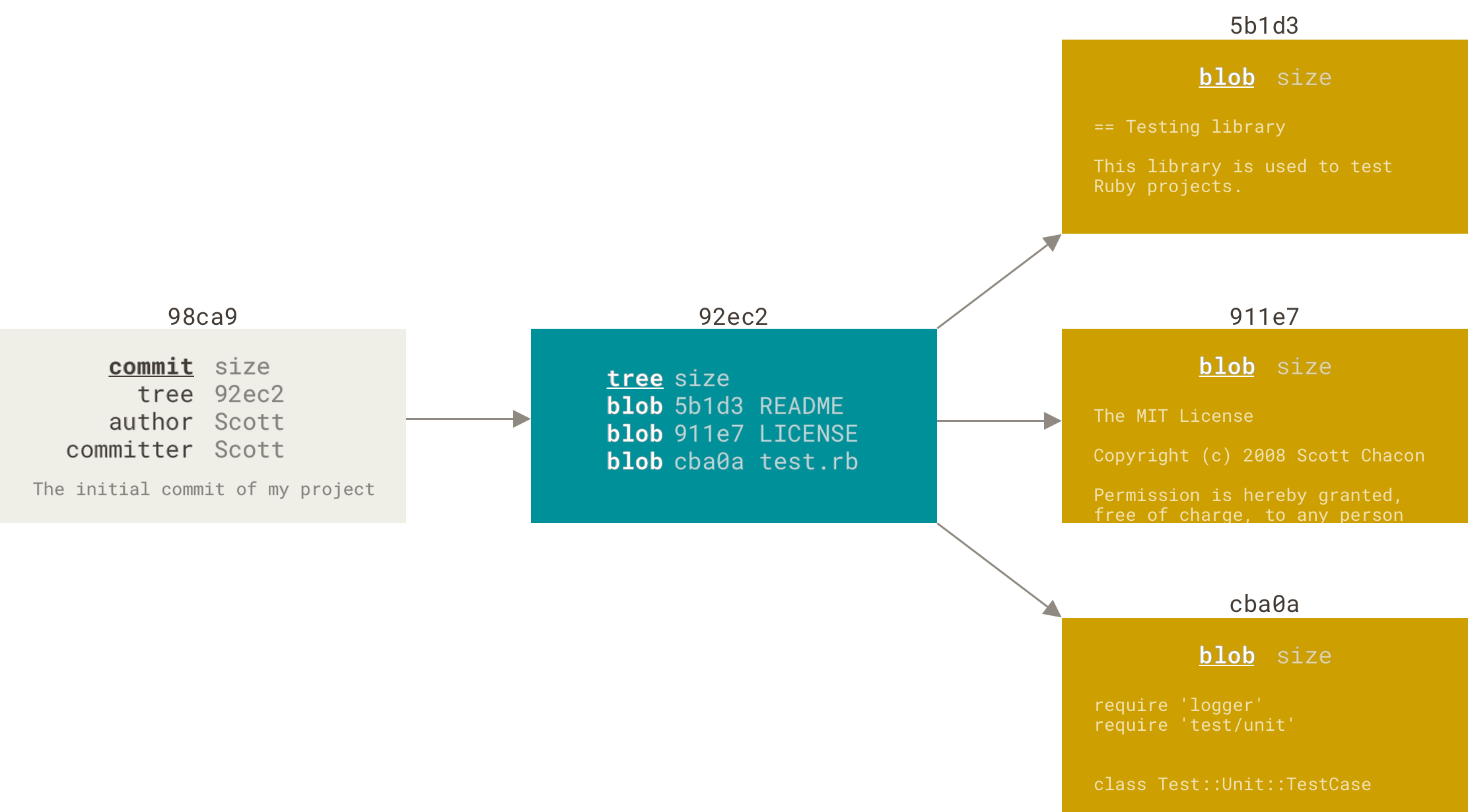
<small>A commit and its tree</small>
----
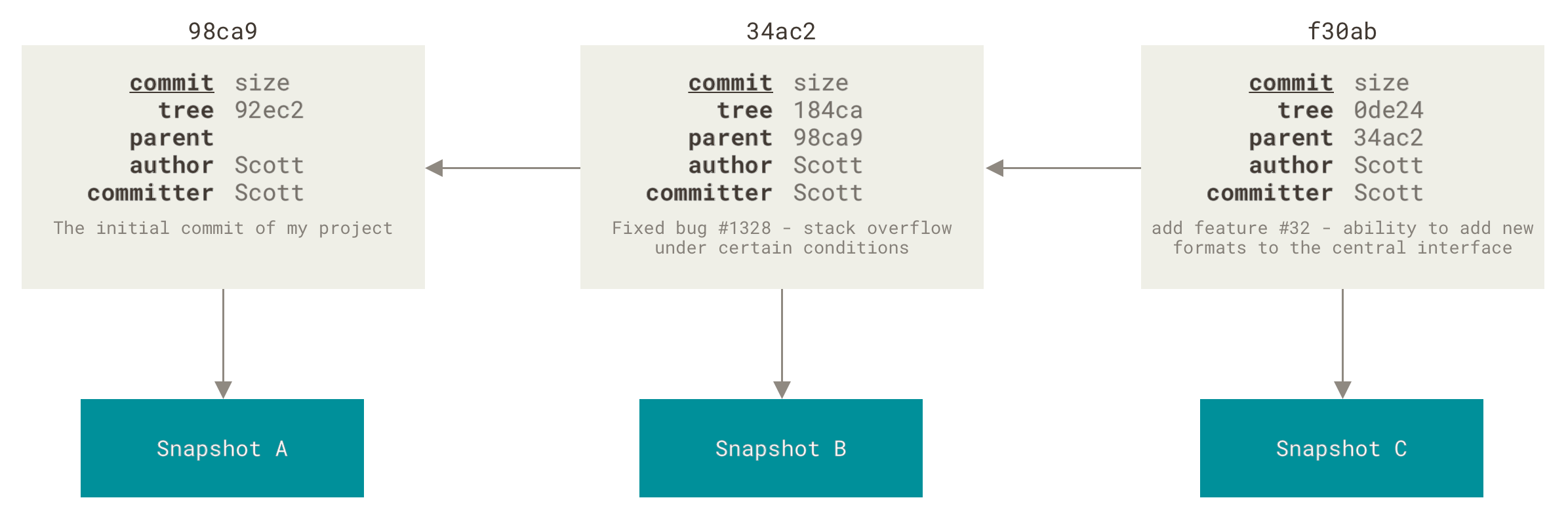
<small>Commits and their parents</small>
----
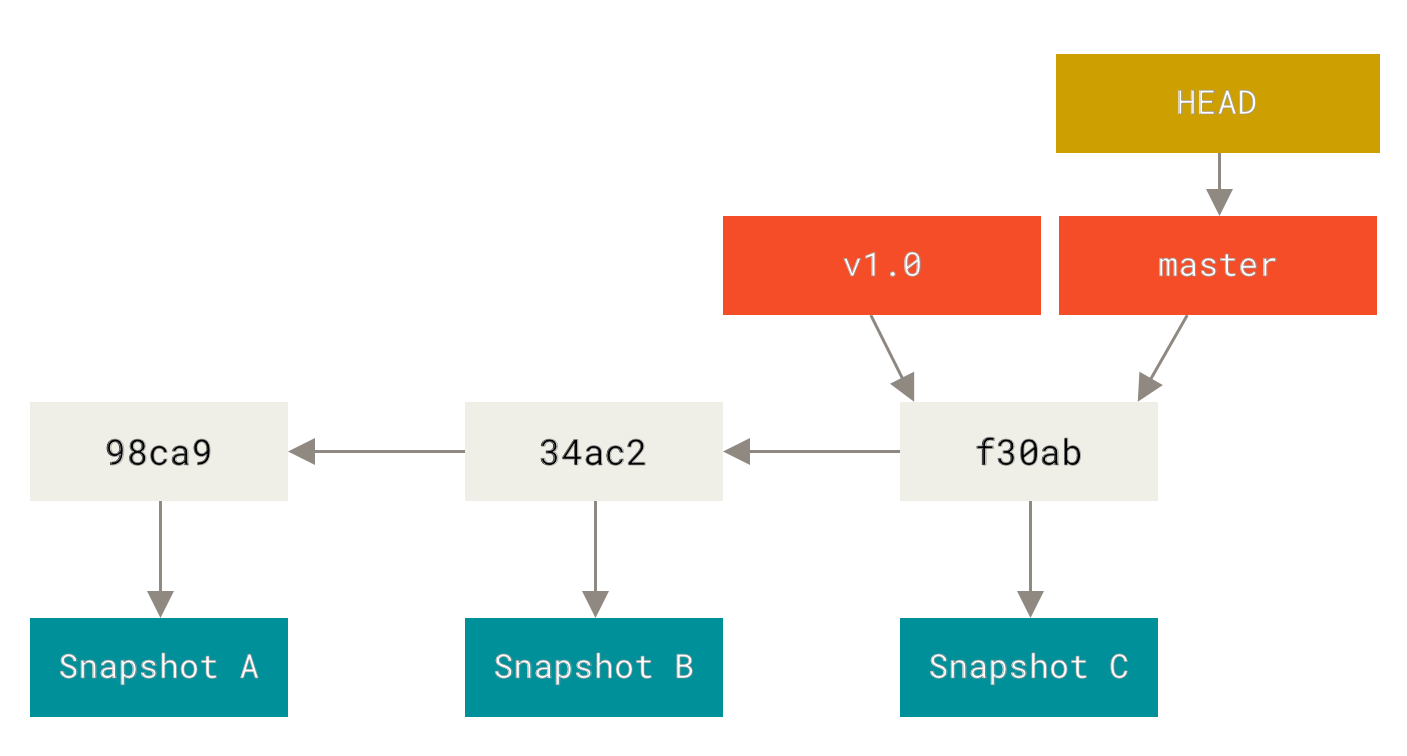
<small>A branch and its commit history</small>
----
# Creating a New Branch
----
```shell=
git branch testing
```
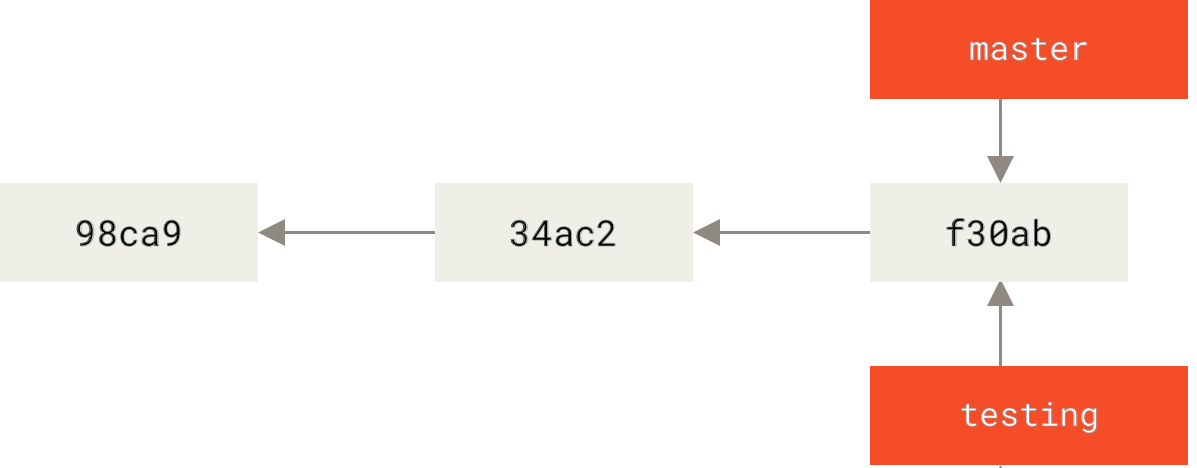
<small>Two branches pointing into the same series of commits</small>
----
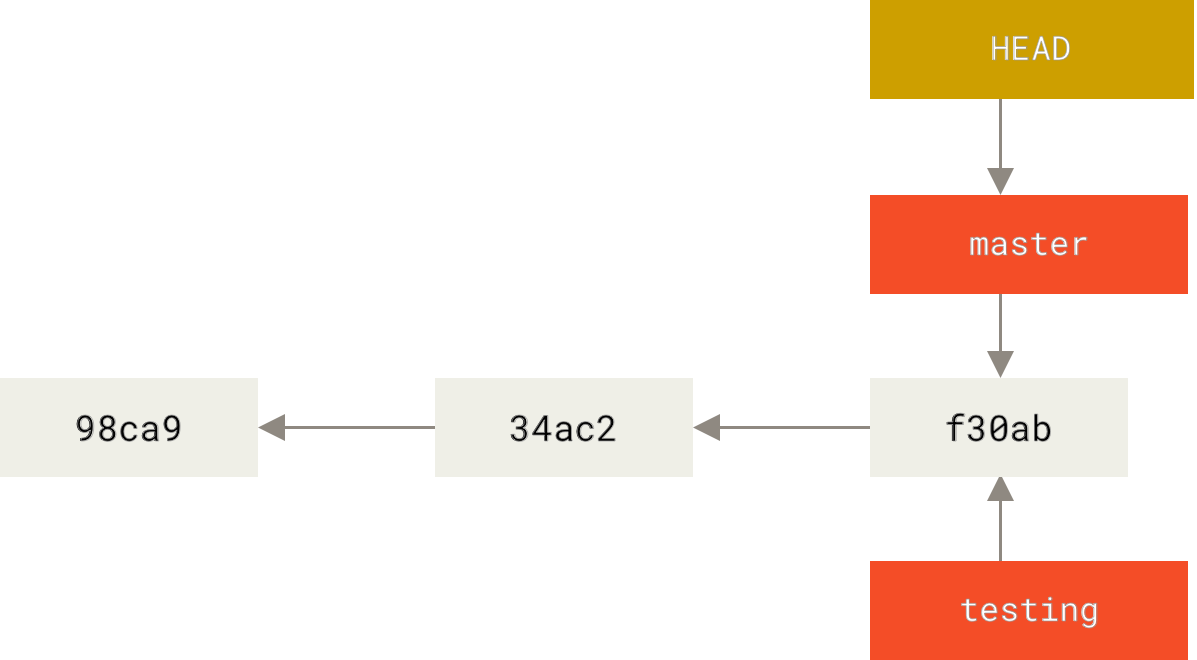
<small>HEAD pointing to a branch</small>
----
# Switching Branches
----
```shell=
git checkout testing
```
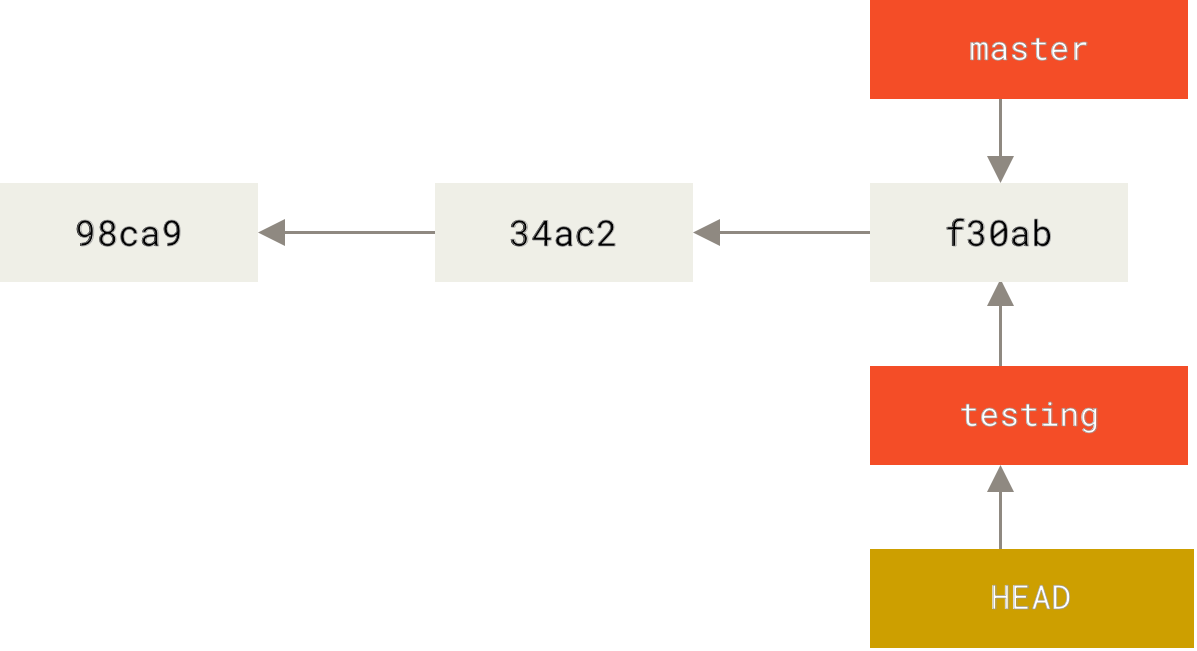
<small>HEAD points to the current branch</small>
----
```shell=
git commit
```
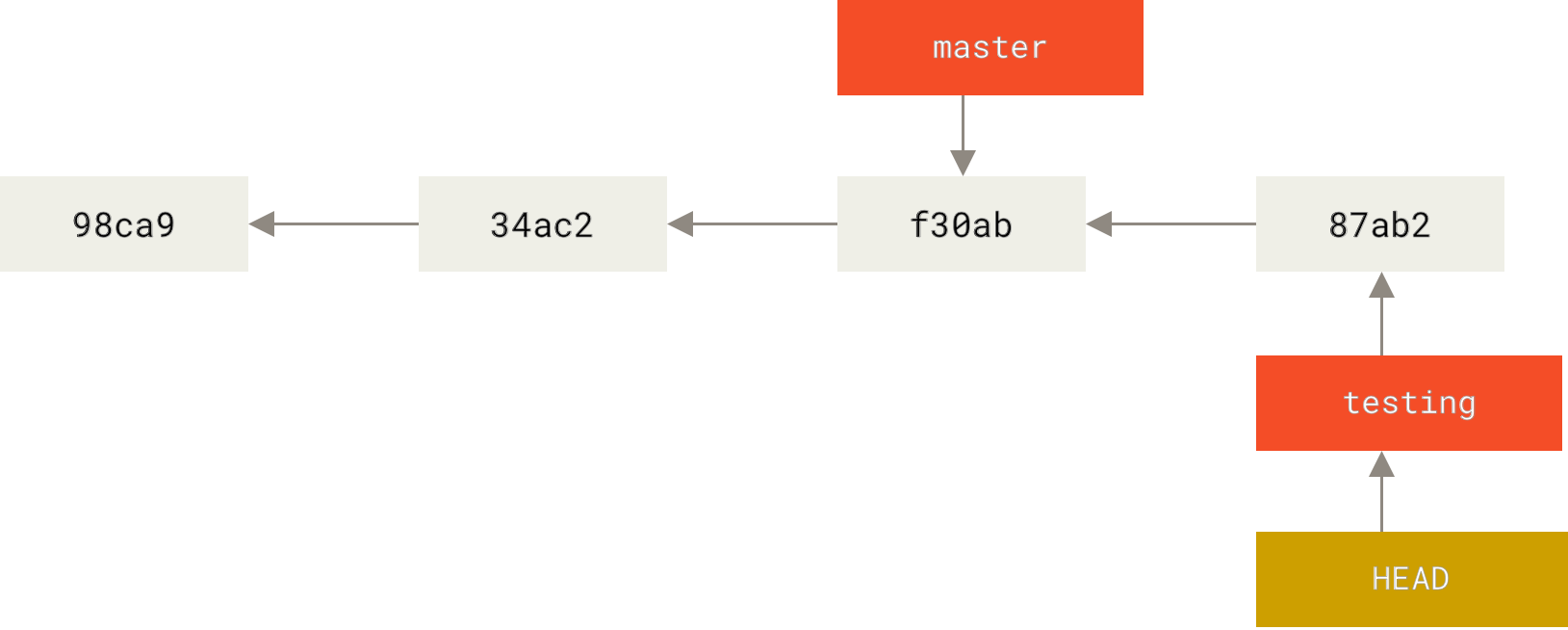
<small>The HEAD branch moves forward when a commit is made</small>
----
```shell=
git checkout master
```
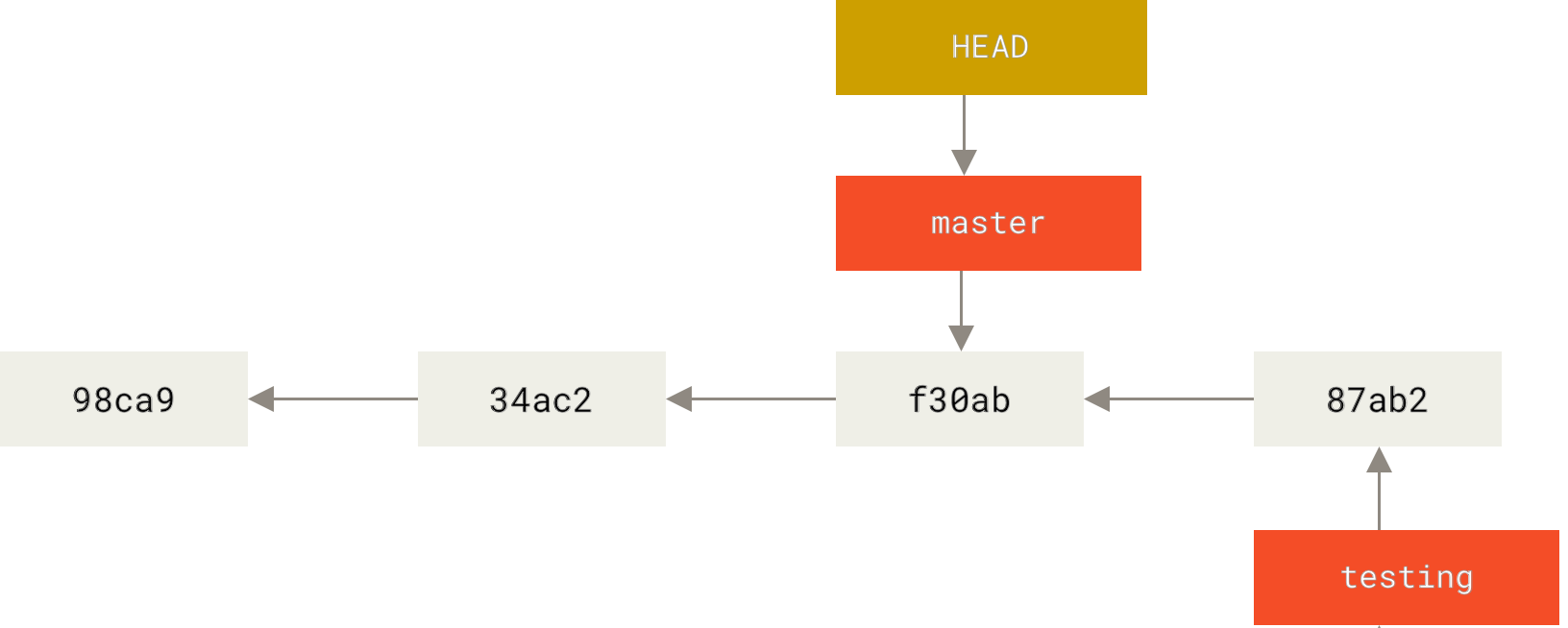
<small>HEAD moves when you checkout</small>
----
```shell=
git commit
```
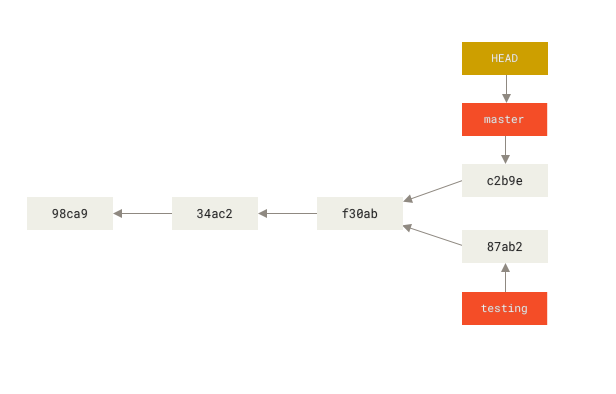
<small>Divergent history</small>
----
# Basic Branching and Merging
- Basic Branching
- Basic Merging
----
# Basic Branching
----
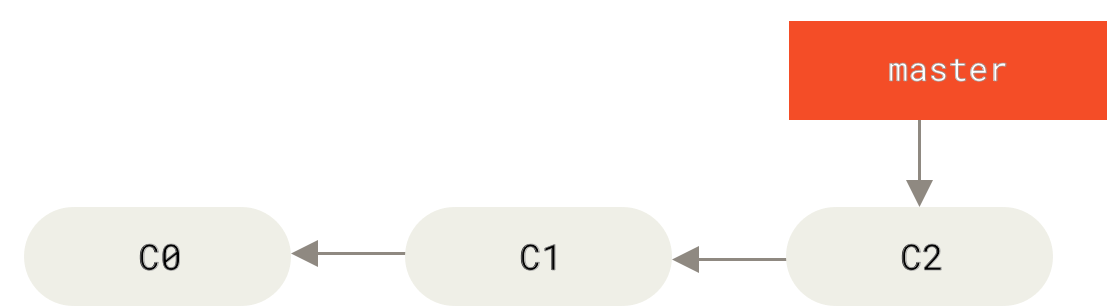
<small>A simple commit history</small>
----
```shell=
git branch iss53
git checkout iss53
# git checkout -b iss53
```
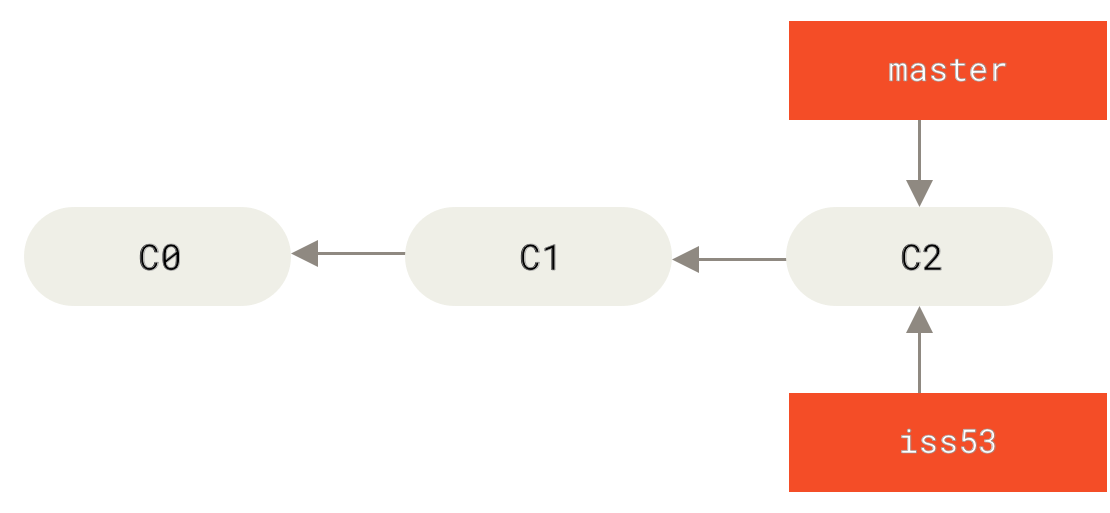
<small>Creating a new branch pointer</small>
----
```shell=
git commit
```
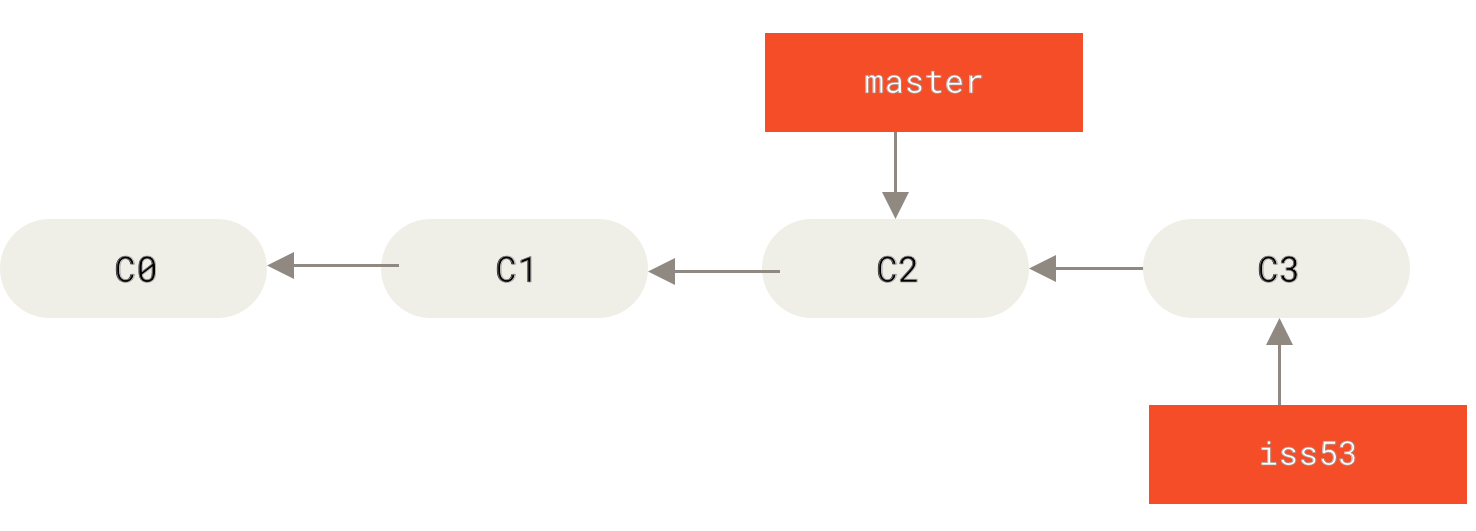
<small>The iss53 branch has moved forward with your work</small>
----
```shell=
git checkout master
git checkout -b hotfix
git commit
```
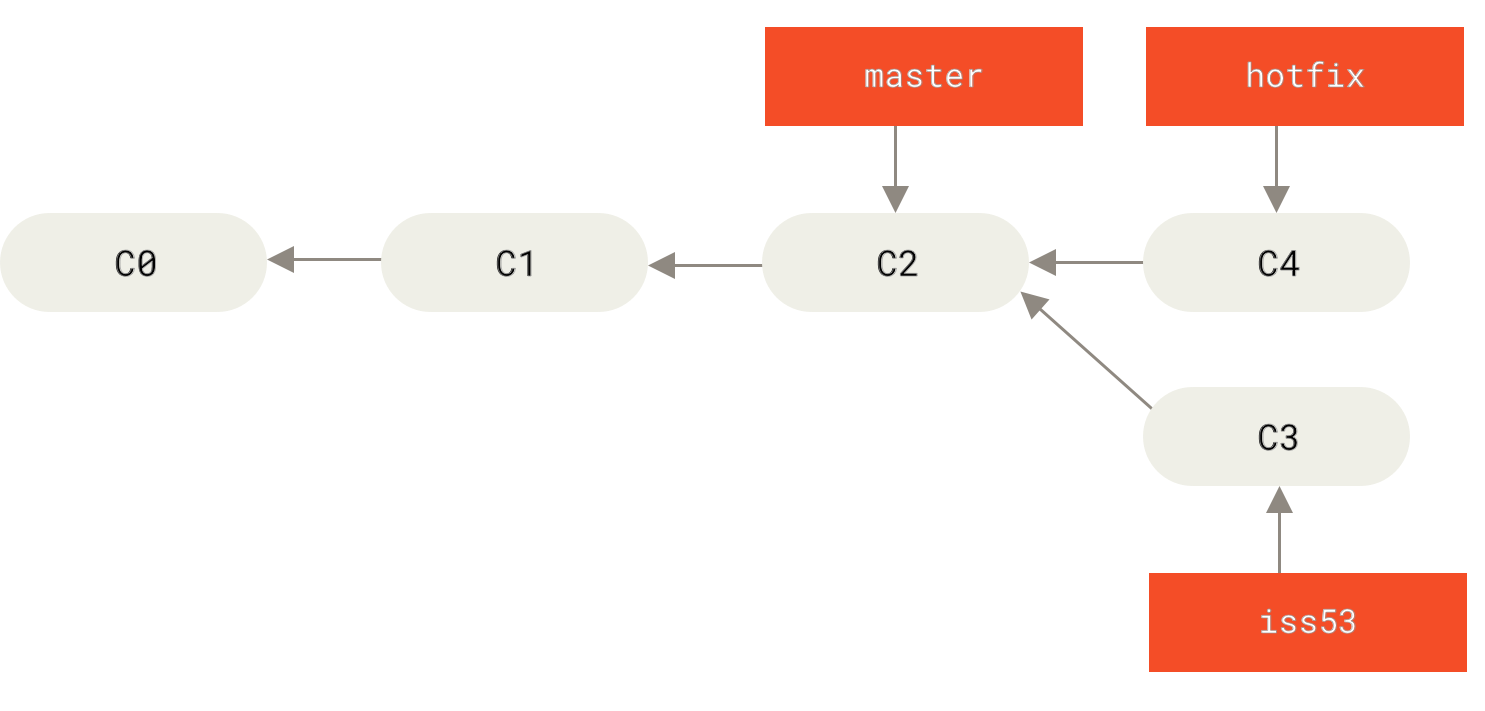
<small>Hotfix branch based on master</small>
----
```shell=
git checkout master
git merge hotfix
```
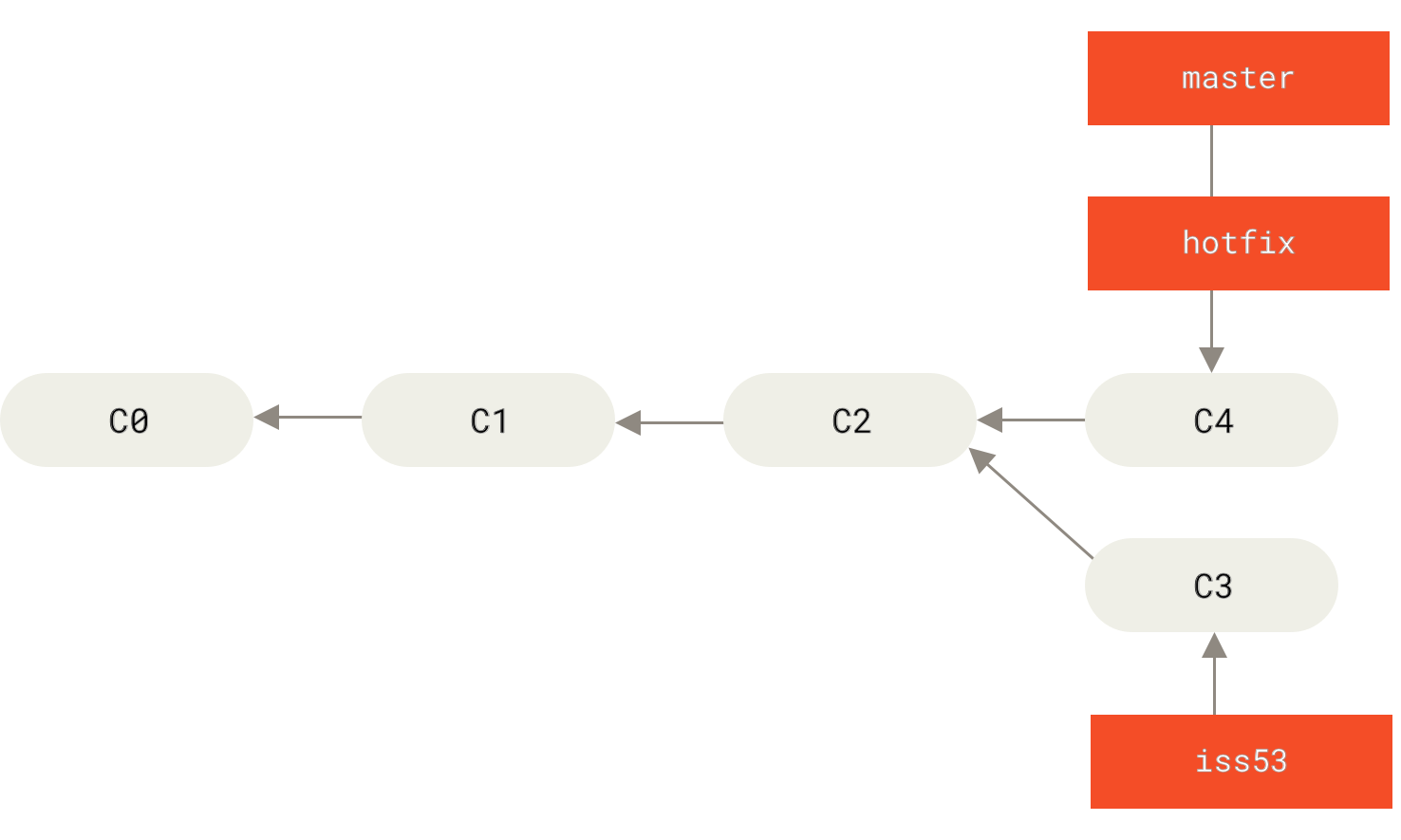
<small>master is fast-forwarded to hotfix</small>
----
```shell=
git branch -d hotfix
git checkout iss53
git commit
```
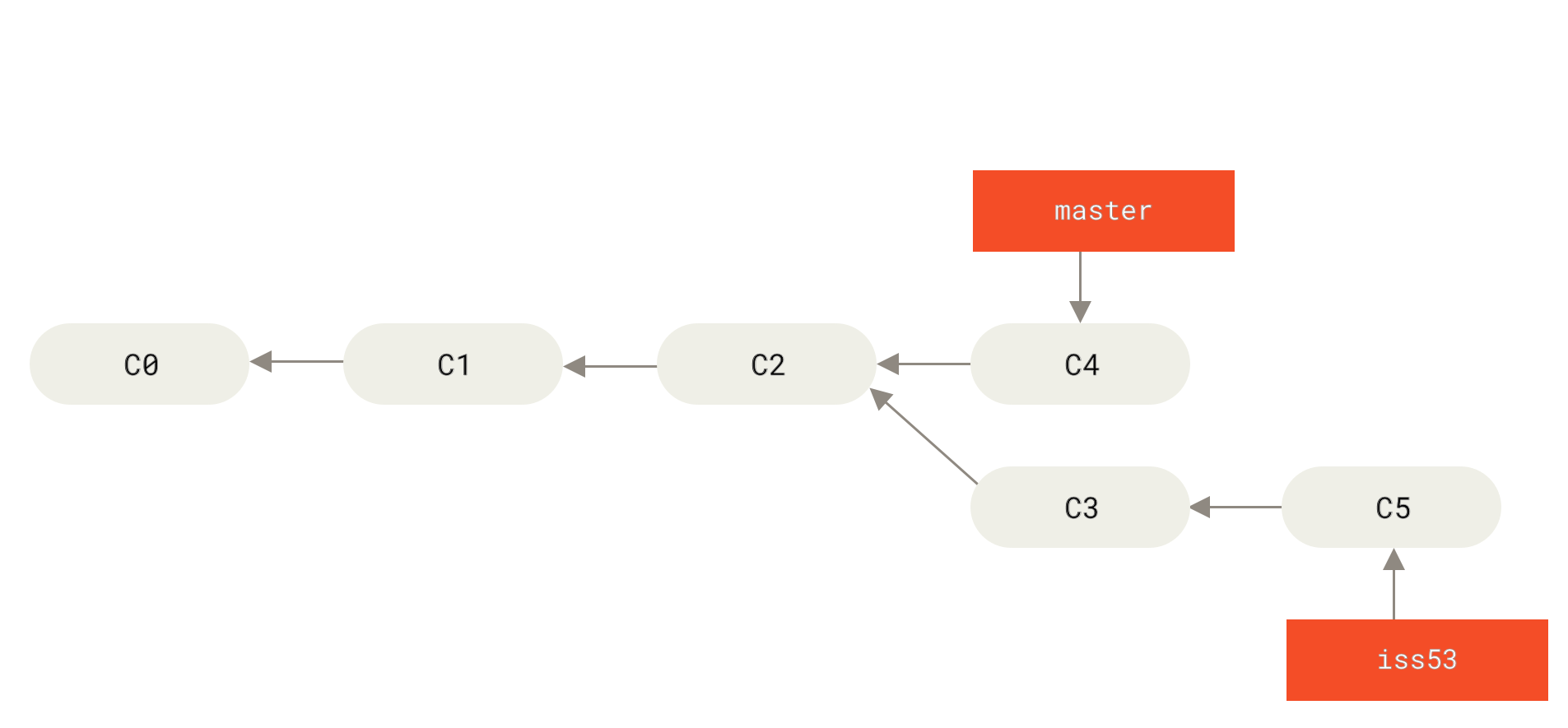
<small>Work continues on iss53</small>
----
# Basic Merging
----
```shell=
git checkout master
git merge iss53
```
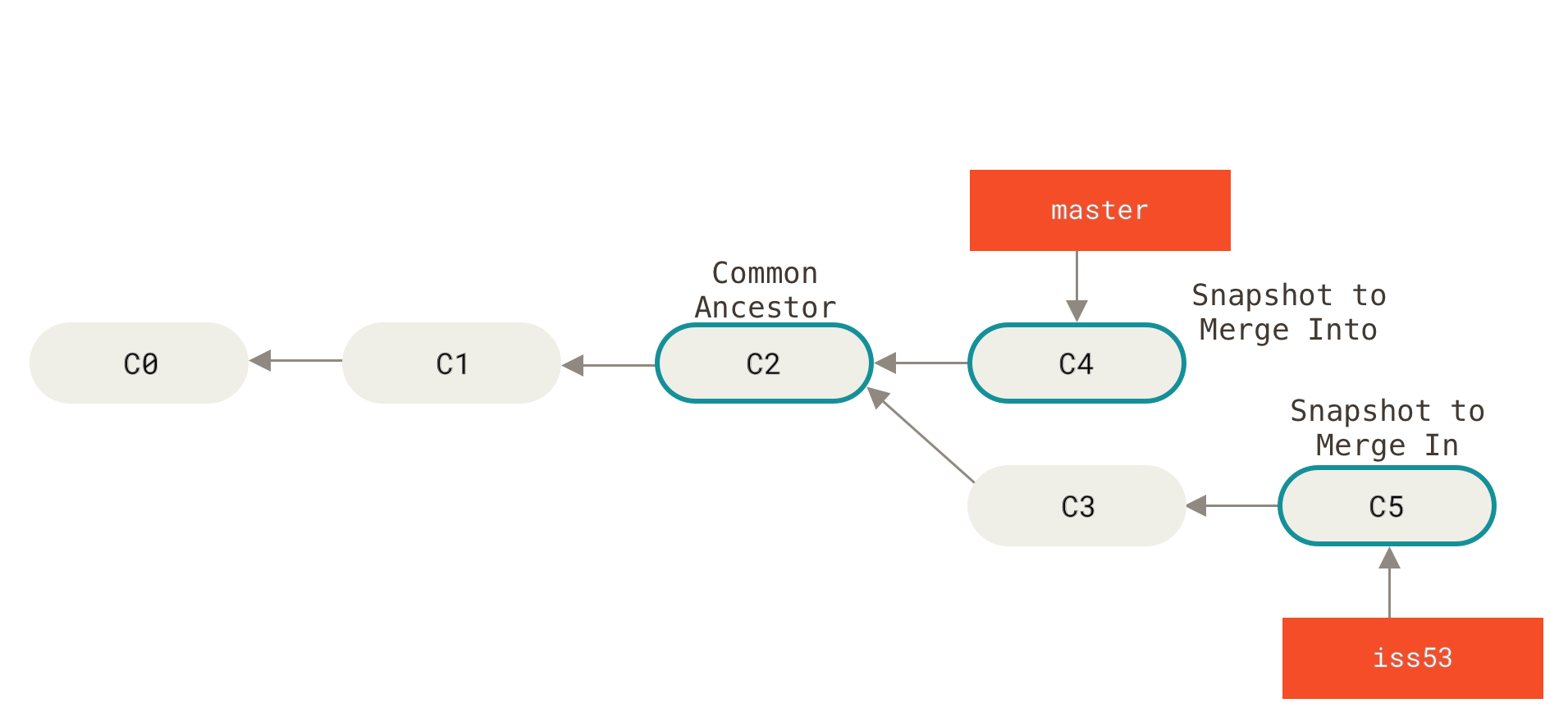
<small>Three snapshots used in a typical merge</small>
----
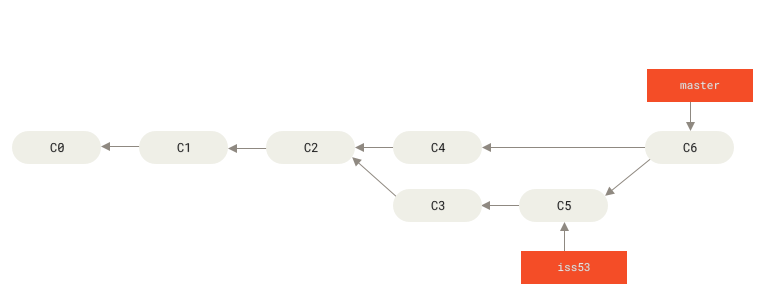
<small>A merge commit</small>
----
# Branching Workflows
- Long-Running Branches
- Topic Branches
----
## Long-Running Branches
----

<small>A linear view of progressive-stability branching</small>
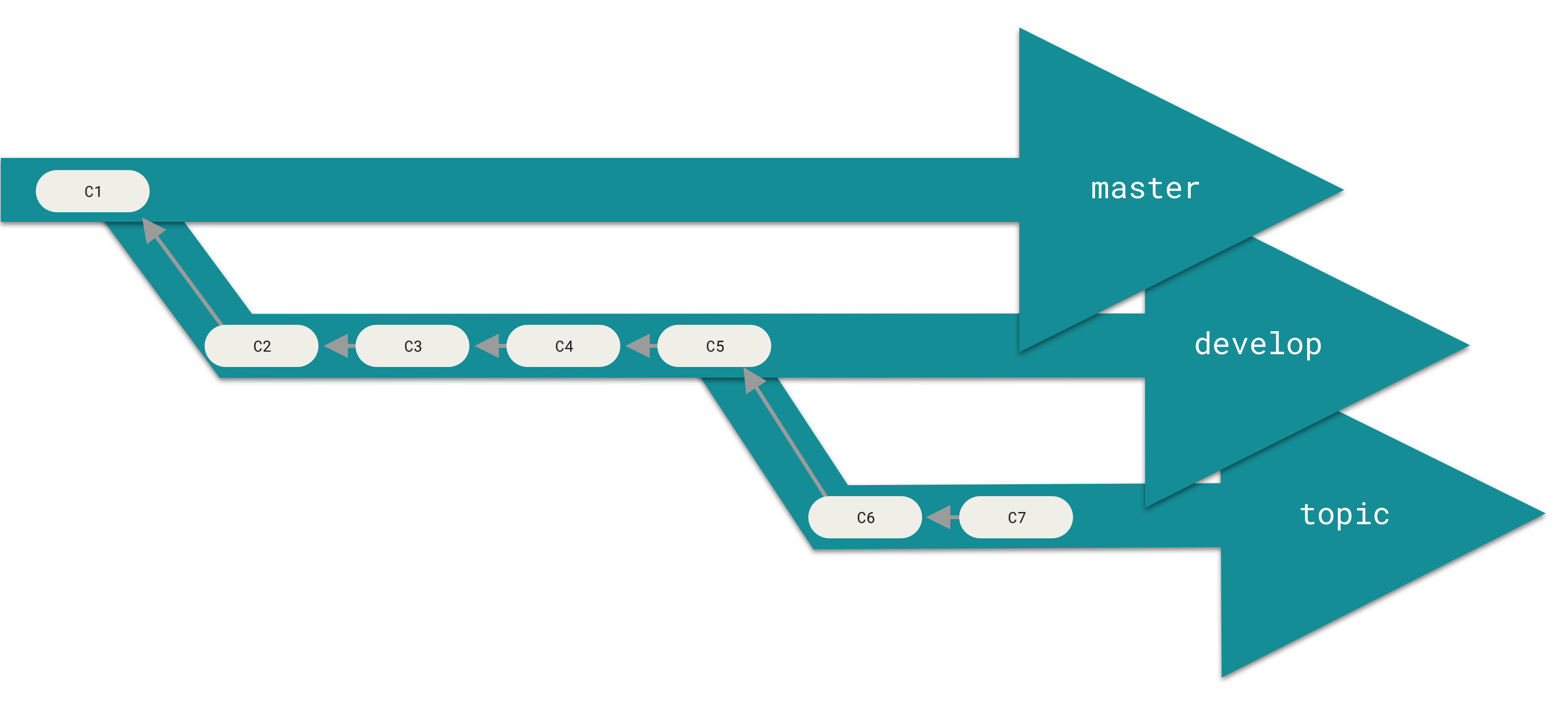
<small>A “silo” view of progressive-stability branching</small>
----
# Topic Branches
----

<small>Multiple topic branches</small>
----

<small>History after merging dumbidea and iss91v2</small>
---
# Git Routine
----
# DEMO
1. create a new empty git repository
2. create a new file in git
3. modify this new file in git
4. branch this repository a copy version
5. modify this new file on original version
6. modify this new file on copy version
7. merge copy version into original version
---
### GitKraken context menu items
- edit commit message
- **reset** {v branch} to this commit
- soft, mixed, hard
- **revert** commit
- push {v branch} and start a **pull request**
- **cherrypick** commit
- **squash** 2 commits
- **rebase** {branch} onto {v branch}
- fast-forward {v branch} to {branch}
- merge {v branch} into {branch}
----
# Before going forward...
----
|context menu items|commands|
|:-:|:-:|
|create **b**ranch here|`git checkout -b <b>`|
|create **t**ag here|`git tag [-a] <t>`|
|rename {**b**ranch}|`git branch -m <b>`|
|delete {**b**ranch}|`git branch -d <b>`|
|checkout {**b**ranch}|`git checkout <b>`|
|-|-|
|:-:|:-:|
|copy branch name to clipboard|copy commit id to clipboard|
---
## edit commit message
```
git commit --amend
```
> Replace the tip of the current branch by creating a new commit.
----
- In Git, the text of the commit message is part of the commit.
- Changing the commit message will change the commit ID--i.e., the SHA1 checksum that names the commit.
- Effectively, you are creating a new commit that replaces the old one.
---
## reset {v branch} to this commit
### soft, mixed, hard
```
git reset --soft
git reset --mixed
git reset --hard
```
> Reset current HEAD to the specified state
----
- reset master to this commit
- soft - keep all changes
- mixed - keep working copy but reset index
- hard - discard all changes
----
```
(v master)---- * | nth modification
...
* | 1st modification
* | initial commit
```
turn commits into...
----
```
(v master)---- * | [nth modification - file(s) committed]
* | nth modification - file(s) added
* | nth modification - file(s) modified
...
* | [1st modification - file(s) committed]
(Soft)* | 1st modification - file(s) added
(Mixed)* | 1st modification - file(s) modified
(Hard)* | [initial commit]
```
---
## revert commit
```
git revert <commit id>
```
> Revert some existing commits
- Given one or more existing commits, revert the changes that the related patches introduce, and record some new commits that record them.
- This requires your working tree to be clean (no modifications from the HEAD commit).
----
```
(v master)----(*)| 2nd modification
* | 1st modification
* | initial commit
```
If I revert the commit of `2nd modification`...
----
```
(v master)----(*)| Revert "2nd modification"
* | 2nd modification
* | 1st modification
* | initial commit
```
If I revert the commit of `1st modification`...
----
conflicts, need to merge
```
(v master)----(*)| Revert "1st modification"
* | 2nd modification
* | 1st modification
* | initial commit
```
---
### push {v branch} and start a pull request
- A pull request(PR) is a development process that provides a platform for discussion and review of a completed feature.
- Its purpose is to notify team members that the feature has been completed and it is open for discussion or modifications.
- The discussion usually occurs to improve the quality of the code; it is basically a code review process.
---
## cherrypick commit
```
git cherry-pick <commit id>
```
> Apply the changes introduced by some existing commits
----
```
(feature)-----(*)| 3rd modification on feature
* | [2nd modification on feature]
* | 1st modification on feature
(v master)---- * | 2nd modification on master
* | 1st modification on master
* | initial commit
```
If I cherrypick the commit of `2nd modification on feature`...
----
```
(v master)----(*) | cherrypick [2nd modification on feature]
(feature)----- (*)| 3rd modification on feature
* | [2nd modification on feature]
* | 1st modification on feature
* | 2nd modification on master
* | 1st modification on master
* | initial commit
```
---
## squash 2 commits
```
git merge --squash <commit id>
```
----
```
(v master)----(*) | cherrypick [2nd modification on feature]
* | cherrypick [1st modification on feature]
(feature)----- (*)| 3rd modification on feature
* | [2nd modification on feature]
* | 1st modification on feature
* | 2nd modification on master
* | 1st modification on master
* | initial commit
```
- If I squash ...
- the commit of `cherrypick [2nd modification on feature]`
- the commit of `cherrypick [1st modification on feature]`
----
```
(v master)----(*) | squash [1st & 2nd modification on feature]
(feature)----- (*)| 3rd modification on feature
* | [2nd modification on feature]
* | 1st modification on feature
* | 2nd modification on master
* | 1st modification on master
* | initial commit
```
---
## merge {v branch} into {branch}
```
git merge <b>
```
---
## fast-forward {v branch} to {branch}
```
git merge <b> --ff
```
---
## rebase {branch} onto {v branch}
[Git Rebase](https://hackmd.io/s/rJx3f16x7)
---
## git pull vs git fetch
|cmd|definition|
|:-:|:-:|
|fetch|Download objects and refs from another repository|
|pull|Fetch from and integrate with another repository or a local branch|
> git pull is shorthand for git fetch followed by git merge FETCH_HEAD.
---
# *How Git Works*
[How Git Works](https://github.com/ChaoLiou/HowGitWorks)
---
# The End
{"metaMigratedAt":"2023-06-14T16:40:51.469Z","metaMigratedFrom":"Content","title":"Git","breaks":true,"contributors":"[]"}