# Crowd-sourcing the location of private schools in the Philippines
Using geotagged photos to derive the approximate, and user-provided location of private schools.
Potentially, the data created from this initiative can become OSMaPaaralan 2.0, although that's not the immediate goal of the exercise.
### Background

The [OSMaPaaralan](https://wiki.openstreetmap.org/wiki/Philippines/OSMaPaaralan) project by the local community of OpenStreetMap (OSM) enthusiasts produced a free, open dataset of public schools in the Philippines that is cross-validated with available vertical and horizontal imagery, based on a dataset released in 2013 from the 2012 Academic Year.
The [Second Congressional Commission on Education (EDCOM 2)](https://edcom2.gov.ph/), among others, has found this data useful for their data analysis work, but has a need for location of private schools in the country, which the education department didn't include in the dataset they released.
This document will provide a short guide on how to leverage existing open source tools, to quickly collect, self-validate the school location by submitting a geotagged photo to the [Wikimedia Commons](https://en.wikipedia.org/wiki/Wikimedia_Commons).
:::info
Why contribute the image to the Commons? This can potentially allow enthusiasts of Wikipedia or OpenStreetMap communities to associate the submitted photo(s) as part of a future article or reference the if the school is feature on maps using OSM data. At the same time, the data team of EDCOM 2, or their associates, can use it to compile the list and location of all private schools in the country.
Wikimedia (the foundation that operates the Commons, and Wikipedia, among many other things) is a Foundation that operated globally, and supports privacy and open data initiatives.
Rest assured that contributors will never get any spam or advertisements from them.
:::
---
:::success
For folks comfortable with tech/smartphones, the whole process (from installation to taking the photo, copy-pasting the text details, and then uploading) should take 15-20 minutes to complete.
:::
---
## Instructions
1. Download and install the [Wikimedia Commons App](https://play.google.com/store/apps/details?id=fr.free.nrw.commons) for Android from the Play Store.
2. Launch the App and sign-up for a Wikimedia account
* It's good Internet practice to never use your real name, or full name. For the username, use a nickname, an alias, or a [random username generator](https://texttools.org/unique-username-generator).
* Avoid reusing [passwords](https://texttools.org/password-generator), too!
* After registering for an account, you will receive an email asking you to verify your account. Please follow the instructions in the email for account validation.
3. After validation, go back to the app to sign-in with your account.
4. Now, tap the burger menu (right-most icon in the bottom of the app) and select settings.
* Scroll down and look for "Record location for in-app shots". Tap it to enable the feature, then go back to the main screen
5. Next, tap the Plus button on the main screen, then select the camera icon to take a photo of your school
* Now, take a photo of your school's main entrance, or if you're in a shared building, then take a photo of the building facade.
* Try to take a photo with a clear line of sight of the horizon, to improve the accuracy of your photo's location.
* Try to take a photo with little or no obstruction, or people nearby, and clearly depicts your school name or logo.
* Once your satified with the photo, tap the check button.
6. Step 1 of 4: Media Details
* For Caption, specify the name of the school, the barangay and the city. (for municipalities, include the province.)
* For Description specify the school's complete address, and the DepeEd school id. For example:
* **Edit (or Add) Location**:
* Click the text "Edit Location ⭢" The green marker on the screen depicts where you may have been when the photo was taken. Click the "Edit Location " button at the bottom of the screen and move the marker to the center of the school grounds (or if you're located in a shared building, the building you occupy).
* **Caption:** `Keys School Manila, Addition Hills, Mandaluyong City`
* **Description:** `Keys Schools Manila is a non-sectarian, private school located at 951 Luna Mencias Street, corner Araullo Street, Addition Hills, Mandaluyong City, Philippines. It is duly recognized by the Philippine Department of Education, with school id: 1484019.`
8. Step 2 of 4: Depicts:
* Type "private school" in the text box, and then tap "private school" to show a checkbox from the selection below.
10. Step 3 of 4: Categories
* Type "private school" in the text box, and then tap "private school" to show a checkbox from the selection below.
* Next, type the name of the appropriate city/municipality, for example "Mandaluyong City", then tap the item to enable it.
11. Step 4 of 4: Media License
* We strongly recommend you choose "CC0", to share your work under a Universal Public Domain Dedication.
13. You may review the changes you made by clicking the "Previous" / "Next" button, and when you're satisfied, hit the "Submit" button.
---
* The app will provide notifications when the upload process is complete.
* The details of the photo are still editable, event after it's been uploaded.
* The shared photos are stored in the [Commons](https://commons.wikimedia.org/wiki/Special:NewFiles?mediatype[]=BITMAP&start=&end=&wpFormIdentifier=specialnewimages&limit=50&offset=).
---
#### Commons example: Keys School Manila
[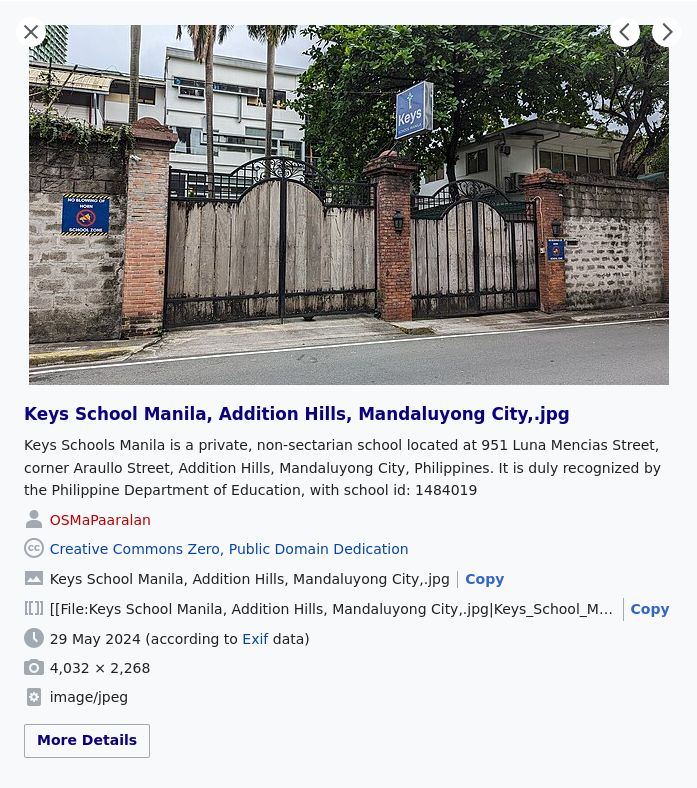](https://commons.wikimedia.org/wiki/File:Keys_School_Manila,_Addition_Hills,_Mandaluyong_City,.jpg)
---
#### Map example: Keys School Manila on a map
[](https://osmapp.org/relation/13360320#18.86/14.5918/121.0376)
---
:::info
If you wish, after successfully uploading the photo(s) you took, you are free to delete the account you used and the app from your phone, and the photo will remain available in the Commons, for everybody to enjoy.
:::
---
A visual version (with screenshots) of this guide is available [here](https://hackmd.io/@GOwin/BkB0Qmr4A).
 Sign in with Wallet
Connect another wallet
Sign in with Wallet
Connect another wallet