# Smart irrigation system using LoPy4 and WiFi
###### Tags: **LoPy4** - **Soil moisture sensor** - **water pump** - **IoT** - **Tutorial** - **Cloud**
>###### `Author: Ammar Shihabi - as225wu`
---
## Project Overview
In this tutorial we will learn how to do smart agriculture and automatic irrigation system. We are also going to measure the soil moisture as well as sending the data over the internet, and exploring the world of IoT.
Estimated time: ~4-6 hours depending on the hardware problems that may occur on the way.
[ToC]
## Objective
We are living in a busy time right now, there is so much happening around that we get lost out between work, training, family as well as learning. For that reason we should use the technology that we know to fill up some of the time that is lost. I have a bad habit of forgetting to water my beautiful Coleus, so for this project I'm going to make a smart irrigation system that takes care of my plant at home so everytime I check on it after a busy day I still see it as fresh as it has always been.
For that implementation I will be using a soil moisture sensor, a water pump and a relay to control when and when not to start watering the plants, so it wont overwater the Coleus. I will be sending data over the internet of the sensor value once an hour to check if everything is working as expected. There will be another counter at the same time that checks every 24 hours if the soil is dry enough and will therefore trigger the relay that controls the water pump.
## Material
>*Table 1. Bill of material used for the project. Prices are included in the links [color=#3b75c6]*
| Parts | Where to buy | Part description |
| ----------------- |:----------------------- |:----------------------- |
| LoPy 4 with expansion board| :link: [Lopy4 + expansion board 3.1](https://www.electrokit.com/produkt/lnu-1dt305-tillampad-iot-lopy4-basic-bundle/) |Development board|
| water pump | :link: [Vattenpump mini 5V](https://www.electrokit.com/produkt/vattenpump-mini-5v/) |Motor that converts kinetic energy to hydrodynamic energi|
| Relay module | :link: [relämodul-5V](https://www.electrokit.com/produkt/relamodul-5v/) |Electrically operated switches that open and close the circuit |
| Soil moisture sensor | :link: [Jordfuktighetssensor](https://www.electrokit.com/produkt/jordfuktighetssensor/) |Two probes that pass let the current pass through that measures the moist either digital or analog |
| Breadboard | :link: [Kopplingsdäck](https://www.electrokit.com/produkt/kopplingsdack-400-anslutningar/) |Easy way to connect the electronic components |
| Wires male-female | :link: [Labbsladdar hona-hane](https://www.electrokit.com/produkt/labbsladd-20-pin-15cm-hona-hane/) |Connect the components to the breadboard |
| Wires male-male | :link: [Labbsladdar hana-hane](https://www.electrokit.com/produkt/labbsladd-20-pin-15cm-hane-hane/) |Connect the components to the breadboard |
| Hose | :link: [Slang](https://www.clasohlson.com/se/p/49-410-10) | It does carry the water from the pump to the plant. |
| Alternative Amazon soil moisture set | :link: [Soil Moisture Sensor Set, Automatic Irrigation System, Arduino Garden DIY Kit](https://www.amazon.de/RUNCCI-YUN-Bodenfeuchtigkeitssensor-Set-Bew%C3%A4sserungssystem-Mini-Wasserpumpe-Garten-DIY-Kit/dp/B088T64ZT2/ref=sr_1_7?__mk_de_DE=%C3%85M%C3%85%C5%BD%C3%95%C3%91&dchild=1&keywords=water+pump+arduino&qid=1627651381&sr=8-7) |Full set of some of the components above|
|Battery holder | :link: [Batterihållare](https://www.electrokit.com/produkt/batterihallare-2xaa-sladd/) |Woks as external power source if needed|
| | Total = 110 [EUR] | |
   
## Computer Setup
For this tutorial I used Windows 10 and did all the setup according to ==**[Pycom's](https://docs.pycom.io)**== own tutorials. The programming language that we are going to use to talk with the device is micropython, and you can either choose Atom or Microsoft's Visual Studio Code (VS Code) to program it as an IDE (integrated development environment). I have only used Atom, but VS code should be as precise as Atom to complete this project. So I would say that you should go for the one that feels most comfortable for you. Both should be easy to use and have plenty of documentation on the Pycom home page. Note that if you are using VS code then you have to install Node.js as well. But every step is well explained in the instructions on the pycom home page.
0- Follow the **[Getting started](https://docs.pycom.io/gettingstarted/)** instructions and get to know the board. The steps below are going to be a small conclusion of what you should do, you should still go through the instructions to avoid getting any issues.
Note that some boards need to get a *[Firmware update](https://docs.pycom.io/updatefirmware/device/)*. But there is a big possibility that your board has the latest update if you buy it as new.

>*Fig 1. The connection of the lopy 4 and the expansion board* [color=#3b75c6]
1- Install **[Atom](https://flight-manual.atom.io/getting-started/sections/installing-atom/)** so you are able to program the device with micopython
2- Setup **[Pymakr](https://docs.pycom.io/gettingstarted/software/atom/)** to use the micropython libraries and stuff on the IDE. It is done by going to file->settings->install->search for **Pymakr** and then install it.
3- Check if the device is working by creating a new folder on your computer. Let's call it Project. Create a new folder called Your_project_name. Inside it create a new folder called lib. Inside the lib folder create two files called boot.py and main.py.
**Note** *Right click on a specific folder to get the options for creating folders/files inside it*.

>*Fig 2. The structure of codes in Atom projects [color=#3b75c6]*
After creating the files add the following code to the main file. Press on the upload button on your Atom and that should start writing the code over to your device. Press run if necessary and the code should flash the big LED on the device with a different color every second.
```Python
import pycom
import time
pycom.heartbeat(False)
while True:
#colors in hexadecimal (0xRRGGBB)
pycom.rgbled(0xFF0000) # Red
time.sleep(1)
pycom.rgbled(0x00FF00) # Green
time.sleep(1)
pycom.rgbled(0x0000FF) # Blue
time.sleep(1)
```
## Circuit Schematic
Now after you have successfully connected your device and done the setup for the IDE it is time to connect our sensors to the digital and analog pin of the device. I recommend that you check the [LoPy4 pinouts](https://docs.pycom.io/gitbook/assets/lopy4-pinout.pdf) if you want to make any changes to the connections of the circuit. But all in all there will be no resistors for anything because everything is designed to handle these small voltages.

>*Fig 3. Schematic of the circuit [color=#3b75c6]*
* **Soil moisture sensor connection to the expansion board**
* A0 ➜ Pin 16
* VCC ➜ 3.3V
* GND ➜ GND
* **Relay connection to the expansion board**
* Plus ➜ Vin
* Minus ➜ GND
* S ➜ Pin 9
* Red wire on the middle is called common
* Cyan wire at the bottom is called normally open
* **Power consumption**
| Part | Current draw |
| ----------------- |:----------------------- |
| Soil moisture sensor | 35mA |
| Water pump | 98mA |
| Lopy4 with WIFI sending data | 130mA |
| Lopy4 in IDLE mode | 90mA |
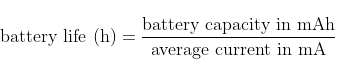
$$
Averagecurrent ={((90mA + 35mA * 25 times) + 120mA) / 86400 = 12.55mA}
$$
*That means if the circuit is feeded with a 2000mA LiPo battery then the estimated lifetime will be 159 hours. Or 6.6 days. That is a pretty high power consumption. So the best solution would be to use the phone charge and plug in the USB-adapter and connect it to the wall outlet.*
## Platform
The platform that is mainly used in this project is ==[Pybytes](https://docs.pycom.io/pybytes/gettingstarted/)== which is Pycoms own platform. The reason why I used Pybytes is because it is more than enough for the stuff that will be sent. It is very easy to use and it is free. It also does the configuration for you, so the only thing required is to set your WIFI SSID and your password. The downside is that the dashboards are very limited and look pretty boring compared to the other IoT platforms. For the full tutorial on how to connect your device to Pybytes click on the marked text with yellow at the top.
I have also sent the data via Ubidots.com and there are plenty of tutorials for the Pycom devices for it as well as it is free to use. They do have much more control and customization for the dashboards with really nice designs. But I don't feel that it is worth the extra effort of increasing the complexity of the project if you only want to send data and get notification about the irrigation status when Pybytes already does the same. But it is a really good looking platform with so much control and customization.
## The Code
Starting with the setup, the code has the definitions of the soil moisture sensor and the relay that drives the water pump.
```python=
import machine
import time
from machine import ADC
from machine import Pin
# Setup
relayPin = Pin('P9', mode = Pin.OUT) #relay as output
adc = machine.ADC(bits = 10) # convert the analog signal to 10 bit digital signal
# so the value will be between 0 to 1023 bits
SoilPin = adc.channel(attn=ADC.ATTN_11DB ,pin='P16') # map the value from 0.1 to 3.3V
value = SoilPin()
print("Smart irrigation system started...!")
#setup is done. Now start doing whatever else
time.sleep_ms(500)
```
The soil moisture sensor uses the probes to measure the electricity passing through it from 1.1V to 3.3V intervall. That can be mapped to bits as well, which would be 0-1023 for a 10 bits binary number. But it is very hard for us people to determine how dry the soil is based on values like 778 or 1470 millivolts. So I have used something similar to the amazing **[map()](https://www.arduino.cc/reference/en/language/functions/math/map/) function that Arduino offers**. So basically I will enter the measured value and map it to an interval between 0-100%. I have changed the code so that I can map the lower values as dry soil, and vice versa.
Check out the author of the function written in Python.
https://www.theamplituhedron.com/articles/How-to-replicate-the-Arduino-map-function-in-Python-for-Raspberry-Pi/
```python=
# map function that takes the value in millivolts and converts it
# to an interval between 0-100%
def _map(x, in_min, in_max, out_min, out_max):
return int(abs(((x - in_min) * (out_max - out_min) / (in_max - in_min) + out_min) - 100))
SensorValue = SoilPin() # Read from the soil moisture sensor
# Recall the function written at the top, and remap it to 0-100% intervall
MappedSensorValue = _map(SensorValue, 0, 1023, 0, 100)
```
The goal of this project is to send data once every hour as well as checking if the soil needs watering every 24 hours. With that said, a code using```
time.sleep()``` would not be sufficient because it is going to put the CPU in sleep mode and will be interrupted and will not do anything else in that time, so a system that works with real time is a must to **check the irrigation and send the data concurrently**. The lopy4 does not have a real time clock on it but does have a timer that counts seconds since start as a reference. Note that using the```
time.sleep()``` will reset the timer and the time goes to start from 0 again.
```python=
#-------------------------------Set timings-----------------------------------
CloudTimer = time.time() # store the current time as a reference. 0 sec when started
CloudDelay = 3600 # send data every 1 hour
#-------------------------------Send Data------------------------------------
if (time.time() - CloudTimer >= CloudDelay): # Send data to cloud every 1 hour
# SEND DATA TO THE INTERNET
pybytes.send_signal(0, MappedSensorValue)
CloudTimer = time.time() # Update the timer so it will check again 1 hour later
```
**My main.py code where everything is gathered.**
```python=
import machine
from network import WLAN # For ubidots
import time
import urequests as requests # For ubidots
from machine import ADC
from machine import Pin
import keys # For ubidots (save you wifi SSID and password in a different file to hide them)
# Connection setup for ubidots
wlan = WLAN(mode= WLAN.STA)
wlan.antenna(WLAN.INT_ANT)
wlan.connect(keys.SSID, auth=(WLAN.WPA2, keys.PASSWORD),timeout= 5000)
time.sleep(2)
# Uncomment if you followed the tutorial for ubidots and want to try ubidots
# def send_data_ubidots(data):
# try:
# url = "https://industrial.api.ubidots.com/"
# url = url + "api/v1.6/devices/" + "pycom"
# headers = {"X-Auth-Token": keys.TOKEN, "Content-Type": "application/json"}
# if data is not None:
# req = requests.post(url=url, headers=headers, json=data)
# return req.json()
# else:
# pass
# except Exception as inst:
# print(inst)
# pass
# map funciton that takes the value in millivolts and converts it
# to an intervall between 0-100%
def _map(x, in_min, in_max, out_min, out_max):
return int(abs(((x - in_min) * (out_max - out_min) / (in_max - in_min) + out_min) - 100))
# Setup
relayPin = Pin('P9', mode = Pin.OUT) #relay as output
adc = machine.ADC(bits = 10) # convert the analog signal to 10 bit digital signal
# so the value will be between 0 to 1023 bits
SoilPin = adc.channel(attn=ADC.ATTN_11DB ,pin='P16') # map the value from 0.1 to 3.3V
print("Smart irrigation system started...!")
time.sleep_ms(500)
lower_limit_value = 25 # 25% and 80%. Lower value means dryer and vice versa.
upper_limit_value = 80
# set timings for the different tasks
CloudTimer = time.time() # store the current time since start as a refernce
IrrigationTimer = time.time()
CloudDelay = 3600 # send data every 1 hour 3600
IrrigationDelay = 86400 # check if the soil needs some water every 24 hours 86400
WaterDelay = 8 # check if the soil is getting watered within 8 seconds
IrrigationOnGoing = False # Set the state of the irrigation to false, we dont want it to iriigate
# when we start the program.
while True:
#--------------------------Send data to cloud---------------------------------------
SensorValue = SoilPin() # always update the sensor value
# recall the funciton written at the top, and remap it to 0-100% intervall
MappedSensorValue = _map(SensorValue, 0, 1023, 0, 100)
if (time.time() - CloudTimer >= CloudDelay): # Send data to cloud every 1 hour
# These lines can help debuging if something is not really working during development time
millivolts = SoilPin.voltage() # Read the voltage given in millivolts
print(SensorValue)
print("The soil moisture is" + str(MappedSensorValue) + "%")
print("millivolts", millivolts)
if (wlan.isconnected()): # Check if pybtes is available
try:
pybytes.send_signal(0, MappedSensorValue)
CloudTimer = time.time() # Update the clock for CloudTimer
except:
print("Failed to send")
#send_data_ubidots({"Moisture": {"value": MappedSensorValue}})
# CloudTimer = time.time()
#-------------------------------Irrigation system----------------------------------
if (time.time() - IrrigationTimer >= IrrigationDelay): # Check the soil every 24 hours
if (MappedSensorValue <= lower_limit_value and IrrigationOnGoing == False):
relayPin.value(1) # Turn on the water pump using the relay as switch
print("...Irrigation moisture is" + str(MappedSensorValue) + "%")
IrrigationOnGoing = True
# send irrigation status to the cloud
pybytes.send_signal(1, "Irrigation started")
print("irrigation started!")
WaterTimer = time.time()
#------------------------------Termination condition--------------------------------
if (IrrigationOnGoing == True):
if (MappedSensorValue > upper_limit_value):
relayPin.value(0) # Turn off the water pump if the soil reaches the limit
IrrigationOnGoing = False
# send irrigation status to the cloud
pybytes.send_signal(1, "Irrigation stopped")
print("....irrigation Stopped!")
IrrigationTimer = time.time()
#-------------------------------Not enough water----------------------------------
# check 8 seconds after the irrigation has started if the soil is getting any water at all
if (time.time() - WaterTimer >= WaterDelay and MappedSensorValue < upper_limit_value):
relayPin.value(0)
IrrigationOnGoing = False
# send irrigation status to the cloud
pybytes.send_signal(1, "Not enough water")
#send_data_ubidots({"Errors": {"value": 1}})
print("Not enough water...")
IrrigationTimer = time.time()
```
## Transmitting the data / connectivity
The data will be sent once every hour telling the dashboard the value of the soil moisture sensor. It will also check every 24 hours if the soil needs any watering, and depending on if the irrigation started, stopped or if the water tank is empty, the device will send the signals to the cloud about that information. So there is absolutely very little data spamming to the internet, which makes LoRa a perfect choice. Considering also the low power consumption it has, it would be perfect because the device is always checking the soil and never in sleep mode. So that compensates the energy losses during the reading of the soil value. But life is never easy. The device was unfortunately a bit too far from the nearest LoRa gateway to me. So a WIFI connection was used instead.
Please check the [tutorial](https://docs.helium.com/use-the-network/console/quickstart/) of how to connect your device to LoRaWAN network if you are interested and inside the [coverage map](https://explorer.helium.com/hotspots/hex/881f2eaa09fffff).
The data is sent to Pybytes using pybytes.send_signal command that will communicate and send the packages to the platform using Pybyte's API. When working with ubidots you need to send requests to send the package as json format and it uses the HTTP transport protocol.
WIFI is at the top of the communication protocols when it comes to power consumption. It has smaller bandwidth but a very fast bit rate, which allows it to send data very fast. The best way is to connect the device to the wall outlet through any USB-charger that converts the outlet power to 5V. Because first of all it uses WIFI and the device is always checking the values and never in sleep mode as was written above in the code section. LoRa on the other hand has much bigger bandwidth but with low data rate, which still does the job very well in this situation. So for a full product with more than one plant LoRa would be a perfect solution.
## Presenting the data
Pybytes was the first platform to push the data to, because it has such an easy integration with the pycom devices. It is as shown below very straight forward. It gets the signal from the code and stores it in three possible forms. Line chart, bar chart and table. The data is stored for a whole month on the database which allows you to go back and check previous values without any problems. One month is a really long time when it comes to applications like this one, because the user already has a good understanding about how the data should look like every day. Which again gives Pybytes a really good standing point compared to the other IoT platforms, even then it has some limitations customizing the dashboards. Follow this tutorial to create [dashboards](https://docs.pycom.io/pybytes/dashboard/) in Pybytes

>*Fig 4. Pybytes [color=#3b75c6]*
The second platform that was tested is ubidots.com and as mentioned before it is a free IoT platform that gives the user much more customization to the dashboards. It is not as easy as Pybytes to integrate with the lopy4, but it should be no problem either if you follow the [instructions](https://help.ubidots.com/en/articles/961994-connect-any-pycom-board-to-ubidots-using-wi-fi-over-http****) found on their homepage. To create dashboards in ubidots check out [this link](https://help.ubidots.com/en/articles/2400308-create-dashboards-and-widgets)

>*Fig 5. Ubidots [color=#3b75c6]*
Automated triggering of data is something that could be essential for some IoT applications like home security systems. This project had a part where it measured if the water tank was empty or not. This part is pretty important to have an eye on, so the water pump can always supply the soil with water if needed. To create an alert system in **pybytes** go to notifications, and go to *create new alert*. In **ubidots** There are more pre-built integrations on how to [send alerts](https://help.ubidots.com/en/articles/1445537-events-creating-conditional-events-and-alerts). The easiest way is to send email to the user with the information. The email sent is fully customizable as well.

>*Fig 6. Ubidot's email alert system [color=#3b75c6]*
---
## Finalizing the design
This project was really fun to make. When I started with the idea, I didn't even know what it would look like at the end or which core functionalities it would have. I only had a problem that I needed a solution for, and then everything else cleared itself later on when working on the project. I am extremely happy with the results and the performance of the device. Especially with the part that sends data to the cloud as well as checking if the soil needs any watering. It was something really cool to do, and without the need to use any sleep function that freezes the device for a certain amount of time.
 
>*Fig 7. Putting everything together [color=#3b75c6]*
There is always room for improvement. So if you are reading through this tutorial and got interested in doing the same project, then I would encourage you to try to use LoRaWAN instead. It will save you more energy than Wifi and will absolutely do the same thing. If I had more time then I would also add an ultrasonic sensor to measure the height to the bottom of your water tank. If you have the height then you can calculate the volume left in the water tank itself and visualize how much water you have left. Once again I am very happy with the results that I got and I am looking forward to my next IoT project.
 Sign in with Wallet
Connect another wallet
Sign in with Wallet
Connect another wallet