# Project Management with GitLab (September 2020)
:::success
This document serves as a collective memory during the course.
Your instructor will guide you through, so don't worry about having to read it all right now :smile:
:::
## General Information
### Video Conference Room
:::spoiler
> Topic: HIFIS Software Carpentry
>
> Join Zoom Meeting
> https://eu01web.zoom.us/j/552801192?pwd=jqUVTd-TCY9LwBqvWvLi-4SnJA02Bw
>
> Meeting ID: 552 801 192
> Passcode: 210933
> One tap mobile
> +493056795800,,552801192#,,,,,,0#,,210933# Germany
> +496938079883,,552801192#,,,,,,0#,,210933# Germany
>
> Dial by your location
> +49 30 5679 5800 Germany
> +49 69 3807 9883 Germany
> +49 695 050 2596 Germany
> +49 69 7104 9922 Germany
> Meeting ID: 552 801 192
> Passcode: 210933
> Find your local number: https://eu01web.zoom.us/u/kbTp50pAhC
:::
### Chat
We will be using [LeapChat] .
The Zoom internal chat is an emergency fallback in case something goes wrong.
### Lesson Schedule
See the [Event Page](https://hifis-events.hzdr.de/event/21/)
:::spoiler
| Lesson | When? | Instructor |
|---------------------------------|------------------|-----------------|
| Automating Tasks with the Shell | Day 1, morning | Lokamani |
| Version Control with Git | Day 1, afternoon | Steve Schmerler |
| Project Management with GitLab | Day 2, all day | Fredo Erxleben |
:::
# Day 1 (2020-09-18): Shell and Git Primer
## Arrival
### Role Call
Please add your name in the list **below**:
* Fredo Erxleben
* Lokamani
* Steve Schmerler
* René Booysen
* Vishnu Sudharshan
* Cecilia Contreras
* Kasra Rafiezadeh Shahi
* Mahdi Khodadadzadeh
* Roberto De La Rosa
* Carolin Winter
* Yuleika Madriz
* Joni Dehaspe
* Wen Qin
### Warm-up Question
Please write down your main field of expertise and your most favorite cake (can also be a sweet):
*
## Introduction to the Shell, aka How to Automate Things
Please turn to the setup: http://swcarpentry.github.io/shell-novice/setup.html
The zip file can be found at https://swcarpentry.github.io/shell-novice/data/data-shell.zip
Ready to go? (Downloaded zip file, unpacked zip file to the Desktop on your computer, opened a terminal) Put your initials here:
* RDLR
* CC
* CW
* JD
* YM
* K.RS
* WQ
* BB
* VS
* RB
#### Copy and Paste in the Shell
**Copy from the Shell:** `Ctrl` + `Shift` + `C`
**Paste to the Shell:** `Ctrl` + `Shift` + `V`
:::danger
`Ctrl` + `C` in the shell means _cancel the current command_ which can be used to abort programs.
:::
#### Getting Help for a Command
For **Mac** users, the `--help` option does not work, try to use the `man` command instead.
For **Windows** users the `man` command might not work, please try the `--help` option instead.
There are several online versions of the manual pages, e.g. [man7]
#### Shell Commands
Here is a list of _Shell_ commands we learned.
We will add them as we go along.
* `ls`: Show the contents of the current directory
* **l**i**s**t
* `pwd`: Shows you what the current directory is
* **P**rint **W**orking **D**irectory
* `cd`: Changes the current directory you are in
* **C**hange **d**irectory
* `mkdir`: Create a new directory with a given name
* Try to avoid spaces ` `, slashes `/` and quotes `'` `"` in the directory name
* **M**a**k**e **dir**ectory
* `nano`: open a simple text editor called _nano_
* Save by pressing `Ctrl`+`o`
* Exit by pressing `Ctrl`+`x`
* `mv`: **M**o**v**e a file
* Call as `mv <what> <where>` e.g. `mv draft.txt thesis/`
* Use `-r` for whole directories
* `cp`: **c**o**p**y a file
* Use `-r` for whole directories
* `rm`: **r**e**m**ove a file
* :warning: This is instant and permanent :skull_and_crossbones:
* Use `-r` for whole directories
* Use `-i` for getting asked before deletion
#### Shell Symbols
* `.` means _the current directory_
* `..` means _one directory up_ in the hierarchy
* `~` means _the home directory_
## Exercise: Listing in Reverse Chronological Order
By default `ls` lists the contents of a directory in alphabetical order by name.
The command `ls -t` lists items by time of last change instead of alphabetically.
The command `ls -r` lists the contents of a directory in reverse order.
Which file is displayed last when you combine the `-t` and `-r` flags?
Hint: You may need to use the `-l` flag to see the last changed dates.
CC: creatures
K.RS: creatures
RDLR: creatures
JD: creatures
VS: Creatures/
YM: Creatures
BB: creatures
RB: ''
### Exercise
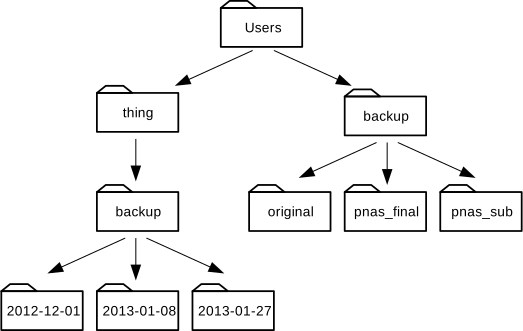
Using the filesystem diagram below, if `pwd` displays `/Users/thing`, what will `ls -F ../backup` display?
### Exercise: Moving and Copying
What is the output of the last `ls` command in the sequence shown below?
```bash
$ pwd
/Users/jamie/data
$ ls
proteins.dat
$ mkdir recombine
$ mv proteins.dat recombine/
$ cp recombine/proteins.dat ../proteins-saved.dat
$ ls
```
1. proteins-saved.dat recombine
2. recombine
3. proteins.dat recombine
4. proteins-saved.dat
Please post your answers below:
CC: Option 2
VS: Option 2
RB: option 1
MKH: option 2
WQ: Option 2
RDLR: Option 2
YM: Option 4
JD: Option 1 --> I thought .. meant one directory above
CW: Option 1
K.RS: Option 2
### Morning Session Wrap-Up
Please leave us some feedback on the morning session
#### Things I liked :smiley:
* Very interactive and hands on
* very useful basics
#### Things I did not like :frowning:
* I could have needed some time to follow up, because it's listening - writing and looking at the chat at once ;)
:::success
Here is a very comprehensive reference for all that we talked about in the workshop (and more) https://swcarpentry.github.io/shell-novice/reference/
:::
:::info
**Lunch Break** until 12:30
Afterwards: **Shell-Shenanigans** until 14:00
Afterwards: **Git**
:::
:::info
**Lunch Break** until 12:30
Afterwards: **Shell-Shenanigans** until 14:00
Afterwards: **Git**
:::
## Version Control with Git
### Please paste the output of `git --version` here:
* VS: git version 2.28.0.windows.1
* CC: git version 2.21.1 (Apple Git-122.3)
* CW: git version 2.28.0.windows.1
* RB: git version 2.15.0 Mac
* RDLR: git version 2.15.0 Mac
* K.RS: git version 2.28.0.windows.1
* YM: git version 2.24.3 (Apple m Git-128)
* MKH: git version 2.24.3 Mac
* BB: git version 2.27.0
* JD: git version 2.28.0.windows.1
* WQ:git version 2.28.0.windows.1
| Editor | Git Configuration Command |
|--------|---------------------------|
| Atom | `$ git config --global core.editor "atom --wait"`
| nano | `$ git config --global core.editor "nano -w"`
| BBEdit (Mac, with command line tools) | `$ git config --global core.editor "bbedit -w"`
| Sublime Text (Mac) | `$ git config --global core.editor "/Applications/Sublime\ Text.app/Contents/SharedSupport/bin/subl -n -w"`
| Sublime Text (Win, 32-bit install) | `$ git config --global core.editor "'c:/program files (x86)/sublime text 3/sublime_text.exe' -w"`
| Sublime Text (Win, 64-bit install) | `$ git config --global core.editor "'c:/program files/sublime text 3/sublime_text.exe' -w"`
| Notepad++ (Win, 32-bit install) | `$ git config --global core.editor "'c:/program files (x86)/Notepad++/notepad++.exe' -multiInst -notabbar -nosession -noPlugin"`
| Notepad++ (Win, 64-bit install) | `$ git config --global core.editor "'c:/program files/Notepad++/notepad++.exe' -multiInst -notabbar -nosession -noPlugin"`
| Kate (Linux) | `$ git config --global core.editor "kate"`
| Gedit (Linux) |`$ git config --global core.editor "gedit --wait --new-window"`
| Scratch (Linux) | `$ git config --global core.editor "scratch-text-editor"`
| Emacs | `$ git config --global core.editor "emacs"`
| Vim | `$ git config --global core.editor "vim"`
| VS Code | `$ git config --global core.editor "code --wait"`
### How to Exit Vim?
Hit `Esc`, then type `:q!` and hit `Enter`
### Git Commands
Here is a list of _Git_ commands we learned.
We will add them as we go along.
* `git config`: Change your configuration for the git program
* This is what in other programs is known as _settings_ or _preferences_
* Edit the configuration: `git config --global --edit`
* Delete a configuration: `git config --global --unset <variable name>`
* Handle line endings in Windows: `git config --global core.autoclrf true`
* :::success
Git configuration variables list:
https://git-scm.com/docs/git-config#_variables
:::
* `git init`: Initialize a new, empty git repository
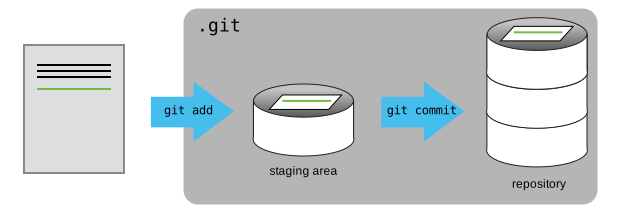
* `git add`: add content to staging area
* `git commit`: add commit to local repository
* Use the `-m` option to specify a commit message directly
* `git status`: current status of the project
* `git log`: show all git commits
* `git diff`: show changes since the last commit
* `git diff --staged`: show changes in staging area
:::success
#### Good Commit Messages Guide
One of the many good guides how to write good commit messages:
https://chris.beams.io/posts/git-commit/
#### Additional useful material
- [Pro Git Book](https://git-scm.com/book/en/v2)
- [Distributed Version control](https://git-scm.com/book/en/v2/Getting-Started-About-Version-Control#_distributed_version_control_systems)
- [Detached HEAD state](https://git-scm.com/docs/git-checkout#_detached_head)
- [Self-paced learning material](https://swcarpentry.github.io/git-novice/)
- [The Git Commit Hash](https://www.mikestreety.co.uk/blog/the-git-commit-hash)
:::
### Afternoon Session Wrap-Up
Please leave us some feedback on the afternoon session
#### Things I liked :smiley:
#### Things I did not like :frowning:
---
# Day 2 (2020-09-21): GitLab
## Arrival
### Role Call
Please add your name in the list **below**:
* Tobias Huste
* Fredo Erxleben
* Lokamani
* Steve Schmerler
* Kasra Rafiezadeh Shahi
* Cecilia Contreras
* Carolin Winter
* Roberto De La Rosa
* Bahar Bahrami
* Wen Qin
* Vishnu Sudharshan
* Katharina Hähnel
* René Booysen
* Mahdi Khodadadzadeh
* Joni Dehaspe
* Anna Sommer
## Make sure you can log in to [GitLab]
Please let us know your GitLab.com account name.
* Fredo Erxleben: @hifis-instructor
* Vishnu Sudharshan: @vishnu.sudharshan
* Cecilia Contreras: @iceciliaca
* Carolin Winter: @Athene.Noctua
* Kasra Rafiezadeh Shahi : @KasraRS
* Bahar Bahrami:@baharbahrami
* Roberto De La Rosa: @Robertodlr
* René Booysen: @Rene_Booysen
* Katharina Hähnel: @khaehnel
* Joni Dehaspe: @dehaspe
* Mahdi Khodadadzadeh: @mkhzadeh
* Tobias Huste: @tobiashuste
* Steve Schmerler @elcorto
* Anna Sommer @sommer27
* Wen Qin: @wenqinufz
### Exercise
#### Exercise 1: Add group members
Please add `@fer-rum` as a member to your group.
#### Exercise 2: Set up a simple CI
Put [this](https://gitlab.com/hifis/hifis-workshops/project-management-with-gitlab/-/snippets/2009680) in a new project into a folder called `paper`.
```latex
% SPDX-FileCopyrightText: 2020 Helmholtz-Zentrum Dresden-Rossendorf hifis-info@hzdr.de
%
% SPDX-License-Identifier: CC-BY-4.0
\documentclass{article}
\usepackage[english]{babel} \usepackage{blindtext}
\title{My Awesome Paper} \author{Sam Sample} \date{\today}
\begin{document}
\maketitle
\blinddocument
\end{document}
```
```
# SPDX-FileCopyrightText: 2020 Helmholtz-Zentrum Dresden-Rossendorf <hifis-info@hzdr.de>
#
# SPDX-License-Identifier: CC-BY-4.0
# Select a docker image that already has LaTeX installed
image: aergus/latex
# Put the path to the directory with the paper into a variable
# This way it can be adapted easier later on
variables:
PAPER_DIRECTORY: paper
# We only have one stage, called "build"
build:
# Within this stage there is only one job that goes into the
# paper directory and runs latexmk on the files
script:
- cd $PAPER_DIRECTORY
- latexmk -pdf
# Make the produced file available as an artifact
artifacts:
paths:
- "$PAPER_DIRECTORY/*.pdf"
```
### Git Commands
Here is a list of _Git_ commands we learned.
We will add them as we go along.
* `git checkout`: Switch branches or restore working tree files
* `git switch`: Switch branches
* `git clone`: Get a local copy of a remote repository
* `git pull`: Get the changes from the remote repository
### GitLab Competitor Projects [Git Hosting Platforms]
* <https://github.com> (as gitlab.com: free public and private repos, largest open source hosting platform worldwide)
* <https://bitbucket.org>
* <https://sourceforge.net>
* <https://sourcehut.org>
* Center-specific GitLab installations
* HZDR: https://gitlab.hzdr.de
* UFZ: https://git.ufz.de
* For completeness: tools other than `git` for version control: <https://en.wikipedia.org/wiki/Comparison_of_version-control_software>
### Links to GitLab Features and Documentation
* [Permissions and access rights](https://docs.gitlab.com/ee/user/permissions.html)
* [Setup a private commit email](https://docs.gitlab.com/ee/user/profile/#private-commit-email)
* [GitLab and SSH keys](https://docs.gitlab.com/ee/ssh)
* [Special GitLab references](https://docs.gitlab.com/ee/user/markdown.html#special-gitlab-references)
* [Group issue boards](https://docs.gitlab.com/ee/user/project/issue_board.html#group-issue-boards)
* [Project forking workflow in GitLab](https://docs.gitlab.com/ee/user/project/repository/forking_workflow.html)
### Useful links
* [S/MIME signing git commits](https://software.hifis.net/tutorial/2020/04/15/smime-signing-git-commits)
* [A blog post on good review practise](https://phauer.com/2018/code-review-guidelines/)
### Example: Gitlab issue tracker
https://gitlab.com/gitlab-org/gitlab/-/issues
### CI/CD
<https://gitlab.com/tobiashuste/python-ci-example>
### Need help?
Visit <https://software.hifis.net/services/consulting> and submit the request!
### Feedback
* :+1:
* Went well
* It was really great workshop. Thanks a lot, the pace and the content were just right :)
* I learned a lot!
* Useful and interesting workshop, I liked the hackMD page to collect everything we talked real-time in an overview
* Very interesting and a good start
* I liked the part with the CI pipelines.
* Great overview on the possibilities and how to work with GitLab
* Thank you for organisition, and it is a wonderful workshop.
* :-1:
* Could be improved
* What was your main source of dissatisfaction?
* Maybe more designated exercises and/or polls - Agree, a few more exercises would have been helpful
* I sometimes had problems to follow when I missed one step
* Would have prefered to have a more complex project to fork for the latter part (i.e., beginning with CI Pipeline) as that would have allowed us to look arund more freely
* A section about best practices might be useful though I understand if it may be difficult due to project differences...
* Now that you mention it: Check out the following links for some best practises, I could not mention in time
* [A Template for Contribution Guides](https://gitlab.com/hifis/hifis-workshops/project-management-with-gitlab/-/snippets/2004198)
* [A Template for Project Readme files](https://gitlab.com/hifis/hifis-workshops/project-management-with-gitlab/-/snippets/2004220)
* And also see the blog post in the _Useful Links_ section
[LeapChat]: https://www.leapchat.org/#UtteranceExplodeLaptopJiffySmellinessIssuelessGooeySiestaLukewarmMuleHerbsJerseyRehydrateNuggetSlumberingSugarSitcomEnchiladaSpiderGiveawayZillionRetrieverDollMosquitoBabbling
[man7]: https://www.man7.org/linux/man-pages/dir_all_alphabetic.html
[GitLab]: gitlab.com
 Sign in with Wallet
Connect another wallet
Sign in with Wallet
Connect another wallet