# How to Build a Gasless NFT Minter using Alchemy's Account Abstraction SDK
Ever wanted to drop an NFT collection where your users do not need to pay gas fees or even own a web3 wallet to mint? Well, look no further!
> Please note: this guide is meant to show you the ropes around building AA-enabled dApps and therefore purely for educational purposes. The end-product of this guide should never be used for production without professional auditing.
In this guide, we will walk through the following:
1. Setting up a NextJS-based application using [Create Web3 Dapp](https://createweb3dapp.alchemy.com/)
2. Setting up [Userbase](https://userbase.com/) in order to have our app have built-in user accounts & authentication without any database setup needed
3. Deploying an ERC-721 contract to the Sepolia test network
4. Using the [Alchemy Account Abstraction SDK](https://docs.alchemy.com/reference/account-abstraction-sdk) to rig up our application to gasless web3 interactions with the ERC-721 contract (ie, gasless minting, burning and transfering), all thanks to [Alchemy's Gas Manager Services](https://docs.alchemy.com/docs/gas-manager-services).
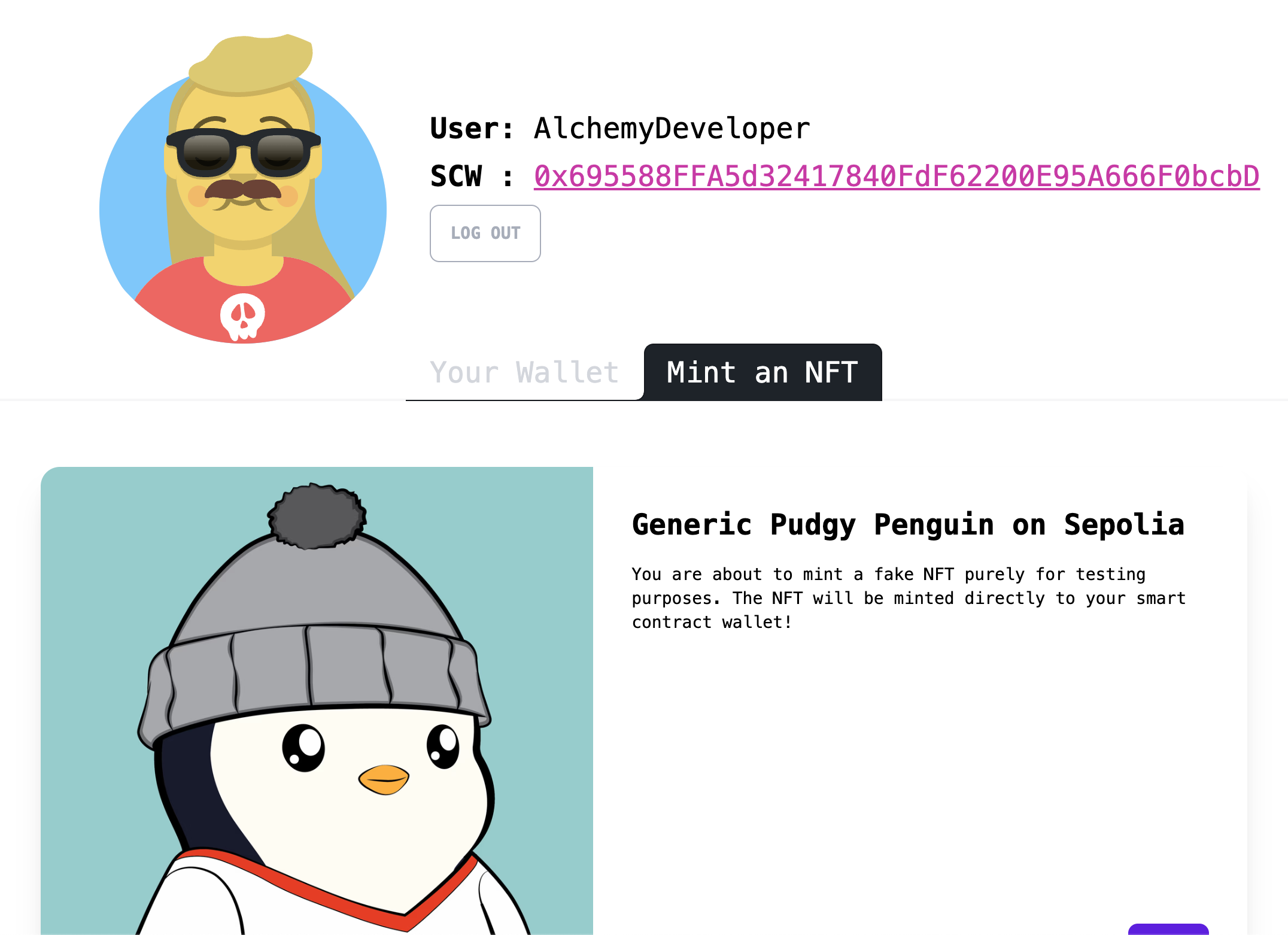
👀 Your end-product will look a little like this:
## Pre-Requisities
- [Node.js](https://nodejs.org/en) version 16.14.0 or higher.
- This project will make use of Create Web3 Dapp, a web3-enabled wrapper of [Create Next App](https://www.npmjs.com/package/create-next-app). ⚠️ Please note: Create Web3 Dapp ships out of the box using NextJS 13 which means the project's main folder is `/app` instead of `/pages`.
## Step 1: Local Project Setup
### Create Web3 Dapp Setup
Let's get to it! First up, let's set up our local development environment...
1. Open a terminal and navigate to your preferred directory for local development - for the purposes of this guide, we'll use `~/Desktop/my-aa-project/`
2. Once in the `/my-aa-project` directory, run `npx create-web3-dapp@latest`
3. For the initialization wizard, please choose the following options:
- Project name: `gasless-nft-minter`
- Choose how to start: `Boilerplate dapp`
- Choose Typescript or Javascript: `Typescript`
- Choose your blockchain development environment: `Skip`
- Login to your [Alchemy](https://www.alchemy.com/) account (or sign up for one) to acquire an API key
> ⚠️ Note: please be mindful of the application you use to create your Alchemy API key - you'll need to re-visit this in Step #2!
[PICTURE OF CW3D INIT GOES HERE]
4. As it should say in your terminal, run `cd gasless-nft-minter` and then run `npm run dev`
Nice! You just used Create Web3 Dapp to startup your local development environment with important dependencies, out-of-the-box, such as:
- [**viem**](https://viem.sh/): viem delivers a great developer experience through modular and composable APIs, comprehensive documentation, and automatic type safety and inference.
- [**ConnectKit**](https://docs.family.co/connectkit): ConnectKit is a powerful React component library for connecting a wallet to your dApp. It supports the most popular connectors and chains, and provides a beautiful, seamless experience.
- **[wagmi](https://wagmi.sh/)**: wagmi is a collection of React Hooks containing everything you need to start working with Ethereum. wagmi makes it easy to "Connect Wallet," display ENS and balance information, sign messages, interact with contracts, and much more — all with caching, request deduplication, and persistence.
- and more!
### ConnectKit Wallet Setup
Even though we won't be building anything that interfaces with a web3 browser wallet in this guide, let's still make sure we plug in the ConnectKit API key so that we don't get errors - and in case, you DO want to add web3
1. Go to https://walletconnect.com/
2. Create an account and go to the `Dashboard`
3. Select `+ New Project`
4. Copy the `Project ID`
5. Open your project's `.env.local` file and add the following variable:
```javascript
CONNECT_KIT_PROJECT_ID=<PASTE-YOUR-WALLET-CONNECT-APP-ID-HERE>
```
6. Save the file! Now, go into you your project's `layout.tsx` and make sure to change `line 10` so that it receives the variable you just set up.
Your config object should look like this:
```javascript
const config = createConfig(
getDefaultConfig({
// Required API Keys
alchemyId: process.env.ALCHEMY_API_KEY,
walletConnectProjectId: process.env.CONNECT_KIT_PROJECT_ID!,
chains: [sepolia],
// Required
appName: "My Gasless NFT Minter",
})
);
```
### Typescript `@common` Setup
One thing that'll make your development flow 100x easier is adding `@common` folder pathing. This allows you to import components between files without having to explicitly type the path to the component.
All you need to do:
1. In your `tsconfig.json` file, replace lines `22-24`, with:
```json
"baseUrl": "./",
"paths": {
"@common/*": ["common/*"],
"@public/*": ["public/*"]
}
```
2. In your project's root folder, create a new folder called `common`
Sweet! Now we can create our components in the `/common` folder and easily import them across our app! 🏗️
## Step 2: Set Up A Gas Policy on [Alchemy](https://www.alchemy.com/) + Install Styling Dependencies
### Sponsored Gas Policy Setup
Thanks to Alchemy's [Gas Manager Coverage API](https://docs.alchemy.com/reference/gas-manager-coverage-api-quickstart), you are able to create gas policies to build applications with "gasless" features - meaning: your users can interact and perform typical web3 actions such as owning, minting, burning and transfering an NFT - *without* users having to pay gas fees. This type of infrastructure can be super powerful depending on your use case.
Since this is an AA-enabled application, users will be represented as smart contract wallets - and we will choose to sponsor the minting of an NFT user operation for them! Let's set up a gas policy to sponsor our users and provide them the greatest UX ever! 🔥
1. Go to https://www.alchemy.com/ and sign in to your account
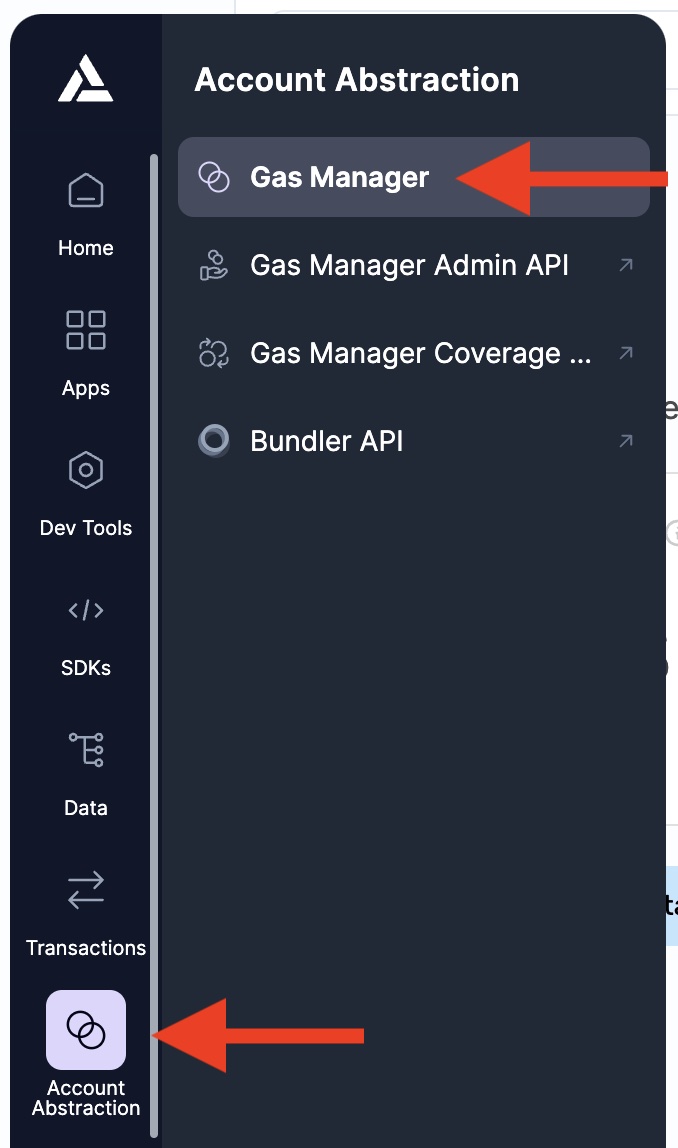
2. In the left sidebar, select `Account Abstraction` and once the menu opens, select `Gas Manager`
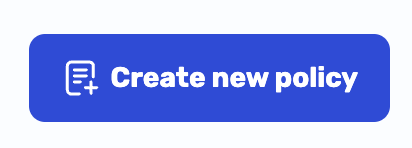
3. Once you are in the `Gas Manager` page, select the `Create new policy` button
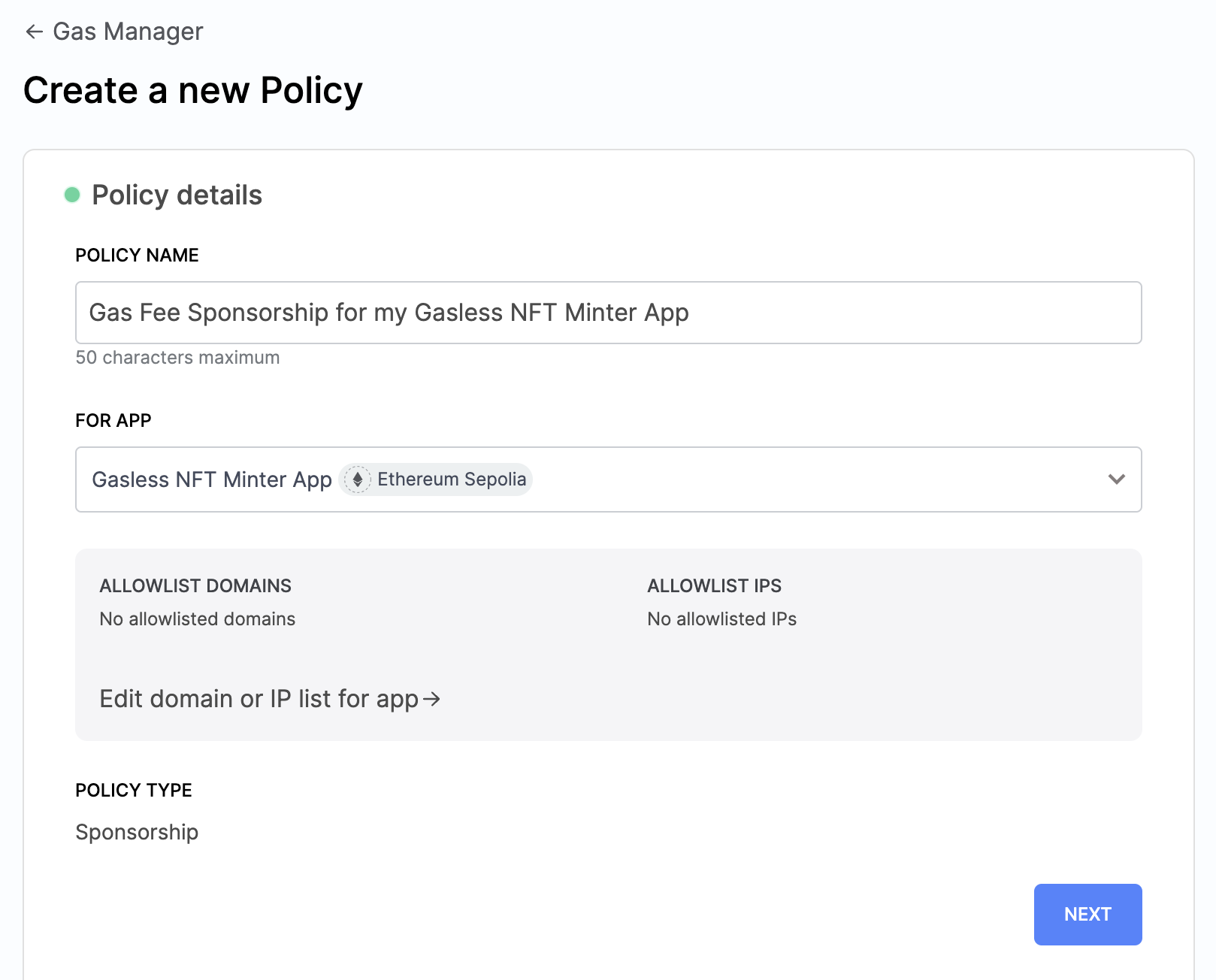
4. For the **Policy details**, fill in the following:
- Policy Name: `Gas Fee Sponsorship for my Gasless NFT Minter App`
- For App: **Choose the app attached to the Alchemy API key you used in Step #1!**
- Select `Next`
5. For the **Spending rules**, fill in the following:
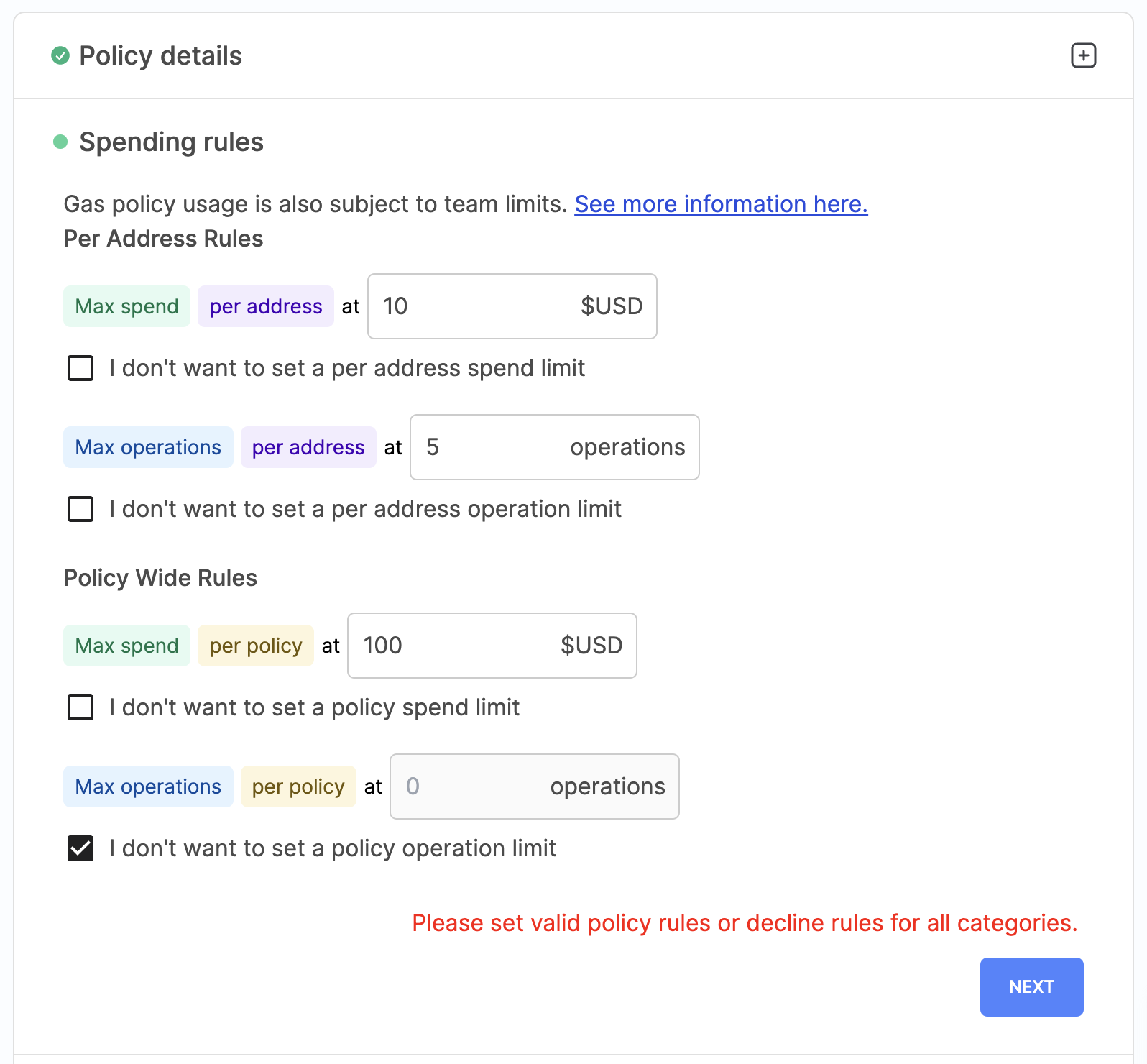
- Select `Next`
> Since our app will strictly be on Sepolia, these don't really matter but are still good safeguards to input.
6. For the `Access controls`, simply select `Next`
7. For the `Expiry and duration`, select the following (ie, end the policy effective 1 month from today's date AND make user op signatures valid for 10 minutes after they are sent):
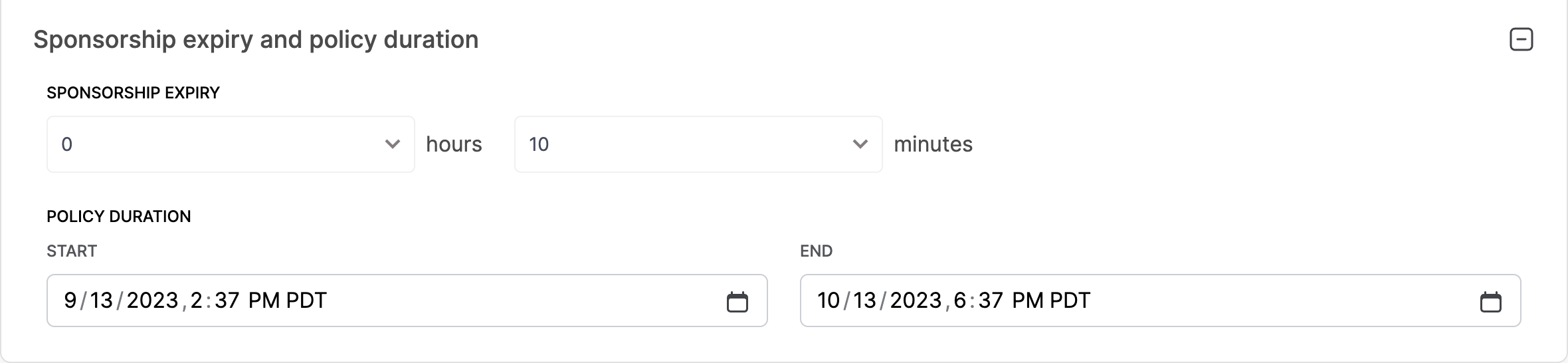
8. Lastly select `Review Policy` and then `Publish Policy`
9. Once you are routed to your dashboard, make sure to `Activate` your new policy! Your policy should look something like this:
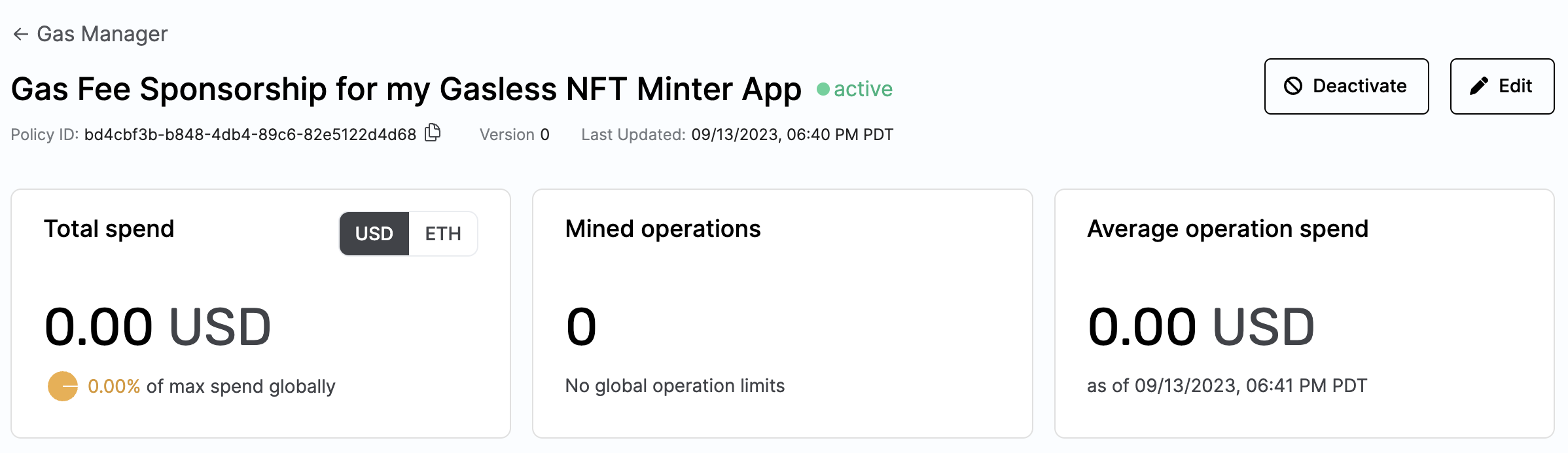
Nice! Now, the Alchemy API key you have in your project's `.env` file is directly tied to a gas policy to sponsor user operations.
### Add the Gas Policy Id to Your `.env.local` File
In the Alchemy dashboard, where you just created your Gas Manager Policy, you'll need to copy-paste the `Policy ID` into your project:
1. Open your project's `.env.local` file and create the following variable:
```javascript
SEPOLIA_PAYMASTER_POLICY_ID=<COPY-PASTE-YOUR-GAS-POLICY-ID-HERE>
```
2. Save your file!
Sweet. We're all done with gas policy setup! Let's add some styling dependencies to our project now... ⬇️
### Styling: Tailwind CSS & DaisyUI
In order for this app to look pretty, let's install [TailwindCSS](https://tailwindcss.com/) and [DaisyUI](https://daisyui.com/), just in case!
#### Tailwind CSS
> This step is exactly the same as the [official instructions](https://tailwindcss.com/docs/guides/nextjs) EXCEPT, the `tailwind.config.css` here is a bit different to account for our use of `@common` folder.
1. In your project's root folder, run `npm install -D tailwindcss postcss autoprefixer daisyui@latest`
2. Then, run `npx tailwindcss init -p`
You should see your terminal output:
```
Created Tailwind CSS config file: tailwind.config.js
Created PostCSS config file: postcss.config.js
```
3. Copy-paste the following into your app's newly-created `tailwind.config.css` file:
```json
/** @type {import('tailwindcss').Config} */
module.exports = {
content: [
"./app/**/*.{js,ts,jsx,tsx,mdx}",
"./common/**/*.{js,ts,jsx,tsx,mdx}",
"./public/**/*.{js,ts,jsx,tsx,mdx}",
],
theme: {
extend: {},
},
plugins: [require("daisyui")],
}
```
4. Lastly, copy-paste the following into the very top of your app's `globals.css` file:
```bash
@tailwind base;
@tailwind components;
@tailwind utilities;
```
#### Daisy UI
> This step is EXACTLY the same as the [official DaisyUI installation instructions](https://daisyui.com/docs/install/).
1. Run `npm i -D daisyui@latest`
2. In your newly-created `tailwind.config.css`, add the following key to the `module.exports` in that file:
```json
plugins: [require("daisyui")],
```
You're done! Now you have access to cutting-edge styling libraries - this will be great in order to deliver better UX! 🤩
## Step 3: Set Up Authentication
One of the first things you'll need in an AA-enabled application is a way to authenticate/map a real-life user record to an account on your app. Since our goal is to NOT use web3 browser wallets, we need to rely on a more traditional way to authenticate a user.
> The authentication setup we will use is simplistic but powerful - and NOT secure. Remember, this guide is for educational purposes and should never be used in a production setting!
### Set Up Userbase Account
Let's set up our own authentication with [Userbase](https://userbase.com/)!
1. First of all, run `npm i userbase-js` in your terminal
2. Now, go to https://userbase.com/ and create an account
3. Once you sign in, you should see a default **Starter App**
4. Copy the Starter App's `App Id`
5. Go to your `.env.local` file, create a variable and paste your app id, like this:
```
NEXT_PUBLIC_USERBASE_APP_ID=<PASTE_YOUR_STARTER_APP_ID>
```
> Note: In order to expose the app ID value to the client-side, you must add `NEXT_PUBLIC` to the variable.
6. Next, go back to Userbase and go to the `Account` tab in the navbar
7. Scroll down on the page till you see the `Access Tokens` section
8. Type in your password and write `get-userbase-user` for the label, then hit `Generate Access Token`
9. Once you have your access token, go back to your `.env.local` and add a variable again like this:
```
USERBASE_ACCESS_TOKEN=<PASTE_YOUR_GENERATED_ACCESS_TOKEN>
```
Sweet! You've set up everything needed on the Userbase side, now let's continue building our auth implementation! 💪
> Why did we use Userbase? Because it's a quick, powerful and easy solution for managing user accounts without needing to set up bulky servers or databases!
### Set Up AuthProvider
#### AuthProvider component
1. In your project's `/common` folder, create a new file called `AuthProvider.tsx` and copy-paste the following:
```javascript
import {
ReactNode,
createContext,
useContext,
useEffect,
useState,
} from "react";
import userbase from "userbase-js";
interface User {
username: string;
isLoggedIn: boolean;
userId: string;
scwAddress?: string;
}
interface AuthContextType {
user: User | null;
login: (user: User) => void;
logout: () => void;
}
const AuthContext = createContext<AuthContextType | undefined>(undefined);
export function useAuth(): AuthContextType {
const context = useContext(AuthContext);
if (!context) {
throw new Error("useAuth must be used within an AuthProvider");
}
return context;
}
interface AuthProviderProps {
children: ReactNode;
}
export function AuthProvider({ children }: AuthProviderProps) {
const [user, setUser] = useState<User | null>(null);
useEffect(() => {
userbase
.init({
appId: process.env.NEXT_PUBLIC_USERBASE_APP_ID!,
})
.then((session: any) => {
// SDK initialized successfully
if (session.user) {
// there is a valid active session
console.log(
`Userbase login succesful. ✅ Welcome, ${session.user.username}!`
);
console.log(session.user);
const userInfo = {
username: session.user.username,
isLoggedIn: true,
userId: session.user.userId,
scwAddress: session.user.profile.scwAddress,
};
login(userInfo);
console.log(
"Logged out in the authprovider, here is the user " + user?.username
);
}
})
.catch((e: any) => console.error(e));
}, []);
const login = (user: User) => {
setUser(user);
};
const logout = () => {
setUser(null);
};
return (
<AuthContext.Provider value={{ user, login, logout }}>
{children}
</AuthContext.Provider>
);
}
```
#### Use AuthProvider component in `layout.tsx`
In order for your `AuthProvider` component to take effect on your app, follow these steps:
1. Go to your project's `layout.tsx`
2. Delete `lines 4-5`, we don't need them! (feel free to implement them yourself!)
3. After `line 10`, add the following:
```javascript
chains: [sepolia],
```
4. Remember to add the `sepolia` import from wagmi on `line 4`:
```javascript
import { WagmiConfig, createConfig, sepolia } from "wagmi";
```
> This is to protect our users! We want to only allow use of this app exclusively on the Sepolia test network.
5. Then, add the following import at the top of the file (but not above the `'use client'` statement):
```javascript
import { AuthProvider } from "@common/AuthProvider";
```
6. Now, wrap your entire `RootLayout` export in the `AuthProvider` component you just imported, it should look like this:
> Remember to remove the `<Navbar>` and `<Footer>` components!
```javascript
<html lang="en">
<AuthProvider>
<WagmiConfig config={config}>
<ConnectKitProvider mode="dark">
<body>
<div style={{ display: "flex", flexDirection: "column", minHeight: "105vh" }}>
<div style={{flexGrow: 1}}>{children}</div>
</div>
</body>
</ConnectKitProvider>
</WagmiConfig>
</AuthProvider>
</html>
```
Your application, and any of its components, now has access to user authentication state - nice! 🔥
## Step 3: Set Up Sign Up / Login Routes
Now, let's use NextJS 13 `/app` infrastructure to set up some routes! This section is heavy so get ready! 🧗♂️
### Sign Up
1. Run `npm i @noble/secp256k1`
2. Create a new **folder** in the `/app` folder called `/sign-up` and then in that folder create a file called `page.tsx`
> This is how you create routes in NextJS 13! By doing the above step, your app will now expose the following route: `localhost:3000/sign-up` and render whatever component you put inside `page.tsx`
3. In the `/sign-up/page.tsx` file, copy-paste the following code:
```javascript
"use client";
import "../globals.css";
import * as secp from "@noble/secp256k1";
import { useAuth } from "@common/AuthProvider";
import Loader from "@common/utils/Loader";
import { useRouter } from "next/navigation";
import { useEffect, useState } from "react";
import { publicClient } from "@common/utils/client";
import simpleFactoryAbi from "@common/utils/SimpleAccountFactory.json";
import userbase from "userbase-js";
export default function SignupForm() {
const { user, login } = useAuth();
const [username, setUsername] = useState("");
const [password, setPassword] = useState("");
const [error, setError] = useState<string | null>(null);
const [isLoading, setIsLoading] = useState(false);
const router = useRouter();
useEffect(() => {
if (user?.isLoggedIn) {
router.push("/");
}
}, []);
const handleSignup = async (e: any) => {
setIsLoading(true);
e.preventDefault();
try {
const privKey = secp.utils.randomPrivateKey();
const privKeyHex = secp.etc.bytesToHex(privKey);
const data = {
pk: privKeyHex,
};
const response1 = await fetch("/api/get-signer/", {
method: "POST",
headers: {
"Content-Type": "application/json",
},
body: JSON.stringify(data),
});
const responseData = await response1.json();
const ownerAddress = responseData.data; // access the signer object
const userScwAddress: string = (await publicClient.readContract({
address: "0x9406Cc6185a346906296840746125a0E44976454", // simple factory addr
abi: simpleFactoryAbi,
functionName: "getAddress",
args: [ownerAddress, 0],
})) as string;
const response2 = await userbase.signUp({
username,
password,
rememberMe: "local",
profile: {
scwAddress: userScwAddress,
pk: privKeyHex,
},
});
const userInfo = {
username: username,
isLoggedIn: true,
userId: response2.userId,
scwAddress: userScwAddress,
};
login(userInfo);
router.push("/?signup=success");
} catch (error: any) {
setIsLoading(false);
setError(error.message);
console.error(error);
}
};
return (
<div>
{isLoading ? (
<Loader />
) : (
<div className="flex items-center justify-center h-screen bg-gray-100">
<div className="w-full max-w-sm">
<form
className="bg-white rounded px-8 pt-6 pb-8 mb-24 font-mono"
onSubmit={handleSignup}
>
<label
className="block text-center text-gray-700 font-bold mb-2 text-xl"
htmlFor="username"
>
Sign Up 👋
</label>
<div className="divider"></div>
<div className="mb-4 text-xl">
<label
className="block text-gray-700 font-bold mb-2"
htmlFor="username"
>
Username
</label>
<input
className="bg-white shadow appearance-none border rounded w-full py-2 px-3 text-gray-700 leading-tight focus:outline-none focus:shadow-outline"
onChange={(e) => setUsername(e.target.value)}
id="username"
type="text"
placeholder="Username"
/>
</div>
<div className="mb-6 text-xl">
<label
className="block text-gray-700 font-bold mb-2"
htmlFor="password"
>
Password
</label>
<input
className="bg-white shadow appearance-none border rounded w-full py-2 px-3 text-gray-700 leading-tight focus:outline-none focus:shadow-outline"
id="password"
type="password"
placeholder="Password"
onChange={(e) => setPassword(e.target.value)}
/>
</div>
{error && <p className="text-red-500 mb-4">{error}</p>}{" "}
<div className="flex items-center justify-end">
<button className="btn text-white">Sign Up</button>
</div>
</form>
</div>
</div>
)}
</div>
);
}
```
There is *quite a bit* going on in this file. Particularly, there are a lot of things we are importing (the next step is setting all of these imports up!). Let's break this file down a bit by looking at some of the imports we haven't seen yet:
#### Sign Up Imports
- `import * as secp from "@noble/secp256k1";`
When signing up, we use the [@noble/secp256k1 crypto library](https://github.com/paulmillr/noble-secp256k1) to generate a private key for the user.
> What? A private key? Since this is a simple implementation of account abstraction, we will use the Simple Account model which makes use of a private key to generate and own a smart contract wallet.
- `import { useAuth } from "@common/auth/AuthProvider";`
Our good ole' authentication hook which will give us access to the user's state across our app.
- `import Loader from "@common/utils/Loader";`
This is a simple [Loader component](https://daisyui.com/components/loading/) that we will use from DaisyUI. The loader will display any time there is an API query being performed. This just makes for better UX.
- `import { publicClient } from "@common/utils/client";`
- `import simpleFactoryAbi from "@common/utils/SimpleAccountFactory.json";`
The important utility here is the `SimpleAccountFactory.json` import. We import the `abi` of the [SimpleAccountFactory smart contract](https://sepolia.etherscan.io/address/0x9406Cc6185a346906296840746125a0E44976454) We will make use of one of the read functions in order to deterministically generate a user's smart contract wallet address.
- `import { useRouter } from "next/navigation";`
Thanks to native `next/navigation` package, we can make use of the `useRouter` hook to handle routing across our application.
#### `handleSignup()` Function
The `handleSignup` function does quite a bit too, let's break it down:
- First, it generates a private key using `@noble/secp256k1`
- Then it uses that private key to make a call to the server-side of the application (specifically to the `/api/get-signer` endpoint, which we have yet to set up)
- The `get-signer` endpoint uses the private key to create a `Signer` object paired with the `SimpleSmartAccountOwner` imported from Alchemy's AA SDK. The endpoint simply returns the address of the signer that will own the smart contract wallet.
- We then do some [viem](https://viem.sh/docs/contract/readContract.html) magic to interface with the [SimpleAccountFactory smart contract](https://sepolia.etherscan.io/address/0x9406Cc6185a346906296840746125a0E44976454) (using the imported `abi`) in order to deterministically read the user's smart contract wallet address, called `userScwAddress`.
> NOTE: We don't the smart contract account just yet! We are just using the [`getAddress`](https://sepolia.etherscan.io/address/0x9406Cc6185a346906296840746125a0E44976454#readContract#F2) function of the SimpleAccountFactory contract
- After acquiring the user's smart contract wallet address, we have all of the info we want to create an account and store it in Userbase. The [`userbase.signUp`](https://userbase.com/docs/sdk/sign-up/) API request sends the user's private key and smart contract wallet address - this creates a new user record on userbase with this data mapped to the user account.
> NOTE: We choose to store the private key in plaintext on the Userbase server, a practice that should NEVER move outside the bounds of testing. You would need to set up more authentication servers to store the key more securely. For our purposes, this works.
- `response2` is an response object we receive back from Userbase. All that's left to do is use it to extract the user's `userId`. Then we create an object of all the user data we have up to this point:
```javascript
const userInfo = {
username: username,
isLoggedIn: true,
userId: response2.userId,
scwAddress: userScwAddress,
};
login(userInfo);
router.push("/?signup=success");
```
- `login` is a function we import from our `AuthProvider` - all that passing in the `userInfo` object to it does is make all that user data available all across our app - we will need it!
- `router.push(/?signup=success)` simply routes the dapp to the `/` route (which is whatever is in `app/page.tsx`)
### Log In
Now that we've set up a route to sign up, let's also set one up to allow our users to log in to the app! 🤝
1. Similar to the sign up step above, create a new **folder** in the `/app` folder called `/login` and then in that folder create a file called `page.tsx`
2. In the `/login/page.tsx` file, copy-paste the following code:
```javascript
"use client";
import { useAuth } from "@common/AuthProvider";
import Loader from "@common/utils/Loader";
import { useRouter } from "next/navigation";
import { useEffect, useState } from "react";
import userbase from "userbase-js";
import "../globals.css";
export default function LoginForm() {
const { user, login } = useAuth();
const [username, setUsername] = useState("");
const [password, setPassword] = useState("");
const [error, setError] = useState<string | null>(null);
const router = useRouter();
const [isLoading, setIsLoading] = useState(false);
useEffect(() => {
if (user?.isLoggedIn) {
router.push("/");
}
}, []);
const handleLogin = async (e: any) => {
setIsLoading(true);
e.preventDefault();
try {
const response = await userbase.signIn({
username,
password,
rememberMe: "local",
});
const userInfo = {
username: username,
isLoggedIn: true,
userId: response.userId,
userScwAddress: response.profile?.scwAddress,
};
login(userInfo);
router.push("/?login=success");
console.log(`Userbase login succesful. ✅ Welcome, ${username}!`);
} catch (error: any) {
setIsLoading(false);
setError(error.message); // Update the error state
console.error(error);
}
};
return (
<div>
{isLoading ? (
<Loader />
) : (
<div className="flex items-center justify-center h-screen bg-gray-100">
<div className="w-full max-w-sm">
<form
className="bg-white rounded px-8 pt-6 pb-8 mb-24 font-mono"
onSubmit={handleLogin}
>
<label
className="block text-center text-gray-700 font-bold mb-2 text-xl text-white"
htmlFor="username"
>
Login 🧙♂️
</label>
<div className="divider"></div>
<div className="mb-4 text-xl ">
<label
className="block text-gray-700 mb-2 font-bold"
htmlFor="username"
>
Username
</label>
<input
className="bg-white shadow appearance-none border rounded w-full py-2 px-3 text-gray-700 leading-tight focus:outline-none focus:shadow-outline"
onChange={(e) => setUsername(e.target.value)}
id="username"
type="text"
placeholder="Username"
value={username}
/>
</div>
<div className="mb-6 text-xl ">
<label
className="block text-gray-700 font-bold mb-2"
htmlFor="password"
>
Password
</label>
<input
className="bg-white shadow appearance-none border rounded w-full py-2 px-3 text-gray-700 leading-tight focus:outline-none focus:shadow-outline"
id="password"
type="password"
placeholder="Password"
onChange={(e) => setPassword(e.target.value)}
value={password}
/>
</div>
{error && <p className="text-red-500 mb-4">{error}</p>}{" "}
<div className="flex items-center justify-between">
<div
className="link link-secondary cursor-pointer"
onClick={() => router.push("/sign-up")}
>
No account yet?
</div>
<button onClick={handleLogin} className="btn text-white">
Login
</button>
</div>
</form>
</div>
</div>
)}
</div>
);
}
```
This is a much simpler component than the sign up one we put together above. Let's break anything we haven't seen yet down:
#### `handleLogin()` Function
- This component sets up a simple input form. When the user submits it with a `username` and `password`, the `handleLogin` function uses [`userbase.signIn`](https://userbase.com/docs/sdk/sign-in/) to send the data to Userbase to authenticate.
- We then put all that data into an object and use the `login` function, imported using the `useAuth` hook, in order to make all the logged in user's data available to our app throughout the user session. ✅
Noice! By this point, you have two super important routes set up but you should be seeing this in your project directory:
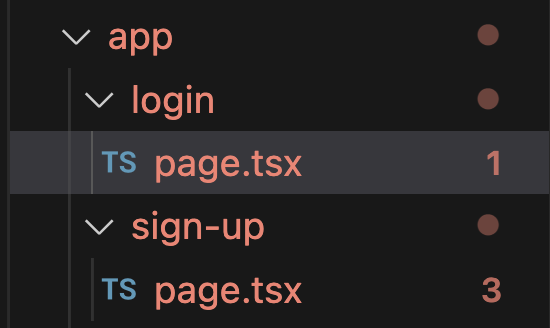
We don't like all that red! That's because we are using imports that we haven't yet initialized. ⬇️
## Step 4: Add All The Necessary `utils` & `.env` Variables
### Utils
Phew, authentication can get heavy huh! We're almost there! Let's add some of the needed imports we used in Step 3 into our project.
1. In the `/common` folder, create a new folder called `/utils`
2. In the newly-created `/utils` folder, create a new file called `SimpleAccountFactory.json` and copy-paste the following:
```json
[
{
"inputs": [
{
"internalType": "contract IEntryPoint",
"name": "_entryPoint",
"type": "address"
}
],
"stateMutability": "nonpayable",
"type": "constructor"
},
{
"inputs": [],
"name": "accountImplementation",
"outputs": [
{
"internalType": "contract SimpleAccount",
"name": "",
"type": "address"
}
],
"stateMutability": "view",
"type": "function"
},
{
"inputs": [
{
"internalType": "address",
"name": "owner",
"type": "address"
},
{
"internalType": "uint256",
"name": "salt",
"type": "uint256"
}
],
"name": "createAccount",
"outputs": [
{
"internalType": "contract SimpleAccount",
"name": "ret",
"type": "address"
}
],
"stateMutability": "nonpayable",
"type": "function"
},
{
"inputs": [
{
"internalType": "address",
"name": "owner",
"type": "address"
},
{
"internalType": "uint256",
"name": "salt",
"type": "uint256"
}
],
"name": "getAddress",
"outputs": [
{
"internalType": "address",
"name": "",
"type": "address"
}
],
"stateMutability": "view",
"type": "function"
}
]
```
3. Still in the `/utils` folder, create a new file called `client.ts` and copy-paste the following:
```javascript
import { createPublicClient, http } from "viem";
import { sepolia } from "viem/chains";
export const publicClient = createPublicClient({
chain: sepolia,
transport: http(),
});
```
4. Still in the `/utils` folder, create a new file called `Loader.tsx` and copy-paste the following:
```javascript
const Loader: React.FC = () => {
return (
<div className="flex justify-center items-center min-h-screen">
<span className="loading loading-spinner loading-lg text-[#0a0ad0]"></span>
</div>
);
};
export default Loader;
```
Now, *one* more contract `abi` to add: that of the actual NFT contract!
5. In the `/utils` folder, create a new file called `NFTContract.json` and copy-paste this JSON:
```json
[
{
"inputs": [],
"stateMutability": "nonpayable",
"type": "constructor"
},
{
"anonymous": false,
"inputs": [
{
"indexed": true,
"internalType": "address",
"name": "owner",
"type": "address"
},
{
"indexed": true,
"internalType": "address",
"name": "approved",
"type": "address"
},
{
"indexed": true,
"internalType": "uint256",
"name": "tokenId",
"type": "uint256"
}
],
"name": "Approval",
"type": "event"
},
{
"anonymous": false,
"inputs": [
{
"indexed": true,
"internalType": "address",
"name": "owner",
"type": "address"
},
{
"indexed": true,
"internalType": "address",
"name": "operator",
"type": "address"
},
{
"indexed": false,
"internalType": "bool",
"name": "approved",
"type": "bool"
}
],
"name": "ApprovalForAll",
"type": "event"
},
{
"inputs": [
{
"internalType": "address",
"name": "to",
"type": "address"
},
{
"internalType": "uint256",
"name": "tokenId",
"type": "uint256"
}
],
"name": "approve",
"outputs": [],
"stateMutability": "nonpayable",
"type": "function"
},
{
"inputs": [
{
"internalType": "address",
"name": "recipient",
"type": "address"
}
],
"name": "mint",
"outputs": [],
"stateMutability": "nonpayable",
"type": "function"
},
{
"anonymous": false,
"inputs": [
{
"indexed": true,
"internalType": "address",
"name": "previousOwner",
"type": "address"
},
{
"indexed": true,
"internalType": "address",
"name": "newOwner",
"type": "address"
}
],
"name": "OwnershipTransferred",
"type": "event"
},
{
"inputs": [],
"name": "renounceOwnership",
"outputs": [],
"stateMutability": "nonpayable",
"type": "function"
},
{
"inputs": [
{
"internalType": "address",
"name": "from",
"type": "address"
},
{
"internalType": "address",
"name": "to",
"type": "address"
},
{
"internalType": "uint256",
"name": "tokenId",
"type": "uint256"
}
],
"name": "safeTransferFrom",
"outputs": [],
"stateMutability": "nonpayable",
"type": "function"
},
{
"inputs": [
{
"internalType": "address",
"name": "from",
"type": "address"
},
{
"internalType": "address",
"name": "to",
"type": "address"
},
{
"internalType": "uint256",
"name": "tokenId",
"type": "uint256"
},
{
"internalType": "bytes",
"name": "data",
"type": "bytes"
}
],
"name": "safeTransferFrom",
"outputs": [],
"stateMutability": "nonpayable",
"type": "function"
},
{
"inputs": [
{
"internalType": "address",
"name": "operator",
"type": "address"
},
{
"internalType": "bool",
"name": "approved",
"type": "bool"
}
],
"name": "setApprovalForAll",
"outputs": [],
"stateMutability": "nonpayable",
"type": "function"
},
{
"inputs": [
{
"internalType": "string",
"name": "newBaseTokenURI",
"type": "string"
}
],
"name": "setBaseTokenURI",
"outputs": [],
"stateMutability": "nonpayable",
"type": "function"
},
{
"anonymous": false,
"inputs": [
{
"indexed": true,
"internalType": "address",
"name": "from",
"type": "address"
},
{
"indexed": true,
"internalType": "address",
"name": "to",
"type": "address"
},
{
"indexed": true,
"internalType": "uint256",
"name": "tokenId",
"type": "uint256"
}
],
"name": "Transfer",
"type": "event"
},
{
"inputs": [
{
"internalType": "address",
"name": "from",
"type": "address"
},
{
"internalType": "address",
"name": "to",
"type": "address"
},
{
"internalType": "uint256",
"name": "tokenId",
"type": "uint256"
}
],
"name": "transferFrom",
"outputs": [],
"stateMutability": "nonpayable",
"type": "function"
},
{
"inputs": [
{
"internalType": "address",
"name": "newOwner",
"type": "address"
}
],
"name": "transferOwnership",
"outputs": [],
"stateMutability": "nonpayable",
"type": "function"
},
{
"inputs": [
{
"internalType": "address",
"name": "owner",
"type": "address"
}
],
"name": "balanceOf",
"outputs": [
{
"internalType": "uint256",
"name": "",
"type": "uint256"
}
],
"stateMutability": "view",
"type": "function"
},
{
"inputs": [
{
"internalType": "uint256",
"name": "tokenId",
"type": "uint256"
}
],
"name": "getApproved",
"outputs": [
{
"internalType": "address",
"name": "",
"type": "address"
}
],
"stateMutability": "view",
"type": "function"
},
{
"inputs": [
{
"internalType": "address",
"name": "owner",
"type": "address"
},
{
"internalType": "address",
"name": "operator",
"type": "address"
}
],
"name": "isApprovedForAll",
"outputs": [
{
"internalType": "bool",
"name": "",
"type": "bool"
}
],
"stateMutability": "view",
"type": "function"
},
{
"inputs": [],
"name": "MAX_SUPPLY",
"outputs": [
{
"internalType": "uint256",
"name": "",
"type": "uint256"
}
],
"stateMutability": "view",
"type": "function"
},
{
"inputs": [],
"name": "name",
"outputs": [
{
"internalType": "string",
"name": "",
"type": "string"
}
],
"stateMutability": "view",
"type": "function"
},
{
"inputs": [],
"name": "owner",
"outputs": [
{
"internalType": "address",
"name": "",
"type": "address"
}
],
"stateMutability": "view",
"type": "function"
},
{
"inputs": [
{
"internalType": "uint256",
"name": "tokenId",
"type": "uint256"
}
],
"name": "ownerOf",
"outputs": [
{
"internalType": "address",
"name": "",
"type": "address"
}
],
"stateMutability": "view",
"type": "function"
},
{
"inputs": [
{
"internalType": "bytes4",
"name": "interfaceId",
"type": "bytes4"
}
],
"name": "supportsInterface",
"outputs": [
{
"internalType": "bool",
"name": "",
"type": "bool"
}
],
"stateMutability": "view",
"type": "function"
},
{
"inputs": [],
"name": "symbol",
"outputs": [
{
"internalType": "string",
"name": "",
"type": "string"
}
],
"stateMutability": "view",
"type": "function"
},
{
"inputs": [
{
"internalType": "uint256",
"name": "index",
"type": "uint256"
}
],
"name": "tokenByIndex",
"outputs": [
{
"internalType": "uint256",
"name": "",
"type": "uint256"
}
],
"stateMutability": "view",
"type": "function"
},
{
"inputs": [
{
"internalType": "address",
"name": "owner",
"type": "address"
},
{
"internalType": "uint256",
"name": "index",
"type": "uint256"
}
],
"name": "tokenOfOwnerByIndex",
"outputs": [
{
"internalType": "uint256",
"name": "",
"type": "uint256"
}
],
"stateMutability": "view",
"type": "function"
},
{
"inputs": [
{
"internalType": "uint256",
"name": "tokenId",
"type": "uint256"
}
],
"name": "tokenURI",
"outputs": [
{
"internalType": "string",
"name": "",
"type": "string"
}
],
"stateMutability": "view",
"type": "function"
},
{
"inputs": [],
"name": "totalSupply",
"outputs": [
{
"internalType": "uint256",
"name": "",
"type": "uint256"
}
],
"stateMutability": "view",
"type": "function"
}
]
```
Nice, the `localhost:3000/sign-up` and `localhost:3000/login` routes should now be viewable without errors! 👀
> Note, they still won't work and you'll get errors if you submit them! We need to set up the API requests... ⬇️ BUT before we do that, let's set up a gas policy on [Alchemy](https://www.alchemy.com/). We want to get a special API key that our app will map to our gas policy of paying for user NFT mints! 🚀
## Step 6: Set Up the `/api` Folder + Routes
Let's go ahead and set up all of the API requests, whether external or on the server-side of our NextJS application in this step. We will set up **four** endpoints to:
1. Get the owner address for a smart contract wallet deterministically (uses the [AA SDK](https://github.com/alchemyplatform/aa-sdk))
2. Get a smart contract wallet's owned NFTs (uses the [Alchemy SDK](https://github.com/alchemyplatform/alchemy-sdk-js))
3. Submit a sponsored user operation on behalf of the user's smart contract wallet (uses the AA SDK)
4. Get a user's private key from the Userbase server whenever necessary
Let's jump in! 🤿
### Install More Dependencies
We need a lot of tools from Alchemy at this point:
1. In your terminal, run `npm i @alchemy/aa-core@0.1.0-alpha.29
@alchemy/aa-core@0.1.0-alpha.29 alchemy-sdk`
And that's it! 🧙♂️
### Create API Endpoints
#### Get Owner of Smart Contract Wallet Deterministically
1. In the `/app` folder of your project, create a new folder called `/api`
2. Inside the newly-created `/app` folder, create a new folder called `/get-signer`
3. And inside that folder, create a new file called `route.ts`
**This is how you create API routes in NextJS 13!** ✨
4. Inside the `route.ts` of the `/get-signer` folder, copy-paste the following code:
```javascript
import { withAlchemyGasManager } from "@alchemy/aa-alchemy";
import {
LocalAccountSigner,
SimpleSmartContractAccount,
SmartAccountProvider,
type SimpleSmartAccountOwner,
} from "@alchemy/aa-core";
import { NextRequest, NextResponse } from "next/server";
import { sepolia } from "viem/chains";
const ALCHEMY_API_URL = `https://eth-sepolia.g.alchemy.com/v2/${process.env.ALCHEMY_API_KEY}`;
const ENTRYPOINT_ADDRESS = process.env
.SEPOLIA_ENTRYPOINT_ADDRESS as `0x${string}`;
const SIMPLE_ACCOUNT_FACTORY_ADDRESS = process.env
.SEPOLIA_SIMPLE_ACCOUNT_FACTORY_ADDRESS as `0x${string}`;
export async function POST(request: NextRequest) {
const body = await request.json();
const { pk } = body;
const owner: SimpleSmartAccountOwner =
LocalAccountSigner.privateKeyToAccountSigner(`0x${pk}`);
const chain = sepolia;
const provider = new SmartAccountProvider(
ALCHEMY_API_URL,
ENTRYPOINT_ADDRESS,
chain,
undefined,
{
txMaxRetries: 10,
txRetryIntervalMs: 5000,
}
);
let signer = provider.connect(
(rpcClient) =>
new SimpleSmartContractAccount({
entryPointAddress: ENTRYPOINT_ADDRESS,
chain,
owner,
factoryAddress: SIMPLE_ACCOUNT_FACTORY_ADDRESS,
rpcClient,
})
);
// [OPTIONAL] Use Alchemy Gas Manager
signer = withAlchemyGasManager(signer, {
policyId: process.env.SEPOLIA_PAYMASTER_POLICY_ID!,
entryPoint: ENTRYPOINT_ADDRESS,
});
const ownerAccount = signer.account;
const ownerAddress = (ownerAccount as any).owner.owner.address;
return NextResponse.json({ data: ownerAddress });
}
```
All this script does is create a `Signer` object, similar to the [ethers.js Signer class](https://docs.ethers.org/v5/api/signer/) that is allowed to sign and submit user operations.
#### Get a Smart Contract Wallet's NFTs
We'll want to build a simple wallet display so that when a user gaslessly mints an NFT to their smart contract wallet, they are able to see the change of state.
1. In the `/api` folder, create a new folder called `/get-user-nfts` and inside that folder create a file called `route.ts`
2. Copy-paste the following code into `route.ts`:
```javascript
import { NextRequest, NextResponse } from "next/server";
const { Alchemy, Network } = require("alchemy-sdk");
const settings = {
apiKey: process.env.ALCHEMY_API_KEY,
network: Network.ETH_SEPOLIA,
};
const alchemy = new Alchemy(settings);
export async function POST(request: NextRequest) {
const body = await request.json();
const { address } = body;
const nfts = await alchemy.nft.getNftsForOwner(address);
console.log(nfts);
return NextResponse.json({
data: nfts,
});
}
```
Nice and simple script that uses the Alchemy SDK to fetch a user's NFTs! One more endpoint...
#### Submit a sponsored user operation on behalf of the user's smart contract wallet
1. Still in the `/api` folder, create a new folder called `/mint-nft-user-op` and create a file inside that folder called `route.ts`
2. Inside the `route.ts` file, copy-paste the following code:
> ⚠️ Warning: This script is heavy!
```javascript
import { withAlchemyGasManager } from "@alchemy/aa-alchemy";
import {
LocalAccountSigner,
SendUserOperationResult,
SimpleSmartAccountOwner,
SimpleSmartContractAccount,
SmartAccountProvider,
} from "@alchemy/aa-core";
import nftContractAbi from "@common/utils/SimpleAccountFactory.json";
import axios from "axios";
import { NextRequest, NextResponse } from "next/server";
import { encodeFunctionData, parseEther } from "viem";
import { sepolia } from "viem/chains";
export async function POST(request: NextRequest) {
const body = await request.json();
const { userId, userScwAddress } = body;
// get user's pk from server
const userResponse = await getUser(userId);
const userResponseObject = await userResponse?.json();
const pk = userResponseObject?.response?.profile?.pk;
const signer = await createSigner(pk);
const amountToSend: bigint = parseEther("0");
const data = encodeFunctionData({
abi: nftContractAbi,
functionName: "mint",
args: [userScwAddress], // User's Smart Contract Wallet Address
});
const result: SendUserOperationResult = await signer.sendUserOperation({
target: process.env.SEPOLIA_NFT_ADDRESS as `0x${string}`,
data: data,
value: amountToSend,
});
console.log("User operation result: ", result);
console.log(
"\nWaiting for the user operation to be included in a mined transaction..."
);
const txHash = await signer.waitForUserOperationTransaction(
result.hash as `0x${string}`
);
console.log("\nTransaction hash: ", txHash);
const userOpReceipt = await signer.getUserOperationReceipt(
result.hash as `0x${string}`
);
console.log("\nUser operation receipt: ", userOpReceipt);
const txReceipt = await signer.rpcClient.waitForTransactionReceipt({
hash: txHash,
});
return NextResponse.json({ receipt: txReceipt });
}
async function getUser(userId: any) {
try {
const response = await axios.get(
`https://v1.userbase.com/v1/admin/users/${userId}`,
{
headers: {
Authorization: `Bearer ${process.env.USERBASE_ACCESS_TOKEN}`,
},
}
);
console.log(response.data); // The user data will be available here
return NextResponse.json({ response: response.data });
} catch (error) {
console.error("Error fetching user:", error);
}
}
async function createSigner(USER_PRIV_KEY: any) {
const ALCHEMY_API_URL = `https://eth-sepolia.g.alchemy.com/v2/${process.env.ALCHEMY_API_KEY}`;
const ENTRYPOINT_ADDRESS = process.env
.SEPOLIA_ENTRYPOINT_ADDRESS as `0x${string}`;
const SIMPLE_ACCOUNT_FACTORY_ADDRESS = process.env
.SEPOLIA_SIMPLE_ACCOUNT_FACTORY_ADDRESS as `0x${string}`;
const owner: SimpleSmartAccountOwner =
LocalAccountSigner.privateKeyToAccountSigner(`0x${USER_PRIV_KEY}`);
const chain = sepolia;
const provider = new SmartAccountProvider(
ALCHEMY_API_URL,
ENTRYPOINT_ADDRESS,
chain,
undefined,
{
txMaxRetries: 10,
txRetryIntervalMs: 5000,
}
);
let signer = provider.connect(
(rpcClient) =>
new SimpleSmartContractAccount({
entryPointAddress: ENTRYPOINT_ADDRESS,
chain,
owner,
factoryAddress: SIMPLE_ACCOUNT_FACTORY_ADDRESS,
rpcClient,
})
);
// [OPTIONAL] Use Alchemy Gas Manager
signer = withAlchemyGasManager(signer, {
policyId: process.env.SEPOLIA_PAYMASTER_POLICY_ID!,
entryPoint: ENTRYPOINT_ADDRESS,
});
return signer;
}
```
#### Get a User's pk from Userbase
1. Run `npm i axios` as this will be an external API call
2. In the `/api` folder, create a new folder called `/get-user` and, same as all above, create a file inside it called `route.ts`
3. In the `route.ts` file, copy-paste the following quick script:
```javascript
import axios from "axios";
import { NextRequest, NextResponse } from "next/server";
export async function POST(request: NextRequest) {
const body = await request.json();
const { userId } = body;
try {
const response = await axios.get(
`https://v1.userbase.com/v1/admin/users/${userId}`,
{
headers: {
Authorization: `Bearer ${process.env.USERBASE_ACCESS_TOKEN}`,
},
}
);
console.log(response.data); // The user data will be available here
return NextResponse.json({ response: response.data });
} catch (error) {
console.error("Error fetching user:", error);
}
}
```
All in all, your `/api` folder, after this step, should look like this:
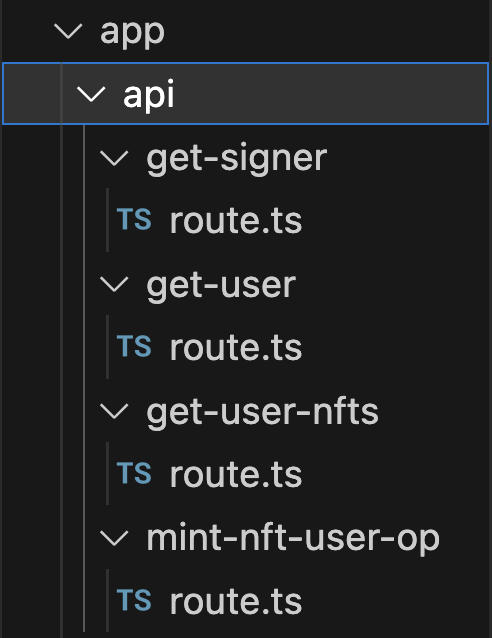
You've just set up super powerful API routes in your NextJS 13 project! 💫 You'll notice we used a whole bunch of environment variables to make the scripts work - let's add the remaining values! ⬇️
#### Final Remaining `.env` File Variables To Add
1. In your project's `.env.local` file, set up these slate of variables - needed to make your API scripts work:
```javascript
SEPOLIA_ENTRYPOINT_ADDRESS=
SEPOLIA_SIMPLE_ACCOUNT_FACTORY_ADDRESS=
SEPOLIA_NFT_ADDRESS=0x5700D74F864CE224fC5D39a715A744f8d1964429
```
By now, your `.env.local` file should look something like this:
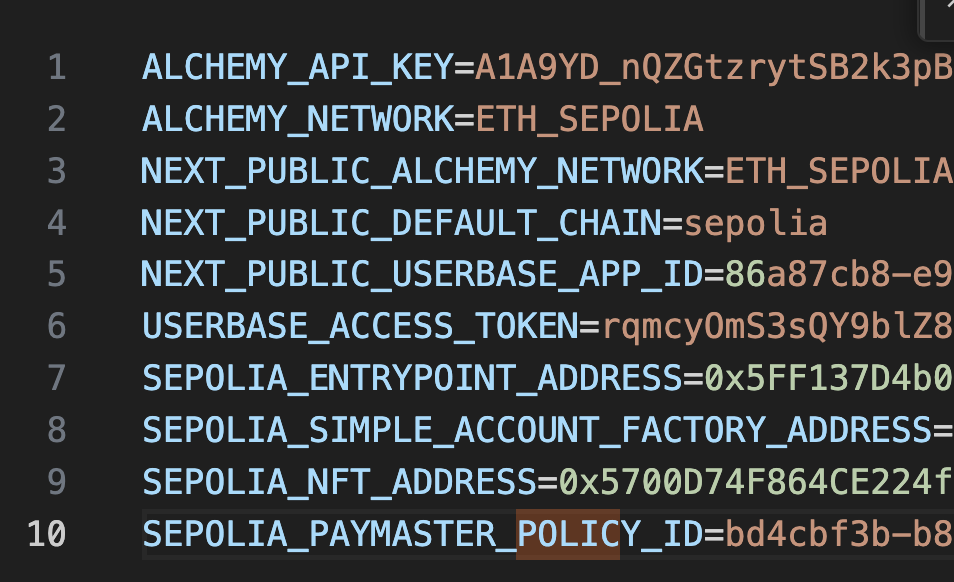
We're almost there!! 🏃♂️
> 😎 Psst! You should be able to successfully sign up as a user now! The app will break since it won't know where to re-direct state successfully, but feel free to try signing up for an account, then go to Userbase.com and select your `Starter App` - by this point, you should see the user you just created successfully on the Userbase end!
## Step 7: Set Up Your `/` (Home!) Route
It must be annoying to not be able to load `localhost:3000/` without any errors or it still displaying old instructions, so let's fix that! 🛠️
We want our home component to do two things:
1. If the user is not logged in, re-direct to `/login`
2. If the user is logged in, display a page where they can toggle either their wallet view (ie, a display to show the currently owned NFTs of the user's smart contract wallet) and a minter view (ie, a display to mint a new NFT to their smart contract wallet)
Let's do it! 🚴♀️
### Setting up the Home Route
1. First of alll, let's take a quick detour - add `background-color: white;` to the `body` tag inside the `globals.css` file - let's make our app light mode enabled for now! (Remember to save the file!)
2. Second, we're going to use the [Random Avatar Generator](https://www.npmjs.com/package/random-avatar-generator) package to give each of our users a cool avatar! Run `npm i random-avatar-generator` in your project terminal
3. Now, go to `/app/page.tsx` (this is your app's default component; whenever a user visits the `/` route, this component will render!)
4. Copy-paste the following code:
```javascript
"use client";
import GaslessMinter from "@common/GaslessMinter";
import WalletDisplay from "@common/WalletDisplay";
import "./globals.css";
import { useAuth } from "@common/AuthProvider";
import { useRouter } from "next/navigation";
import { AvatarGenerator } from "random-avatar-generator";
import { useState } from "react";
import userbase from "userbase-js";
export default function Home() {
const { user, logout } = useAuth();
const router = useRouter();
const [walletViewActive, setWalletViewActive] = useState(true);
const generator = new AvatarGenerator();
function handleLogout() {
try {
userbase
.signOut()
.then(() => {
// user logged out
console.log("User logged out!");
logout();
router.push("/");
})
.catch((e: any) => console.error(e));
} catch (error: any) {
console.log(error);
}
}
return (
<div>
{user?.isLoggedIn ? (
<div className="font-mono text-2xl mt-8">
<div className="flex items-center justify-center">
<div className="avatar">
<div className="rounded-full ml-12">
<img src={generator.generateRandomAvatar(user?.userId)} />
</div>
</div>
<div className="flex flex-col ml-6 gap-2">
<div className="text-black">
<b>User:</b> {user?.username}
</div>
<div className="text-black">
<b>SCW :</b>{" "}
<a
className="link link-secondary"
href={`https://sepolia.etherscan.io/address/${user?.scwAddress}`}
target="_blank"
>
{user?.scwAddress}
</a>
</div>
<div className="text-black">
{user?.isLoggedIn ? (
<div className="btn btn-outline" onClick={handleLogout}>
<a>Log out</a>
</div>
) : (
""
)}
</div>
</div>
</div>
<div className="tabs items-center flex justify-center mb-[-25px]">
<a
className={`tab tab-lg tab-lifted text-2xl ${
walletViewActive ? "tab-active text-white" : ""
}`}
onClick={() => setWalletViewActive(!walletViewActive)}
>
Your Wallet
</a>
<a
className={`tab tab-lg tab-lifted text-2xl ${
walletViewActive ? "" : "tab-active text-white"
}`}
onClick={() => setWalletViewActive(!walletViewActive)}
>
Mint an NFT
</a>
</div>
<div className="divider mx-16 mb-8"></div>
{walletViewActive ? <WalletDisplay /> : <GaslessMinter />}
</div>
) : (
<div>
<div className="text-black flex flex-col items-center justify-center mt-36 mx-8 text-4xl font-mono">
Please log in to continue! 👀
<button
onClick={() => router.push("/login")}
className="btn mt-6 text-white"
>
Login
</button>
</div>
</div>
)}
</div>
);
}
```
By now, your app `/` route should look like this:
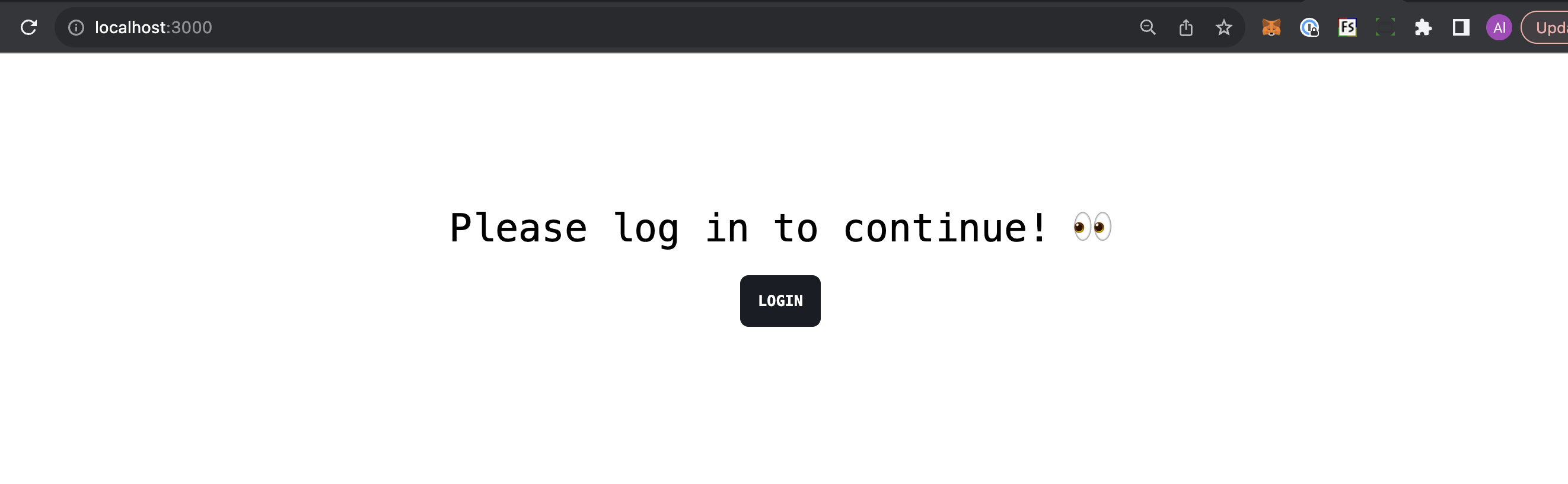
We are setting up the `Home` component so that whenever a user loads the `/` route, the app runs a quick hook to check whether they are logged in. If they are, display the Wallet + Minter components (the toggle between those two components relies on the `walletViewActive` state variable), else display a simple `Please log in to continue!` text.
## Step 8: Set Up Wallet Display + Gasless Minter Components
You'll notice at this point, your code editor should be complaining that we are trying to use two components that we haven't created yet: `WalletDisplay` and `GaslessMinter`. Let's create each of these now...
### WalletDisplay
1. In your `/common` folder, create a new component called `WalletDisplay.tsx`
2. Open the `WalletDisplay.tsx` file and copy-paste the following:
```javascript
import { useAuth } from "@common/AuthProvider";
import Loader from "@common/utils/Loader";
import { useEffect, useState } from "react";
interface Nft {
contract: object;
tokenId: string;
tokenType: string;
title: string;
description: string;
media: object;
}
interface Data {
ownedNfts: Nft[];
length: number;
}
export default function WalletDisplay() {
const { user } = useAuth();
const [ownedNftsArray, setOwnedNftsArray] = useState<Data | null>(null);
const [isLoading, setIsLoading] = useState(true);
useEffect(() => {
fetchUserNfts();
}, []);
function truncateDescription(description: string, wordCount: number) {
const words = description.split(" ");
if (words.length > wordCount) {
const truncatedWords = words.slice(0, wordCount);
return `${truncatedWords.join(" ")} ...`;
}
return description;
}
async function fetchUserNfts() {
setIsLoading(true);
try {
const data = { address: user?.scwAddress };
const response = await fetch("/api/get-user-nfts/", {
method: "POST",
headers: { "Content-Type": "application/json" },
body: JSON.stringify(data),
});
const messageResponse = await response.json();
console.log(messageResponse.data.ownedNfts);
setOwnedNftsArray(messageResponse.data.ownedNfts);
setIsLoading(false);
} catch (error) {
console.error("Error fetching NFTs:", error);
}
}
return (
<div>
{isLoading ? (
<div className="flex items-center justify-center mt-[-350px]">
<Loader />
</div>
) : ownedNftsArray && ownedNftsArray.length >= 1 ? (
<div className="flex flex-col items-cente">
<div className="grid grid-cols-1 sm:grid-cols-2 md:grid-cols-3 lg:grid-cols-4 gap-4 mx-12 mb-6">
{ownedNftsArray &&
Array.isArray(ownedNftsArray) &&
ownedNftsArray.map((nft, index) => (
<div
key={index}
className="rounded-lg shadow-xl max-w-[250px] max-h-[600px] overflow-hidden"
>
<figure>
<img
src={
nft.tokenUri.gateway
? nft.tokenUri.gateway
: nft.tokenUri.raw
}
alt="user nft image"
className="w-full max-h-[300px]"
/>
</figure>
<div className="p-4">
<h2 className="text-xl font-semibold mb-2">{nft.title}</h2>
<p className="">
{truncateDescription(nft.description, 25)}
</p>
</div>
</div>
))}
</div>
</div>
) : (
<div>
<div className="flex flex-col items-center justify-center mx-8 mt-32 text-black">
Your smart contract wallet does not own any NFTs yet! 🤯
<div className="flex mt-4">
Mint one by selecting the <b> Mint an NFT </b> tab. ⬆️
</div>
</div>
</div>
)}
</div>
);
}
```
This component will, on-mount, immediately make a call to the `get-user-nfts` endpoint we set up in Step #6, passing the user's smart contract wallet address as an argument. So, every time the page loads, a new query to check the user's smart contract wallet owned NFTs is performed.
### GaslessMinter
1. There's a really awesome npm package called [react-confetti](https://www.npmjs.com/package/react-confetti) that we'll use to celebrate whenever one of your application's users gaslessly mints an NFT, install it by running `npm i react-confetti`
2. In your `/common` folder, create a new component file called `GaslessMinter.tsx` and copy-paste the following:
```javascript
import { useAuth } from "@common/AuthProvider";
import { useState } from "react";
import Confetti from "react-confetti";
export default function GaslessMinter() {
const { user } = useAuth();
const [isLoading, setIsLoading] = useState(false);
const [hasMinted, setHasMinted] = useState(false);
async function handleMint() {
setIsLoading(true);
const data = {
userId: user?.userId,
userScwAddress: user?.scwAddress,
nameOfFunction: "mint",
};
await fetch("/api/mint-nft-user-op/", {
method: "POST",
headers: {
"Content-Type": "application/json",
},
body: JSON.stringify(data),
});
setTimeout(() => {}, 10000); // 10 seconds
setIsLoading(false);
setHasMinted(true);
}
return (
<div className="flex items-center justify-center mt-12">
{hasMinted ? <Confetti /> : ""}
<div className="card lg:card-side shadow-xl w-[70%] mb-16">
<figure>
<img
src="https://github-production-user-asset-6210df.s3.amazonaws.com/83442423/267730896-dd9791c9-00b9-47ff-816d-0d626177909c.png"
alt="sample nft"
/>
</figure>
<div className="card-body text-black">
<h2 className="card-title text-2xl">
Generic Pudgy Penguin on Sepolia
</h2>
<p className="text-sm">
You are about to mint a fake NFT purely for testing purposes. The
NFT will be minted directly to your smart contract wallet!
</p>
<div className="flex items-center justify-end">
<div
className={`alert w-[75%] mr-4 ${
hasMinted ? "visible" : "hidden"
}`}
>
<svg
xmlns="http://www.w3.org/2000/svg"
className="stroke-current shrink-0 h-6 w-6"
fill="none"
viewBox="0 0 24 24"
>
<path
strokeLinecap="round"
strokeLinejoin="round"
strokeWidth="2"
d="M9 12l2 2 4-4m6 2a9 9 0 11-18 0 9 9 0 0118 0z"
/>
</svg>
<div className="flex justify-end text-right">
<span className="text-white">NFT minted. ✅</span>
</div>
</div>
<button className="btn btn-primary text-white" onClick={handleMint}>
<span
className={`${
isLoading ? "loading loading-spinner" : "hidden"
}`}
></span>
{isLoading ? "Minting" : hasMinted ? "Mint Again" : "Mint"}
</button>
</div>
</div>
</div>
</div>
);
}
```
### Step 9: Mint Your NFT!
Woah, you just set up a full-stack end-to-end account abstraction solution for gaslessly minting NFTs - fantastic job! 💥
Here are some ther optimizations and features you can work on if you want an extra challenge at this point:
- can you make the NFT burnable and/or transferrable?
- can you make the UX even better?
- can you deploy this to a production server and share with your friends?
 Sign in with Wallet
Connect another wallet
Sign in with Wallet
Connect another wallet