---
slideOptions:
transition: slide
---
# 動畫+RWD+Git
###### tags: `課程`
---
## 動畫
----
### 怎麼在前端加上動畫?
----
有幾種方法
1. CSS transition
2. CSS animation
3. 3rd Library
----
### 1. CSS transition
----
### transition(轉換)是什麼
> 對**指定的css style**,在不同的值、狀態之間做轉換
e.g, 顏色、字體大小、width/height 的轉換
----
### transition property
* transition-property: css style名稱
* transition-duration: 持續時間
* [transition-timing-function](https://wcc723.github.io/css/2013/08/24/css-transtion-speed/): transition播放時的加速方式
* transition-delay: 延遲多久才開始動畫
----
### transition範例
[Example URL](https://codepen.io/flyotlin/pen/gOmKqxz)
```
h1 {
background-color: white;
transition-property: background-color;
transition-duration: 2s;
transition-timing-function: linear;
/* transition-delay: 2s; */
}
h1:hover {
background-color: grey;
}
```
----
### 也可以寫成
```
h1 {
transition: background-color 1s linear;
}
```
----
### [transition產生的event](https://codepen.io/flyotlin/pen/zYZmGwQ)
* transitionstart
* transitionend
* transitioncancel
----
### transition event範例
```
let h1 = document.querySelector("h1")
h1.addEventListener("transitionstart", () => {
console.log("transition starts!")
})
```
----
### 使用CSS transition讓你的JS變得更流暢
http://jsfiddle.net/RwtHn/5/
----
### 2. CSS animation
----
### CSS animation是什麼?
> 用CSS實現[酷炫的動畫](https://www.oxxostudio.tw/demo/201803/css-animation-demo-05.html),並透過keyframe控制動畫
效能比JS寫的動畫來得好
----
### keyframes(關鍵影格)
定義動畫中的各個狀態、轉變過程
透過百分比指定該時間點的CSS style為何
```
@keyframes cool_animation {
0% {
// css style here
}
100% {
// another css style here
}
}
```
----
### animation property
* animation-name: keyframes(動畫)的名稱
* animation-duration: 持續時間
* animation-iteration-count: 動畫重複幾次
* animation-timing-function: 動畫播放時的加速方式
----
### animation範例
[Example URL](https://codepen.io/flyotlin/pen/qBrKNzw)
----
### animation產生的event
* animationstart
* animationend
----
## animation event範例
```
let div = document.querySelector("div")
div.addEventListener("animationstart", () => {
console.log("ani start!")
})
div.addEventListener("animationend", () => {
console.log("ani end!")
})
```
----
### [JS動態改變keyframes規則](https://codepen.io/flyotlin/pen/KKWeJKb)
```
// CSS
@keyframes font {
from {
font-size: 50px;
}
}
```
```
// JS
let keyframes = document.styleSheets[0].cssRules[1];
keyframes.appendRule('to{font-size:100px;}')
```
----
### 3. transition vs. animation
----
| transition | animation |
|:--------------------:|:----------------------:|
| 適合簡單的動畫 | 適合比較複雜的動畫 |
| 只有兩個狀態間的轉換 | 用keyframes自訂多個狀態 |
| 需要初始條件觸發 | 可以自動開始 |
| | |
----
### 4. 3rd library
----
### 各種好用的Library
* Animate.css
* Anime.js
* Velocity.js
---
## RWD
----
### 什麼是RWD?
> 針對不同螢幕大小、不同裝置,調整css style、功能,提供適合的網頁
----
### 如何用CSS實現RWD?
----
### media query
```
@media 裝置、擺放、width/height、一些條件 {
// css style
body {
// styles here
}
div {
// other styles here
}
}
```
----
### 限制width/height
```
@media (max-width: 480px) {
}
@media (max-width: 767px) {
}
@media (min-width: 768px) and (max-width: 979px) {
}
@media (min-width: 980px) {
}
@media (min-width: 1200px) {
}
```
----

----
### Tips
* 注意@media_qeury順序,規則有重複則下面的會覆蓋上面的
* **max-width** (Desktop優先)
代表這個尺寸**以下**的都會套用這個規則,**<=**
* **min-width** (Mobile優先)
代表這個尺寸**以上**的都會套用這個規則,**>=**
[Example URL](https://codepen.io/flyotlin/pen/RwpJvxQ)
----
### 更多
* CSS flex
* https://developer.mozilla.org/zh-TW/docs/Web/CSS/CSS_Flexible_Box_Layout/Basic_Concepts_of_Flexbox
* https://wcc723.github.io/css/2017/07/21/css-flex/
* CSS grid
* https://developer.mozilla.org/zh-TW/docs/Web/CSS/CSS_Grid_Layout/Basic_Concepts_of_Grid_Layout
* https://wcc723.github.io/css/2017/03/22/css-grid-layout/
* position
* https://developer.mozilla.org/zh-CN/docs/Web/CSS/position
---
## Git
----
### 什麼是Git?
> 版本控制系統
----
### 小情境
你寫了一份code,每天都有一點進度。有強迫症的你想要紀錄每天自己究竟做了些什麼。
這時天真的你想到可以每天建立一個以日期命名的資料夾,問題好像都解決了呢!
> 但事情沒有這麼簡單...
----
### GitHub/GitLab
不同的code代管網站,提供一個遠端repo讓使用者上傳、管理自己的code
----
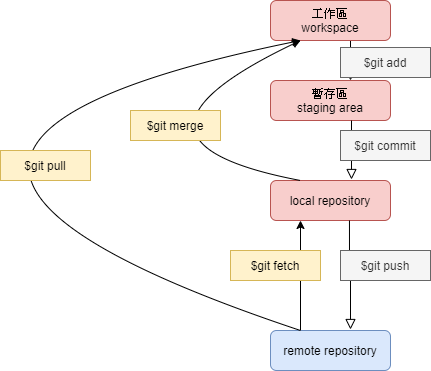
### 基本流程
----
### 一個類比
* 你的code: 公務員的公文
* 工作區: 辦公桌
* 暫存區: 公文夾
* local repo: 區公所的公文櫃
* remote repo: 全台灣的公文櫃
----
### 動手做一做
* 開一個資料夾,新增一個檔案(e.g, README.md)
```
$ git init // 對當前資料夾進行git初始化
$ git branch -m flyotlin // 改變預設branch的名稱
// 新增一個remote repo的url
$ git remote add origin https://gitlab.com/ncufresh/git_practice_ncufresh21.git
```
----
### `$ git status`
> 查看目前git工作區、暫存區的狀況
告訴你哪些公文在辦公桌,哪些公文已經放到公文夾
----
### `$ git add 你的檔案`
> 把修改過的code放到git暫存區
把公文從你的辦公桌上放到你的公文夾、卷宗裡面
----
```
$ git add index.html style.css // 單一 or 多個檔案
$ git add . // 當前目錄下所有檔案
$ git add *.json // 所有以.json結尾的檔案
-----------
$ git add README.md // 動手做一做
```
----
### .gitignore
讓git忽略一些你不想加到暫存區的檔案或資料夾
```
node_modules
*.json
controller.js
```
----
### `$ git commit [-m "commit訊息"]`
> 將在暫存區中的code丟到local repo中
把公文夾裡面的公文歸檔到區公所的公文櫃
----
```
$ git commit -m "Feat: Basic layout of the website"
$ git commit
-----------
$ git commit -m "Initial commit" // 動手做一做
```
----
### `$ git push`
> 把local repo中的commit上傳到remote repo(GitHub/GitLab)
把區公所公文櫃的公文放到全台灣的公文櫃裡面
----
```
$ git remote -v
$ git remote add origin master
$ git push
-----------
$ git push -u origin flyotlin // 動手做一做
```
----
### branch(分支)
> 多人開發、同個專案不同功能的分頭開發
讓不同類別的修改可以被分開
----
```
$ git branch -a
$ git branch flyotlin
$ git checkout flyotlin
$ git checkout master
$ git merge flyotlin
```
[Learn Git Branching](https://learngitbranching.js.org/?locale=zh_TW)
---
## 小練習
----
在自己的AJAX memo加上動畫、RWD,並且push到[GitLab指定repo](https://gitlab.com/ncufresh/homework_area_ncufresh21)中
---
## Reference
----
<div class="" style="width=100vw">
<a class="gay" href="https://youtu.be/dQw4w9WgXcQ">
超實用RWD網頁教學!!!
</a>
</div>
<style>
.gay
{
font-family: "標楷體";
font-size: 55px;
animation: gay_anim 0.5s infinite;
}
@keyframes gay_anim
{
0% {color: red;}
40% {color: green;}
80% {color: blue}
100%{color: red;}
}
</style>
<a class="gay" href="https://www.youtube.com/watch?v=bFEC5vtbUT4">順便配口茶</a> 不要 油死了
<!-- 好油好油,滑倒ㄌ -->
 Sign in via Google
 Sign in via Facebook
 Sign in via X(Twitter)
 Sign in via GitHub
 Sign in via Dropbox
 Sign in with Wallet
Connect another wallet
Sign in with Wallet
Connect another wallet