#### AWS Learning Group - 2022/10/13
# AWS Amplify
:::spoiler **Table of Content**
1. About AWS Amplify
2. IAM
3. Install and configure the Amplify CLI
4. Set up fullstack project
5. Initialize a new backend
6. Connect API and database to the app
7. Deploy and host app
:::
## About AWS Amplify
前言
> AWS Amplify 是一套端對端解決方案,可讓行動和前端 Web 開發人員建置和採用 AWS 技術的安全、可擴充完整堆疊應用程式。透過 Amplify,您可以在數分鐘內完成設定應用程式後端,以數行程式碼將其連接至您的應用程式,並在三個步驟內完成部署靜態 Web 應用程式。透過 AWS Amplify 更快速進入市場。
參考: https://docs.amplify.aws/start/q/integration/js/
## Install and configure the Amplify CLI
1.首先要安裝amplify的CLI套件
```
npm install -g @aws-amplify/cli
```
2.初始設定
```
amplify configure
```
```
Specify the AWS Region
? region: us-east-1 //可以替換
Specify the username of the new IAM user:
? user name: amplify_test //可以替換
Complete the user creation using the AWS console: <URL>
```
3.接下來應該會自動跳到創建 `IAM` User的頁面, 都使用預設設定就可以了!
Policy 的部份預設會套用 `AdministratorAccess-Amplify` 讓使用者可以存取大部分 Amplify相關的功能
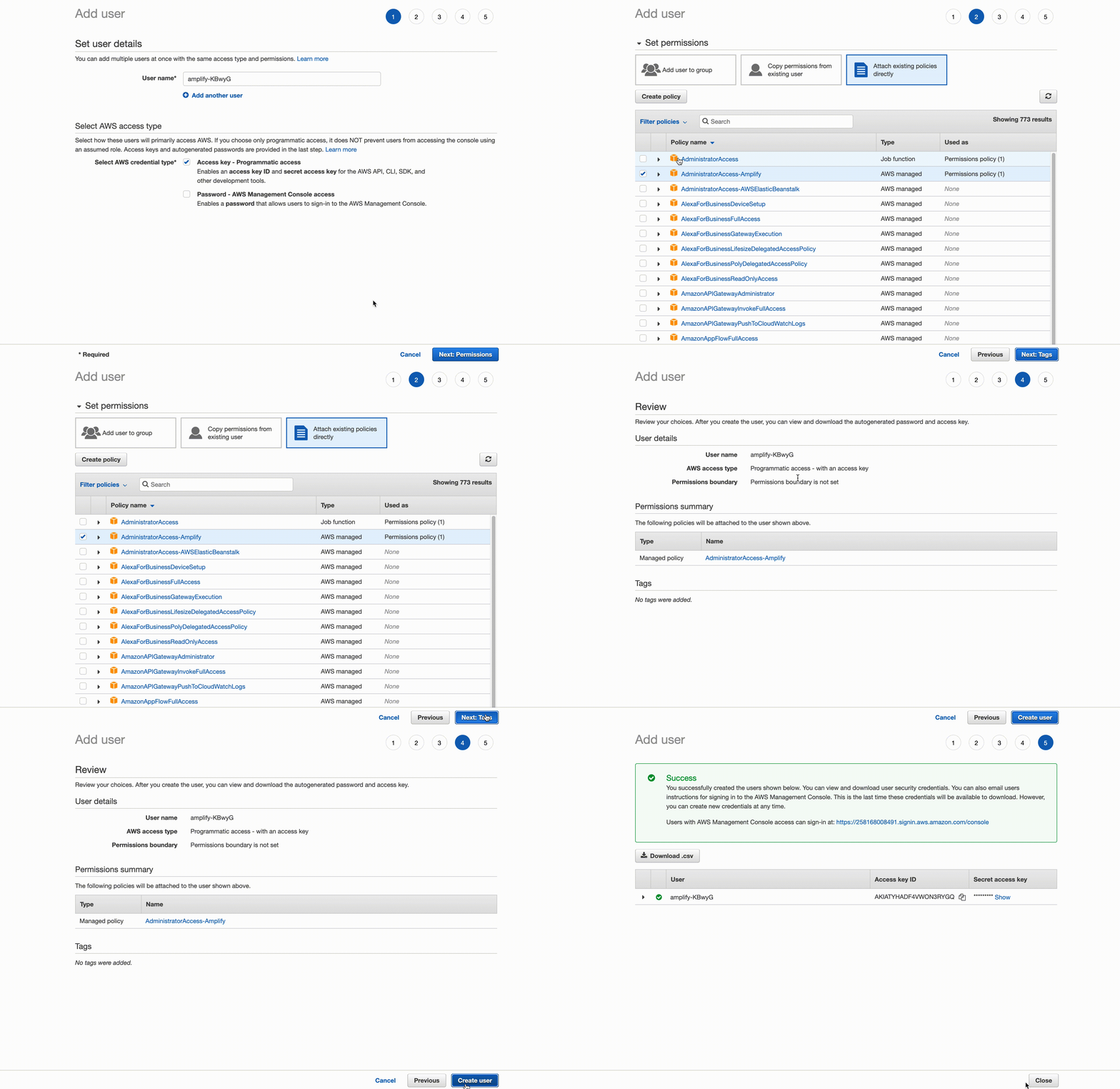
4.最後可以停在有顯示`Access key ID` 跟 `Secret access key` 的頁面並回到Terminal 輸入資料
```
Enter the access key of the newly created user:
? accessKeyId: <貼上剛剛的 accessKeyId>
? secretAccessKey: <貼上剛剛的 secretAccessKey>
This would update/create the AWS Profile in your local machine
? Profile Name: default
```
5.到這步使用者就已經創建完成了!
## Set up fullstack project
接下來要建立一個簡單的範例網站
1.打開Terminal並移動到你想存放網站資料的目錄下
```bash
mkdir -p amplify-js-app/src && cd amplify-js-app
touch package.json index.html webpack.config.js src/app.js
```
App 的檔案結構大致會如下
```
amplify-js-app
├── index.html
├── package.json
├── src
│ └── app.js
└── webpack.config.js
```
2.修改 `package.json`
```javascript=
{
"name": "amplify-js-app",
"version": "1.0.0",
"description": "Amplify JavaScript Example",
"dependencies": {
"aws-amplify": "latest"
},
"devDependencies": {
"copy-webpack-plugin": "^6.1.0",
"webpack": "^4.46.0",
"webpack-cli": "^4.9.1",
"webpack-dev-server": "^4.4.0"
},
"scripts": {
"start": "webpack && webpack-dev-server --mode development",
"build": "webpack"
}
}
```
3.安裝剛剛設定的套件
```
npm install
```
4.修改 `index.html`
```html=
<!DOCTYPE html>
<html lang="en">
<head>
<meta charset="utf-8" />
<title>Amplify</title>
<meta name="viewport" content="width=device-width, initial-scale=1" />
<style>
html,
body {
font-family: 'Amazon Ember', 'Helvetica', 'sans-serif';
margin: 0;
}
a {
color: #ff9900;
}
h1 {
font-weight: 300;
}
hr {
height: 1px;
background: lightgray;
border: none;
}
.app {
width: 100%;
}
.app-header {
color: white;
text-align: center;
background: linear-gradient(30deg, #f90 55%, #ffc300);
width: 100%;
margin: 0 0 1em 0;
padding: 3em 0 3em 0;
box-shadow: 1px 2px 4px rgba(0, 0, 0, 0.3);
}
.app-logo {
width: 126px;
margin: 0 auto;
}
.app-body {
width: 400px;
margin: 0 auto;
text-align: center;
}
.app-body button {
background-color: #ff9900;
font-size: 14px;
color: white;
text-transform: uppercase;
padding: 1em;
border: none;
}
.app-body button:hover {
opacity: 0.8;
}
</style>
</head>
<body>
<div class="app">
<div class="app-header">
<div class="app-logo">
<img
src="https://aws-amplify.github.io/images/Logos/Amplify-Logo-White.svg"
alt="AWS Amplify"
/>
</div>
<h1>Welcome to Amplify</h1>
</div>
<div class="app-body">
<h1>Mutation Results</h1>
<button id="MutationEventButton">Add data</button>
<div id="MutationResult"></div>
<hr />
<h1>Query Results</h1>
<div id="QueryResult"></div>
<hr />
<h1>Subscription Results</h1>
<div id="SubscriptionResult"></div>
</div>
</div>
<script src="main.bundle.js"></script>
</body>
</html>
```
5.修改 `webpack.config.js`
```javascript=
const CopyWebpackPlugin = require('copy-webpack-plugin');
const webpack = require('webpack');
const path = require('path');
module.exports = {
mode: 'development',
entry: './src/app.js',
output: {
filename: '[name].bundle.js',
path: path.resolve(__dirname, 'dist')
},
module: {
rules: [
{
test: /\.js$/,
exclude: /node_modules/
}
]
},
devServer: {
client: {
overlay: true
},
hot: true,
watchFiles: ['src/*', 'index.html']
},
plugins: [
new CopyWebpackPlugin({
patterns: ['index.html']
}),
new webpack.HotModuleReplacementPlugin()
]
};
```
6.執行應用程式
```
npm start
```
7.開啟瀏覽器 然後前往 http://localhost:8080 , 到這步我們已經完成Front-end的架設,接下來要建立Backend的部份!
## Initialize a new backend
1.在剛剛建立的 `amplify-js-app`目錄下開啟 Terminal並執行
```
amplify init
```
會有一些東西需要設定,選項的部份都使用預設的就可以了
```
? Enter a name for the project: amplifyjsapp
The following configuration will be applied:
Project information
| Name: amplifyjsapp
| Environment: dev
| Default editor: Visual Studio Code
| App type: javascript
| Javascript framework: none
| Source Directory Path: src
| Distribution Directory Path: dist
| Build Command: npm run-script build
| Start Command: npm run-script start
? Initialize the project with the above configuration? Yes
Using default provider awscloudformation
? Select the authentication method you want to use: AWS profile
For more information on AWS Profiles, see:
https://docs.aws.amazon.com/cli/latest/userguide/cli-configure-profiles.html
? Please choose the profile you want to use: default
```
2.執行完之後就建立好Backend的部份 接下來要套用API才能讓我們對雲端伺服器進行資料的讀寫.
## Connect API and database to the app
### Create GraphQL API and database
1.新增 `GraphQL` API到我們剛剛建立好的Project
```
amplify add api
```
使用預設設定
```
? Select from one of the below mentioned services:
# GraphQL
? Here is the GraphQL API that we will create. Select a setting to edit or continue
# Continue
? Choose a schema template:
# Single object with fields (e.g., “Todo” with ID, name, description)
✔ Do you want to edit the schema now? (Y/n)
# Yes
```
之後 CLI 應該會在你的文字編輯器開啟一個GraphQL的schema檔案
(通常 schema 指 資料表及欄位的設計)
```
# This "input" configures a global authorization rule to enable public access to
# all models in this schema. Learn more about authorization rules here: https://docs.amplify.aws/cli/graphql/authorization-rules
input AMPLIFY { globalAuthRule: AuthRule = { allow: public } } # FOR TESTING ONLY!
type Todo @model {
id: ID!
name: String!
description: String
}
```
這邊直接按Enter即可
### Deploy your GraphQL API
前面的步驟已經在本地建置好API了,接下來要將剛剛新增的`GraphQL` API部署到雲端上
```
amplify push
```
在push之後 系統會詢問我們是否要產生 GraphQL 的程式碼範例,包含了針對 GraphQL的相關操作(create, read, delete, list, update)讓我們可以更簡單的去使用這些功能, 照著下面選項設定即可
```
? Do you want to generate code for your newly created GraphQL API (Yes)
? Choose the code generation language target (javascript)
? Enter the file name pattern of graphql queries, mutations and subscriptions (src/graphql/**/*.js)
? Do you want to generate/update all possible GraphQL operations - queries, mutations and subscriptions (Yes)
? Enter maximum statement depth [increase from default if your schema is deeply nested] (2)
```
### API Testing
可以透過這條指令開啟一個AWS的console來對你的API進行操作例如:從database query資料 或是新增資料到database...等
```
amplify console api
```
example:

### Connect frontend to api
接下來要將我們的api和前端串連起來, 修改Project資料夾的 `src/app.js`
```javascript=
import { Amplify, API, graphqlOperation } from "aws-amplify";
import awsconfig from "./aws-exports";
import { createTodo } from "./graphql/mutations";
import { listTodos } from "./graphql/queries";
import { onCreateTodo } from "./graphql/subscriptions";
Amplify.configure(awsconfig);
async function createNewTodo() {
const todo = {
name: "Use AppSync",
description: `Realtime and Offline (${new Date().toLocaleString()})`,
};
return await API.graphql(graphqlOperation(createTodo, { input: todo }));
}
async function getData() {
API.graphql(graphqlOperation(listTodos)).then((evt) => {
evt.data.listTodos.items.map((todo, i) => {
QueryResult.innerHTML += `<p>${todo.name} - ${todo.description}</p>`;
});
});
}
const MutationButton = document.getElementById("MutationEventButton");
const MutationResult = document.getElementById("MutationResult");
const QueryResult = document.getElementById("QueryResult");
const SubscriptionResult = document.getElementById("SubscriptionResult");
MutationButton.addEventListener("click", (evt) => {
createNewTodo().then((evt) => {
MutationResult.innerHTML += `<p>${evt.data.createTodo.name} - ${evt.data.createTodo.description}</p>`;
});
});
API.graphql(graphqlOperation(onCreateTodo)).subscribe({
next: (evt) => {
const todo = evt.value.data.onCreateTodo;
SubscriptionResult.innerHTML += `<p>${todo.name} - ${todo.description}</p>`;
},
});
getData();
```
修改好了之後儲存 並重新執行一次
```
npm start
```
:::info
此時我們的網站有的功能
1.點擊`ADD DATA`會新增一筆資料到我們的Database裡並且在 `Subscription Result` 的地方顯示我們剛剛新增的資料
2.Query Results 會把現在Database有的資料都顯示出來 格式是 (name , description)
:::
## Deploy and host app
接下來在Project的 root 目錄下打開 Terminal 並輸入
```
amplify add hosting
```
```
? Select the plugin module to execute: Hosting with Amplify Console (Managed hosting with custom domains, Continuous deployment)
? Choose a type: Manual Deployment
```
再輸入
```
amplify publish
```
等跑完之後最下面會出現部署好的網址

整個部屬就完成了! :fireworks:
---
我們可以開啟剛剛的 `amplify console api` 來試著直接操作API的功能
包括
#### Query
- getTodo()
- listTodo()
#### Mutation
- createTodo()
- deleteTodo()
- updateTodo()
 Sign in with Wallet
Connect another wallet
Sign in with Wallet
Connect another wallet