# ChatGPT EDU Interface Guide
Each member of Harvard Faculty of Arts and Sciences now has access to ChatGPT EDU. This guide will help you familiarize yourself with the interface.
## Creating an Account and Logging In
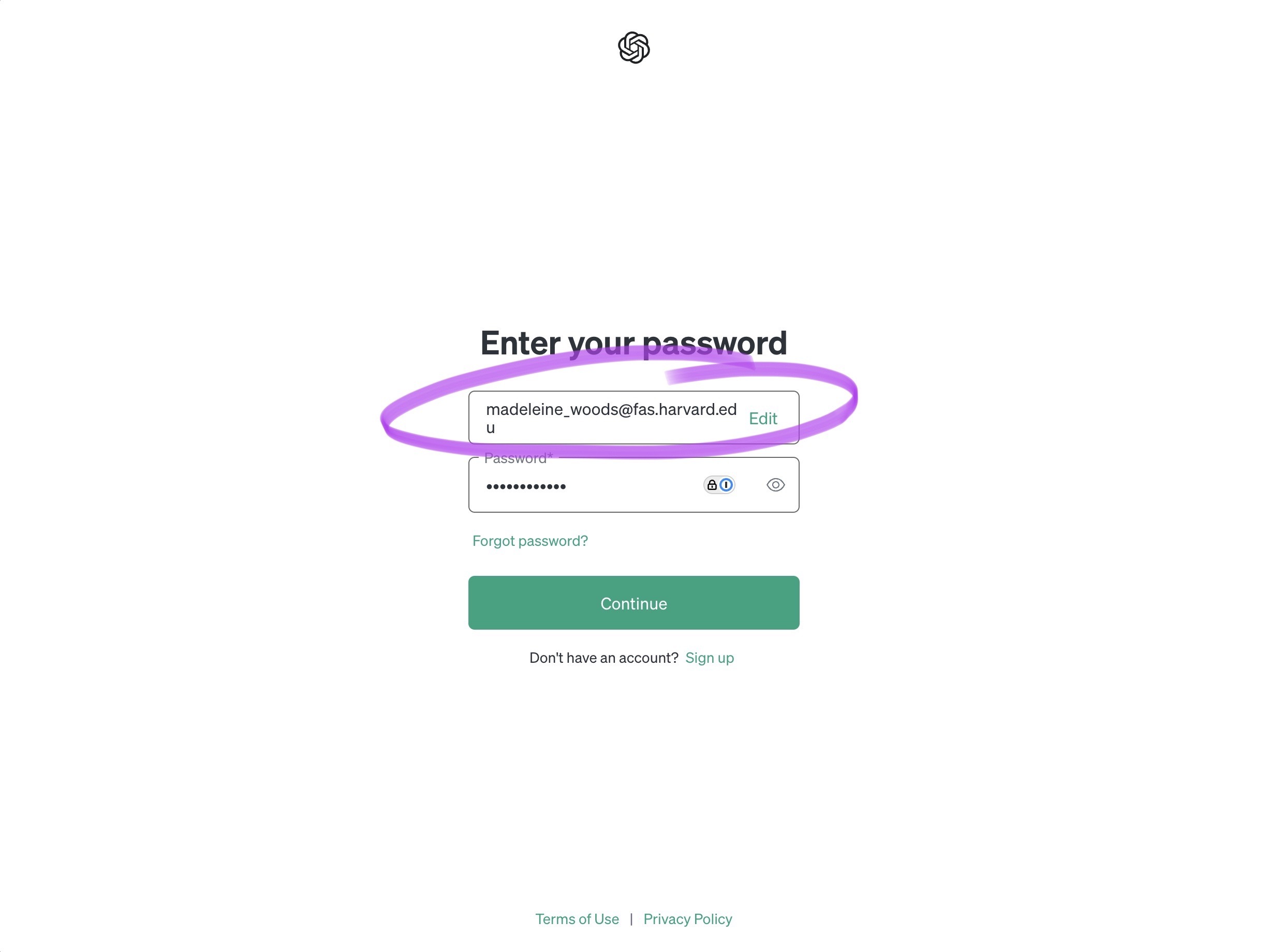
- Once you are added to the Harvard FAS "workspace," you will receive an email directly from OpenAI in your FAS email. Follow the standard registration and login procedures to access.
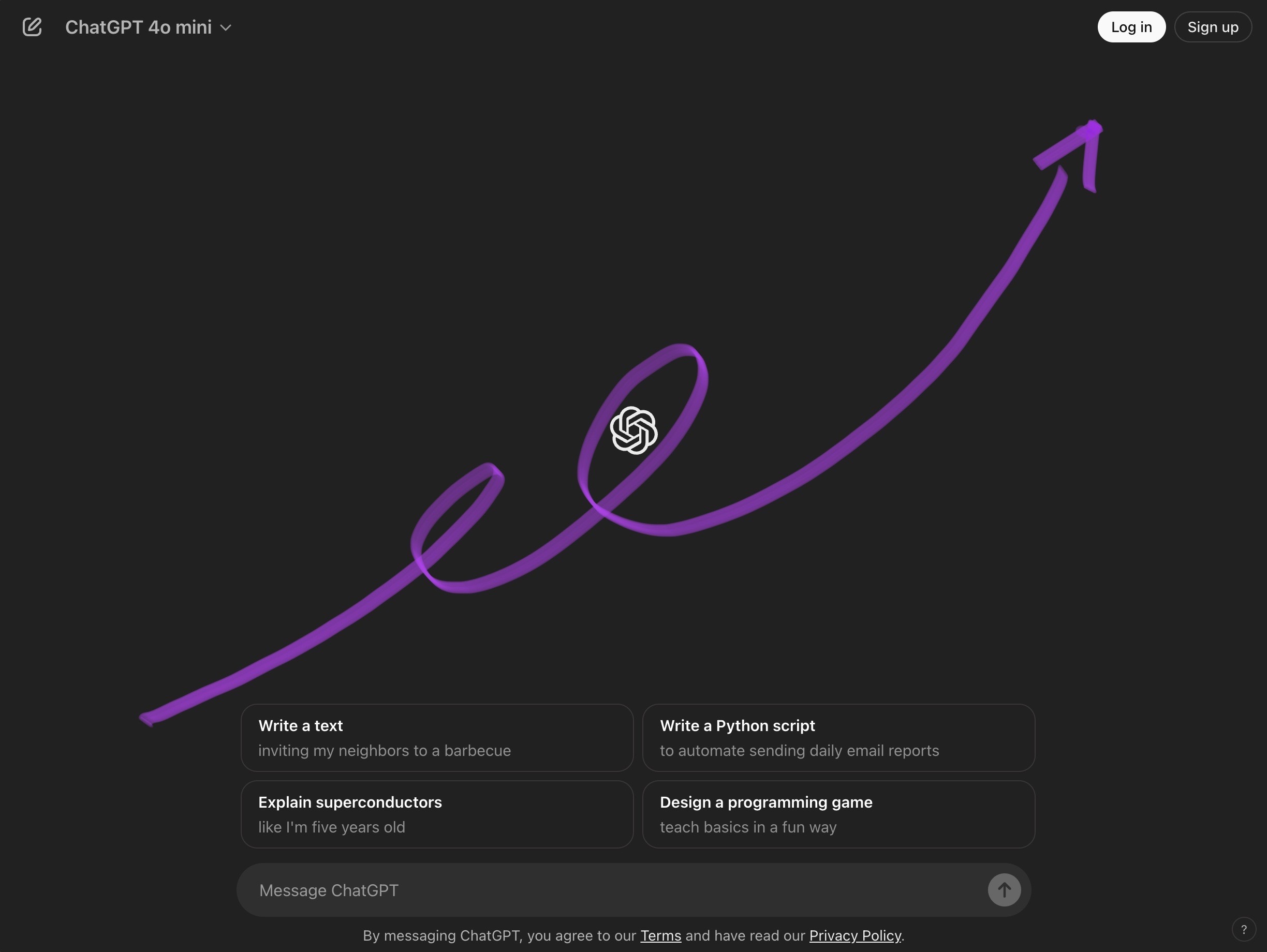
- NOTE: Single Sign-on (SSO) via *Harvard Key* is not yet available for ChatGPT EDU. Instead, please **sign in via the regular OpenAI portal with your FAS email and a *unique* password.**
- If you have already created a personal ChatGPT account with your FAS email, this account will automatically be moved into the EDU workspace.
- If you are struggling with access, refer to this [HUIT Help Article](https://harvard.service-now.com/ithelp?id=kb_article&sys_id=5062580a472ec65010fc7a04716d4358)
## Interface Overview
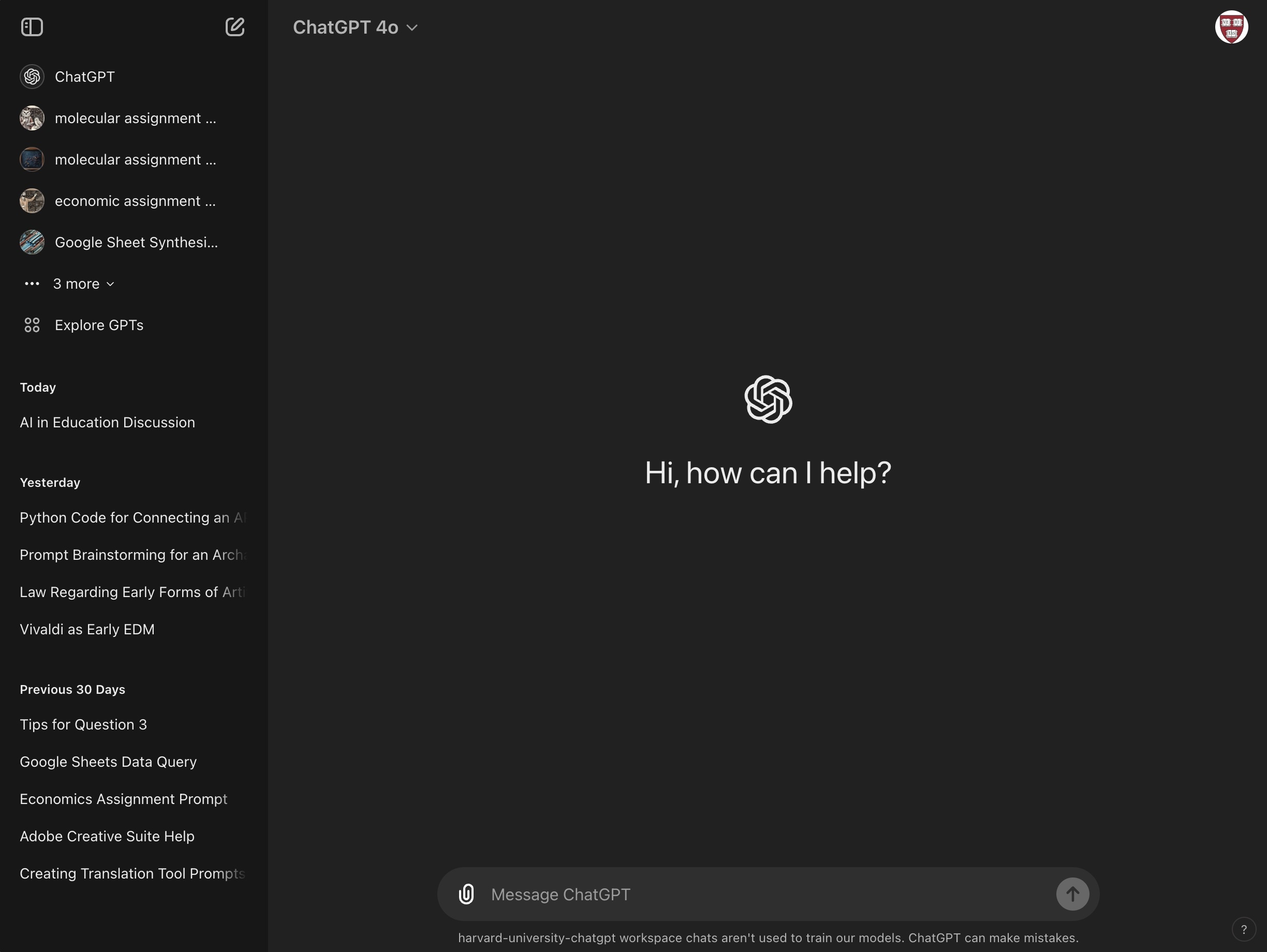
- There are two main spaces on the chatGPT page:
- **Main Window**: The central hub where your interactions with ChatGPT take place.
- **Left Sidebar**: This area allows you to navigate different sections, such as chat history and custom GPTs.
* There are also two drop-down tabs:
- **Dropdown Options Under Settings**: Found in the top-right corner, this Harvard Shield icon gives you access to settings and workspace options.
- **Dropdown Options Under Models**: This menu, found in the top-left corner of the Main Window, allows you to choose a specific OpenAI model and trigger a temporary chat.
## Starting a Chat in the Main Window
- The main window is your primary area for interaction, providing a simple interface for chatting.
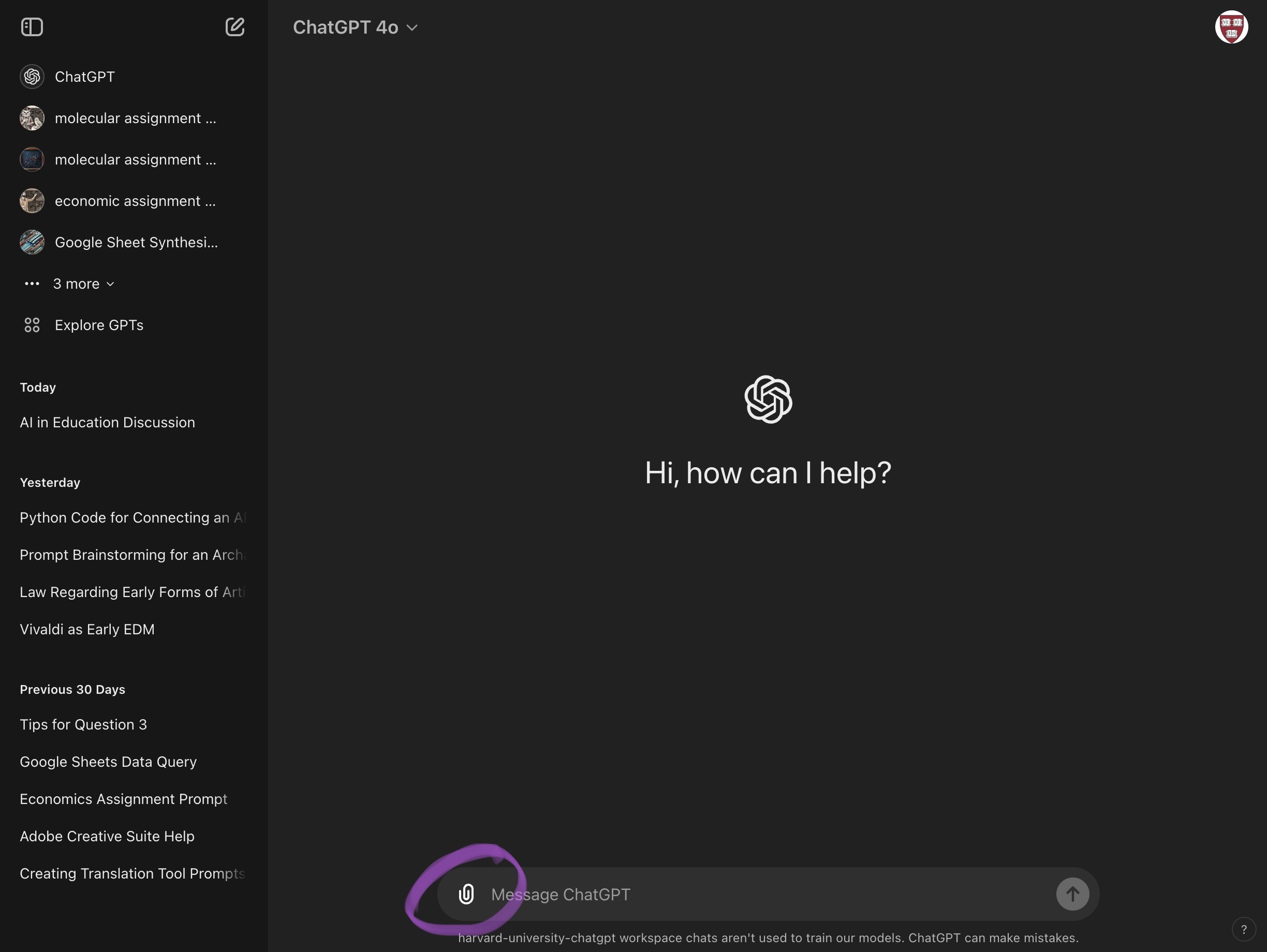
- Via the paper clip icon, you can:
- Upload files to the chat
- **Images**: JPEG, PNG
- **Documents**: PDF, DOC, DOCX, TXT
- **Spreadsheets**: XLS, XLSX
- **Presentations**: PPT, PPTX
- **Code files**: PY, JS, HTML
- Connect third-party applications
- These connections allow you to upload the file types above directly from Google Drive or Microsoft workspaces.
- **However, the most important tool in this window is *your own writing*. When interacting in a chat with the model (chatGPT 4o, most likely) the phrasing, vocabulary, and request that makes up each of your messages dramatically affects the chat's output.**
- To learn more about this, check out our resource [Tips and Tricks on Prompting](https://hackmd.io/@ll-24-25/rywdQJV50/%2F36HXvRDuT_ew1THb-xsCTg)
## Managing Chats in the Left Side Bar
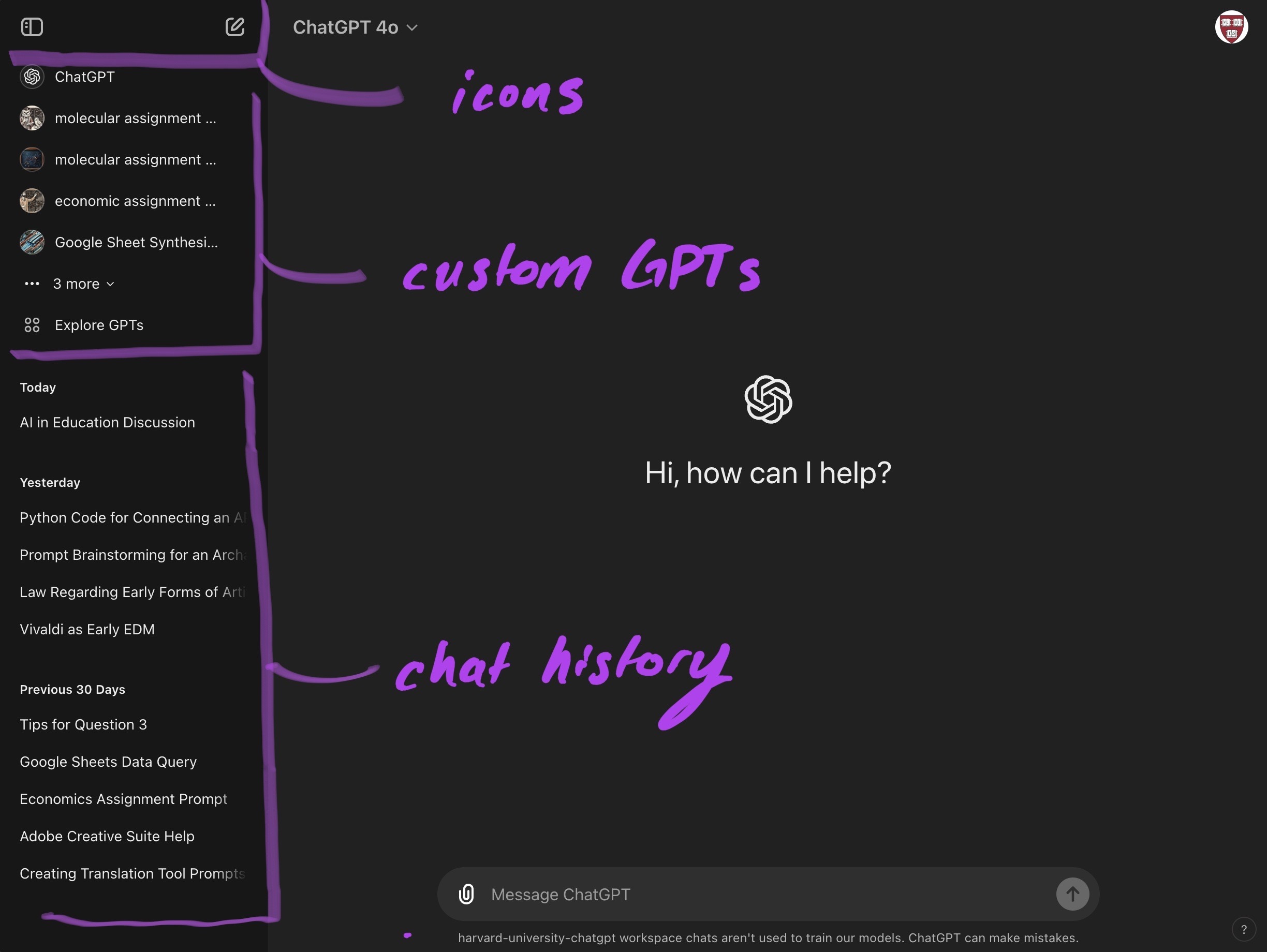
- There are three main sections to the Left Side Bar:
- Icons
- These make up the top section, and include:
- **Creating New Chats**: This button triggers a fresh chat window.
- **Hide Side Bar**: This button will "hide" the whole side bar
- Custom GPTs
- Below the Icons, you can view the GPTs you have interacted with most recently, and click on them to trigger a fresh chat.
- Chat History
- The bottom half of the side bar is your chat history. Here is where each of your past chats are saved, along with a generated title and sorted with temporal markers.
- Hovering over a chat title makes an ellipses appear, signlaing various chat management options (share, rename, archive, delete).
### Custom GPTs
- As mentioned above, the left side bar is where you can access **Custom GPTs**, which are specialized instances of ChatGPT tailored with custom instructions, tools, and documents.
- For information on using and creating your own Custom GPTs, refer to this document: [Creating Custom GPTs](/9Zz4h1UCRsmwGnqvJwq6Fw).
## Understanding Settings
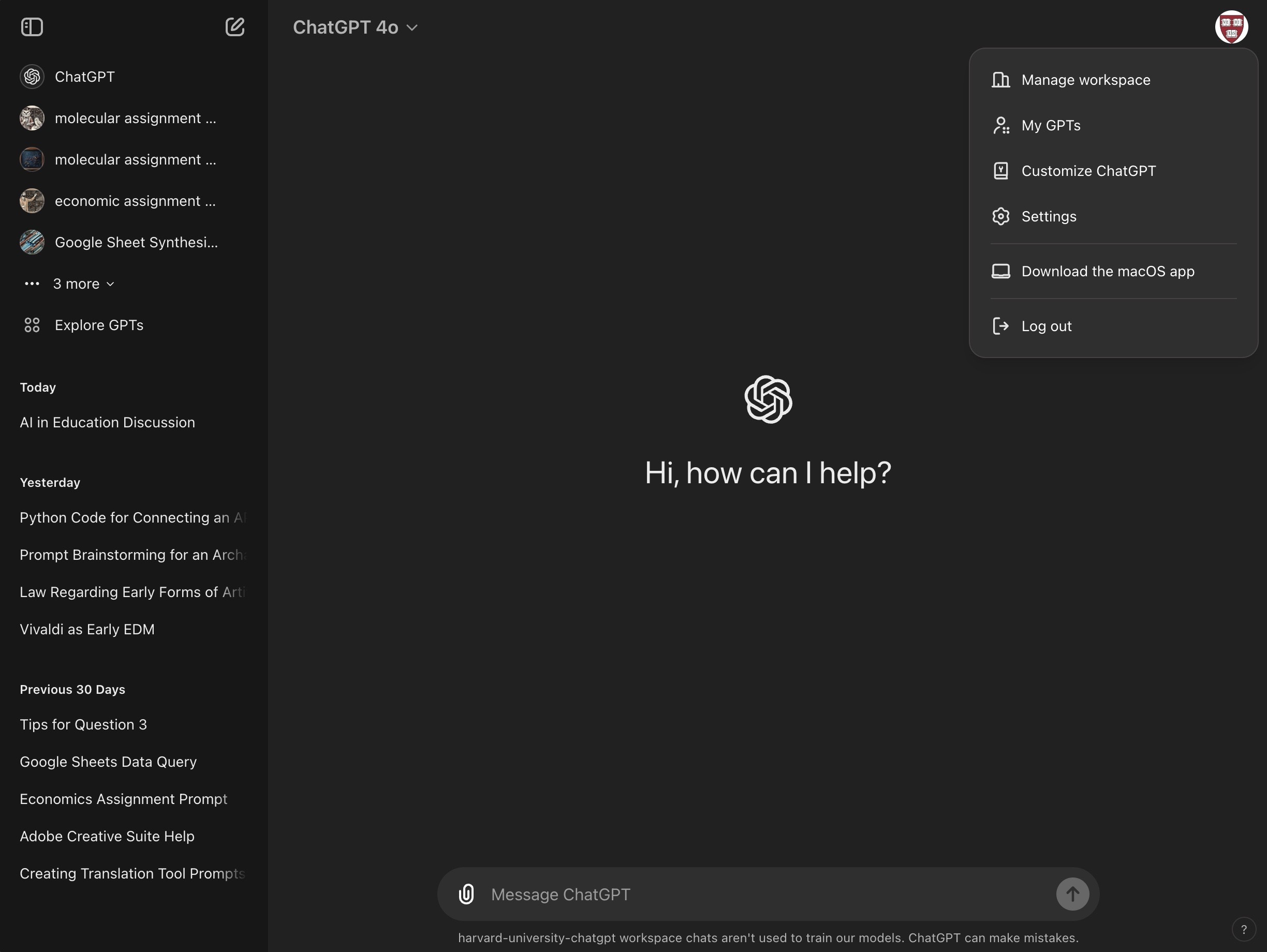
- By clicking on the Harvard Shield in the top-right corner of the main window, you have access to various settings. We won’t cover all settings here, but the most-frequently used are:
- Customize ChatGPT
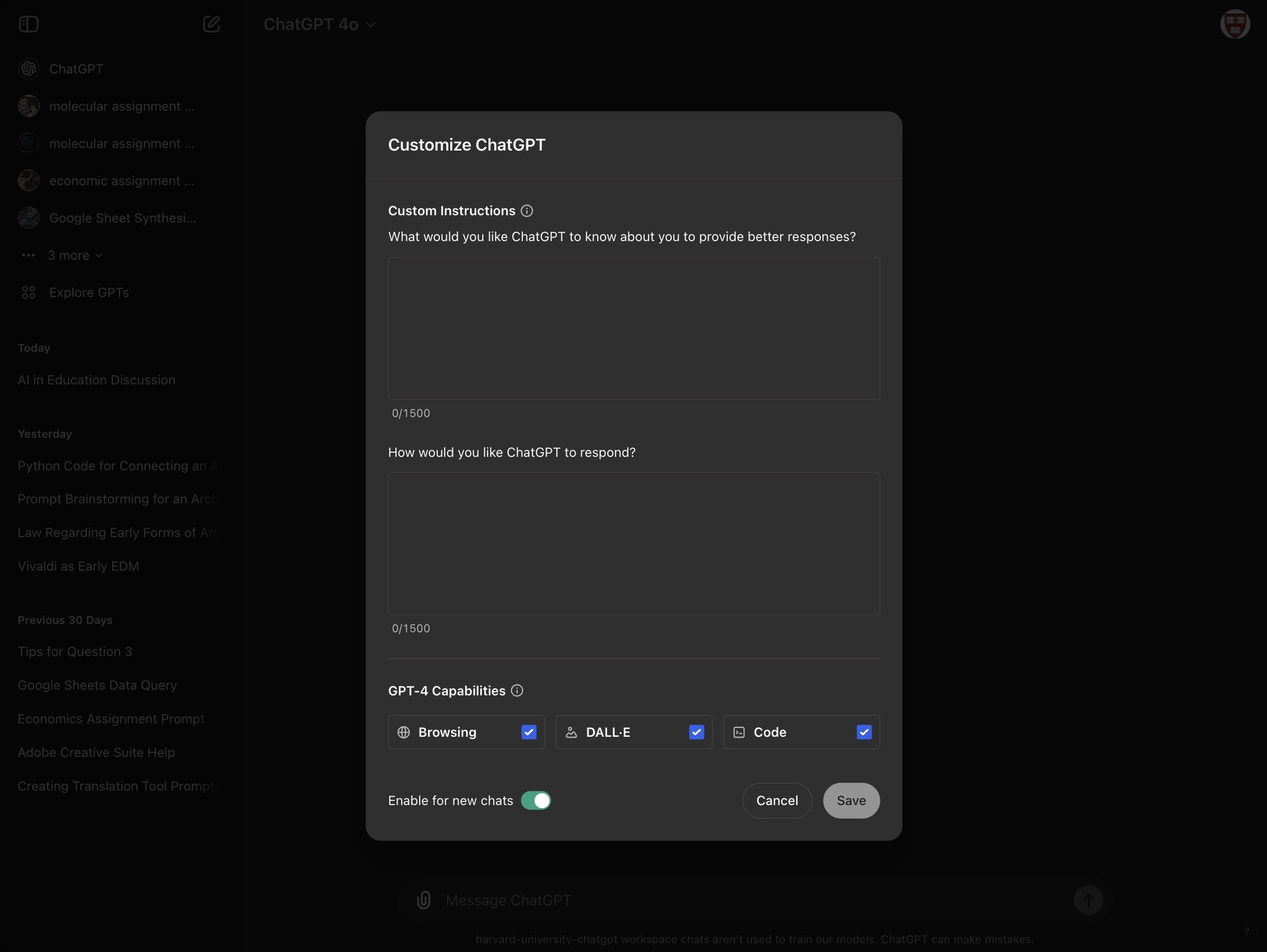
- This opens a window where you can input two different pools of information that controls your chatGPT's output.
- Personal Context:
- Here, you could include information about yourself like your bio, preferred response style, department, etc.
- Preferred Response Style:
- Here, you can set consistent guidlines for chatGPT and how you would like it to respond to you. This may inlcude writing style, response length, multi-lingualism, preferred coding language, etc.
- Finally, you can control three functions/skills that ChatGPT can perform:
- Browsing
- This allows ChatGPT to search the internet (ex. you could ask for links on a specific topic or to look for articles on the web)
- DALL-E
- This connects ChatGPT to OpenAI's diffusion model, allowing you to ask for images to be created within your chat.
- Code
- This allows ChatGPT to execute code
- Memories
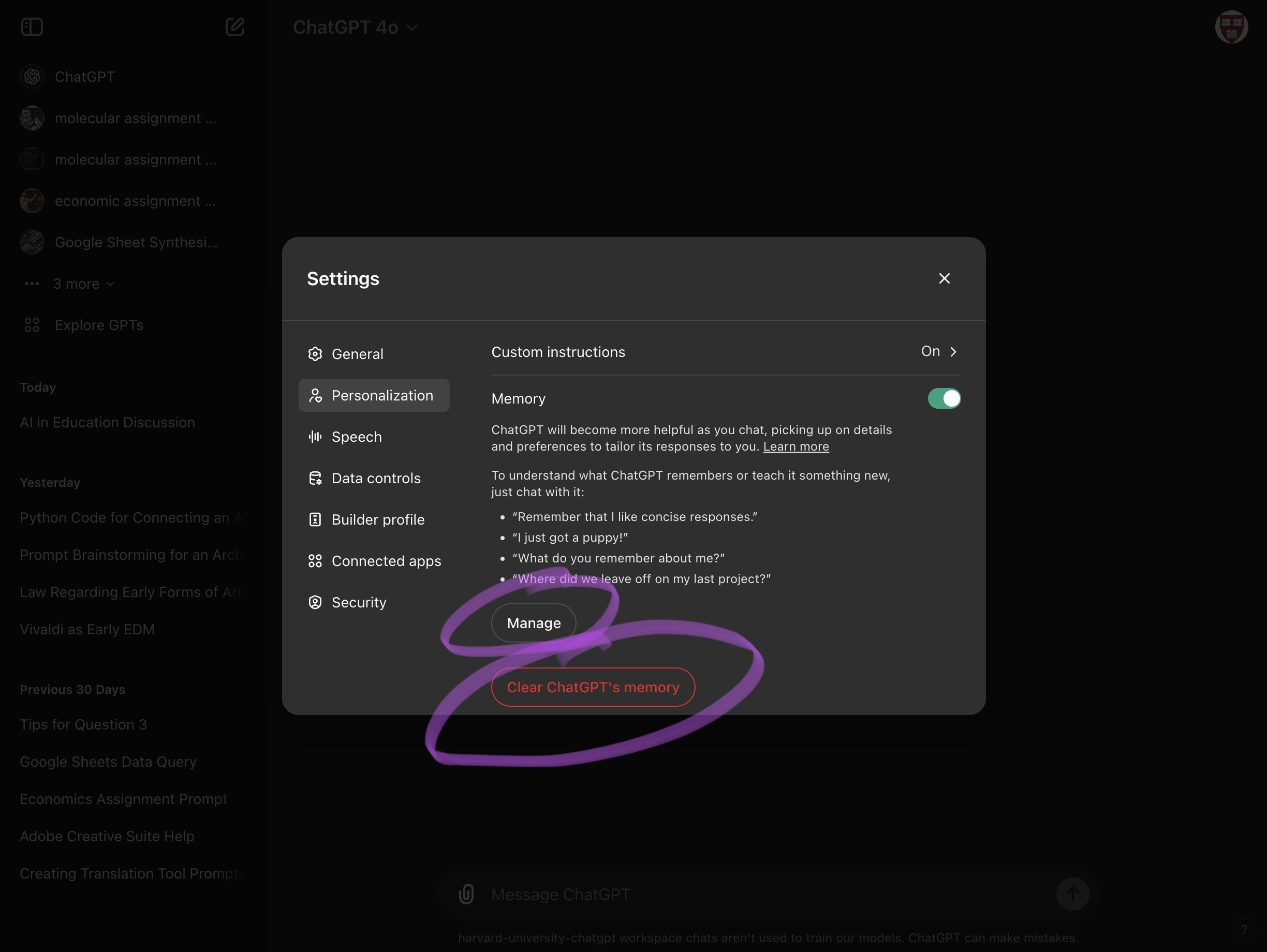
- Under "Settings" in the "Personalization" tab, you will discover "memories." This is where you will find information that chatGPT has "remembered" about you, based on chat interactions.
- From this window, you can "clear" all memories or "manage" memories, where you'll be able to view the memories ChatGPT has saved baout you and delete specific memories that you do not find useful.
## Models and Temporary Chats
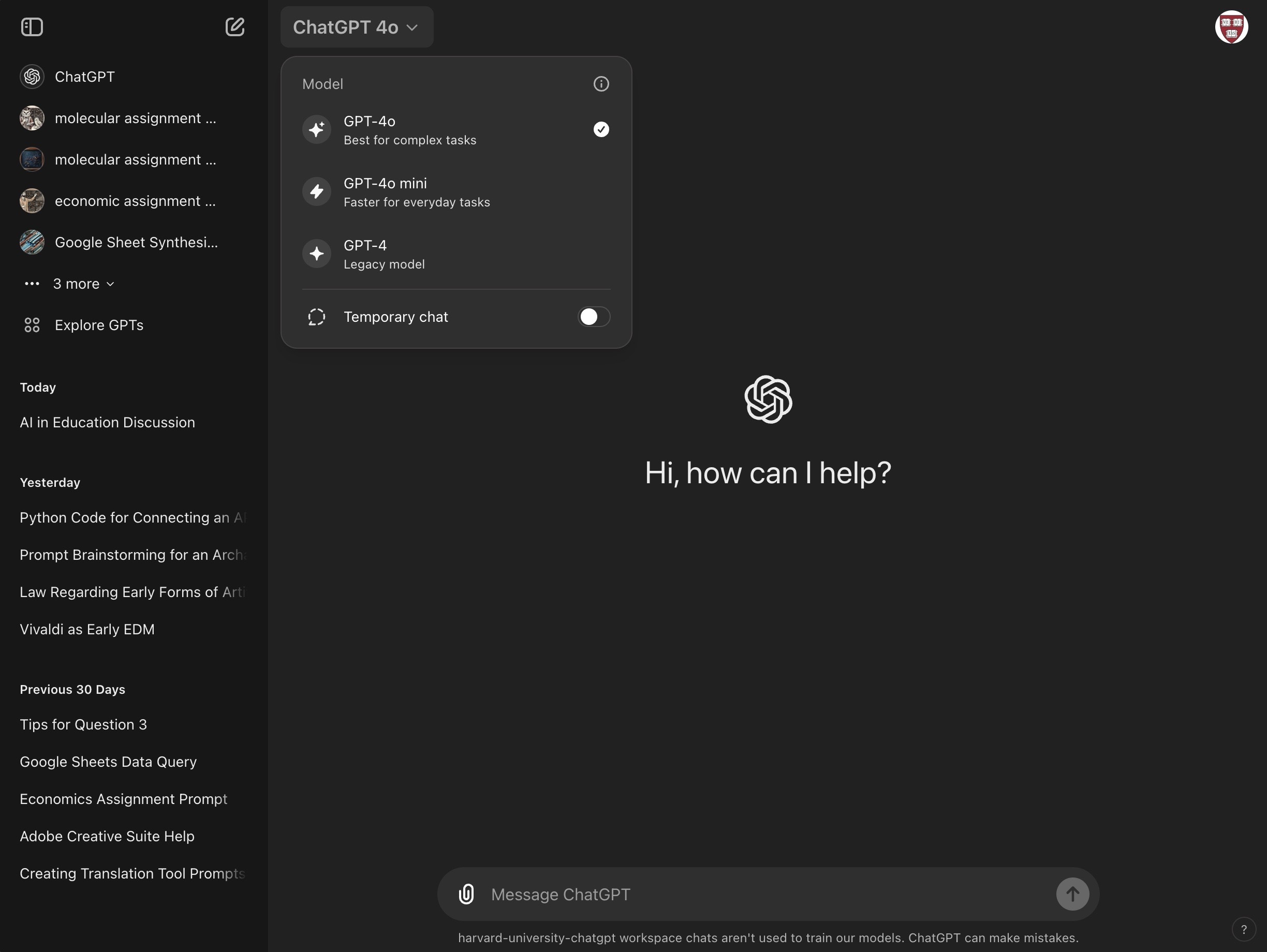
- Beneath the model name (currently ChatGPT 4o), you'll find a dropdown menu of models.
- For more information on the currently-available models and their differences, check out this [OpenAI resource](https://help.openai.com/en/articles/7102672-how-can-i-access-gpt-4-gpt-4-turbo-gpt-4o-and-gpt-4o-mini).
- At the bottom, you'll find a switch to turn on "Temporary Chats." This allows you to start a session of chats that:
- are not saved in the left side bar's "chat history"
- won't use or create memories
- though instructions for "customizing" your GPT will still be followed if you have them enabled.
 Sign in with Wallet
Connect another wallet
Sign in with Wallet
Connect another wallet